User guides
HR
You look after people and their paperwork: drivers and office staff, licenses, medical cards, W-9 forms and expiring documents. You see no company money. W-9 shows status only, never the TIN.
Your type of operation: Hotshot
1
Getting started
Sign in on the website or in the iOS app with the e-mail the owner gave you.
- Where to find it
- Website
- hamadev.net — Sign In
- iOS app
- App Store → HD Fleet
- 1
Sign in
Use Log in with your e-mail and password (and the 6-digit code if enabled).
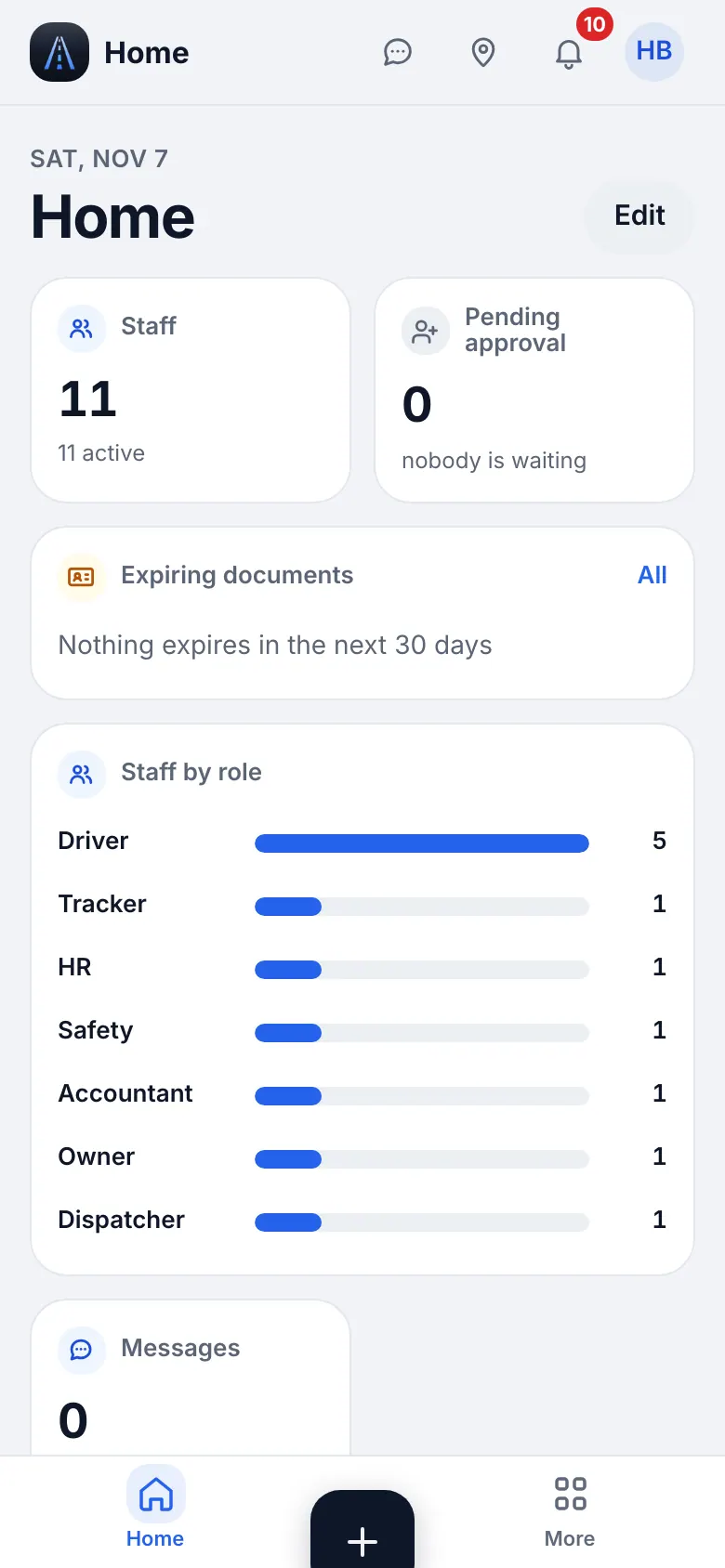
Website on a phone · HR home - 2
Your menu
The bottom bar is Home, Team, “+”, Docs and More. The sidebar (More on the phone) shows Messages, Dispatch (Calendar), Fleet (Trucks & trailers, Parts), People & compliance (Team, Documents & deadlines, W-9 forms), Workspace (Files, Notes) and Settings & help. “+” adds an employee, scans a document or adds a vehicle. Press ⌘K to find any page by name.
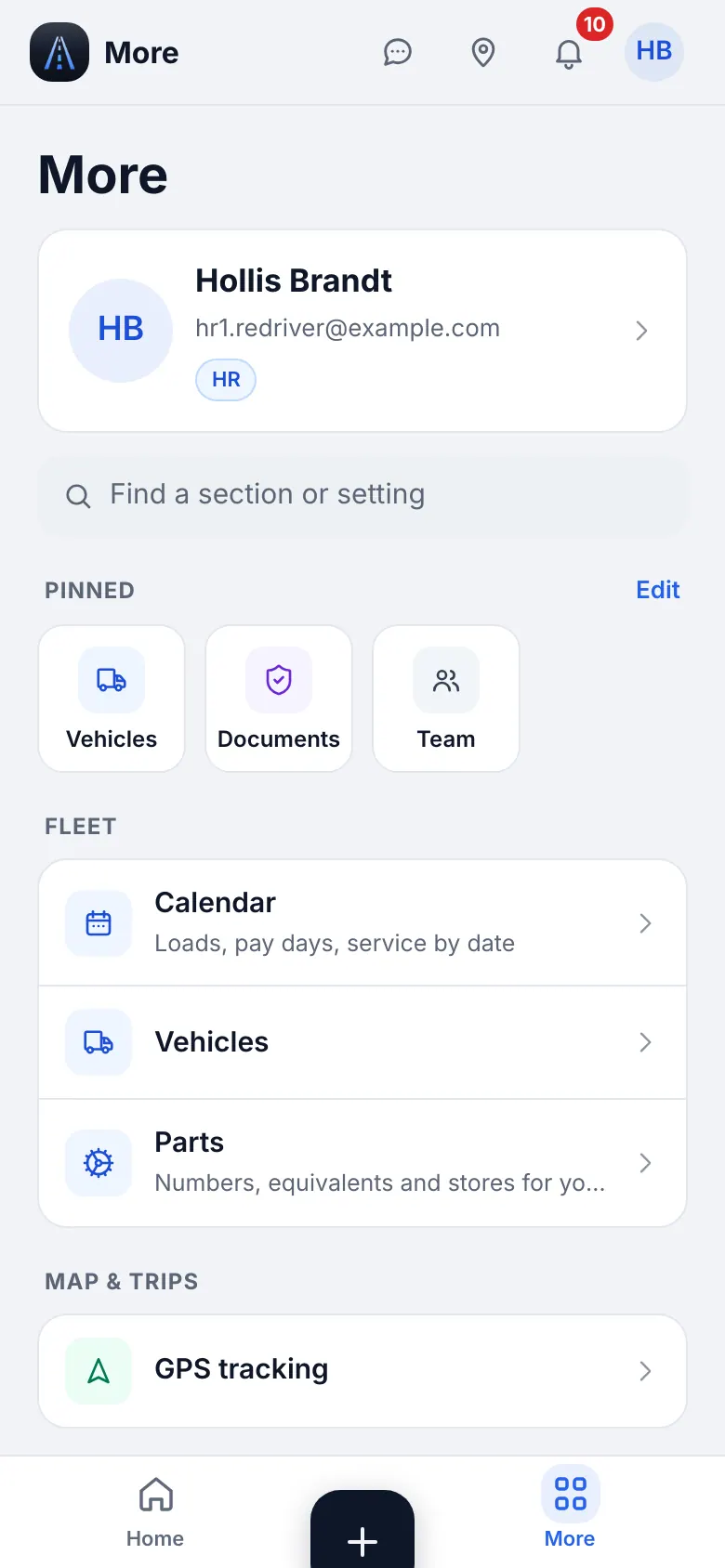
Website on a phone · The More menu of HR
2
Team: drivers and office people
Team lists every driver and office employee. You add and edit people; you cannot see pay or money.
- Where to find it
- Website
- People & compliance → Team
- iOS app
- Team (bottom bar)
- 1
Add a driver
Open Team and add a driver: name, e-mail (his login) and a password, then the truck. He signs in with the e-mail and password, or with a one-time QR code or sign-in link from his card (valid 10 minutes).
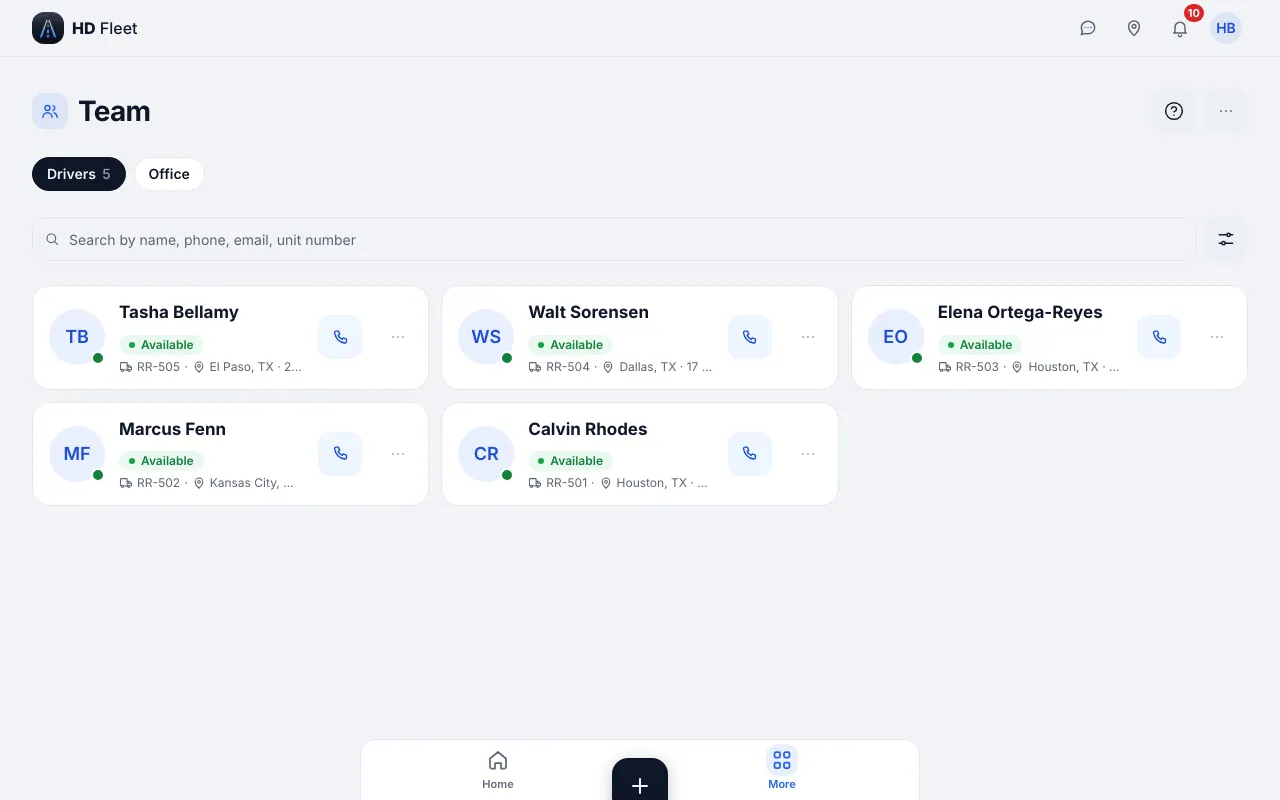
Website · Team 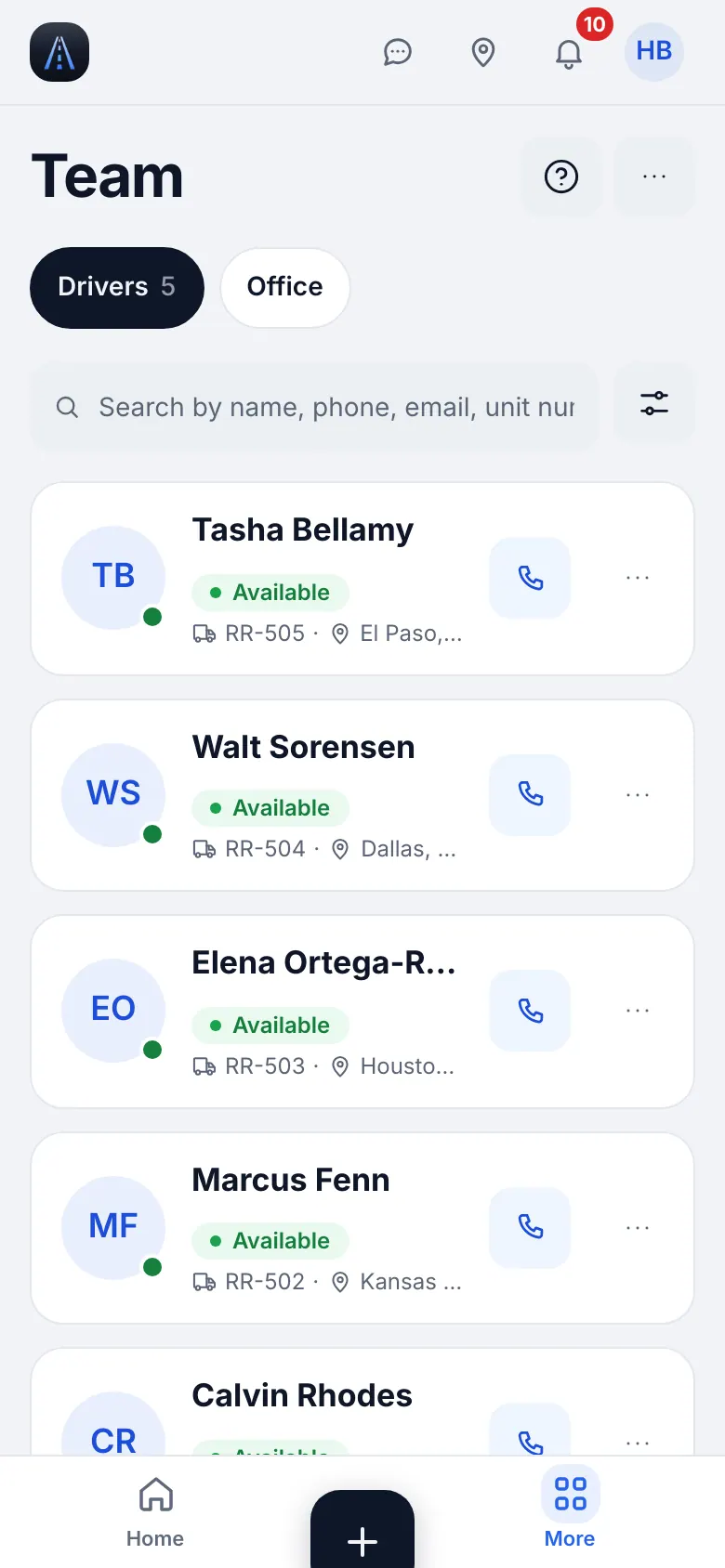
Website on a phone · Team on a phone - 2
Driver profile
The profile holds contact data, license class and the documents of the driver. Driver license numbers, SSN and bank details are entered by the driver himself.
- 3
Office employees
Employee profiles hold their own data; fields are shown by what your role may see.
- 4
Vehicles
You can open and edit vehicles to assign a driver to a truck.
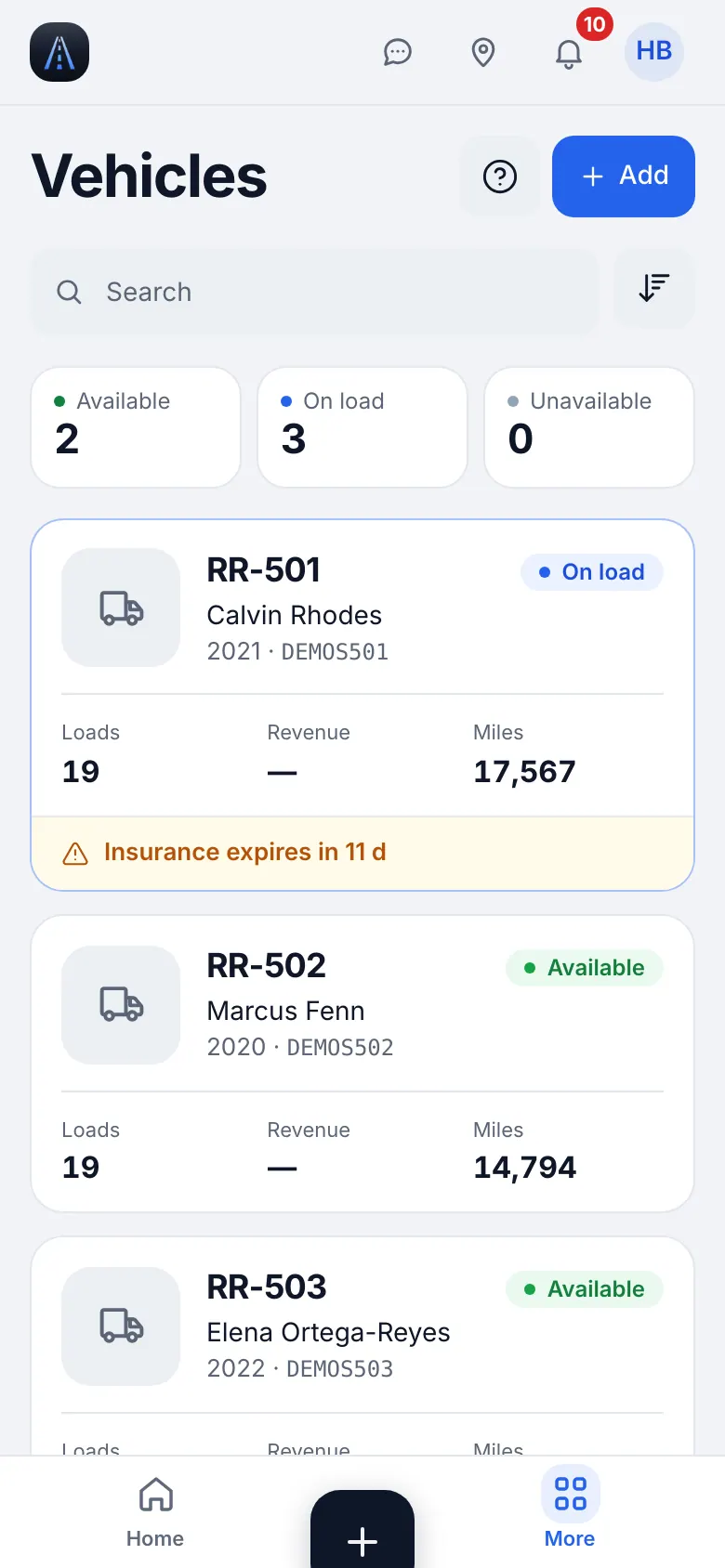
Website on a phone · Vehicles
3
Documents and deadlines
CDL, medical card, insurance and registration expire. Reminders go to the driver automatically 30 and 7 days before expiry and when overdue.
- Where to find it
- Website
- People & compliance → Documents & deadlines
- iOS app
- Docs (bottom bar)
- 1
Read the list
Tabs All, Attention, Drivers, Trucks. A chip shows Overdue, Soon, OK or No document. Search by driver or truck.
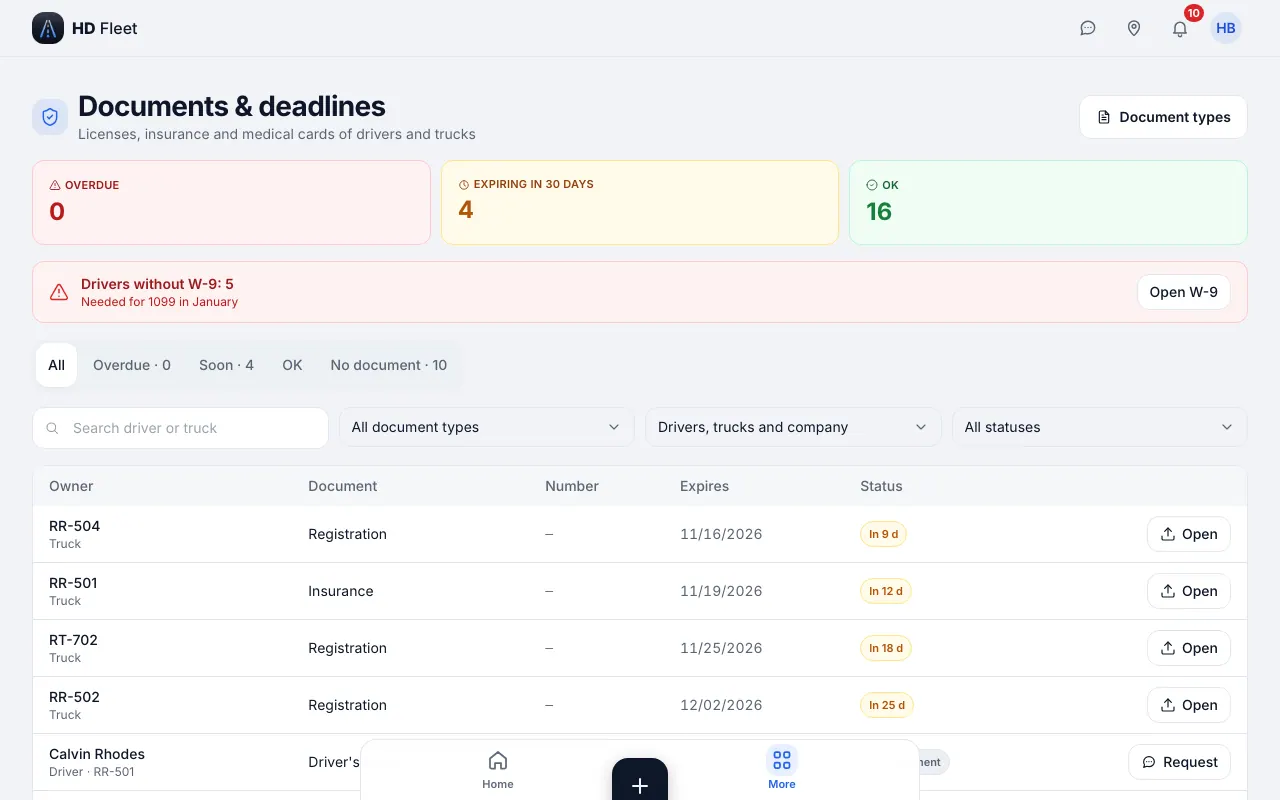
Website · Documents and deadlines 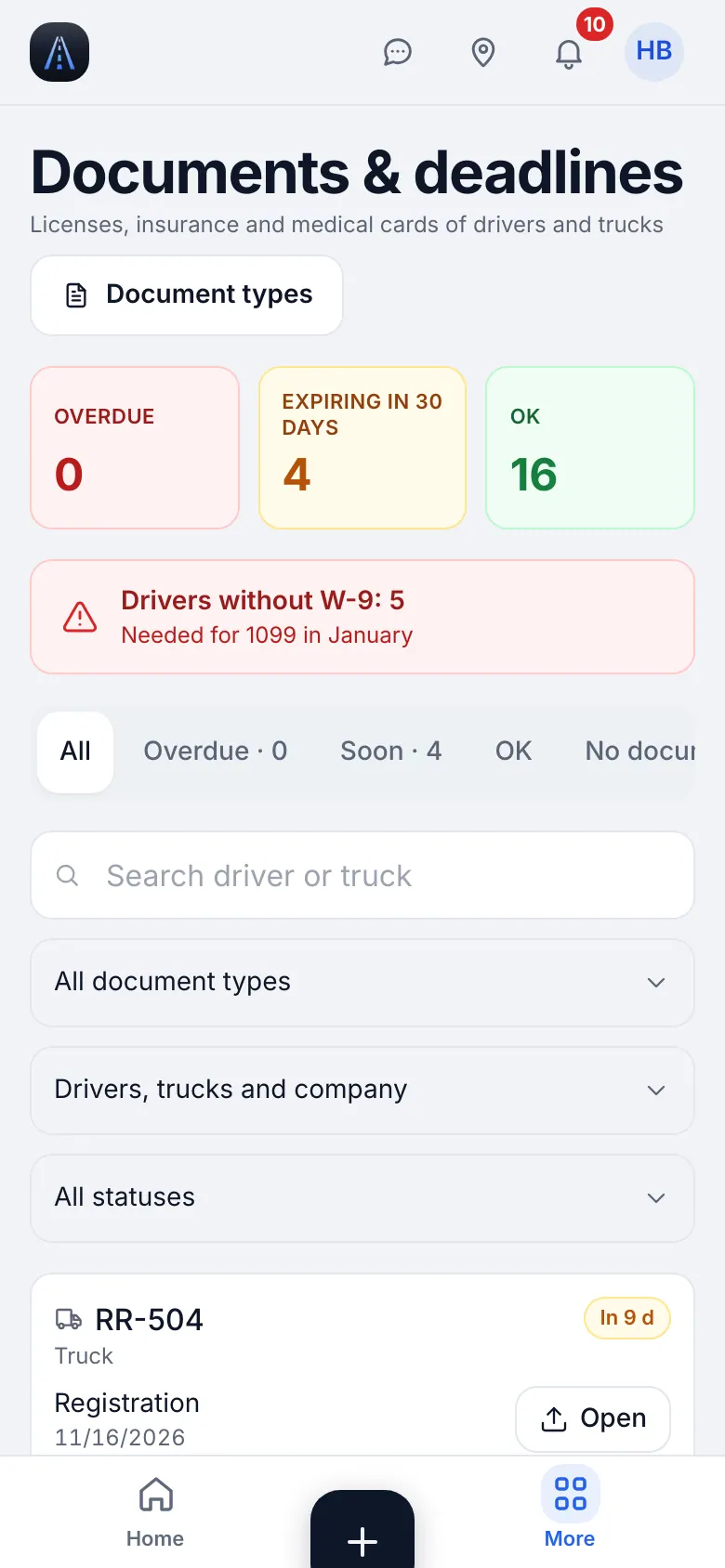
Website on a phone · Documents and deadlines on a phone - 2
Remind or request
Remind sends one extra message to the driver (once a day). Request asks him to upload the document. Open shows the file and Update replaces it.
- 3
Counts on the menu
The menu row shows how many documents expire within 30 days.
4
Document types
Choose which documents the company tracks.
- Where to find it
- Website
- People & compliance → Documents & deadlines → Setup tab
- iOS app
- Docs (bottom bar) → Setup tab
- 1
Add the standard set
Open the Setup tab and use Add standard to add the usual types; the screen says how many were added. A type can be disabled with Disabled.
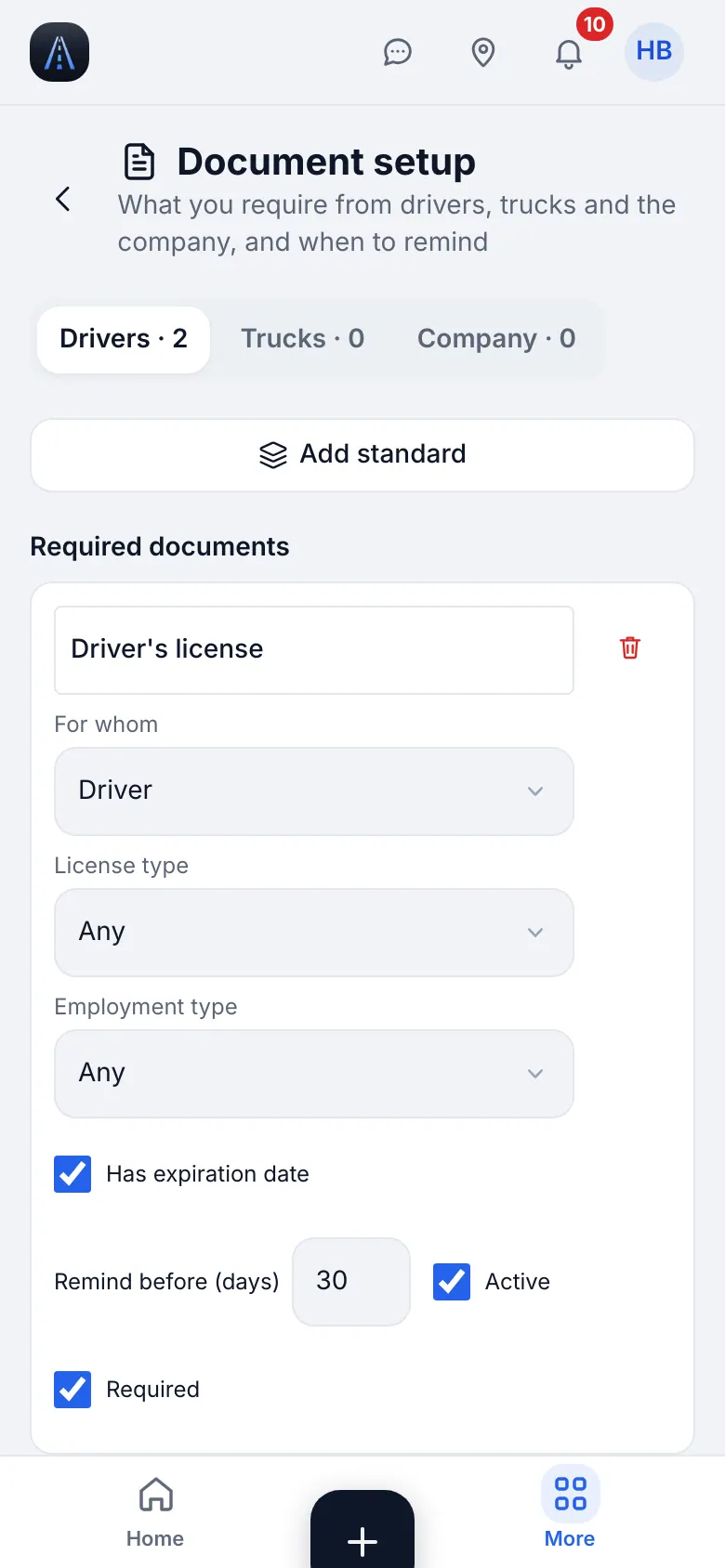
Website on a phone · Document types
5
W-9 forms
Drivers need a W-9 for the January 1099. You see who has filled it in, never the TIN.
- Where to find it
- Website
- People & compliance → W-9 forms
- iOS app
- People & compliance → W-9 forms
- 1
Find who is missing
A banner shows Drivers without W-9. Use Send to all or send one driver a one-time link; the driver types the TIN himself.
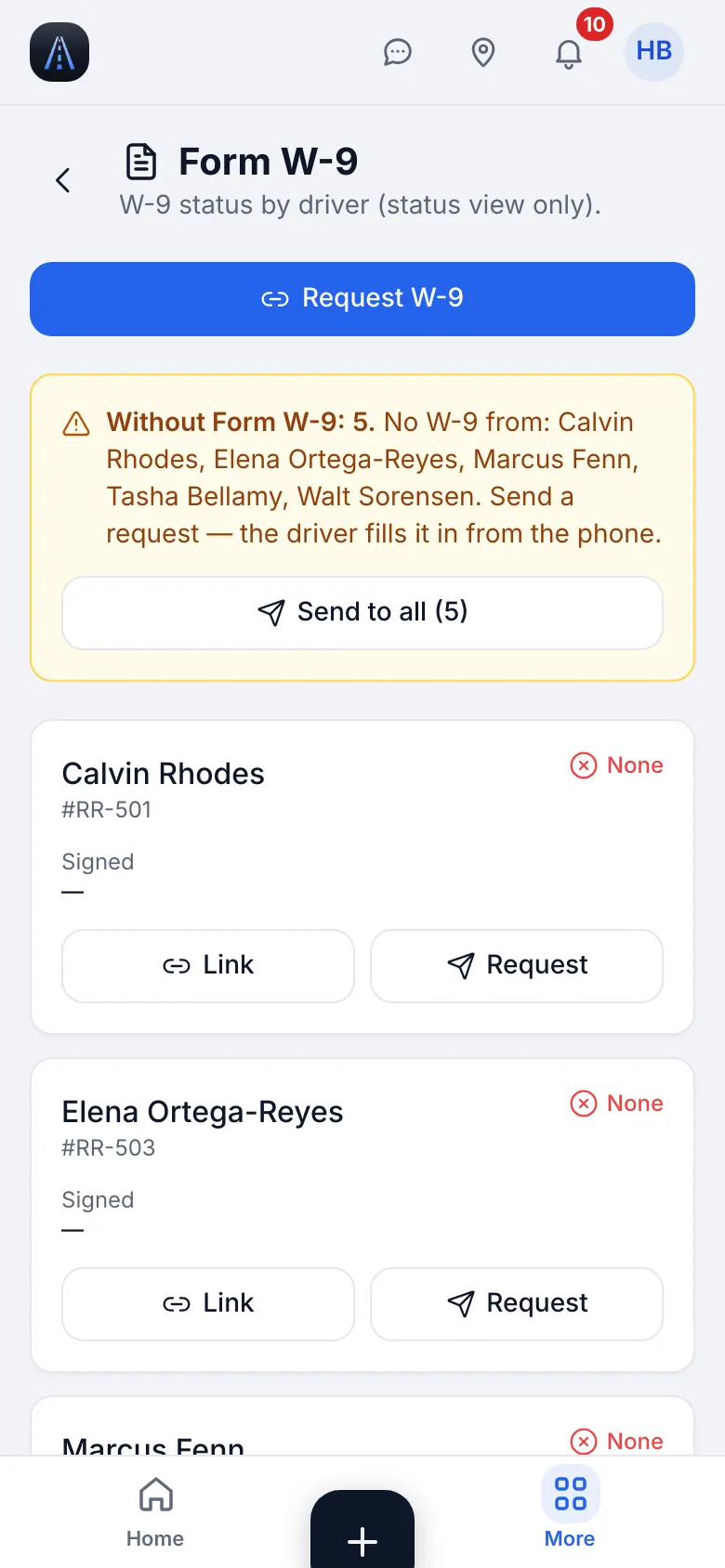
Website on a phone · W-9 forms - 2
Download
The filled forms can be downloaded as a ZIP of PDFs by the owner side; your view is status only.
6
Document scanner
Scan a license or a medical card straight into a driver's file.
- Where to find it
- Website
- Workspace → Files → Scan
- iOS app
- “+” → Scan document, or Workspace → Files → Scan
- 1
Scan and save
Photograph the paper flat and in good light, crop, pick the document type and the driver or truck, and save. Personal documents are stored privately and opened only with short-lived links.
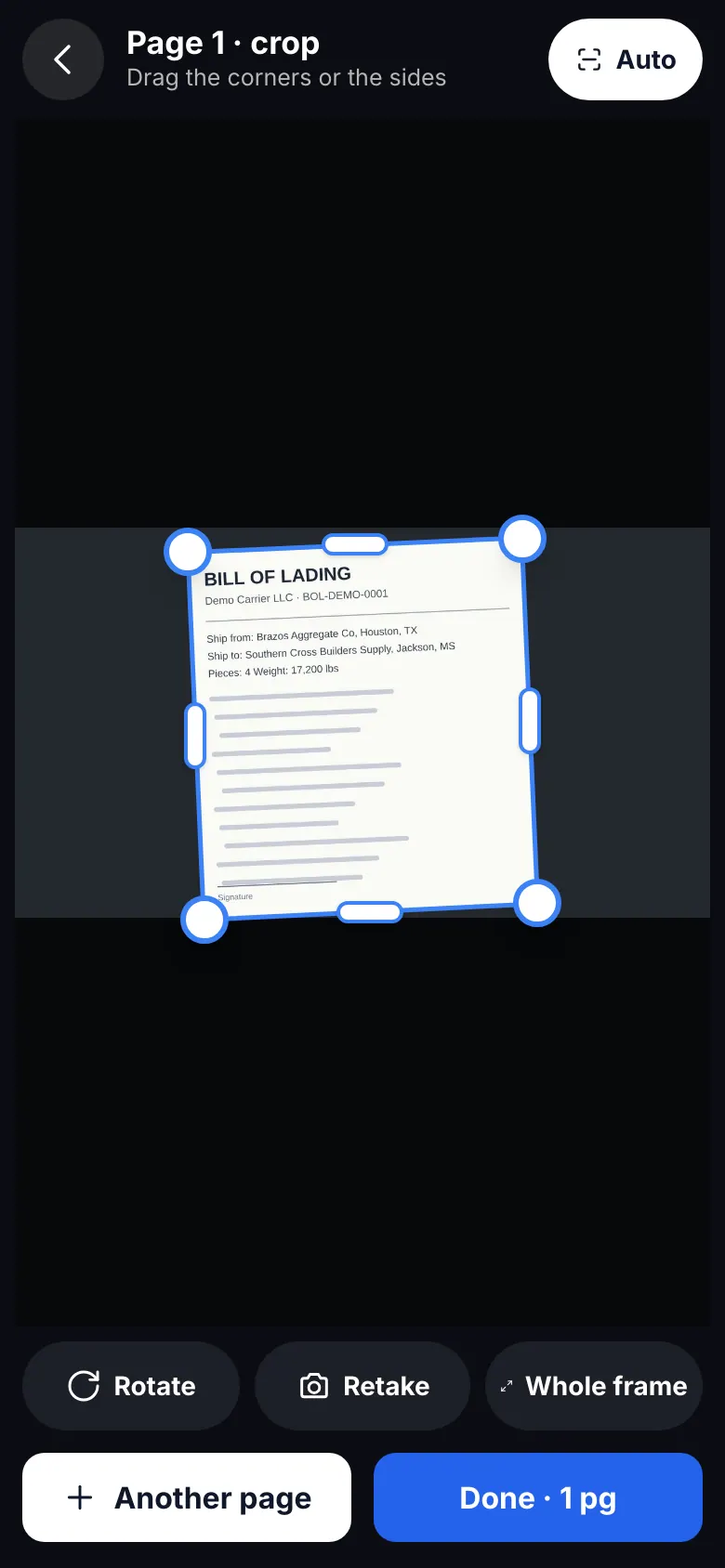
Website on a phone · Document scanner
7
Messages and troubleshooting
Stay in touch and fix the common problems.
- 1
Messages
Direct chats, groups and a chat per load. Files you send follow the permissions of the file: a personal document shows a warning first.
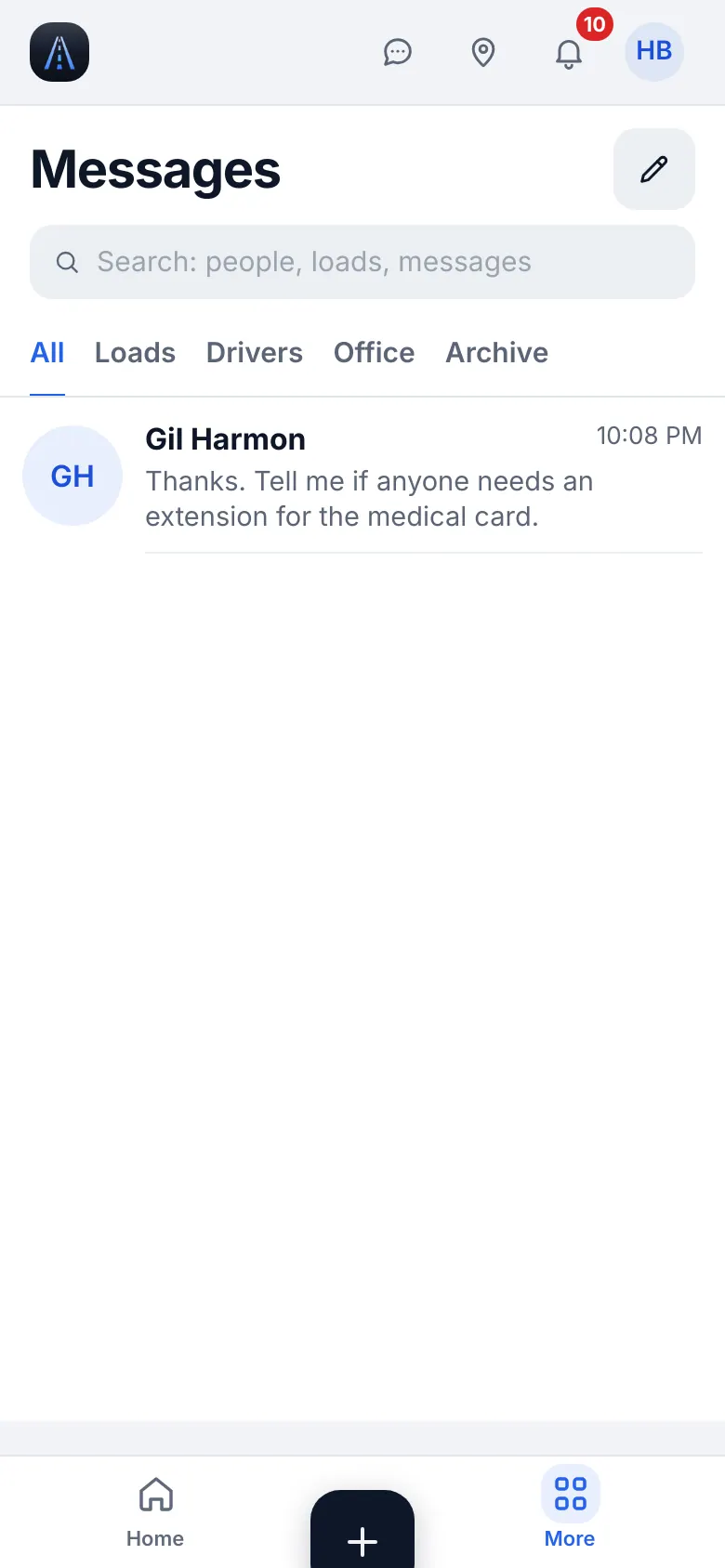
Website on a phone · Messages - 2
«Update the app»
Update HD Fleet from the App Store.
- 3
Support
Settings & help → Help & support → Write to us or Support chat.