User guides
Safety
You keep trucks safe and legal: maintenance, service approvals, mechanics and inspections. You can see vehicles, the team and the map (drivers and truck stops), but no loads and no money.
Your type of operation: Owner-operator
1
Getting started
Sign in on the website or in the iOS app with the e-mail the owner gave you.
- Where to find it
- Website
- hamadev.net — Sign In
- iOS app
- App Store → HD Fleet
- 1
Sign in
Use Log in with your e-mail and password (and the 6-digit code if enabled).
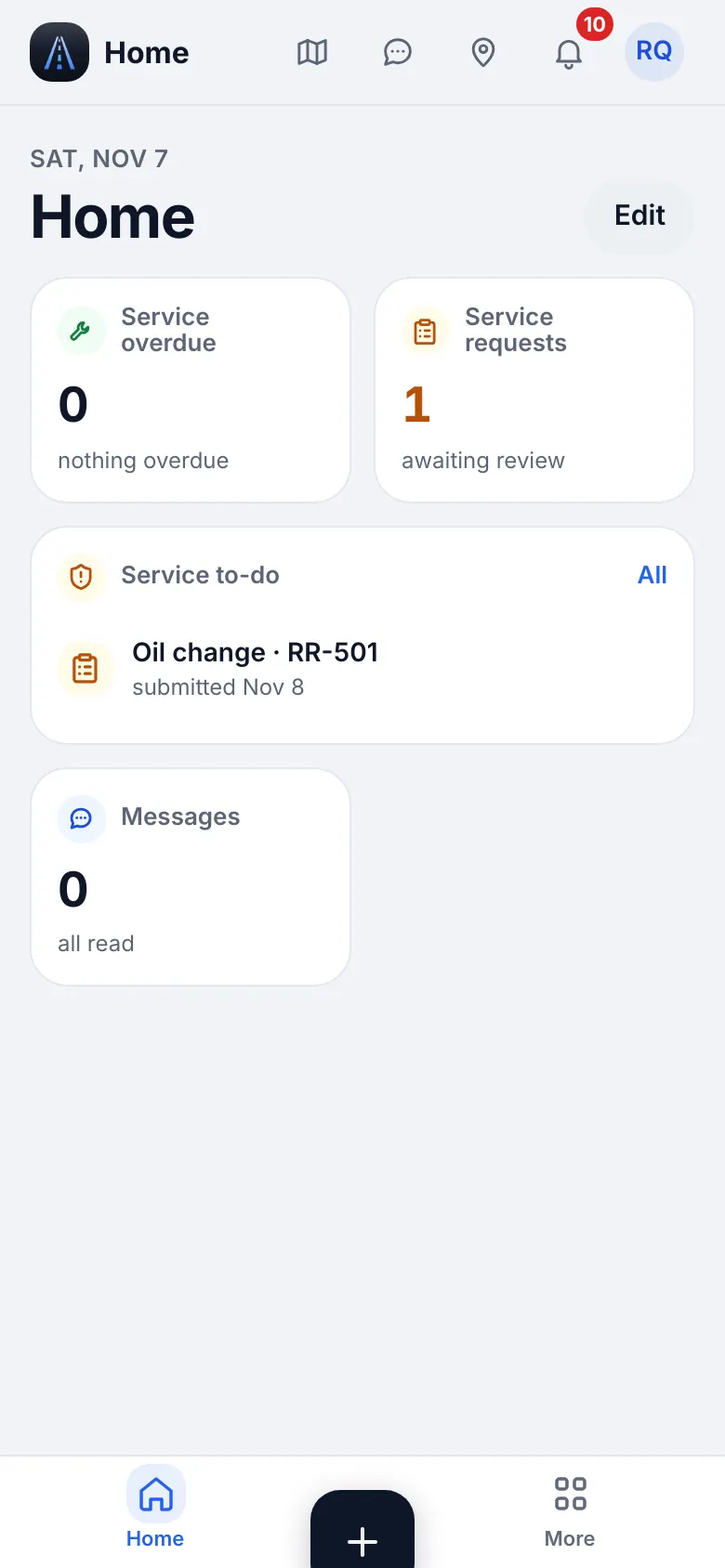
Website on a phone · Safety home - 2
Your menu
The bottom bar is Home, Service, “+”, Map and More. The sidebar (More on the phone) shows Map and Messages, Dispatch (Calendar), Fleet (Trucks & trailers, Maintenance, Service requests, Mechanics, Parts), People & compliance (Team, view only), Workspace (Files, Notes, Useful contacts) and Settings & help. “+” adds a maintenance visit or scans a document. Press ⌘K to find any page by name.
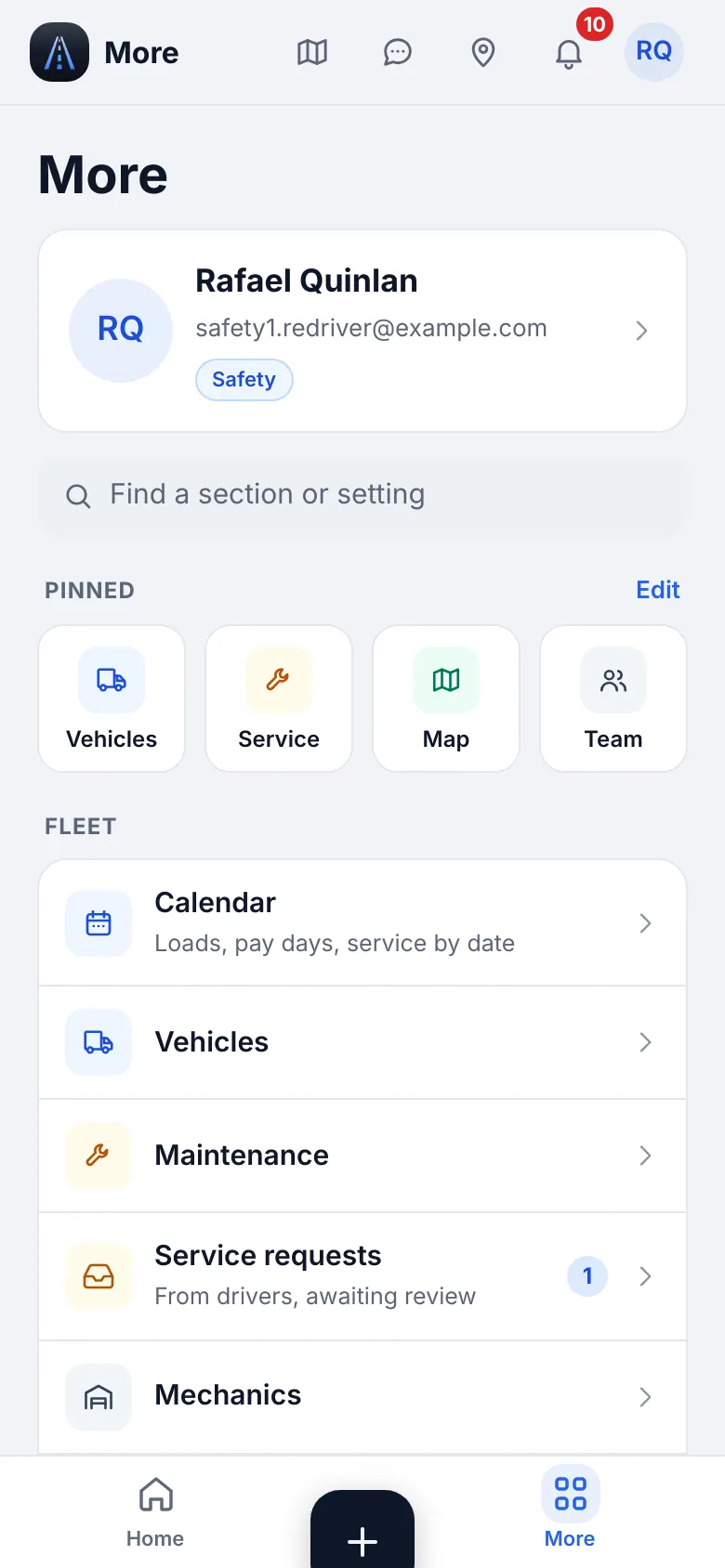
Website on a phone · The More menu of safety
2
Maintenance
Keep each truck on schedule: oil, brakes, tires, inspections, with intervals by miles or by date.
- Where to find it
- Website
- Fleet → Maintenance
- iOS app
- Service (bottom bar)
- 1
Fleet health
The first screen lists trucks with how many jobs are overdue or soon due. Tap a truck for its service book.
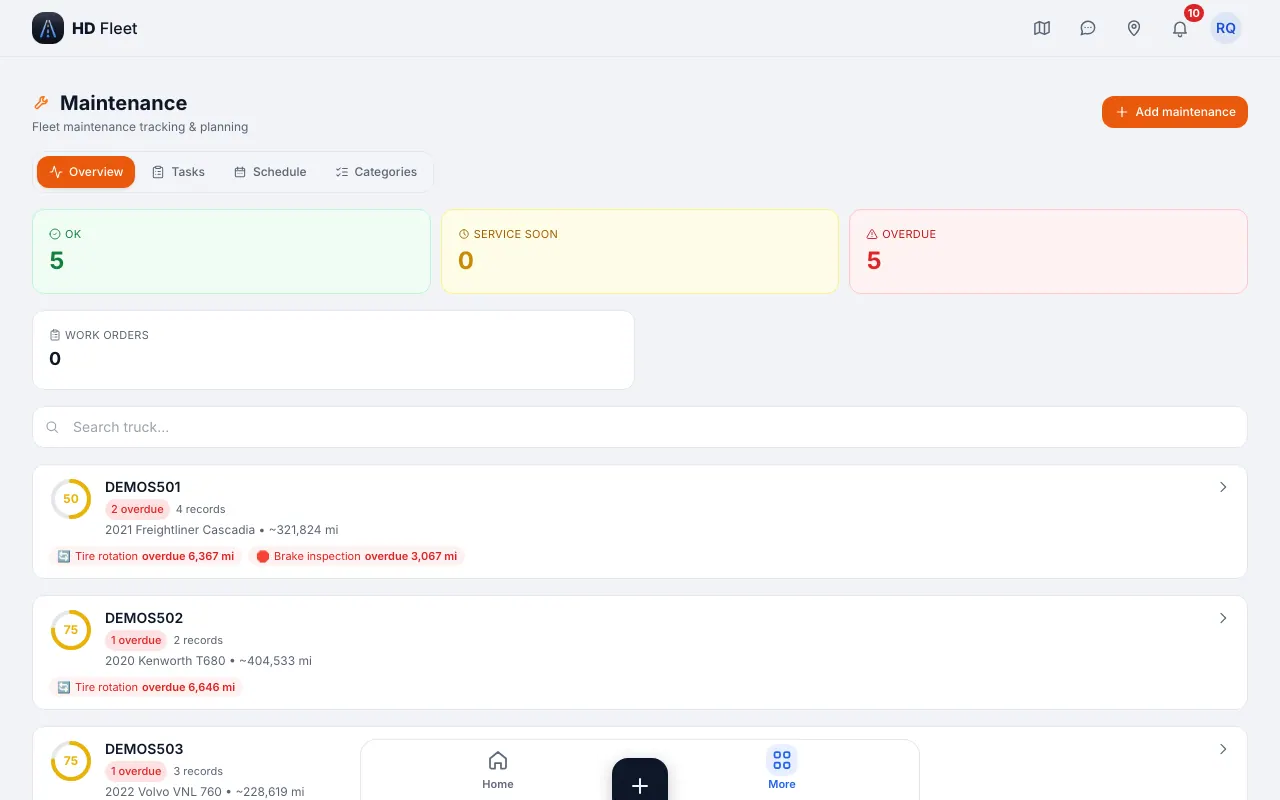
Website · Maintenance 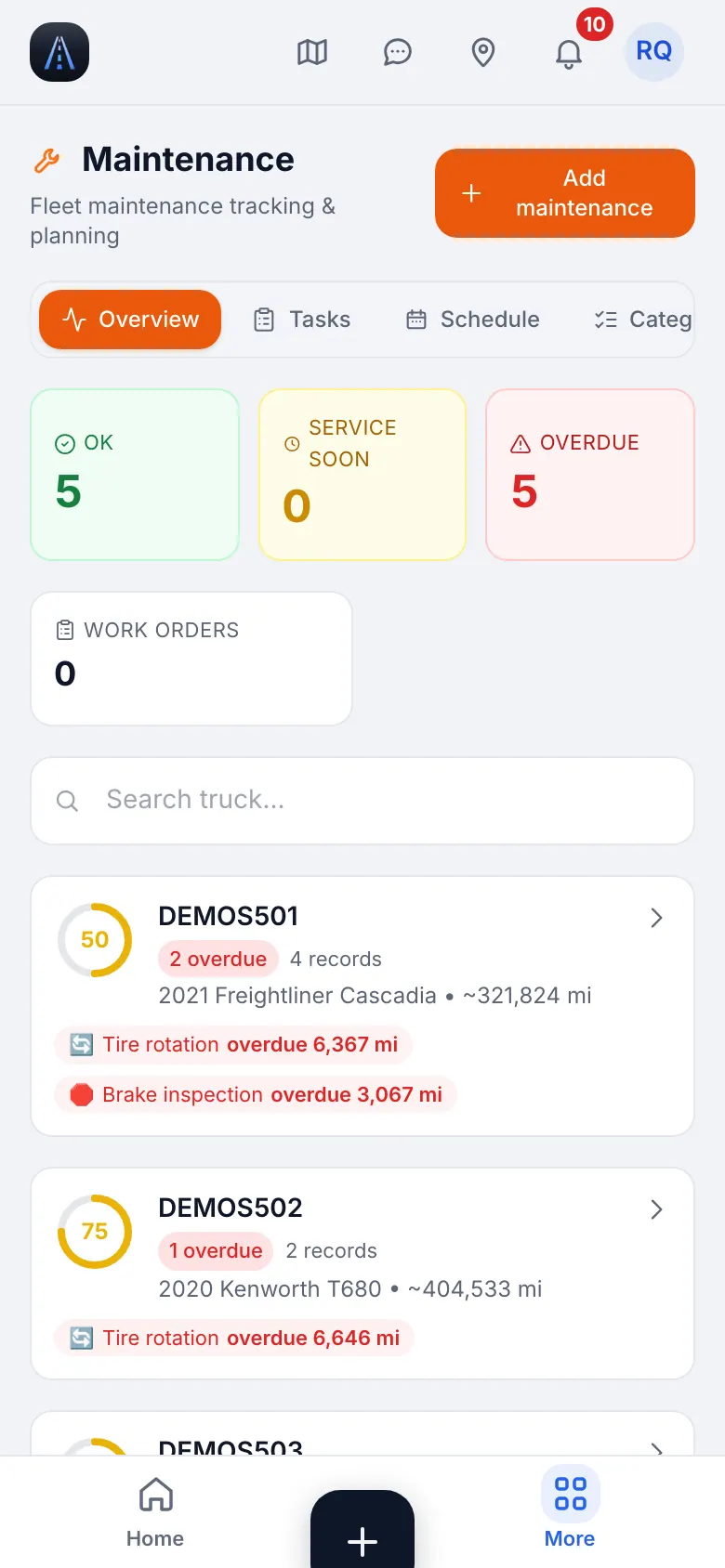
Website on a phone · Maintenance on a phone - 2
Add a visit
Tap New visit, pick what was done (groups: engine and fluids, brakes, chassis and tires, electrical, documents and inspections), the date and the odometer. The next service is worked out for you; you can add your own job through search.
- 3
Intervals
Intervals are recommendations. Adjust them for your fleet in the categories.
3
Service requests from drivers
A driver sends a repair or oil receipt from the app; you decide.
- Where to find it
- Website
- Fleet → Service requests
- iOS app
- Fleet → Service requests
- 1
Review
Service requests ("From drivers, awaiting review") lists pending receipts. Open one, check the photo, amount and truck, then approve or reject. Approved records go to the truck's service book.
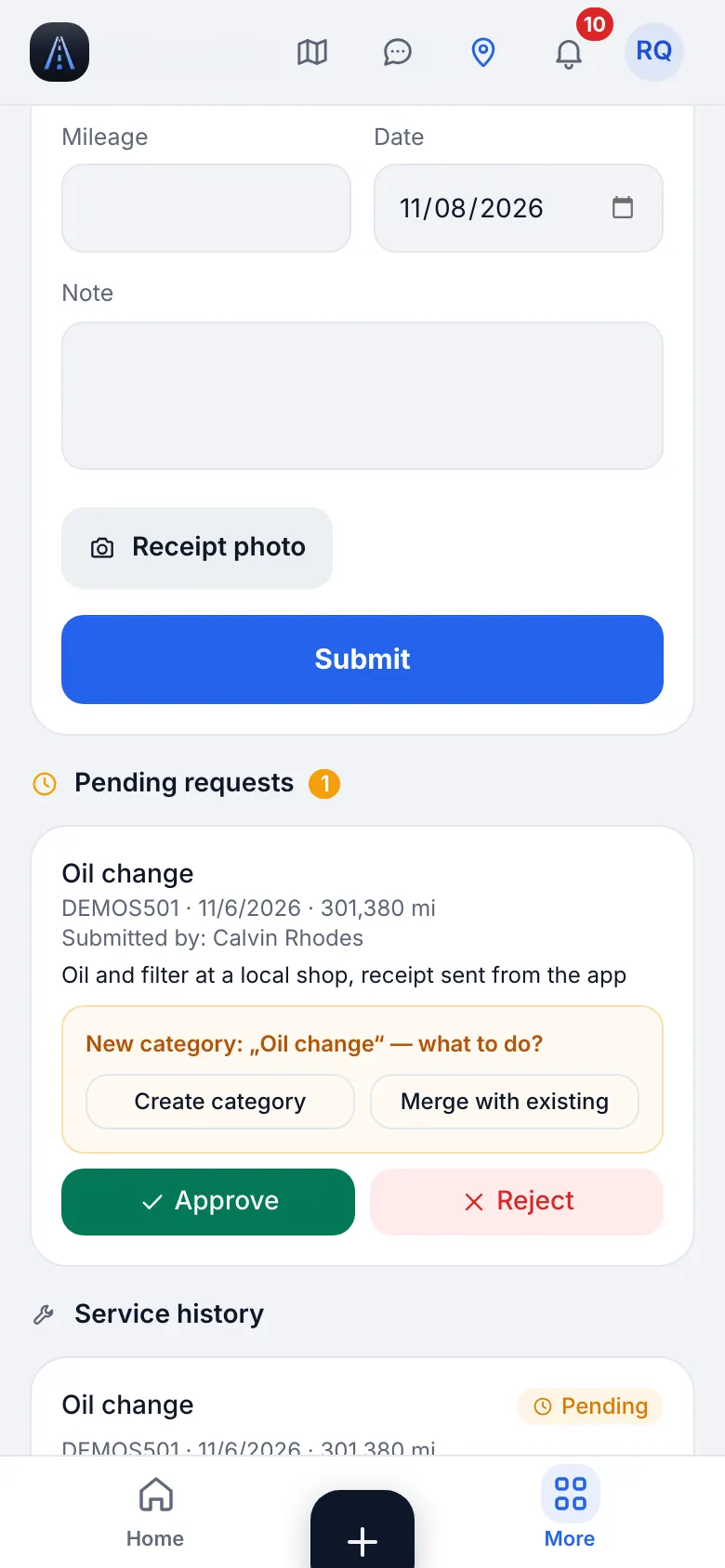
Website on a phone · Service requests to review: the queue of pending receipts - 2
Badge
The menu row shows how many requests wait.
4
Mechanics
The shops the company uses, with contacts.
- Where to find it
- Website
- Fleet → Mechanics
- iOS app
- Fleet → Mechanics
- 1
Find a mechanic
Mechanics lists the shops with their contacts. The list is view-only for your role; the owner edits it.
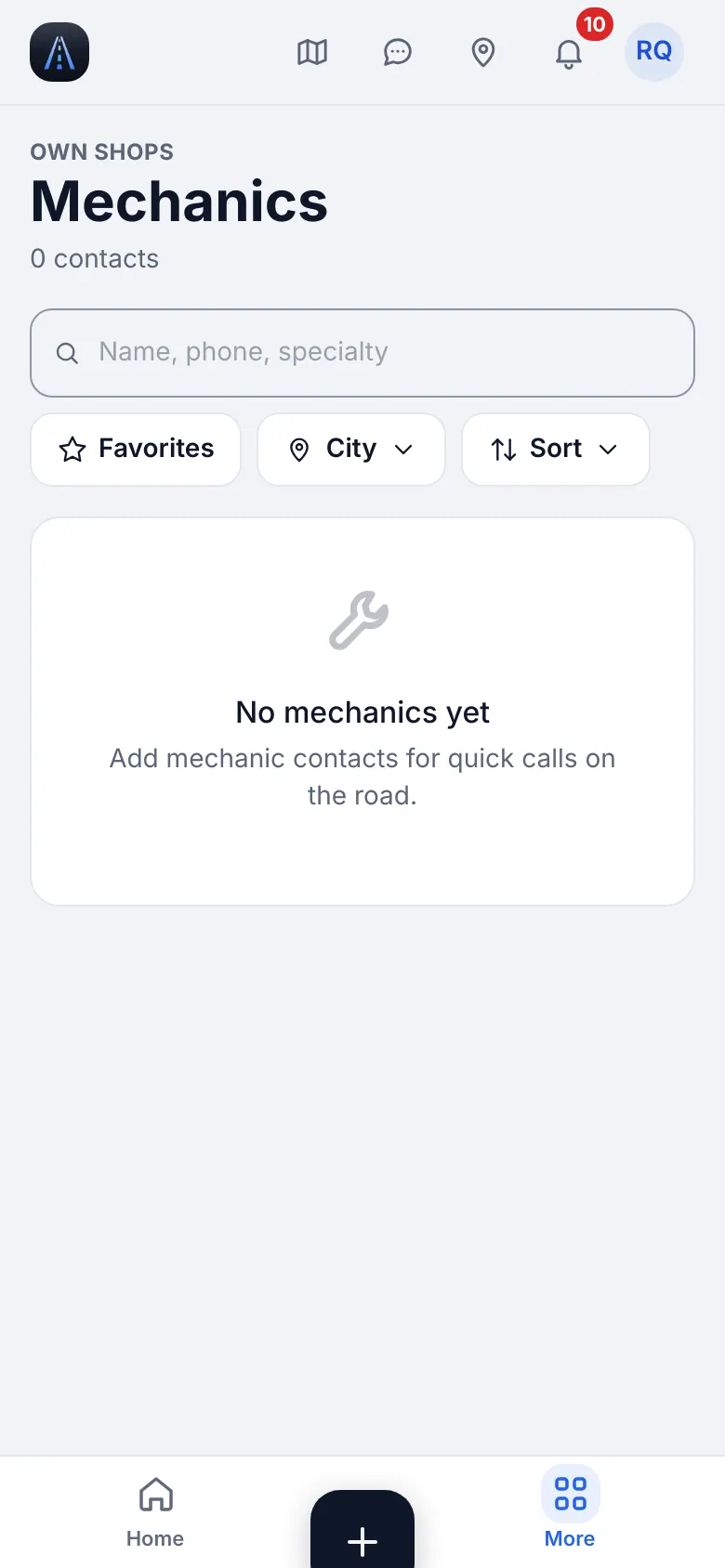
Website on a phone · Mechanics
5
Vehicles, the map and the team (view)
Look things up without changing them.
- 1
Vehicles
Open a truck for plate, VIN, weights, insurance and registration. Editing is for the owner and HR.
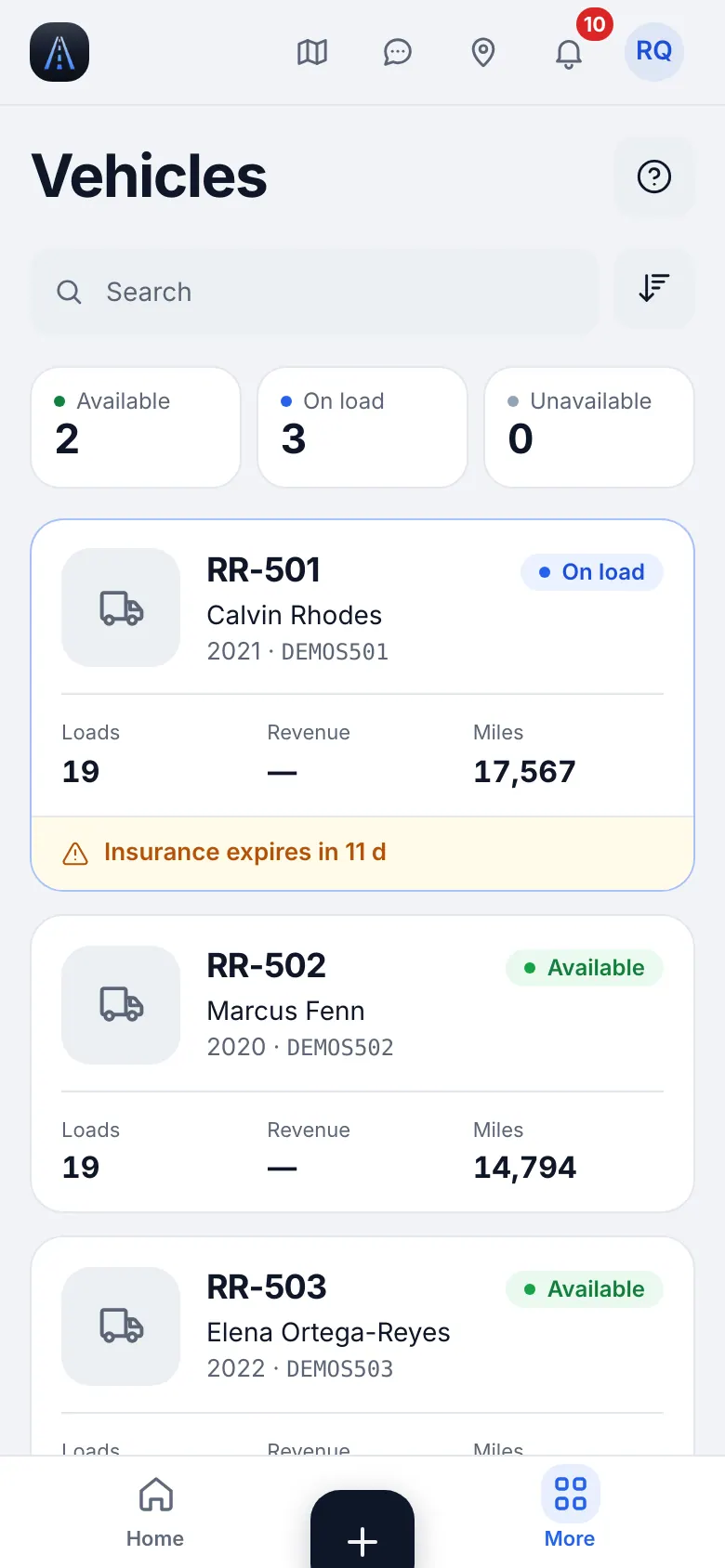
Website on a phone · Vehicles (view) - 2
Map and truck stops
The Map shows the Drivers and Truck stops layers (loads are hidden from your role). When a driver stops sending GPS on a load you can see Not sending GPS with the likely reason.
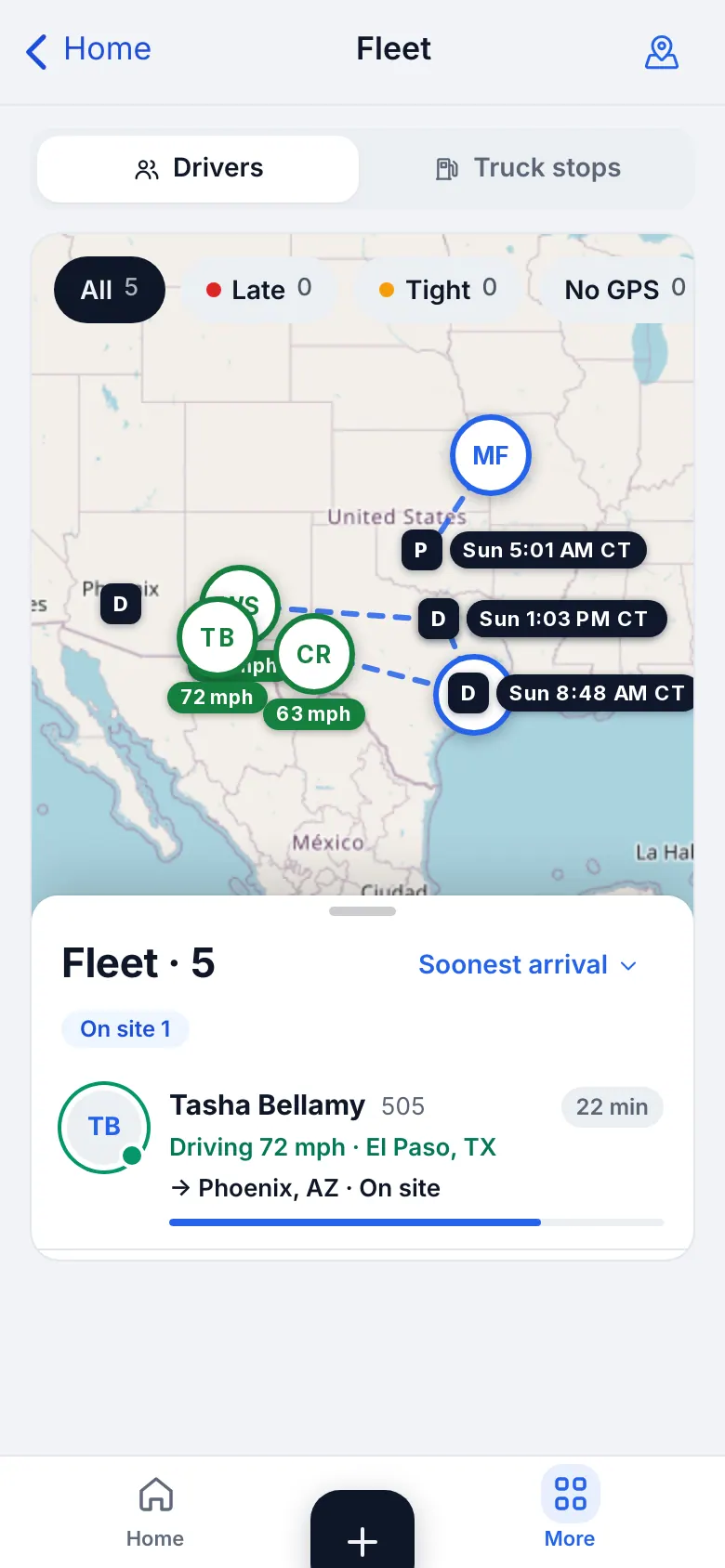
Website on a phone · Fleet map (drivers and truck stops) - 3
Team
Team is view-only for you.
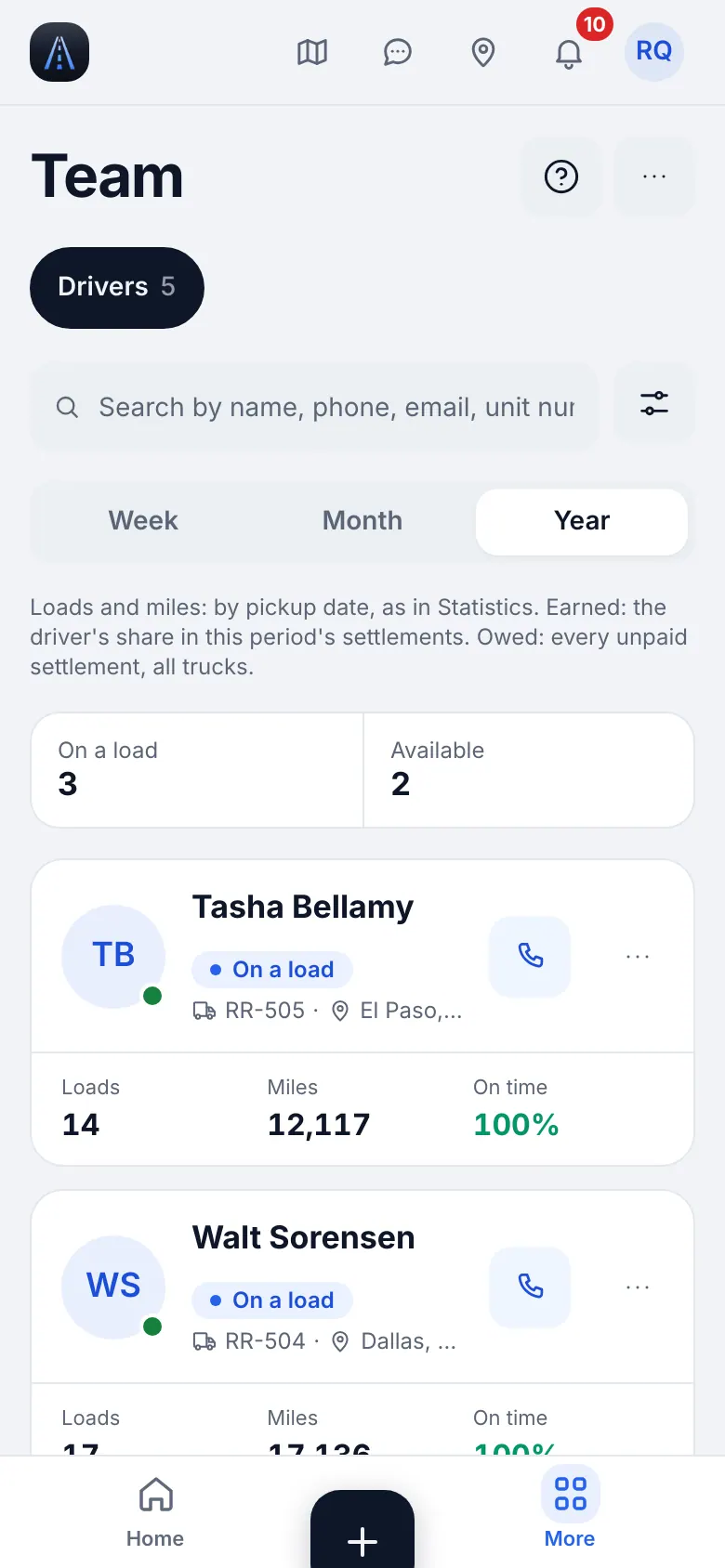
Website on a phone · Team (view)
6
Document scanner
Scan inspection reports and registrations.
- Where to find it
- Website
- Workspace → Files → Scan
- iOS app
- “+” → Scan document, or Workspace → Files → Scan
- 1
Scan and save
Photograph the paper flat and in good light, crop, pick the type and the truck or driver and save.
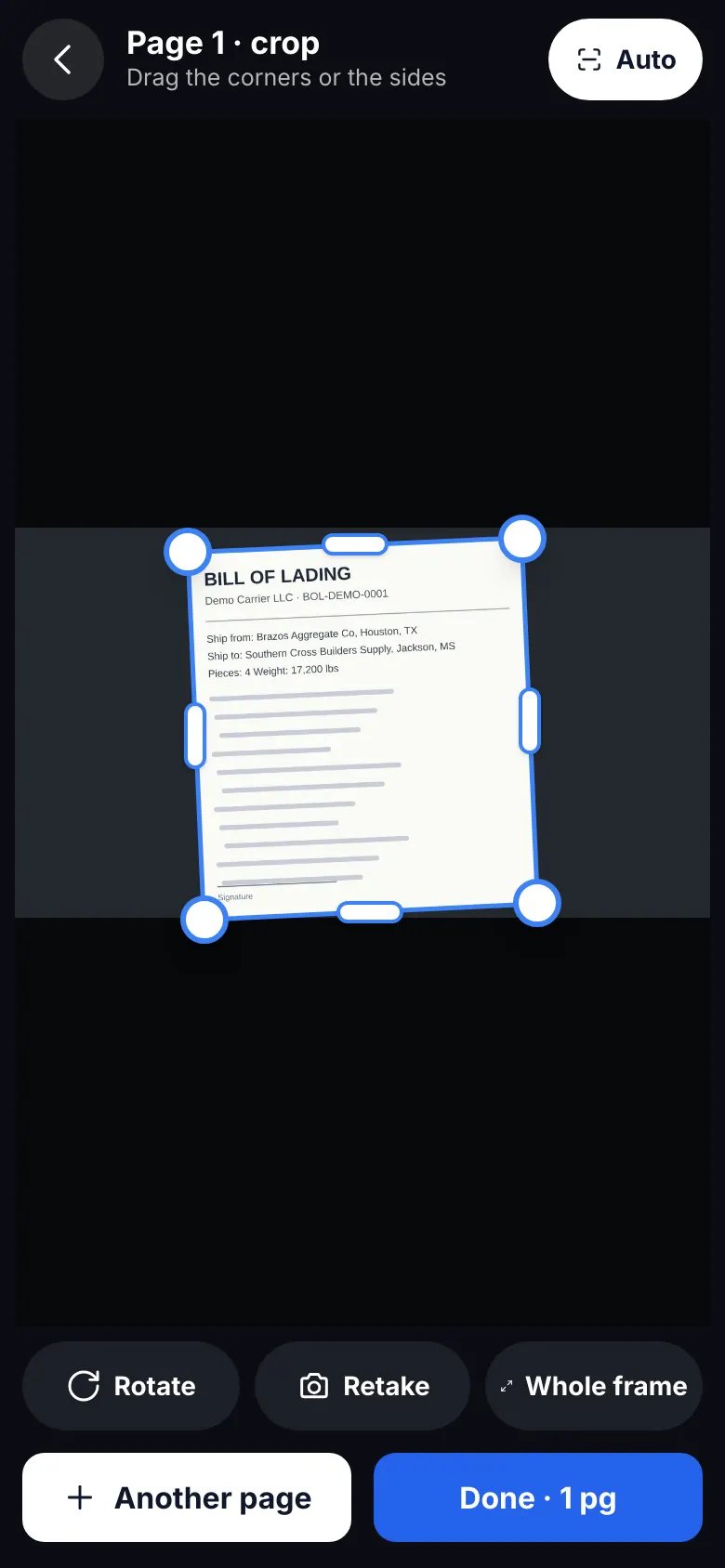
Website on a phone · Document scanner
7
Messages and troubleshooting
Stay in touch and fix the common problems.
- 1
Messages
Direct chats, groups and per-load chats.
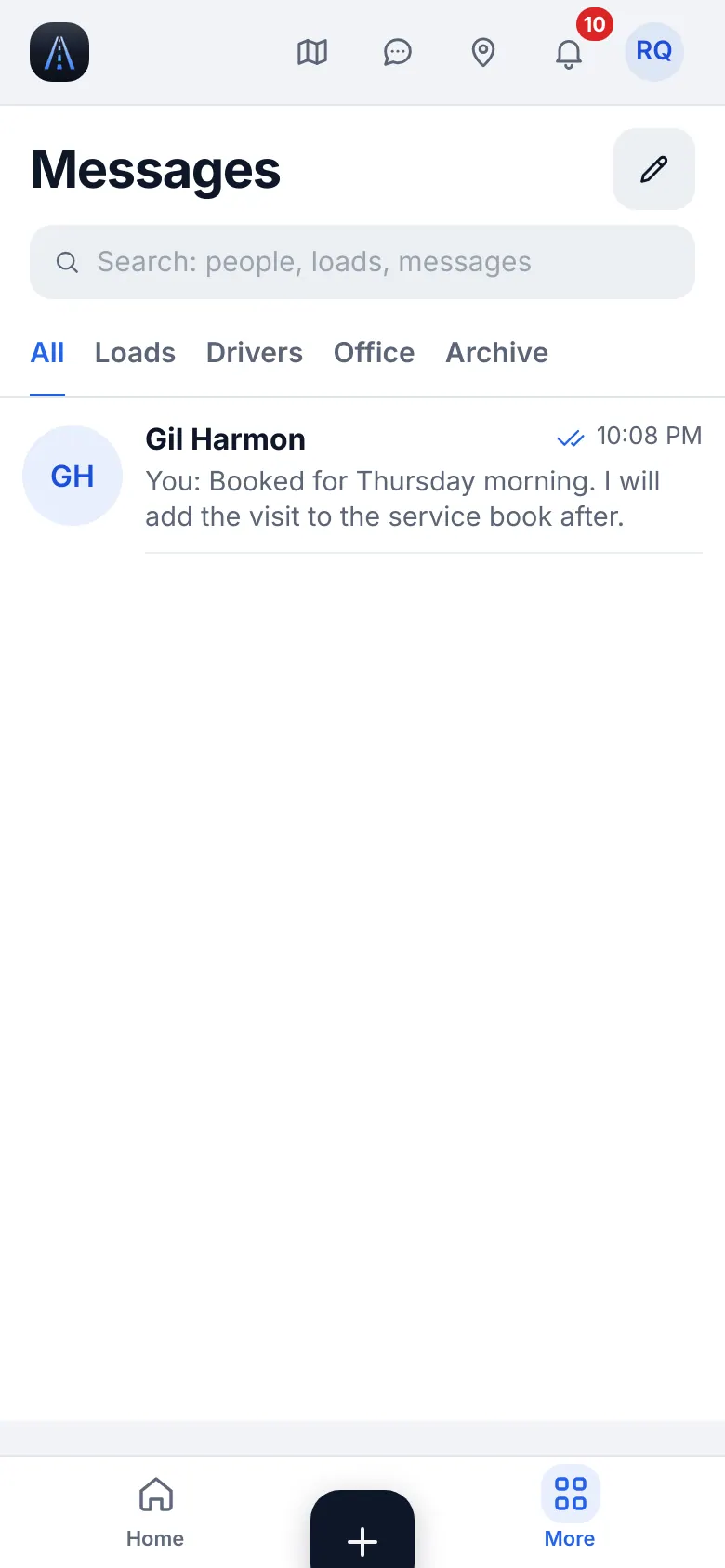
Website on a phone · Messages - 2
«Update the app»
Update HD Fleet from the App Store.
- 3
Support
Settings & help → Help & support → Write to us or Support chat.