User guides
Accountant
Read-only finance: overview, profit, driver pay, expenses, brokers and receivables, invoices, IFTA and every finance export. You never change records, and you do not see GPS, the map, chat, W-9 numbers or personal documents. The one exception is importing expenses and fuel.
Your type of operation: Semi (dry van, reefer, flatbed)
1
Getting started
Sign in on the website or in the iOS app with the e-mail the owner gave you. Everything you see is read-only.
- Where to find it
- Website
- hamadev.net — Sign In
- iOS app
- App Store → HD Fleet
- 1
Sign in
Use Log in with your e-mail and password (and the 6-digit code if enabled).
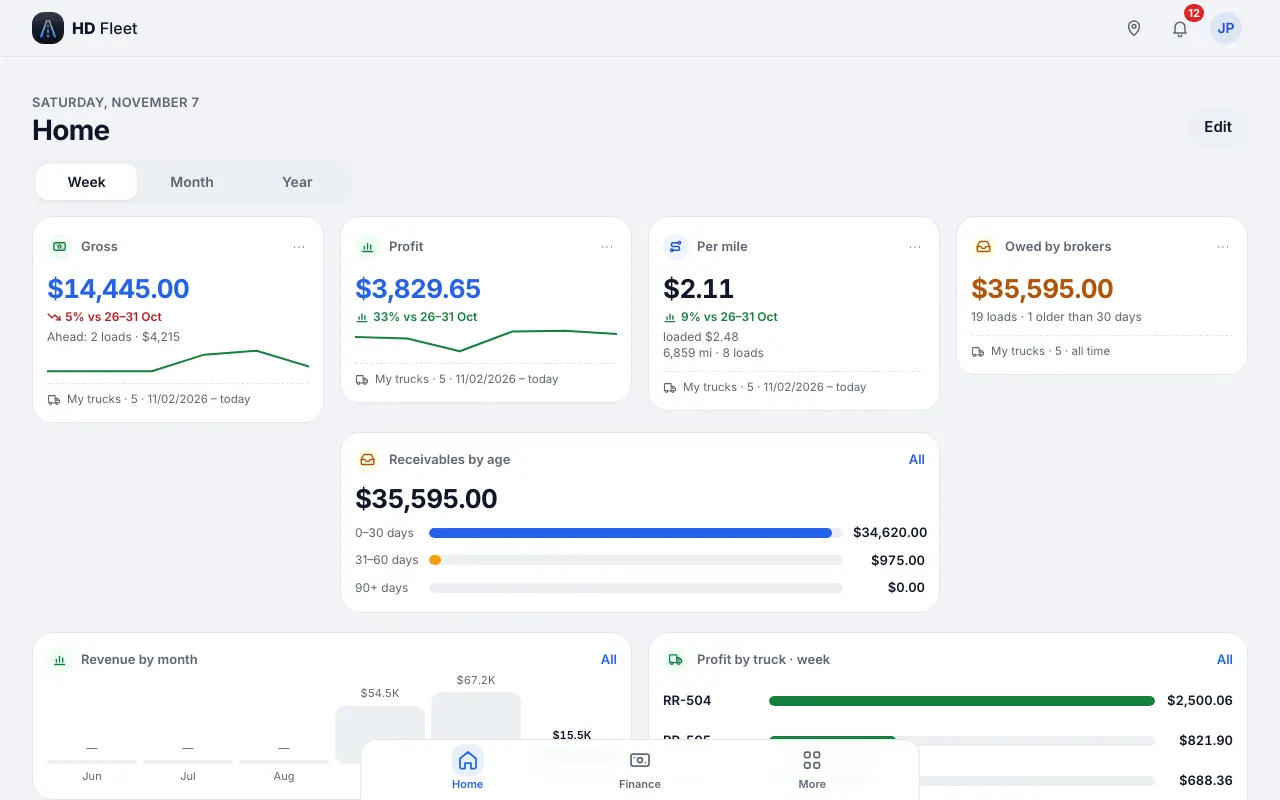
Website · Accountant home 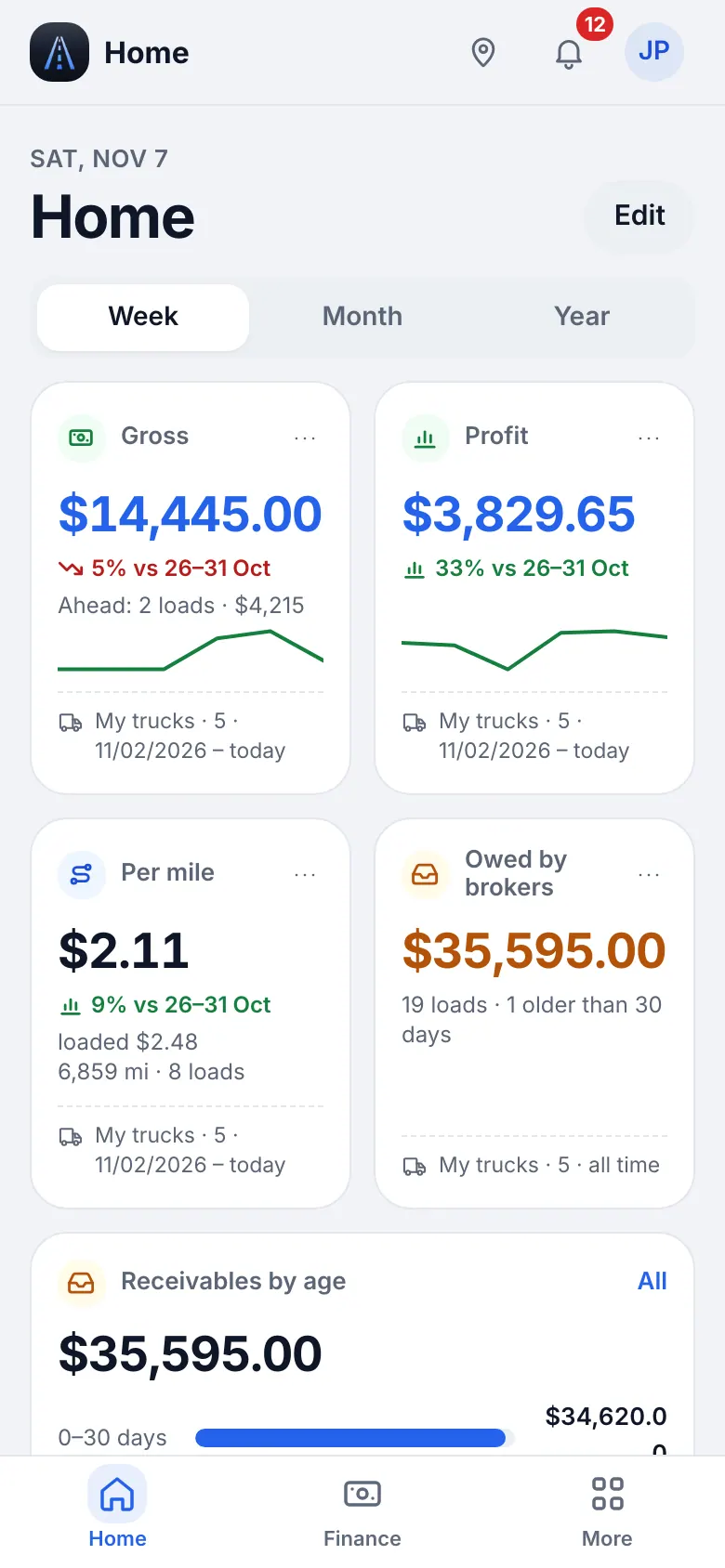
Website on a phone · Accountant home on a phone - 2
Your menu
The bottom bar is Home, Finance, Invoices, Reports and More. The sidebar (More on the phone) shows only what your role may open: Dispatch (Calendar, Brokers & customers), Fleet (Parts), People & compliance (IFTA), Money (Finance overview, Profit, Invoices & receivables, Driver pay, Expenses, Reports & taxes), Workspace (Files, Import data) and Settings & help. Press ⌘K to find any page by name.
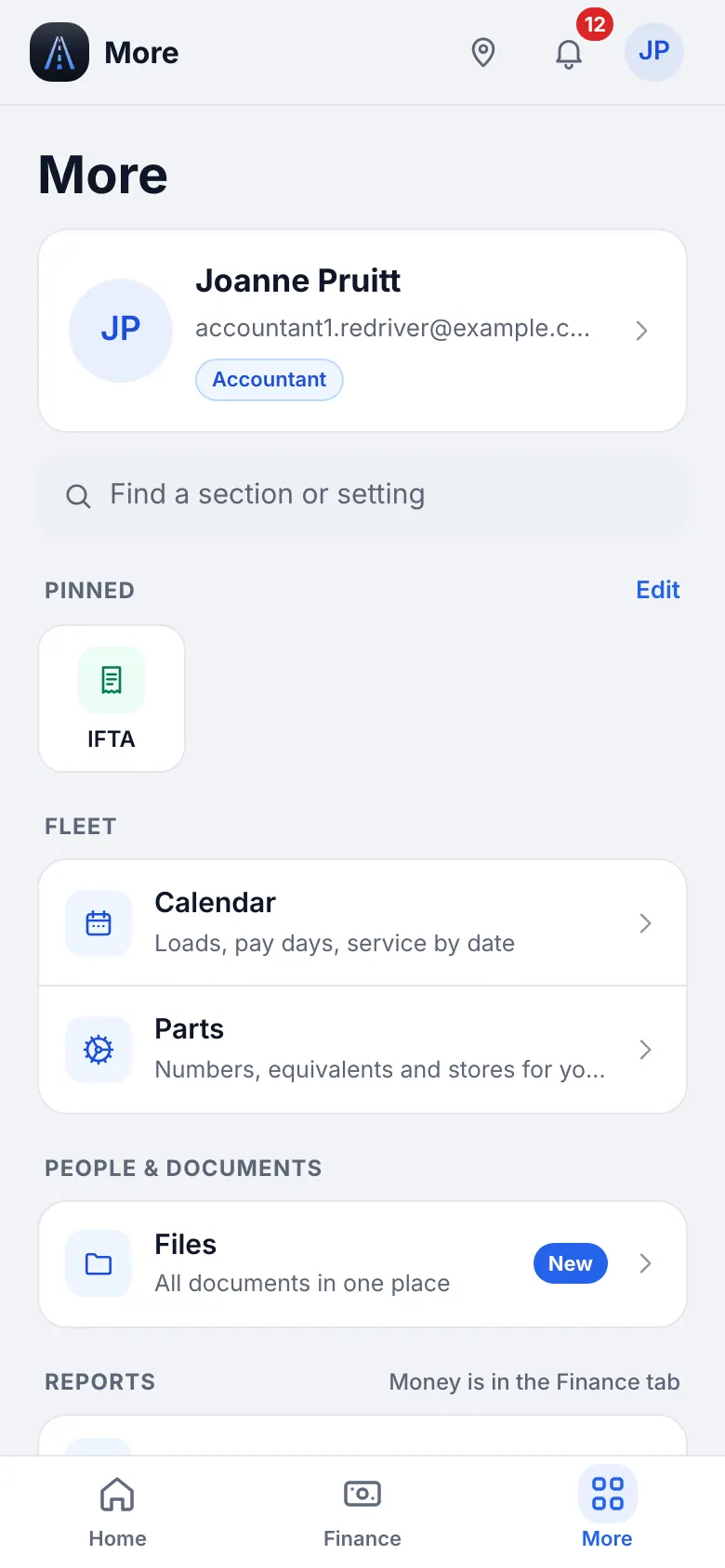
Website on a phone · The More menu of an accountant - 3
Ledgers
If the company keeps several sets of books (for example the owner's and a relative's), pick the ledger at the top of Finance. Every total and export follows the selected ledger.
2
Finance: profit, driver pay, expenses
The three tabs of Finance, with the period at the top.
- Where to find it
- Website
- Money → Finance overview, Profit, Driver pay, Expenses
- iOS app
- Finance (bottom bar)
- 1
Profit
Revenue, costs and profit for the period with the breakdown by truck. Overview and Statistics are the tabs next to it; broker balances are under Invoices & receivables and the reports under Reports & taxes.
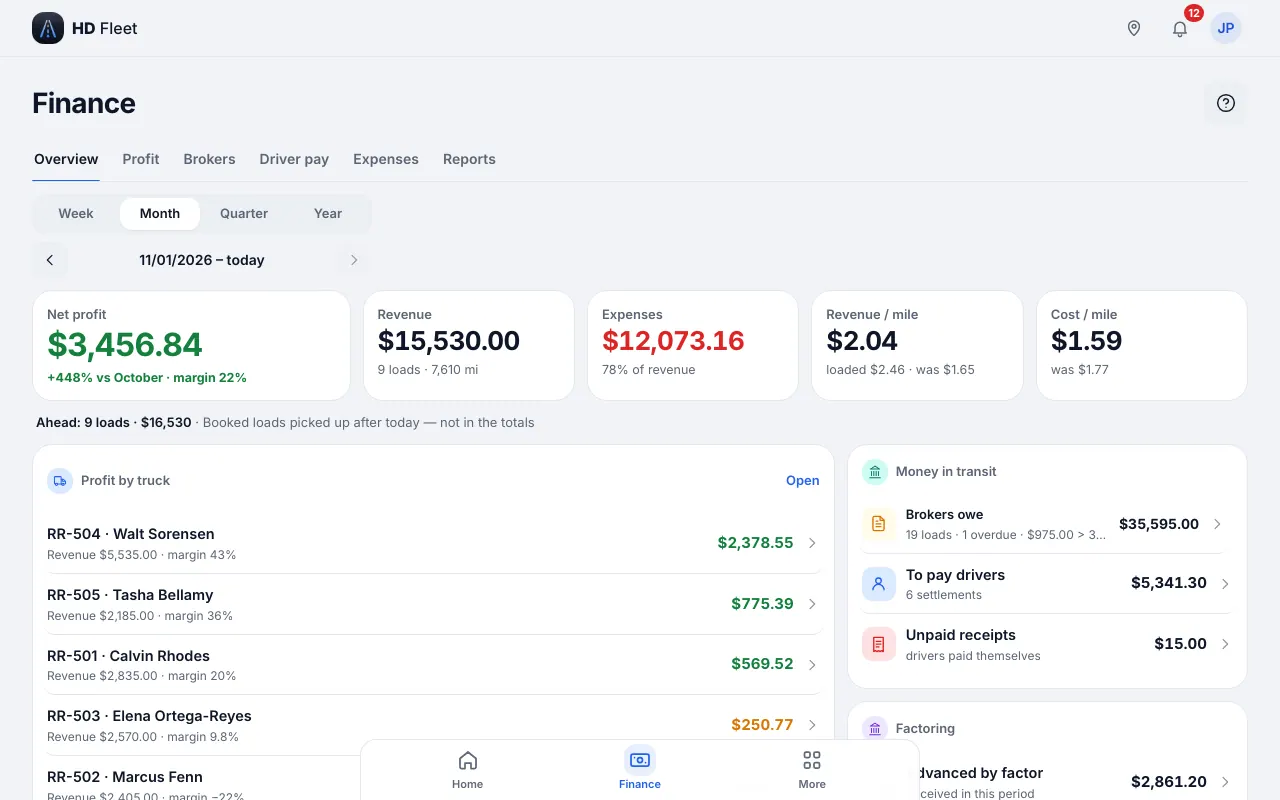
Website · Finance 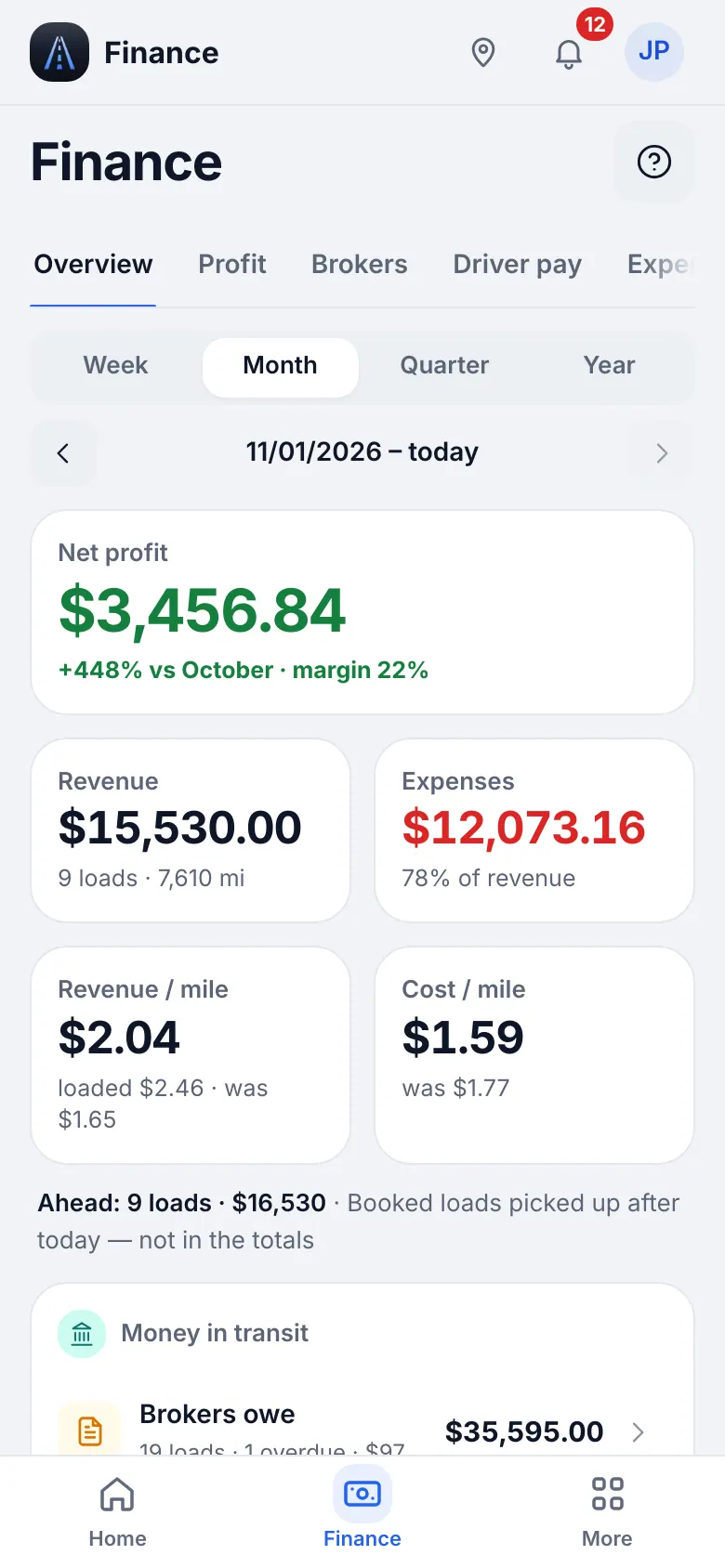
Website on a phone · Finance on a phone - 2
Driver pay
Settlements per driver and week: share, deductions and net payable. You can read and export them but not approve or pay.
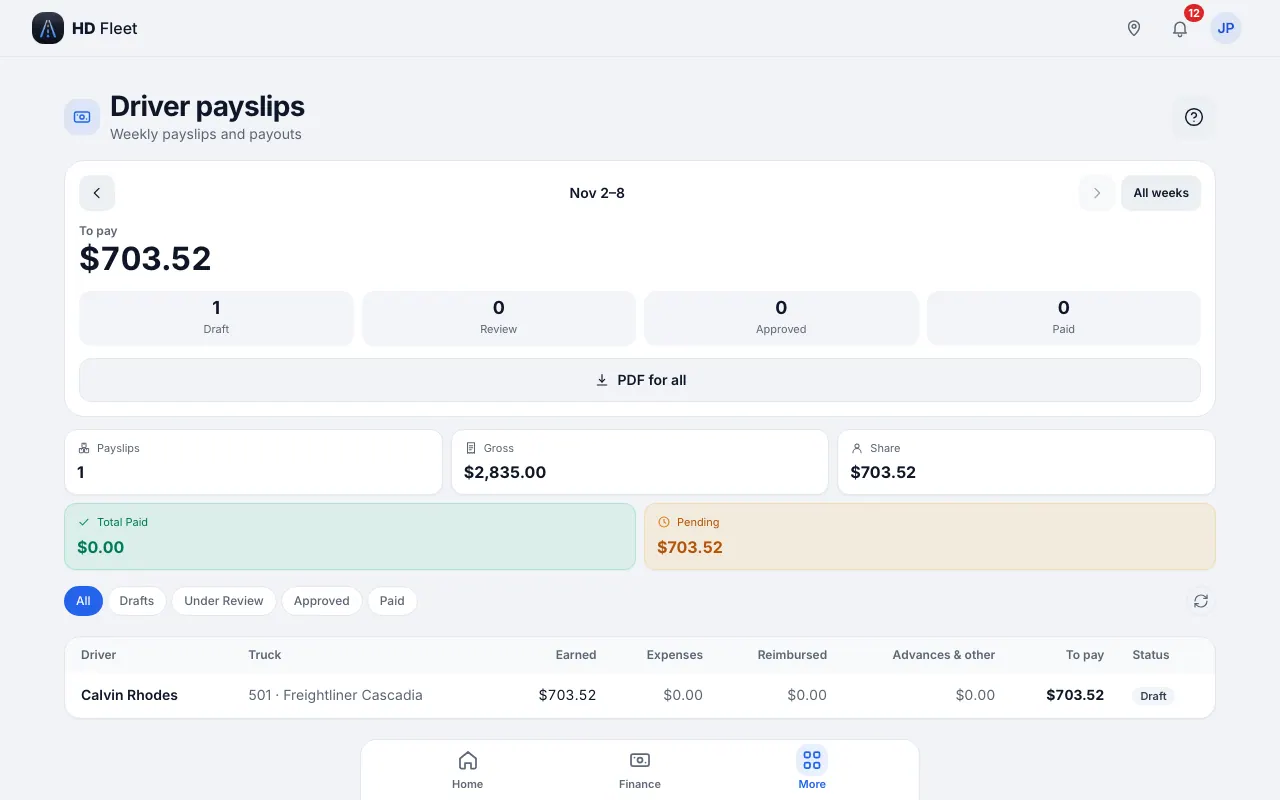
Website · Driver settlements - 3
Expenses
Every expense by category and truck, with receipts. Filter by date and type and export to Excel or PDF.
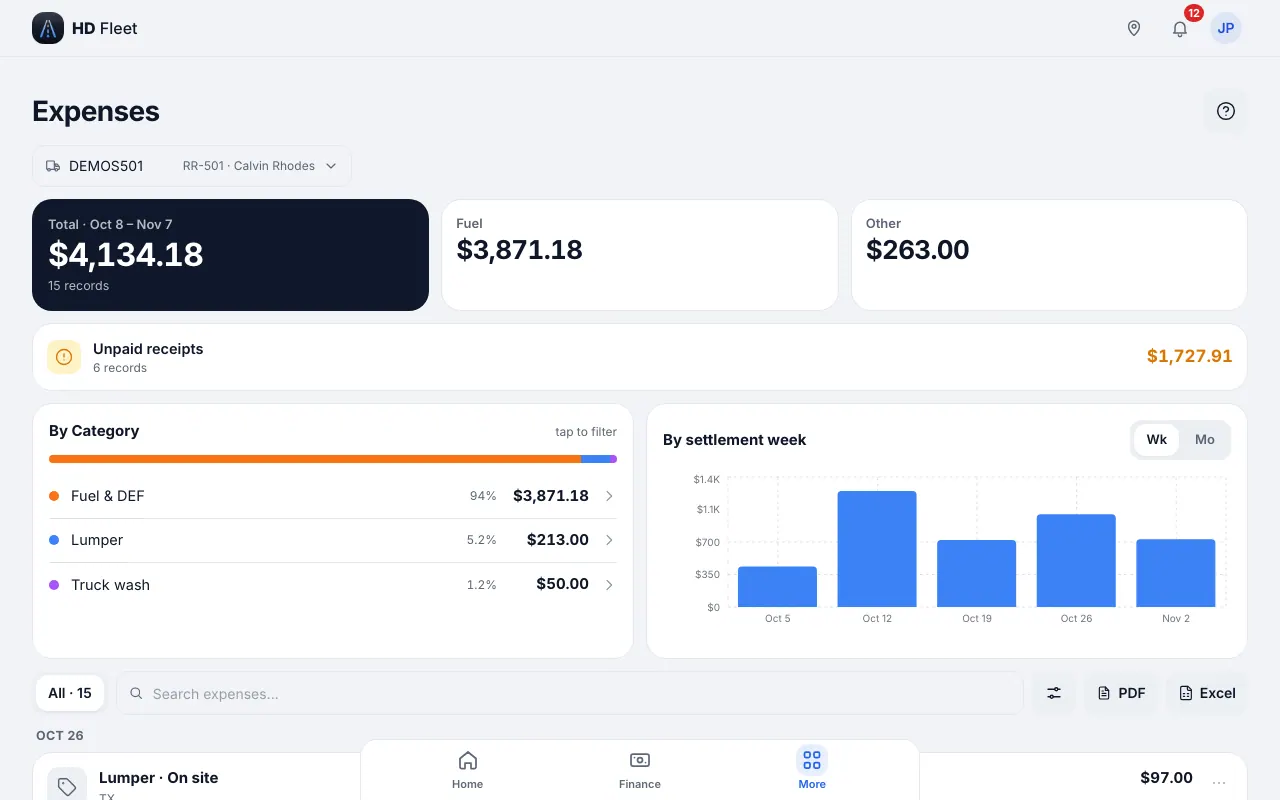
Website · Expenses
3
Brokers, invoices and receivables
Who owes how much and for how long.
- Where to find it
- Website
- Money → Invoices & receivables
- iOS app
- Invoices (bottom bar)
- 1
Receivables and Aging
Invoices & receivables has two tabs: Receivables (what each broker owes, with the open invoices) and Aging (how late each one is).
- 2
Aging report
Invoices are grouped by how overdue they are, with broker, load, amount, issue date and due date. Factored invoices show their stage (sent, advance received, reserve released).
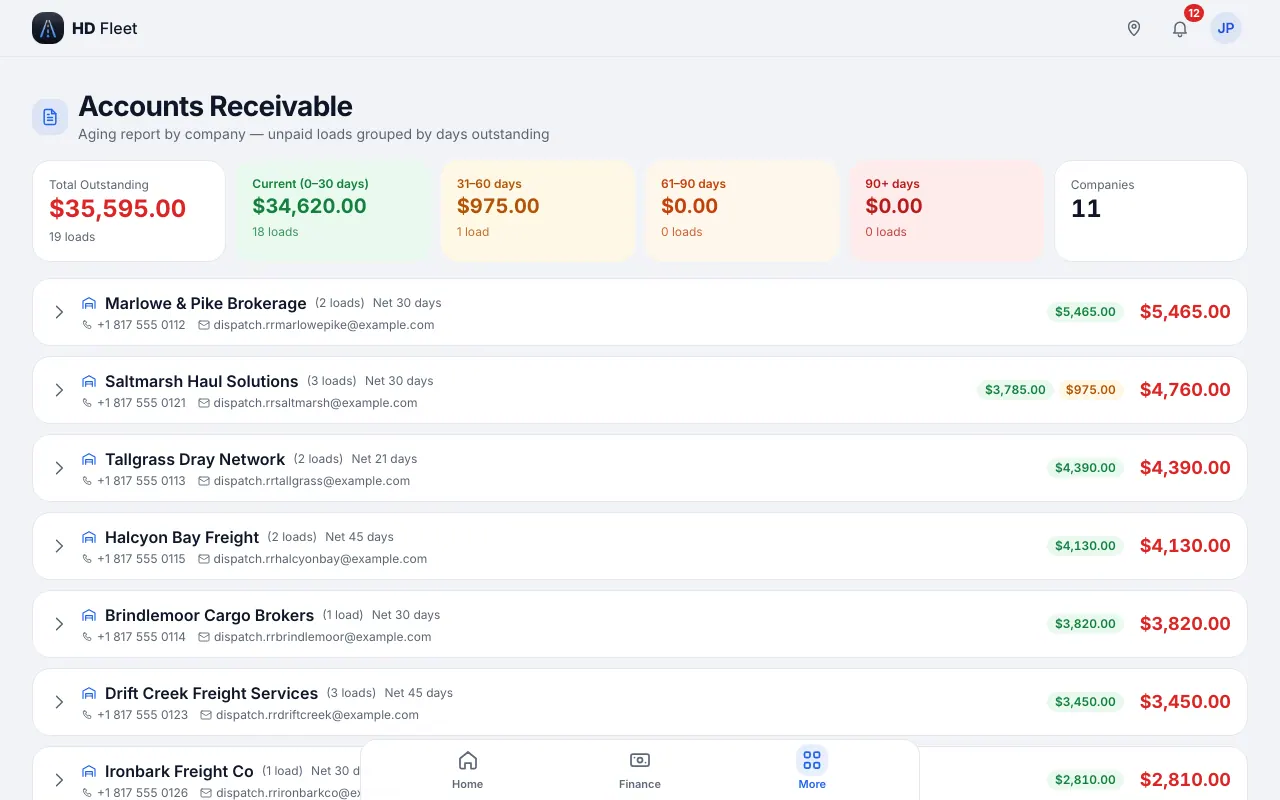
Website · Invoices & receivables › Aging - 3
Invoices
Open an invoice to see lines, payments and history: Paid in full, Partial, Short pay. Recording payments and sending invoices is for the owner only.
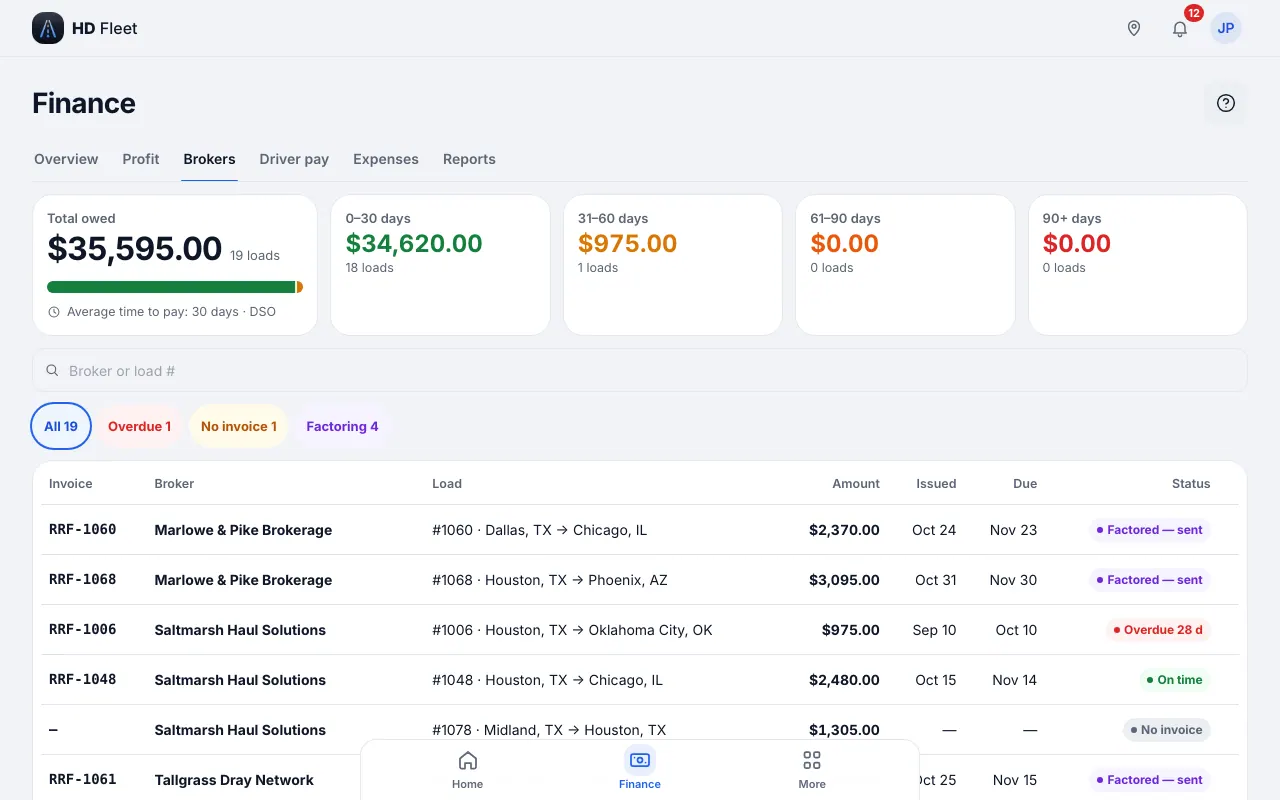
Website · Invoices & receivables: what brokers owe, open and factored invoices (Money → Invoices & receivables) - 4
Brokers
Dispatch → Brokers & customers shows each broker's terms and what is owed. You can view but not edit.
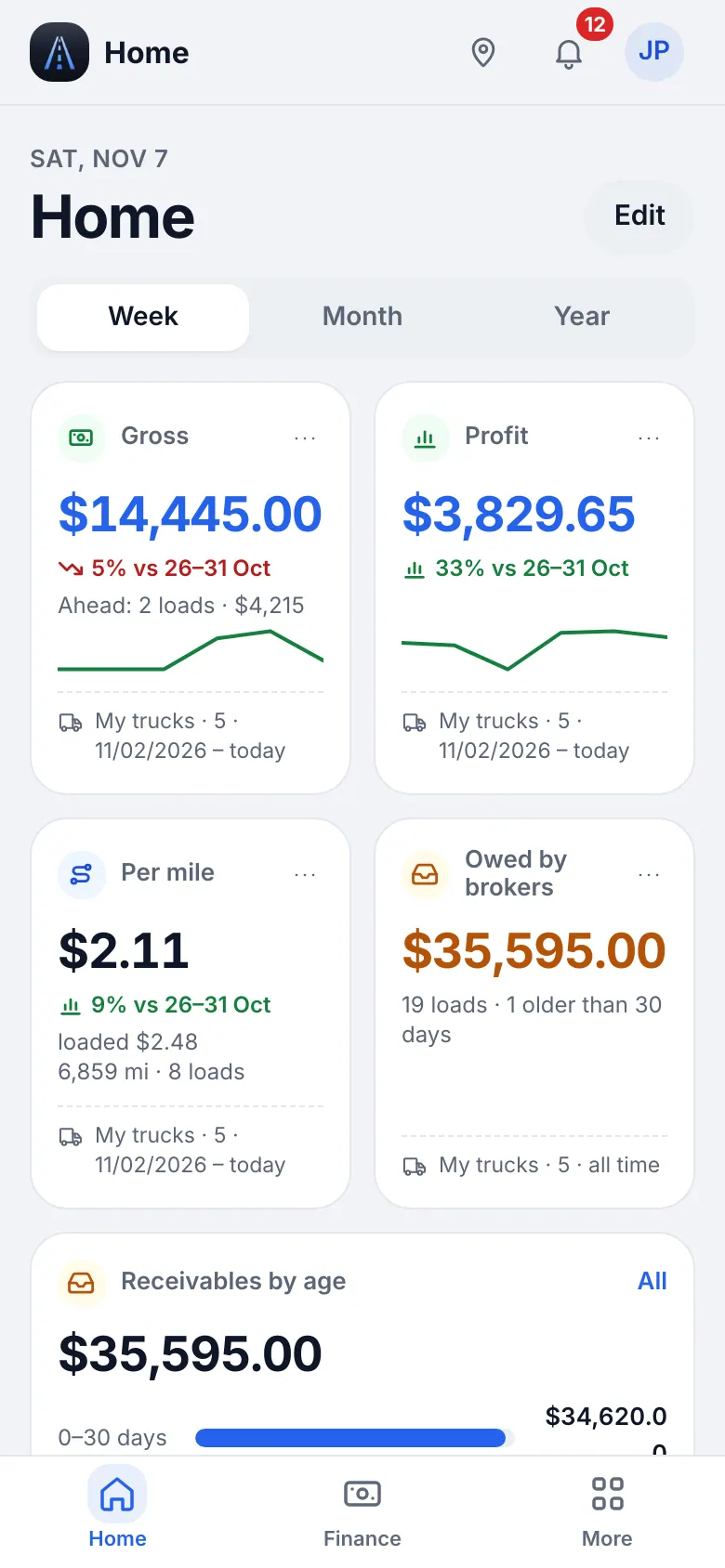
Website on a phone · Brokers (view) - 5
Factoring
If the company uses a factor, invoices show the advance, fee and reserve. The factoring overview lists the amount advanced, the reserve held and what is not yet sent.
4
IFTA
Miles and fuel by state for a quarter. IFTA applies to trucks over 26,000 lbs or with three or more axles.
- Where to find it
- Website
- People & compliance → IFTA
- iOS app
- People & compliance → IFTA
- 1
Open a quarter
Pick the year and quarter. You see miles, gallons, fuel cost and MPG in total and by state; fuel without a state is shown as missing. Export the CSV.
CarefulThe report is an estimate for checking fuel and miles; the miles of a load are split between the pickup and delivery state.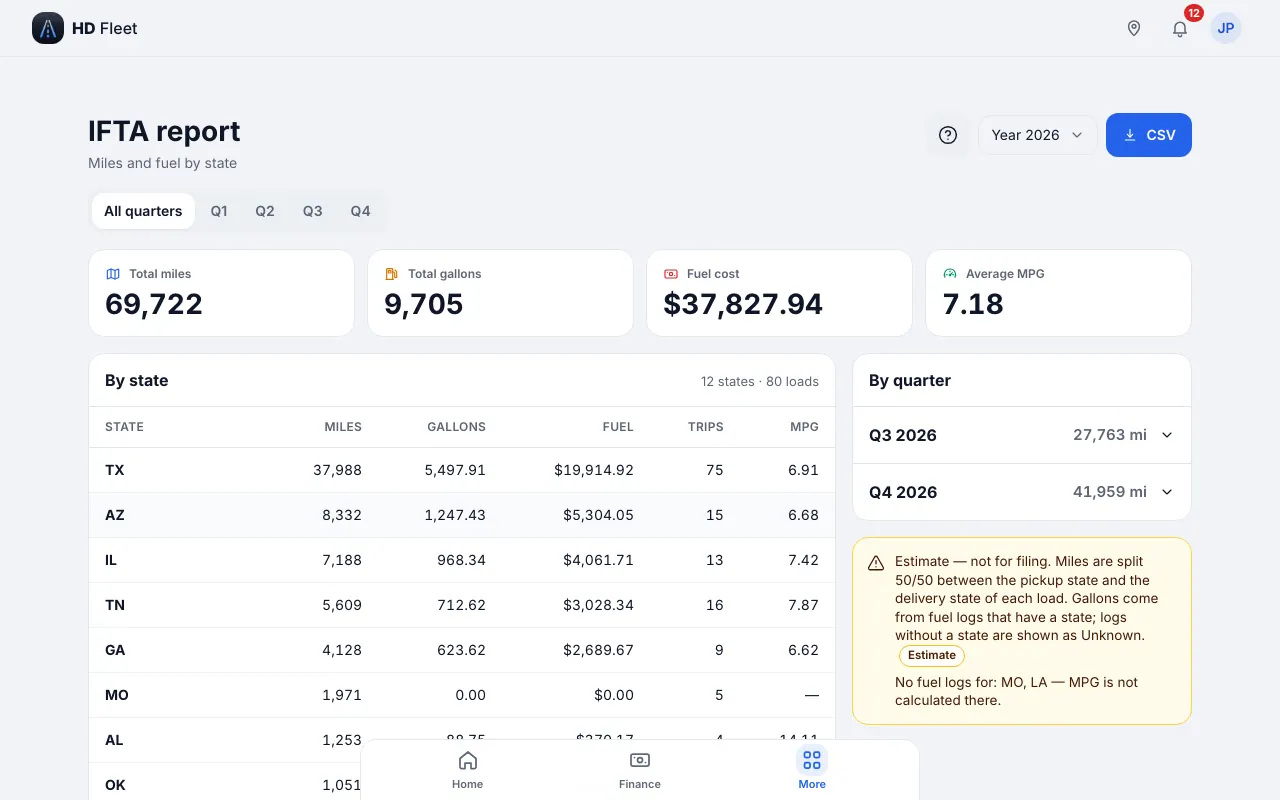
Website · IFTA report
5
Importing expenses and fuel-card statements
The one place you can write: bring a year of expenses or a card statement in a single file.
- Where to find it
- Website
- Workspace → Import data
- iOS app
- Workspace → Import data
- 1
Choose Expenses and fuel
Open Import data and pick Expenses and fuel. Tap Download template for the columns. A statement has a date, gallons, price per gallon, a state and a card or truck.
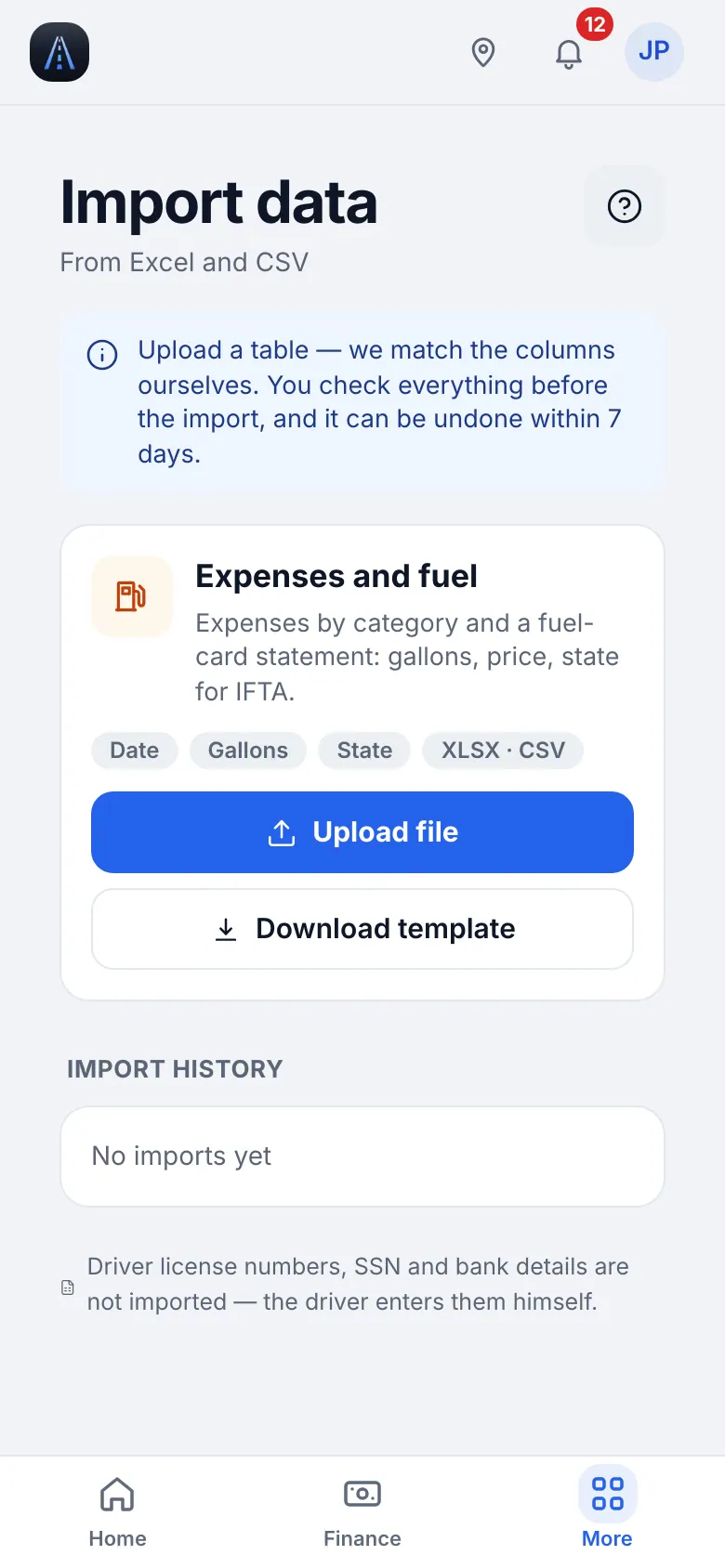
Website on a phone · Import expenses and fuel - 2
Match the trucks
Find the truck by unit number, plate or card; only the last 4 digits of a card are kept. Map each card to a truck once.
- 3
Check, import, undo
The Check step is a dry run with Ready, Errors and Duplicates. Every fuel line needs a state; DEF and non-fuel purchases go to DEF / Other. Import history offers Undo import for 7 days.
- 4
Locked records
Records inside an approved or paid settlement are not added or changed.
6
Statistics, reports and exports
Charts by month and by truck, and exports.
- Where to find it
- Website
- Money → Finance overview → Statistics
- iOS app
- Money → Finance overview → Statistics
- 1
Statistics
Revenue, costs and profit by month and by truck; compare months.
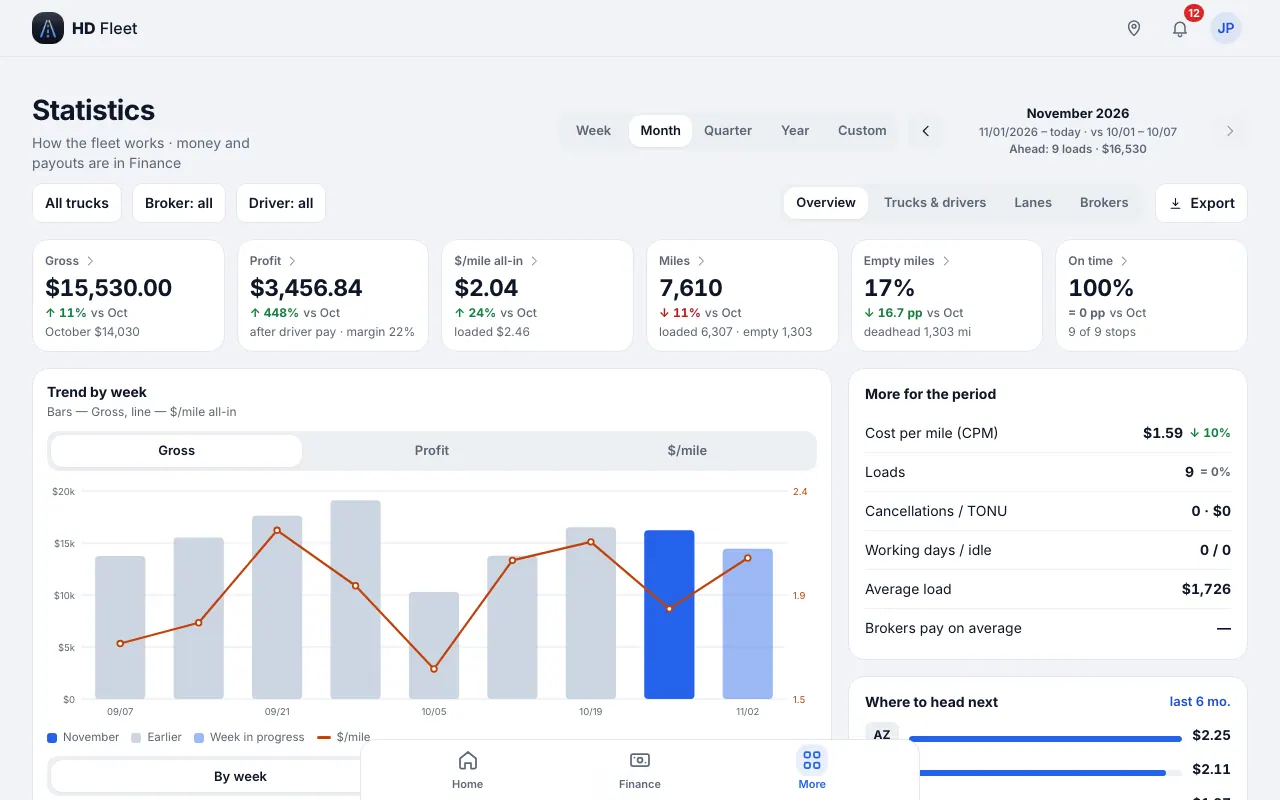
Website · Statistics - 2
Reports and taxes
Money → Reports & taxes has the tabs Reports (P&L reports) and Taxes (Schedule C lines, trucks write-off, per diem and 1099 data). Everything is read-only for you.
- 3
Exports
On Loads-related lists and Statistics use Export and choose PDF or Excel. Exports respect the filters and the selected ledger.
7
Troubleshooting
Quick fixes.
- 1
A button is missing
Your role is read-only; writing actions are hidden on purpose.
- 2
«Update the app»
Update HD Fleet from the App Store.
- 3
Support
Settings & help → Help & support → Write to us. The support chat is not available to your role.