User guides
Driver
The iOS app is your tool on the road: your current load, one-tap steps, scanning BOL and POD, receipts, messages with the office and your weekly pay. Everything also works on the website on your phone. You see your own loads and money only — never company money, other drivers or other companies. Stuck? Open the last chapter: every common problem has a short fix.
Your type of operation: Semi (dry van, reefer, flatbed)
1
Install the app and sign in
Your office creates your account. You sign in with the e-mail and password they gave you, or with a one-time QR code. The QR code is the easiest: no typing.
- Where to find it
- Website
- hamadev.net on your phone
- iOS app
- App Store → HD Fleet
- 1
Install
Open the App Store, search HD Fleet and install it. Open it and allow notifications when asked, so you do not miss a new load.
- 2
Sign in with e-mail and password
Type your email and password and tap Log in. If a 6-digit code was e-mailed to you, type it and tap Confirm. The code is valid for 10 minutes; Send a new code sends another.
Common mistakesA capital letter or a space in the e-mail: type it exactly as the office wrote it.Common mistakesThe wrong password three times: use Forgot password? below.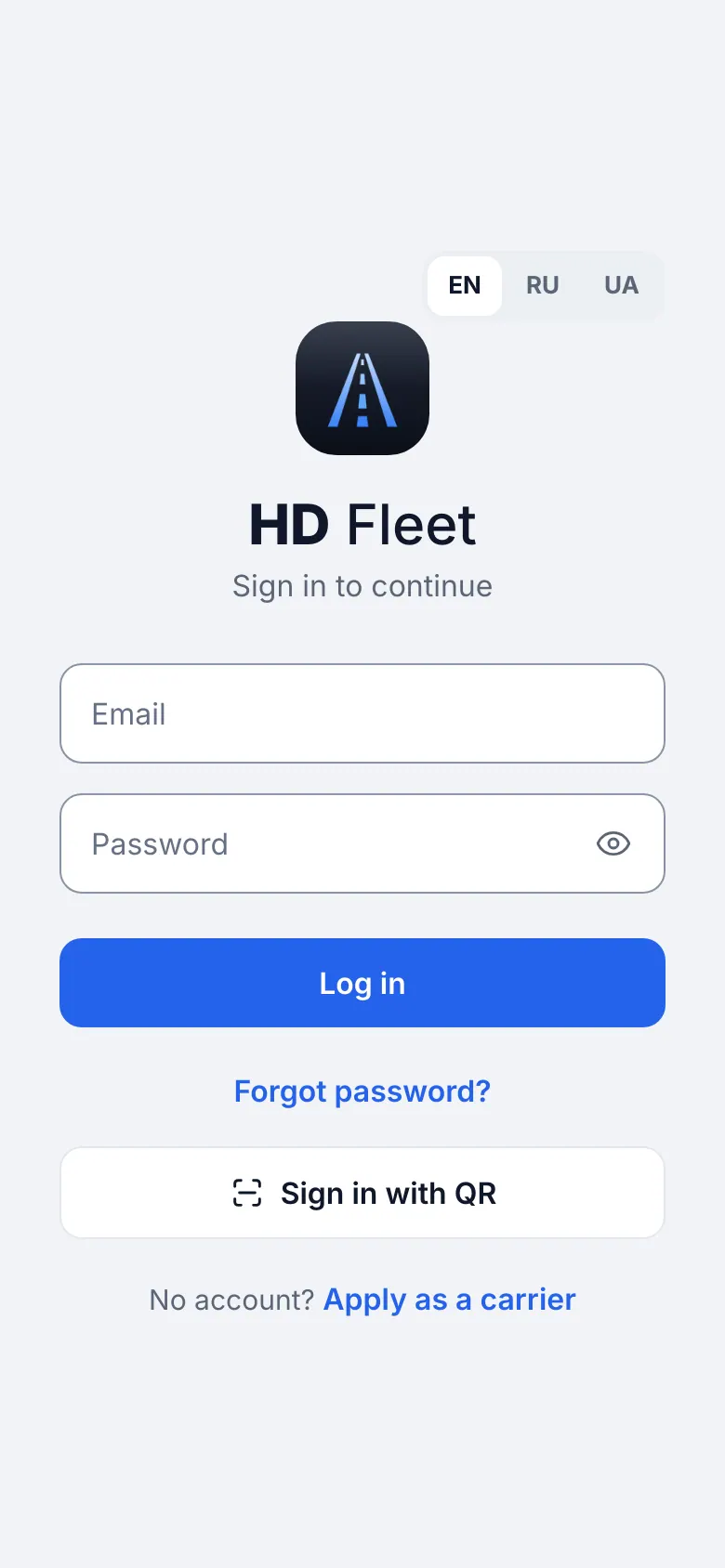
iOS app · Sign-in screen with «Sign in with QR» - 3
Sign in with a QR code (best)
Ask the dispatcher or the owner to show your QR code. On the sign-in screen tap Sign in with QR and point the camera at the code. You are in. The code works once and for 10 minutes, and your password does not change. No camera? Tap Enter code manually and type the code written under the QR.
What you will seeThe screen says Signed in and opens your loads.
Common mistakesThe code expired: ask for a new one. The old code stops working when a new one is made.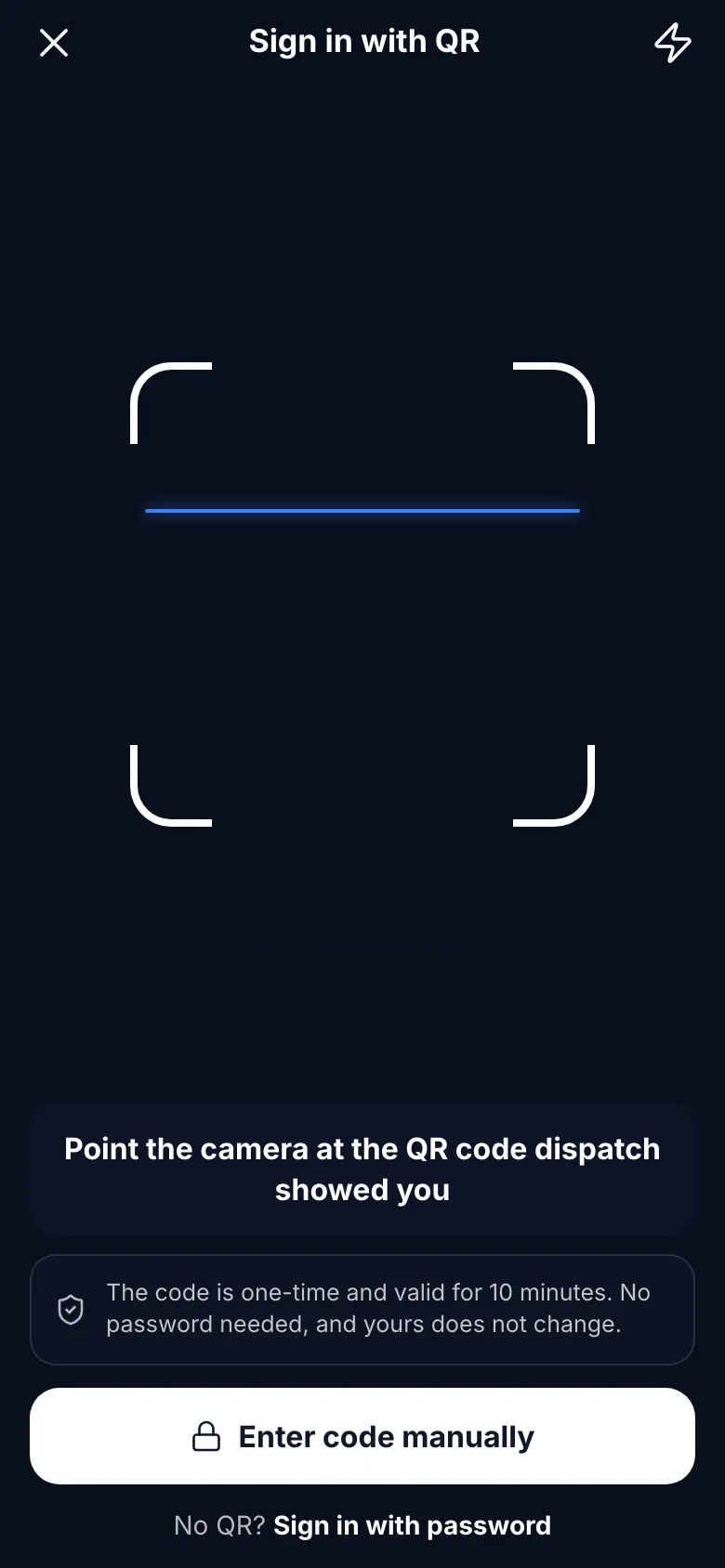
iOS app · QR sign-in camera - 4
Forgot the password
On the sign-in screen tap Forgot password?, type your e-mail and send. An e-mail arrives with a link. The link opens the website: set a new password there (8 or more characters, a letter and a digit), then sign in in the app with it.
TipFaster: ask the office for a QR code. It signs you in without any password.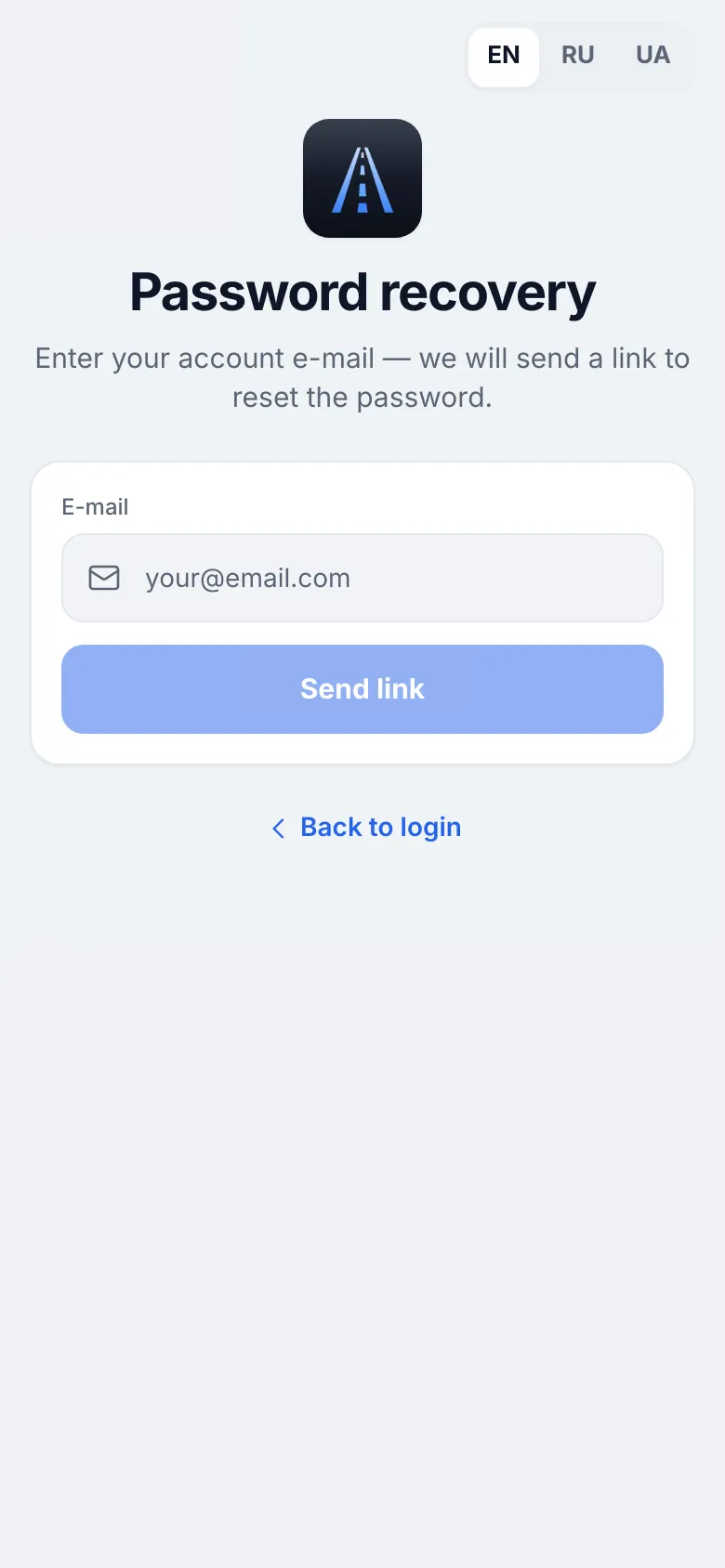
iOS app · Forgot password: type the e-mail, the link opens the website - 5
The first start
On the first start a short intro explains the main buttons. Tap Skip or go through it once. You can change your language in Settings (More → Settings & help → Settings).
2
Location «Always» (important)
With location set to Always the dispatcher sees your truck and the miles stay accurate even with the screen off. The app records the route only while you are on duty or have an active load, never in your personal time. Do this once, on the first day.
- Where to find it
- iOS app
- iPhone Settings → HD Fleet → Location; Map → My track
- 1
Allow «Always»
When the app asks for location, choose Allow. Then open the iPhone Settings app → HD Fleet → Location, choose Always (“Change to Always Allow”) and keep Precise Location on.
Common mistakesChoosing “While Using the App”: GPS freezes when the screen is off.Common mistakesPrecise Location off: the truck jumps around on the map. - 2
Check My track
Open Map → My track (the Map is under More → On the road). It shows whether your location is being shared and why. If something is wrong, the screen tells you what to change and opens the right settings. Check it once after the setup: it must say that sharing is on.
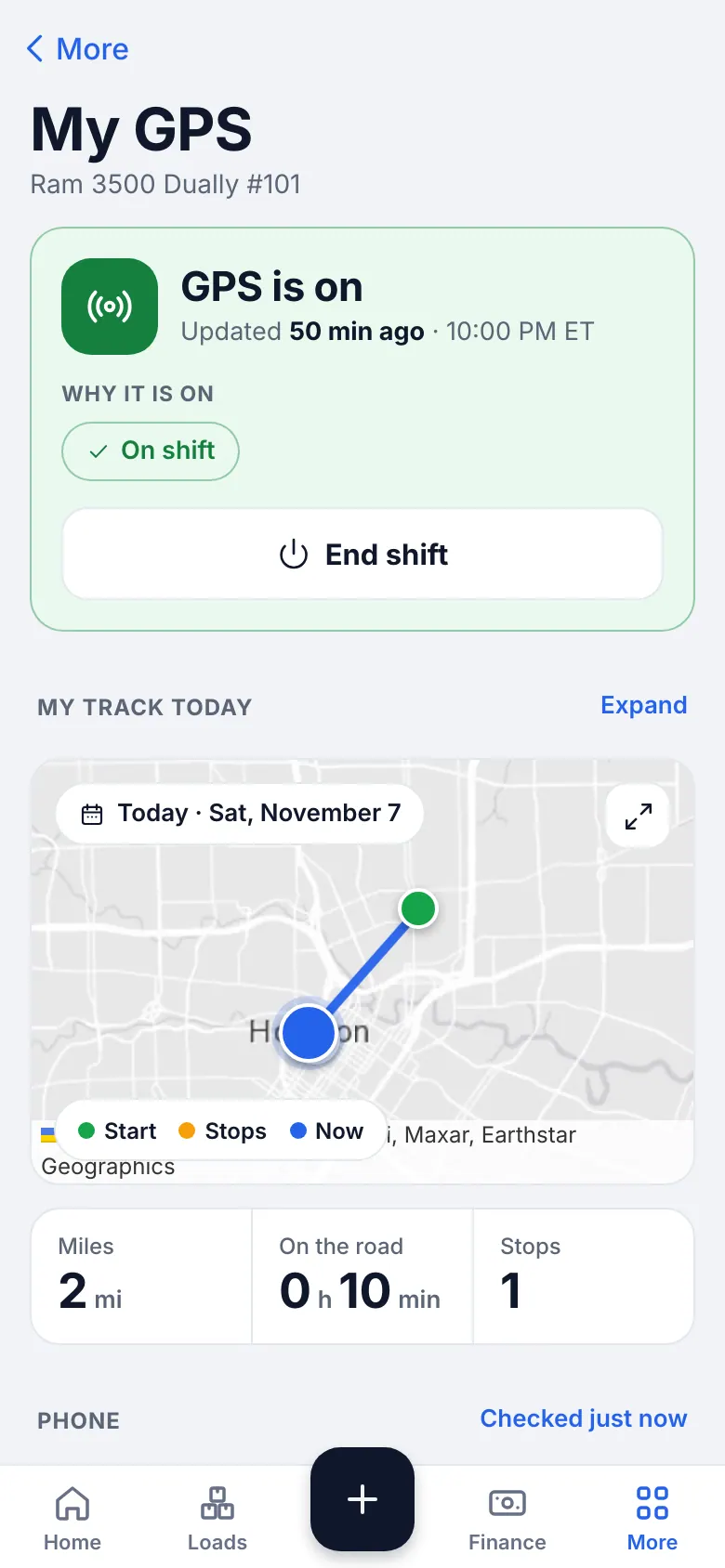
iOS app · My GPS: status and why - 3
Keep it working all day
Do not force-close the app with a swipe up while you drive. Keep Low Power Mode off on long drives; it pauses background location. A phone charger in the truck helps: GPS uses battery.
- 4
No signal
In a dead zone the points are queued and sent when the signal is back. You do not need to do anything.
- 5
When tracking stops
If your phone stops sending on a load, you get Tracking stopped on your load. Tap it: a card says exactly what to change (Location Services off, Location set to While Using, or Low Power Mode) and takes you to the right Settings page. The dispatcher can also ask you to fix it. Ten seconds, and the office sees your load again.
3
The home screen
Home shows what you need right now. Learn four things on it and you know the app.
- Where to find it
- Website
- Home
- iOS app
- Home (bottom bar)
- 1
The bottom bar
Five buttons: Home, Loads, “+”, Pay and More. “+” adds a receipt, scans a document or sends a service request. Loads is your trips. Pay is your week and your payouts. More has everything else.
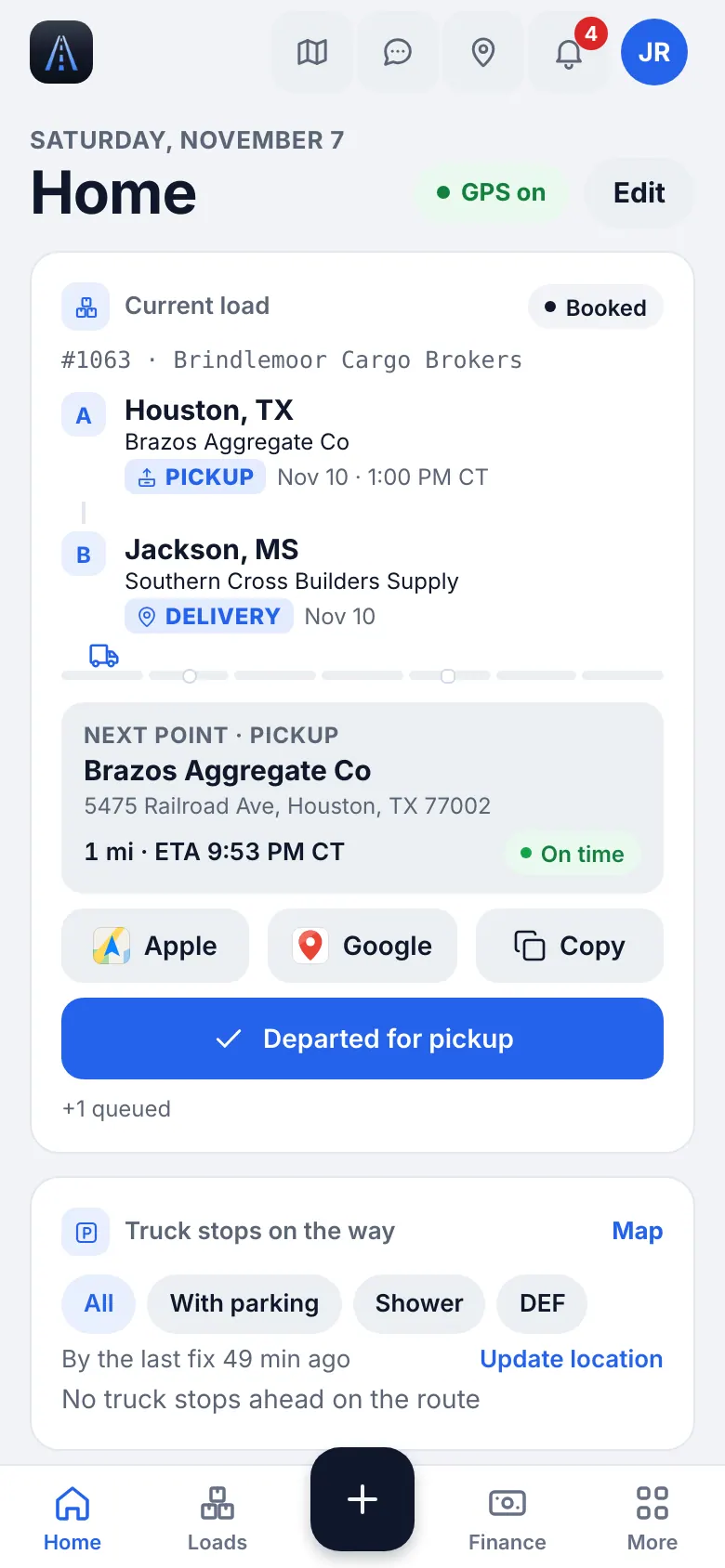
iOS app · Driver home: current load, money of the week, quick actions - 2
Current load and quick actions
The top card is your current load with its next step. Under it are quick actions, the useful one first: Scan BOL/POD, Truck stops, a receipt and your location.
- 3
My money
The card My money shows what is To pay this week, last week, cents per mile this week, receipts to reimburse and on-time percent. Tap Details for the week.
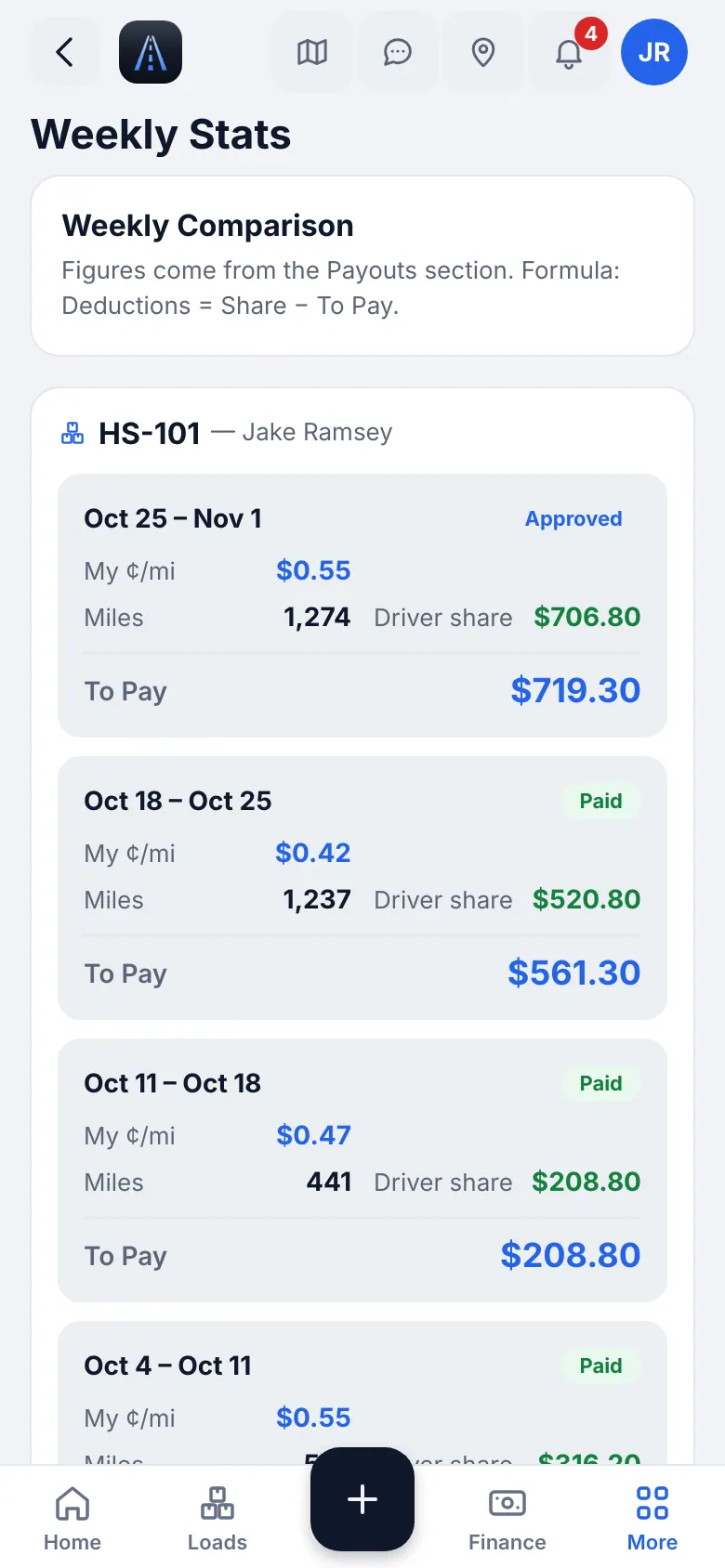
iOS app · My week: miles, loads, earnings - 4
Documents that expire
A Documents card appears only when one of your documents expires within 30 days or has expired (CDL, medical card). Tap Upload new and photograph the new document.
- 5
More
More groups the rest: My work (Calendar, Parts, Notes), On the road (Map, Rate calculator, Truck stops), Documents (Files, Form W-9) and Settings & help. Your week is under Pay → This week. The chat button in the header opens your messages, and the search finds any page by name.
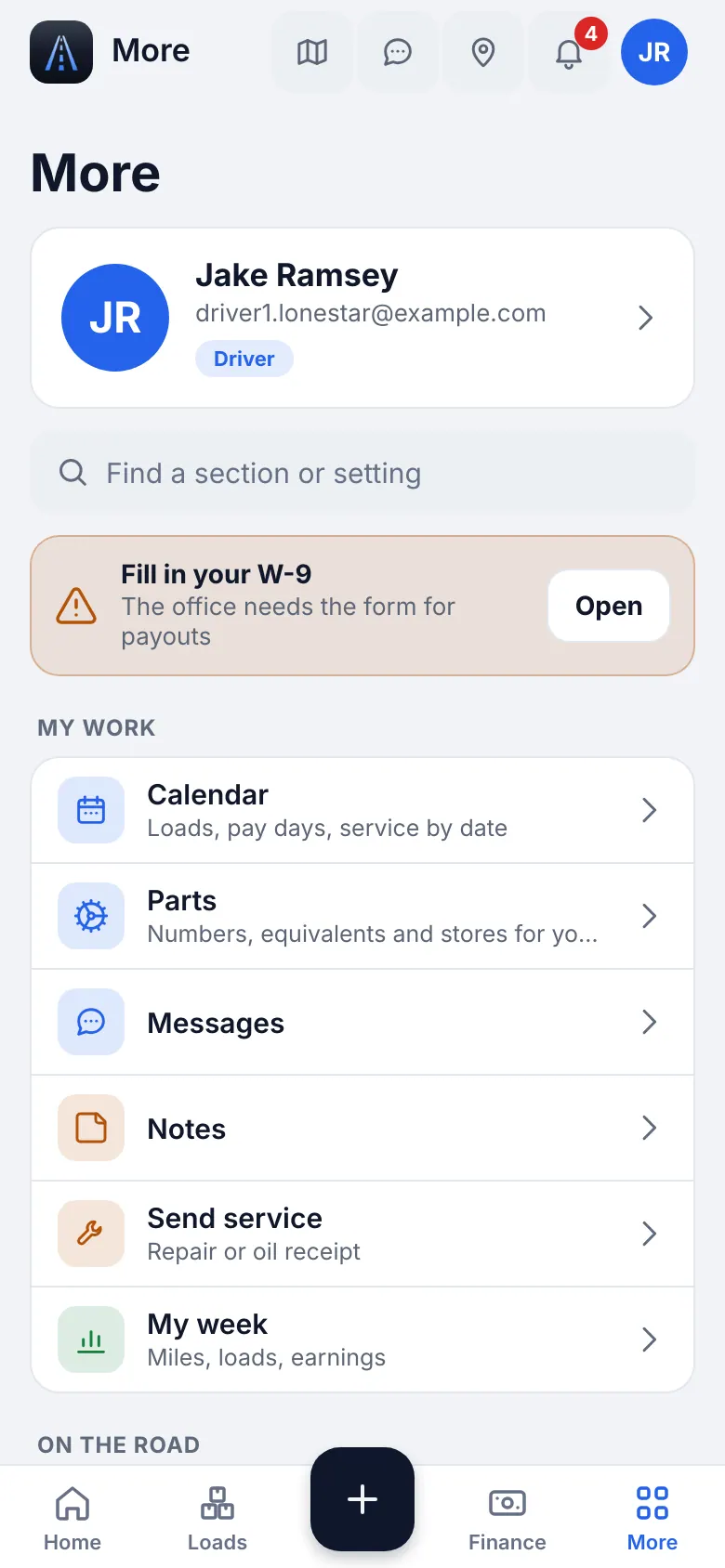
iOS app · The More menu of a driver
4
A load from start to finish (the short version)
Eight taps and one photo. This is the whole job. The next chapters explain each one.
- Where to find it
- iOS app
- Home → current load
- 1
The checklist
1. Get the new-load notification and open the load. 2. Read the stops and notes. 3. Tap the address and navigate to pickup. 4. At the shipper tap I'm here. 5. When the truck is loaded tap Loaded, and scan the BOL. 6. Drive to the delivery. 7. At the receiver tap I'm here, then Unloaded. 8. Add the POD photo. Done: the dispatcher can invoice.
TipTapped the wrong step? Hold the green step to undo. Nothing is lost.TipNo signal? Keep going: everything is saved on the phone and sent later.
5
Loads, stops and steps
One tap tells the dispatcher where you are. Steps go in order, and each pickup and each drop has its own.
- Where to find it
- Website
- Loads
- iOS app
- Loads → your load, or Home → current load
- 1
Open your load
On Home open the current load, or find it in Loads. The card shows every stop with the address, the time and the notes (gate codes, contacts).
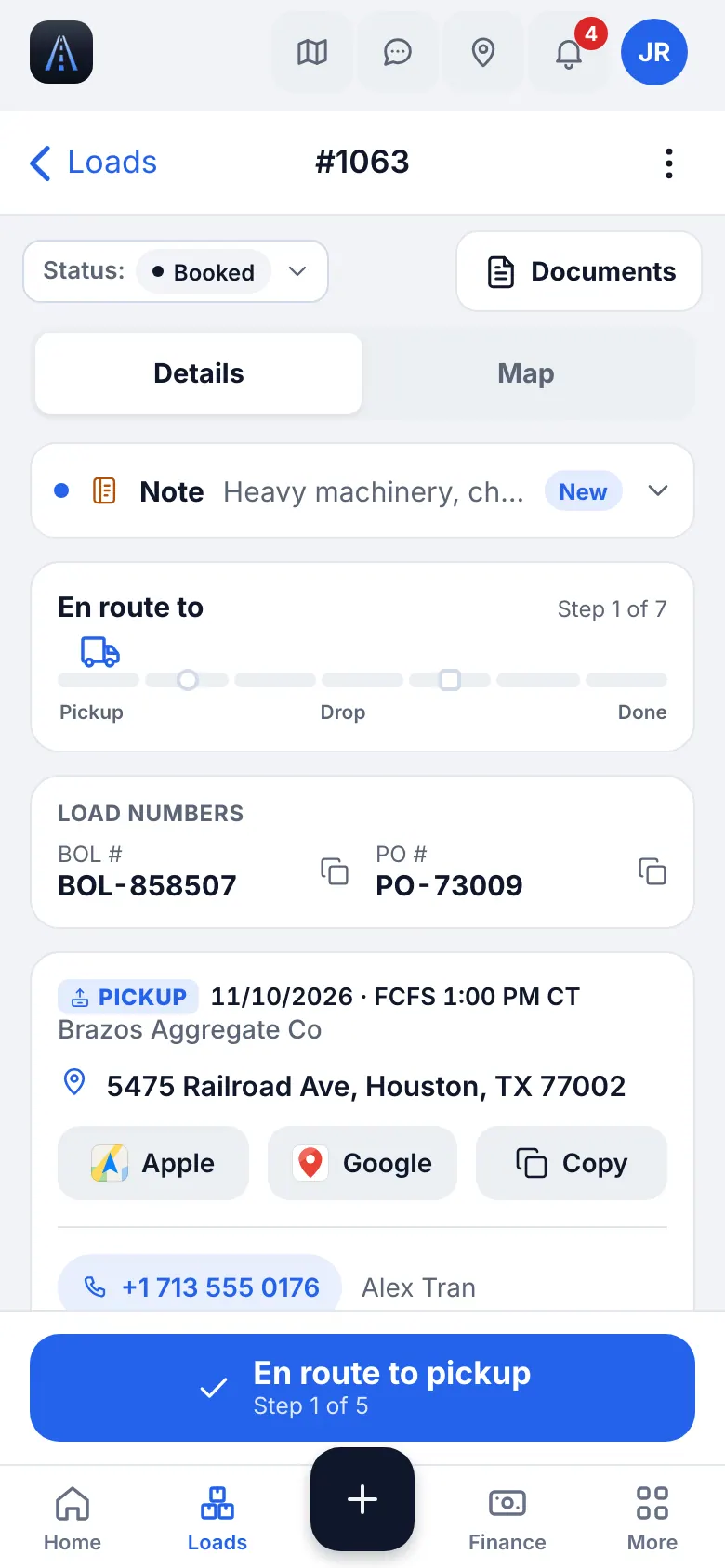
iOS app · Load card with the big step button - 2
Tap the big button
The big button always shows the next step: En route to pickup → At pickup → Loaded → At delivery → Delivered. Tap it when it is true. Marking a later step fills the earlier ones that were never marked; times already saved are not overwritten.
Common mistakesTapping before you are really there: the dispatcher and the customer see the time. Tap when it is true.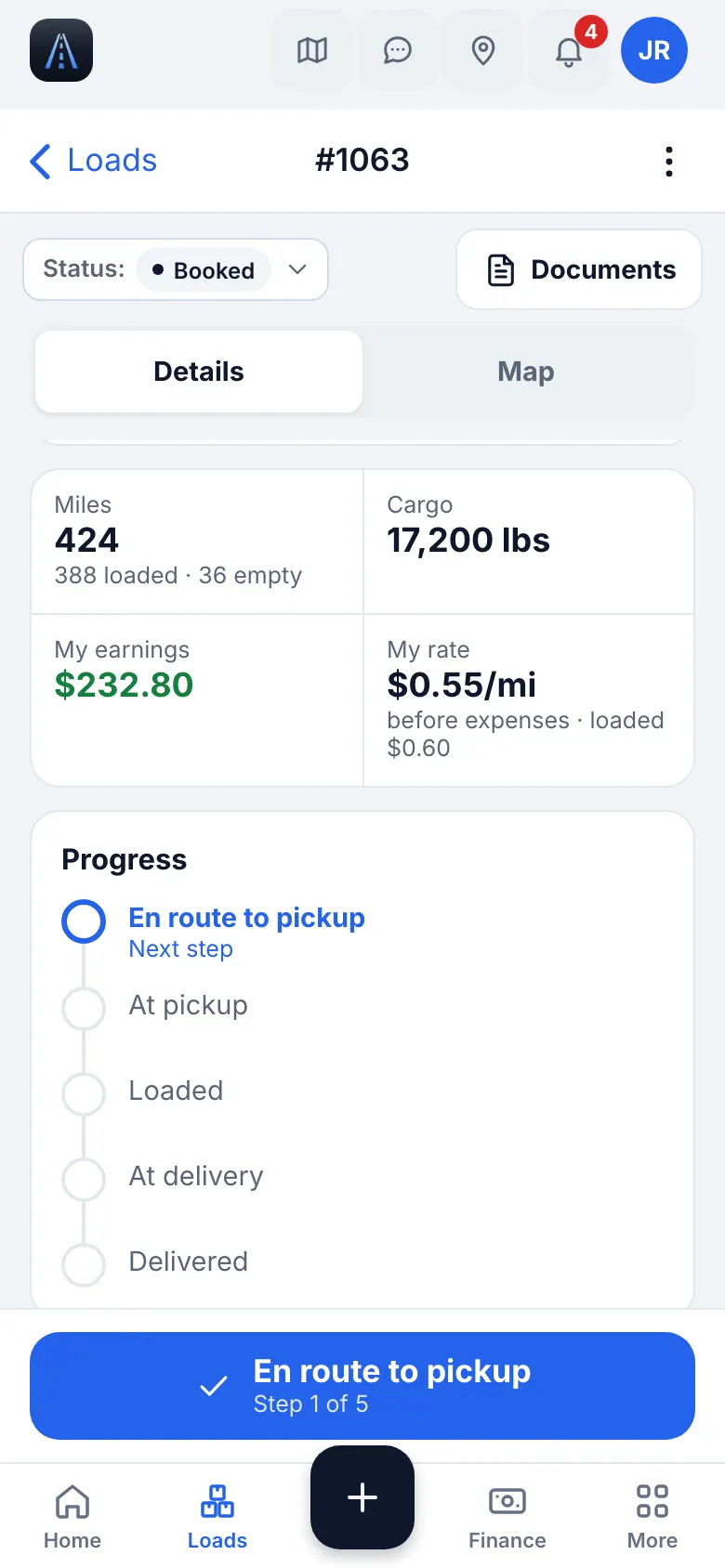
iOS app · Stops and steps of a load - 3
Several stops
A load with more than one pickup or drop shows each stop as its own card with its own buttons: I'm here, then Loaded at a pickup or Unloaded at a drop. The next stop is marked “next”. Tap show details to see its address and notes, Hide to fold it.
- 4
The last drop and the POD
At the last drop the app asks Load delivered?. Choose Unloaded + add POD to photograph the signed delivery paper right away (Take photo or Choose file), or Unloaded, no POD if you will scan it later. Then the load closes and the dispatcher is told.
TipAlways add the POD. It is what lets the office send the invoice and get paid.CarefulMark as delivered? closes and archives the load: tap Yes, delivered only after the last stop. - 5
Undo a wrong step
Tapped a step by mistake? Hold your finger on the green step: the app says “Step undone” and goes back one step. Nothing else changes. Do it at once, then tap the right one.
What you will seeThe step is not green any more and the big button shows the step you meant.
- 6
Follow on your lock screen
Switch on Follow on lock screen on the load to keep the truck, miles left and ETA on your lock screen until delivery (up to 2 loads at a time). If it fails, check that Live Activities are on in iPhone Settings.
6
Navigation to the stop
You do not type addresses. Tap the address on the load.
- Where to find it
- iOS app
- Load → tap the address
- 1
Navigate
Tap the address of a stop and choose Navigate with Apple Maps or Google Maps. The map opens with the route to that address. Copy address copies it for another app.
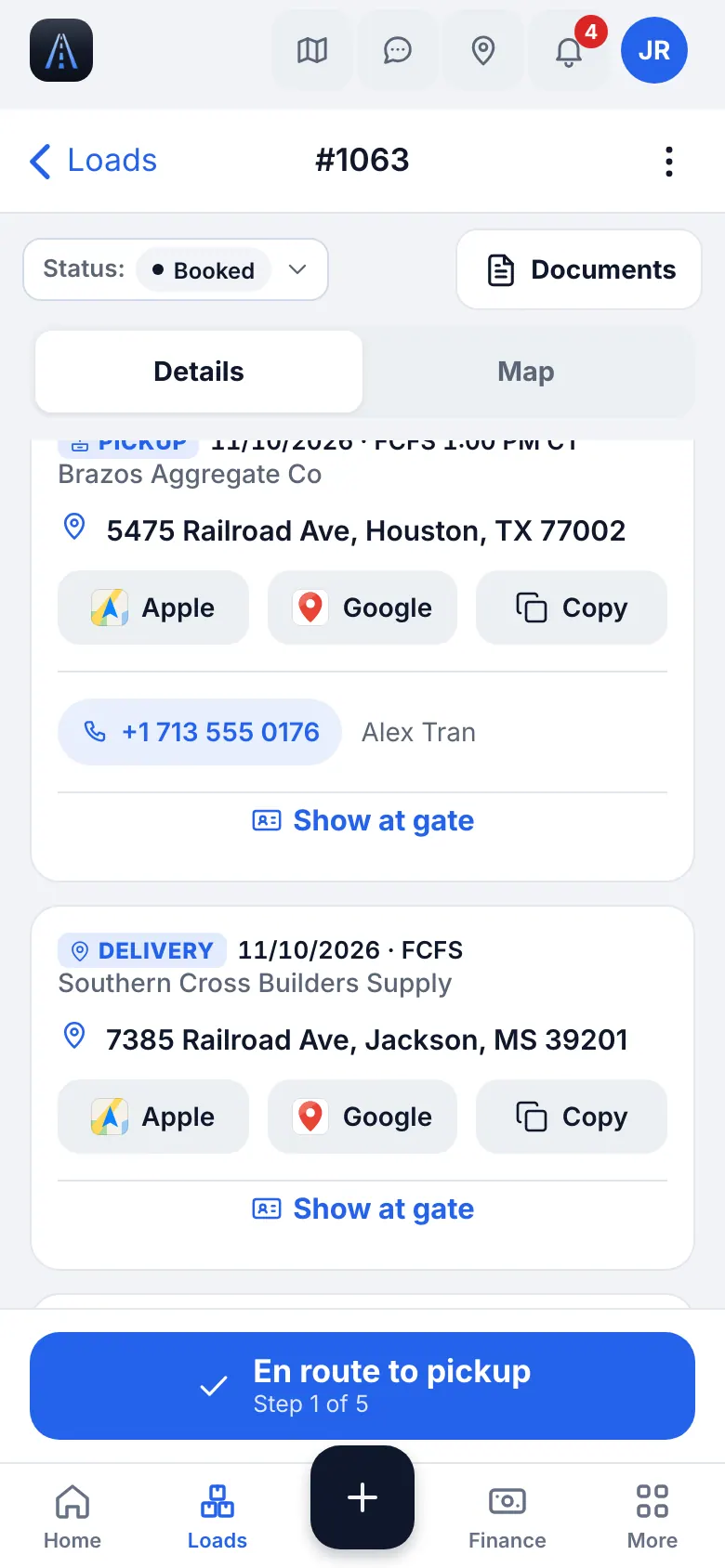
iOS app · Navigate with Apple or Google maps
7
Waiting and detention
When the shipper or the receiver keeps you waiting, the time is money. The app keeps the proof.
- Where to find it
- iOS app
- Load → stop card
- 1
Tap «I'm here» on arrival
The time of I'm here is saved. At a stop the app counts the wait against the free time of the rate confirmation, so the office can claim detention. Tap Loaded or Unloaded as soon as you are done.
- 2
Waiting too long
Tell the dispatcher in the load chat: “Waiting 2 hours at the shipper”. Add a photo of the dock if you can. The dispatcher asks the broker for the extra pay; the owner adds Detention to the load.
TipNever leave without tapping the step: the saved times are your proof. - 3
Where you see it
On the load card the extras of the load (Detention, Layover, Hand load / unload) are shown when the office adds them. They are added to your pay by the rules of your company.
8
Scan BOL, POD and other documents
A clean PDF from the phone camera goes straight to the load. A POD is what lets the office invoice.
- Where to find it
- iOS app
- Home → Scan BOL/POD, or “+” → Scan document, or Files → Scan
- 1
Scan
Open the scanner. Put the paper flat, in good light, with all four corners in the frame. Tap Take photo; crop if needed. Pick the type: BOL, POD, weighing, lumper receipt and others. Pick the load and save.
Common mistakesA dark or cut-off photo: the office cannot invoice with it. Retake it.Common mistakesPicking the wrong load: check the route on the card before saving.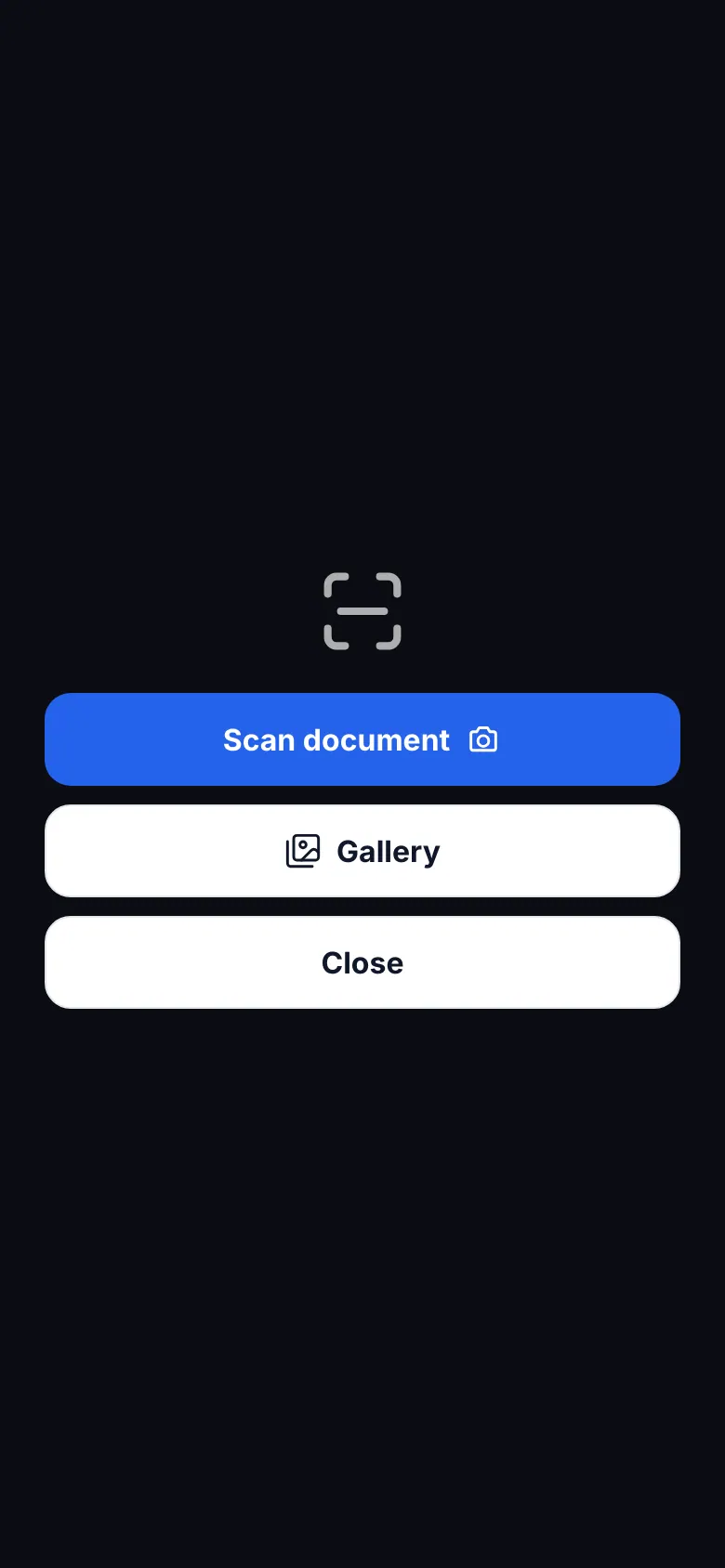
iOS app · Scan BOL / POD - 2
Several pages
Tap Scan another to add the next page to the same document.
- 3
Waiting to send
With no signal the document is kept and the screen shows Waiting to send; it goes out when the network returns. Do not delete the app.
- 4
Your files
More → Documents → Files lists what you uploaded.
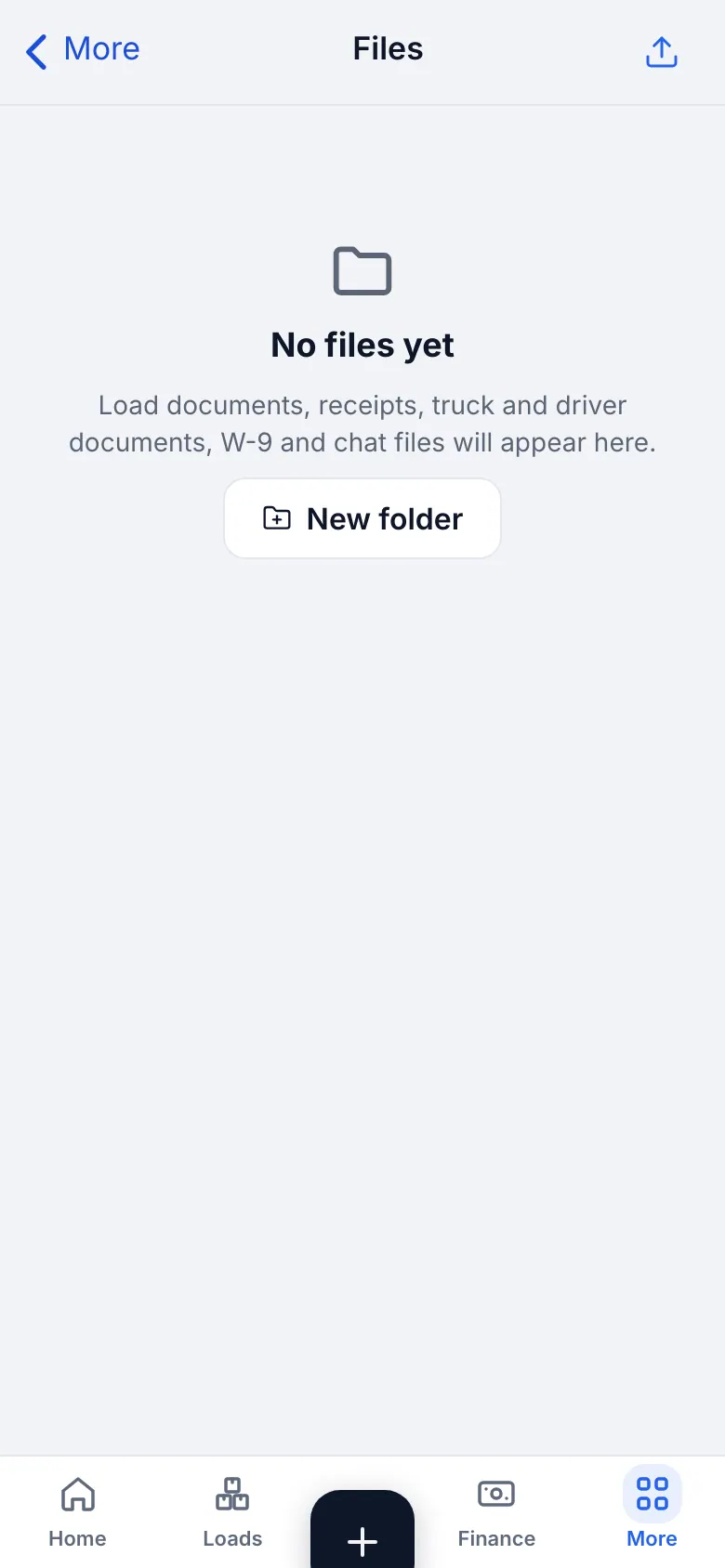
iOS app · My files: what the driver uploaded
9
Expenses, fuel and receipts
Fuel, a wash, tolls, parking: photograph the receipt and the office sees it in the books. You get the money back if you paid for it.
- Where to find it
- iOS app
- “+” → Add receipt
- 1
Start a receipt
Tap “+” in the bottom bar and choose Add receipt.
- 2
Photograph and check
Photograph the whole receipt flat. Scan with OCR reads the amount: check it. Check the amount, the date, the place and, for fuel, the gallons, the price per gallon and the state.
CarefulA fuel line needs the state. IFTA counts fuel by state. Without it the line cannot be saved.Common mistakesA wrong amount from OCR: always look at the number before you save.Common mistakesA photo of half of the receipt: take the whole paper.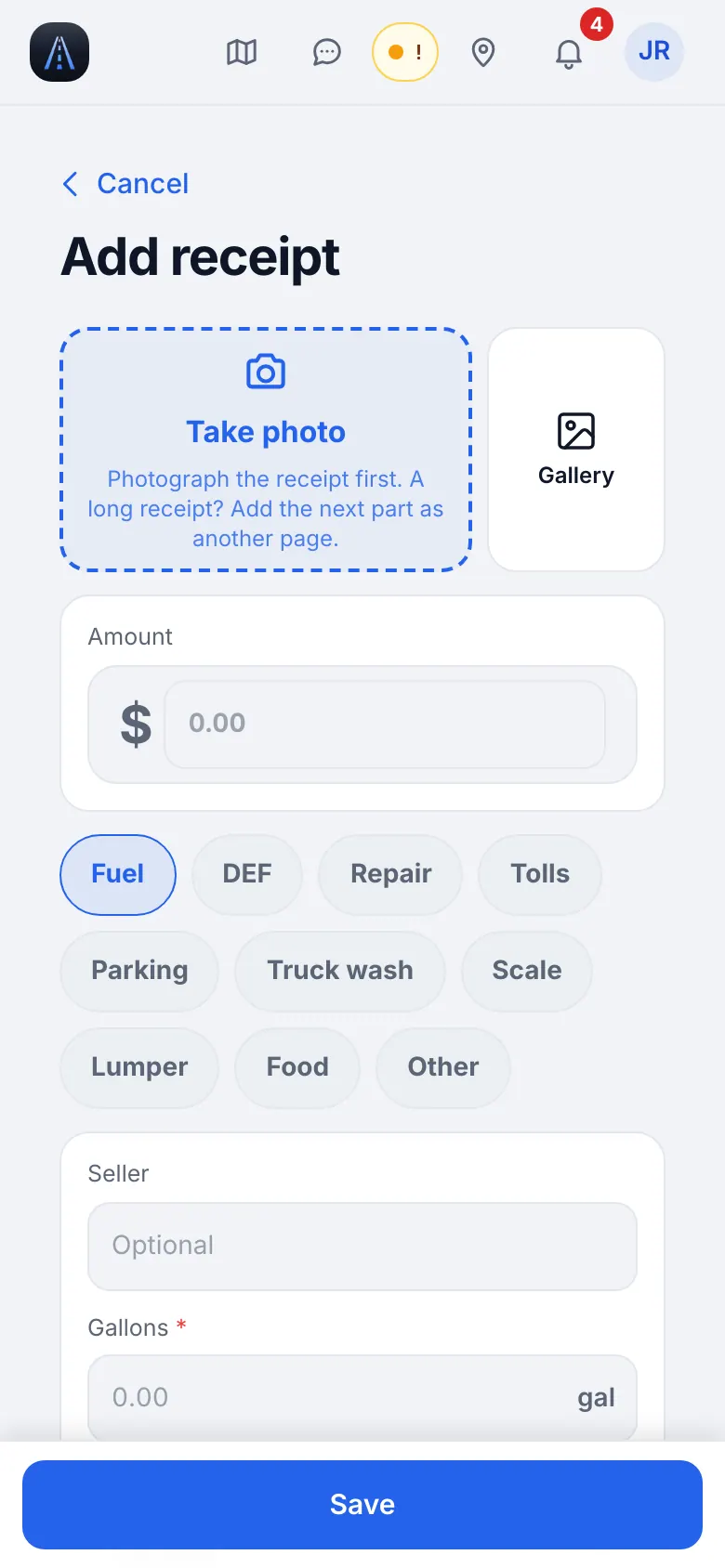
iOS app · Add a receipt - 3
Save
It is attached to your truck and the owner is told. A repeated tap never saves it twice. Offline receipts wait in the outbox (Outbox) and are sent automatically.
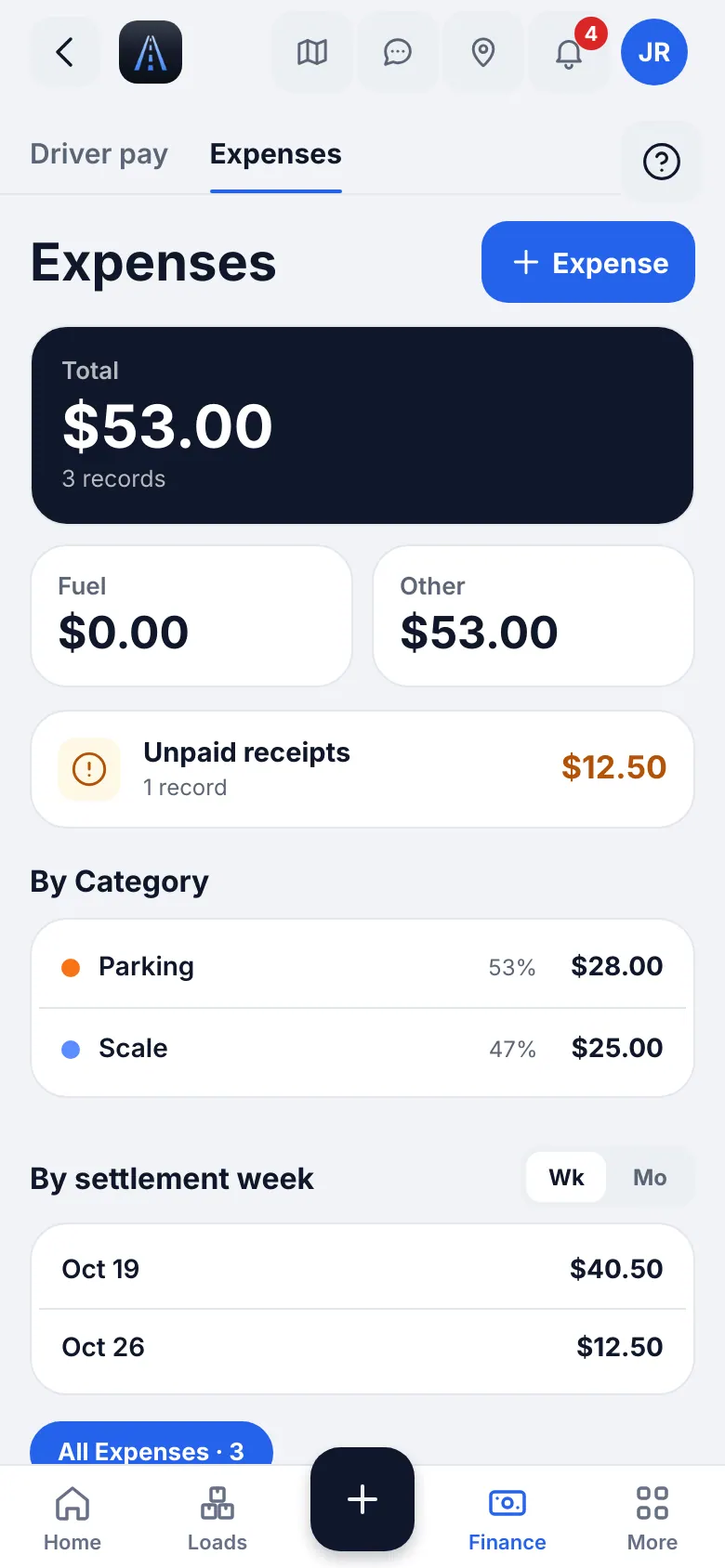
iOS app · My expenses - 4
Service and repairs
“+” → Service request sends a repair or oil receipt for the office to review.
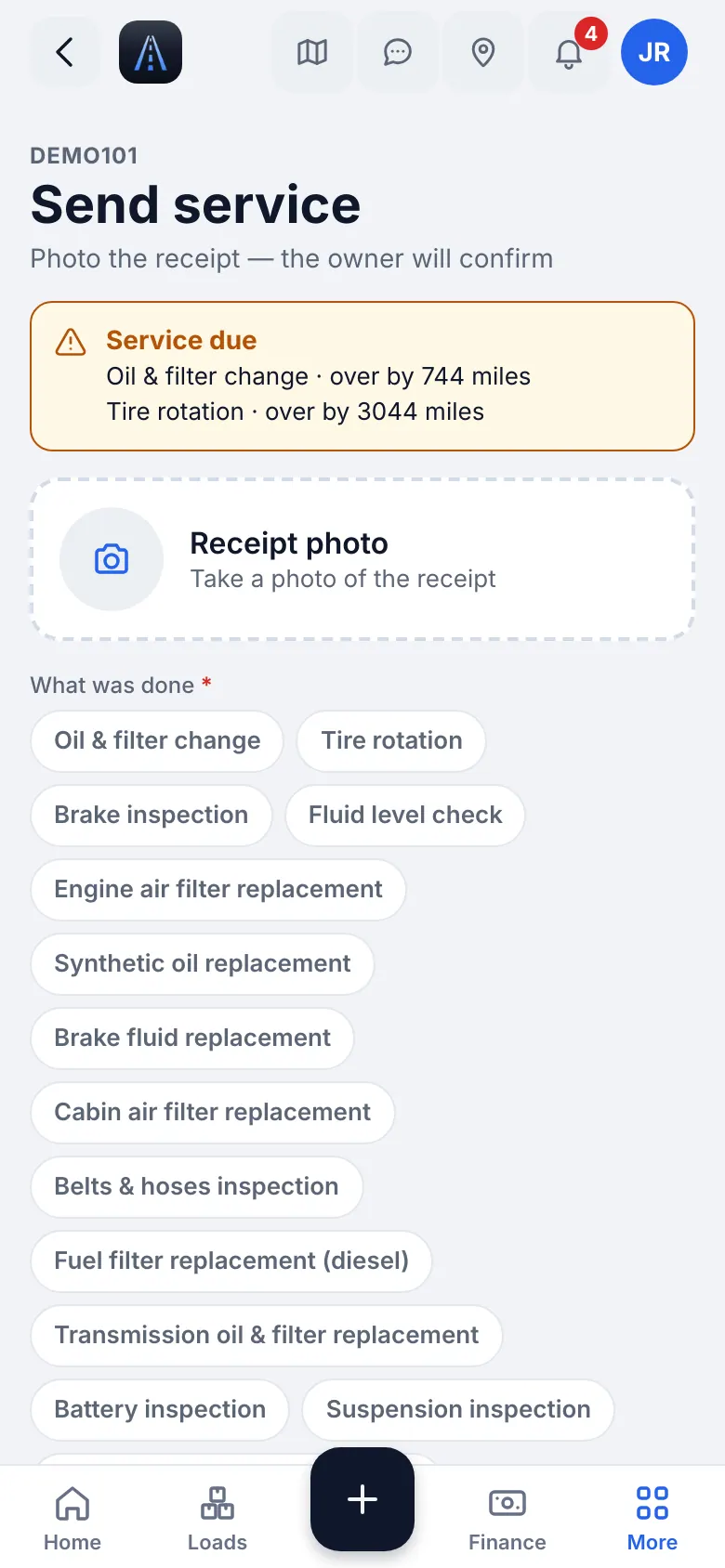
iOS app · Send a service receipt - 5
Empty miles
If you drive without a load, tap Add Empty Miles in the quick actions and enter the miles. They count in your pay when the owner pays empty miles, and in IFTA.
10
Messages: text, photos and voice
Write to the dispatcher inside the load or in a direct chat. Voice is faster than typing while you are on the road: stop first, never type while driving.
- Where to find it
- iOS app
- The chat button in the header, or the chat inside a load
- 1
Open a chat
Messages shows your chats; each load has its own. Open one and write. Send text, photos and files.
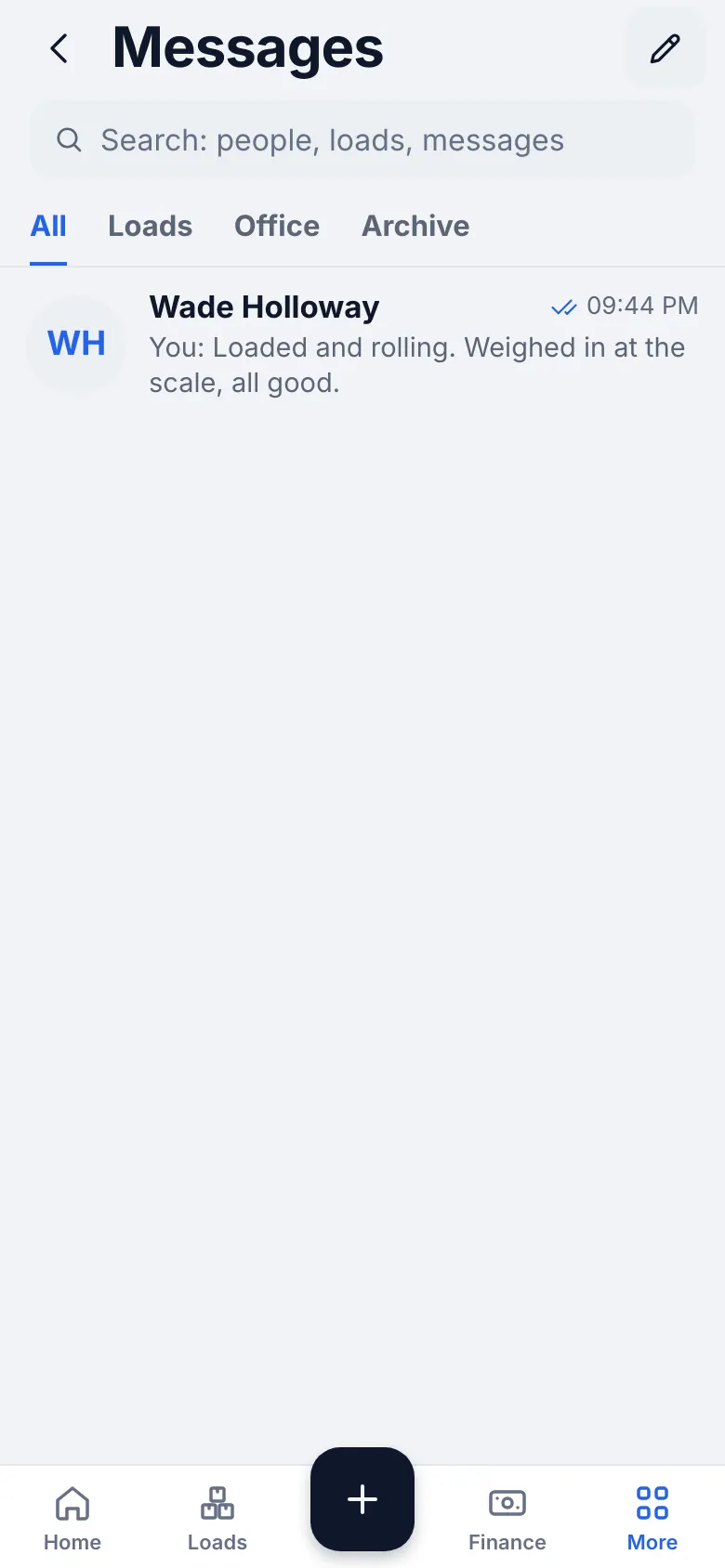
iOS app · Messages - 2
Send a voice message
Tap Record a voice message (the microphone), talk, then tap the arrow ➤ to send. “Recording is too short” means you let go too fast: try again. A voice message goes to the same chat as text.
TipStopped at a light or parked? A 10-second voice message is faster than typing. - 3
Send a photo or a document
Tap Take photo for a picture, or Scan to send a clean document. A scanned paper in a load chat goes to the load documents.
- 4
Quick answers
The quick buttons Arrived and Loaded tell the dispatcher in one tap; Undo takes it back.
- 5
Offline
Messages sent without a signal show Waiting to send and go out when the network is back. Send now tries again at once.
- 6
Notifications
More → Settings & help → Settings → Notifications chooses categories and quiet hours. Allow push in iPhone Settings → Notifications → HD Fleet, or you miss new loads.
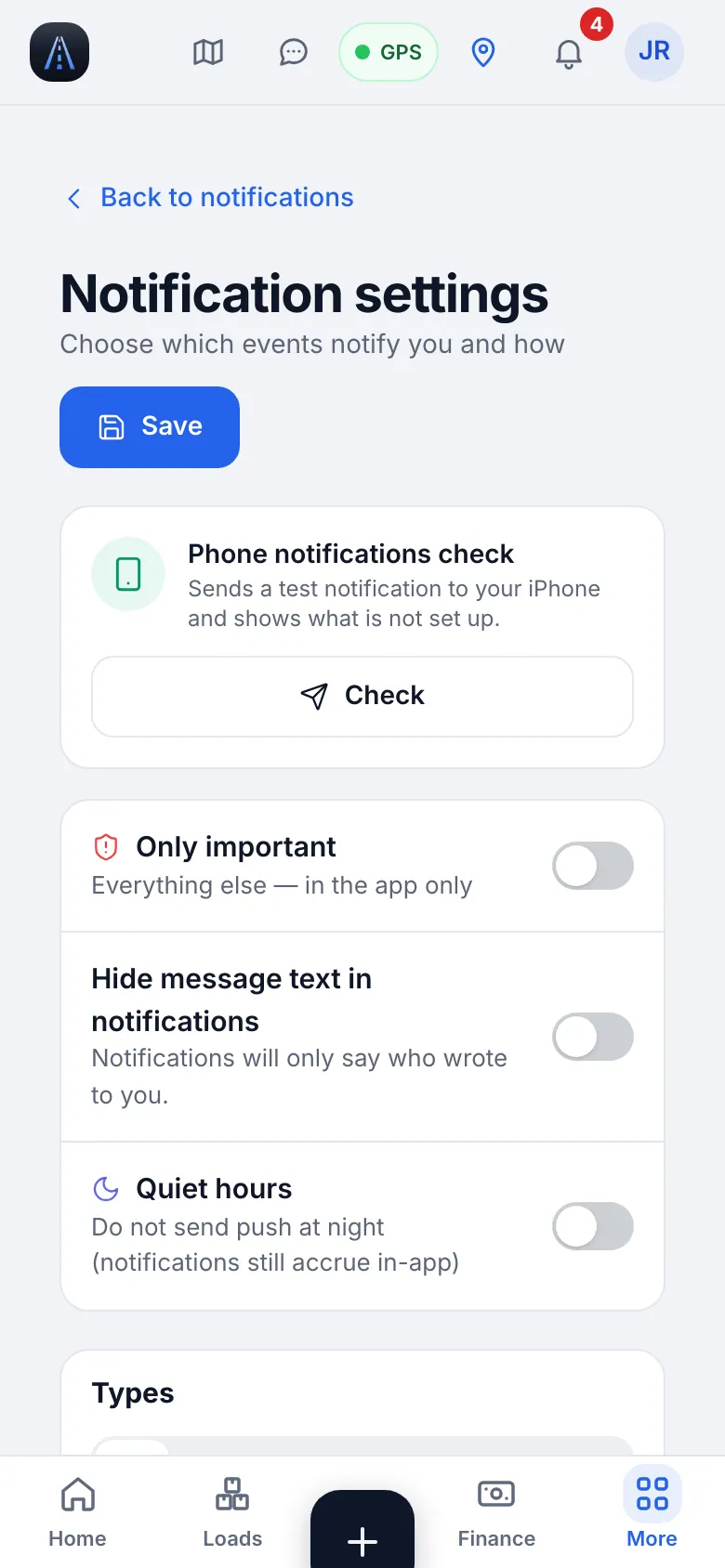
iOS app · Notification settings
11
Your weekly pay
Your settlement is one week on your truck. You see it when the office issues it.
- Where to find it
- iOS app
- Home → My money → Details; Pay → This week
- 1
See the week
My week shows miles, loads and earnings. The settlement shows your share, deductions and net payable, with the fields the owner allows. You see only your own money.
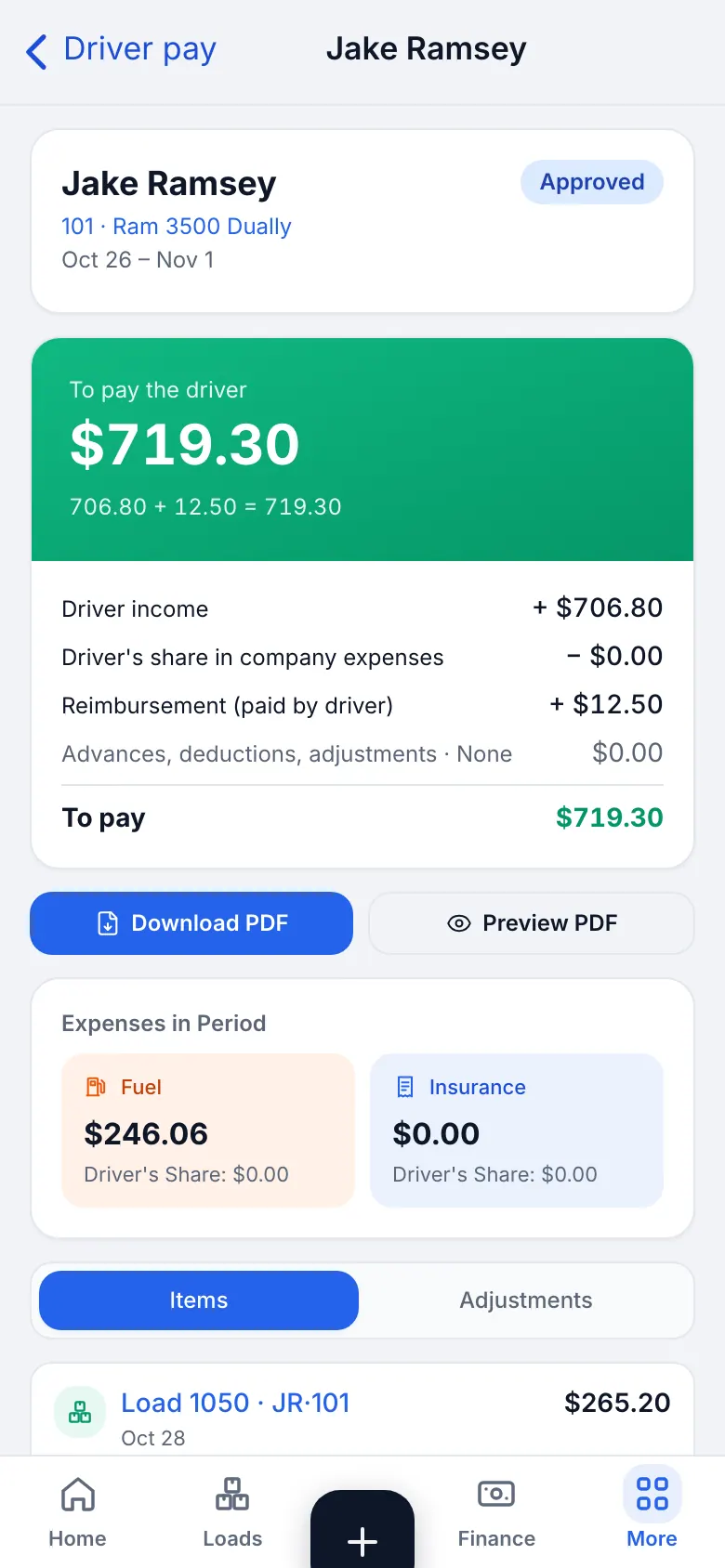
iOS app · Weekly pay: the settlement of a week with share, deductions and net payable - 2
Ask for an advance
Tap Request an advance, enter the amount and a reason and send. The owner gets a notification; an approved advance is deducted from this week's pay. You can Withdraw a request that is still waiting.
- 3
A line looks wrong
Tell the office in the chat with the load number and what you think is wrong. Do not wait for the next week: a settlement can be reopened and fixed before it is paid.
12
Form W-9 (sign it once a year)
If you are paid as an independent contractor, the company needs your W-9. You fill it in the app in about five minutes. It is private: the company sees only that it is signed and the last 4 digits of your number.
- Where to find it
- iOS app
- More → Documents → Form W-9
- 1
Open the form
More → Documents → Form W-9. The screen shows “Step 1 of 7” at the top and a Next and Back button at the bottom. You can leave and come back: your answers are saved.
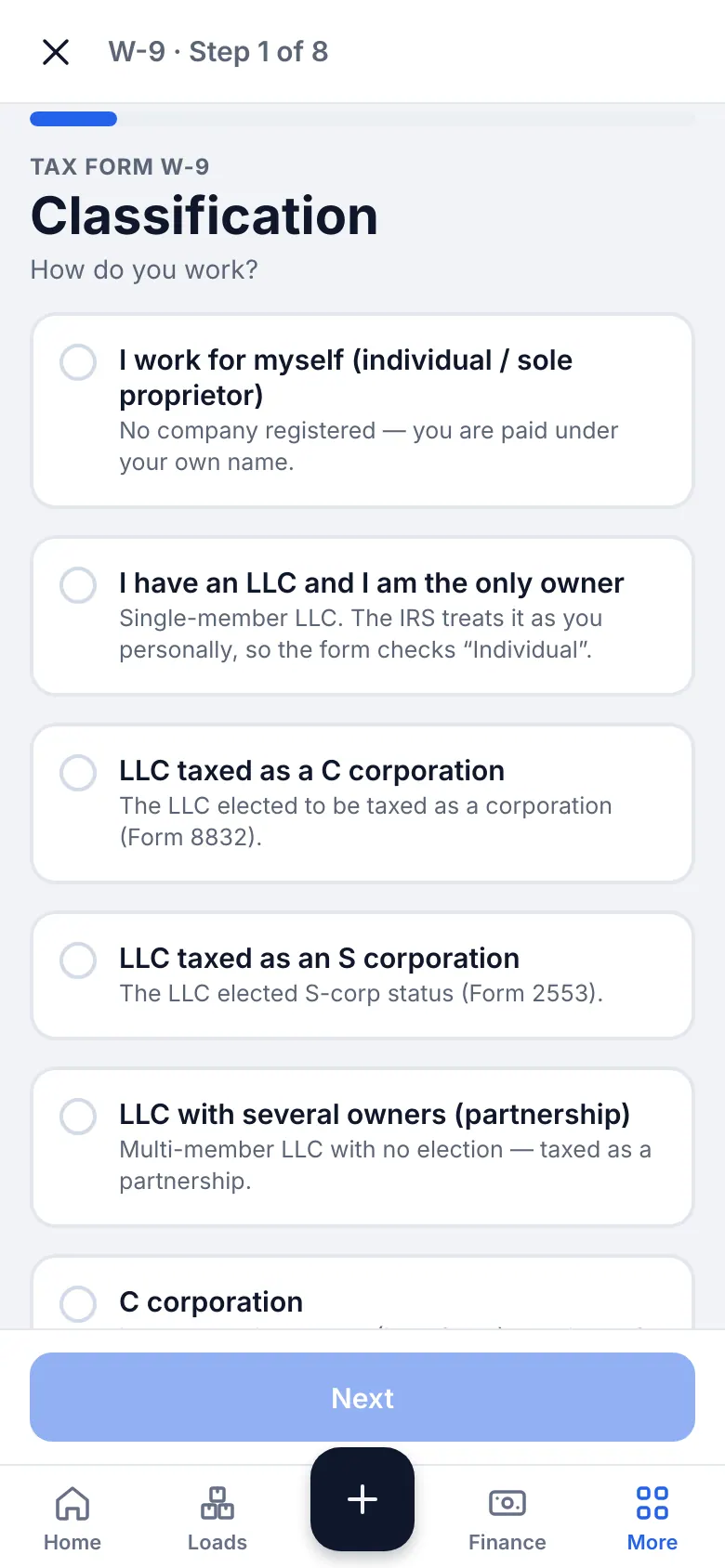
iOS app · Form W-9 - 2
Classification and name
Step 1 asks How do you work?. If you are paid under your own name and have no company, choose “I work for myself”. If you have an LLC and you are its only owner, choose the LLC option. Not sure? Tap I don't know: the app explains. In step 2 type your full name as on your tax return; a business name is optional.
- 3
Tax ID and address
In step 3 choose the number type (SSN or EIN) and type the number. It is encrypted. If you have an LLC with one owner, enter your own SSN or EIN, not the EIN of the LLC. If you have applied for a number but do not have it yet, tick “Applied For”: the form is saved as waiting for the number. Step 4 asks for your street address, city, state and ZIP code.
- 4
Exemptions and backup withholding
Step 5: most people have no exemption code: leave it empty if you are not sure. Step 6 asks whether the IRS told you that you are subject to backup withholding: answer No unless you received such a notice.
- 5
Review and sign
Step 7 Review & sign: check your details, tap Preview PDF to see the form, tick the consent to sign electronically, type your full name (or draw your signature), check the date and tap Sign W-9.
What you will seeThe screen says “W-9 signed. The form was saved and sent to the company.”
Common mistakesA typo in the number: tap Edit in the review step, fix it and sign again.
13
Truck stops, parts and tools
Find fuel and parking, look up a part number, check a rate.
- Where to find it
- iOS app
- More → On the road, My work
- 1
Truck stops
More → On the road → Truck stops lists verified stops and fuel along your route.
- 2
Parts
More → My work → Parts finds part numbers for your truck, matched by your vehicle.
- 3
Rate calculator
More → On the road → Rate calculator shows what a load really pays per mile, after fuel and costs, before you say yes.
- 4
Your profile
More → Settings & help → Settings shows your name, phone and documents; change your password under it.
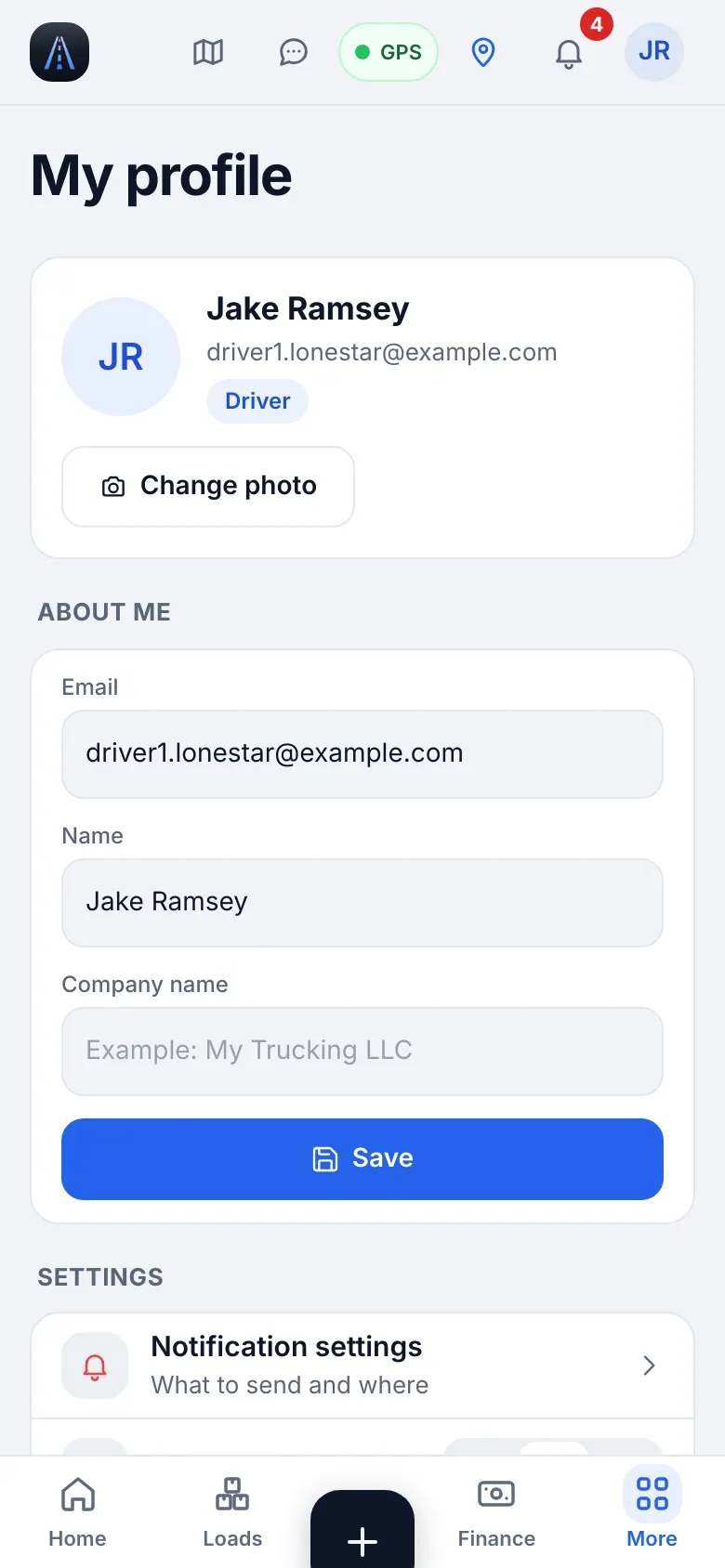
iOS app · The driver profile: name, phone, documents, password
14
Working with no signal
You never lose an action in a dead zone.
- 1
What is saved
Load steps, receipts, scanned documents and messages are saved on the phone. The screen shows Waiting to send and the number of items.
- 2
What happens when the signal returns
Everything is sent in order, nothing is posted twice. If the load changed on the server meanwhile, the app says to check the steps.
- 3
What not to do
Do not delete the app and do not sign out while items are waiting: they would be lost. Open the app once with a signal and wait until the number goes to zero.
15
The website on your phone
If you do not have the app on a device, open hamadev.net in Safari: it looks and works like the app.
- 1
Add to Home Screen
In Safari tap Share → Add to Home Screen to open it like an app.
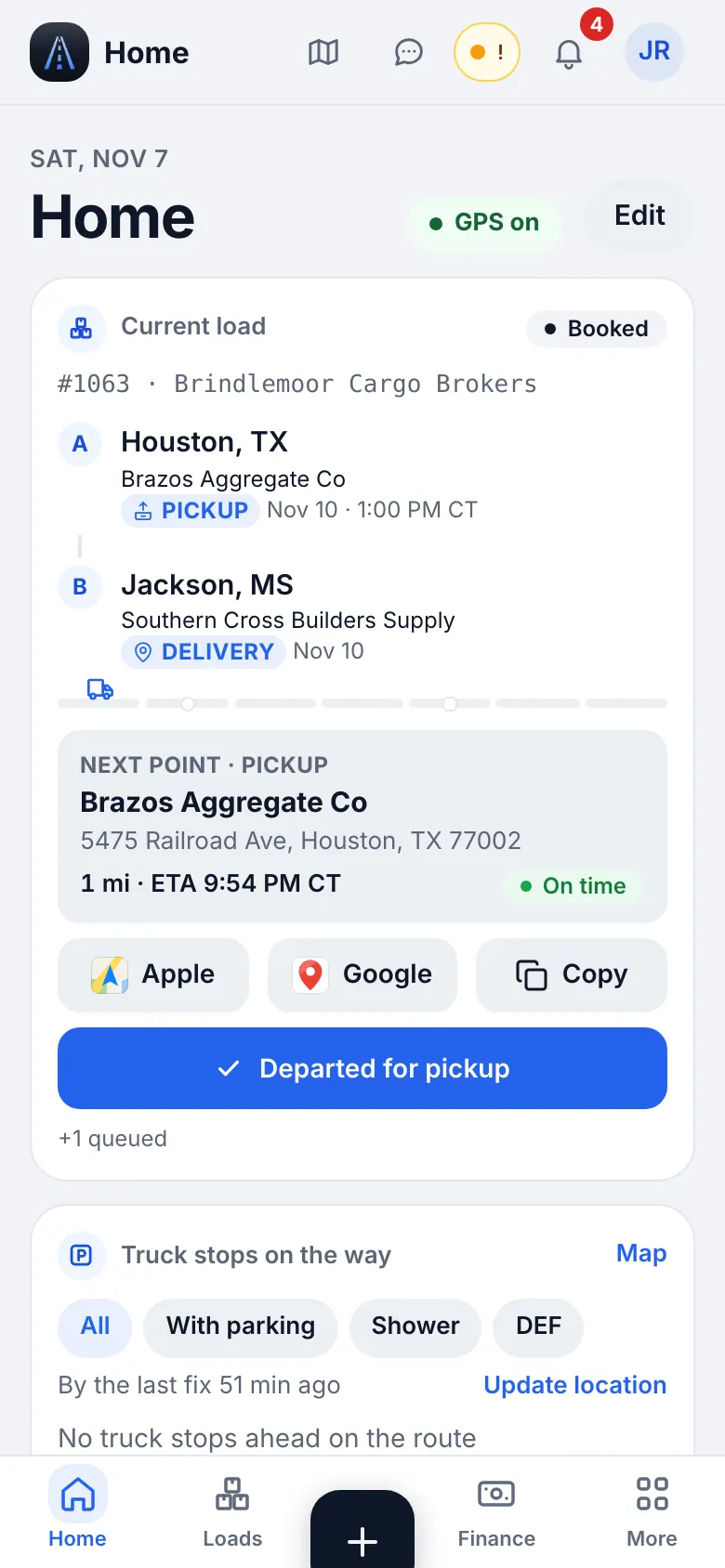
Website on a phone · The website on a phone: Home 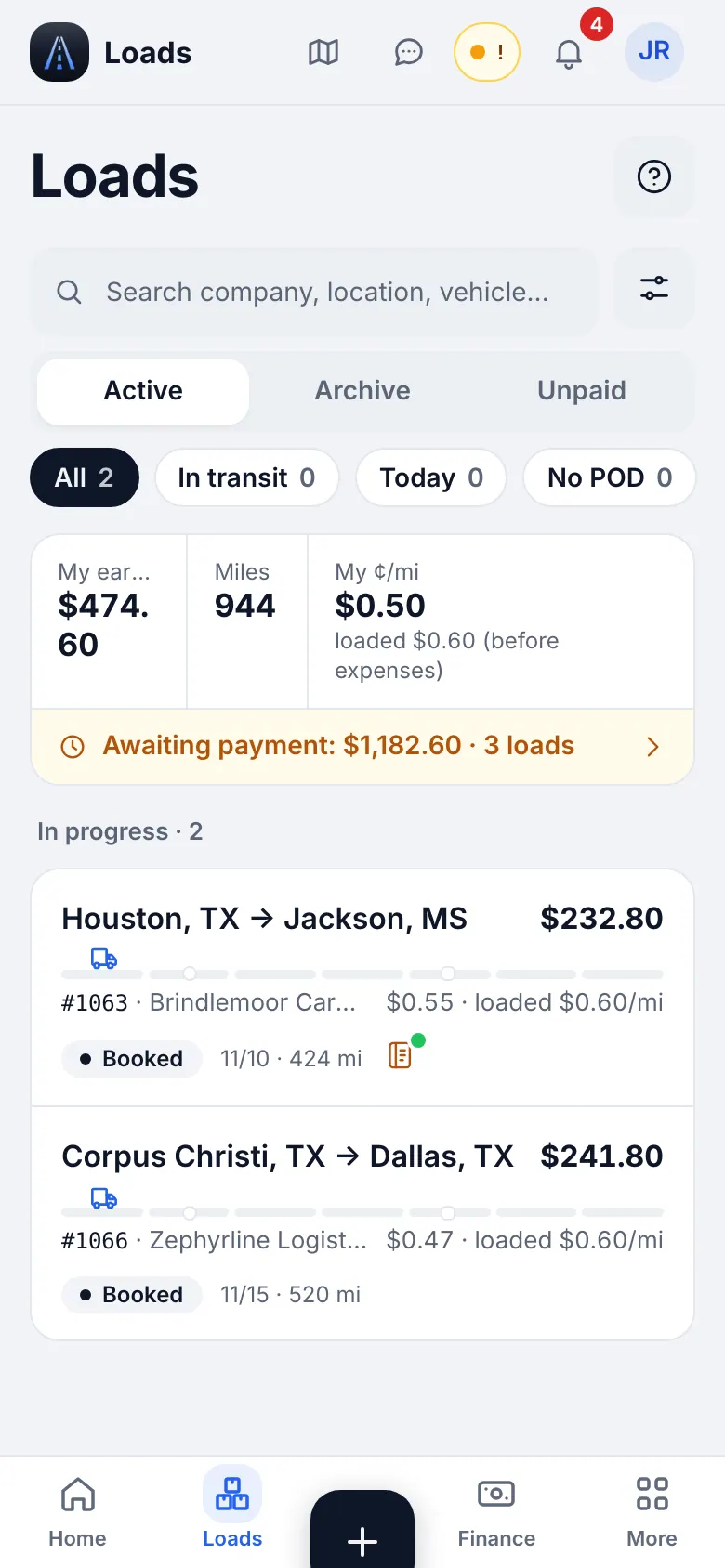
Website on a phone · The website on a phone: Loads - 2
Limits
GPS Always, the lock screen follow and scanning are best in the iOS app.
16
Something does not work: quick fixes
Find your problem, do the fix. Still stuck? Write to the dispatcher in the chat.
- 1
The dispatcher does not see me (no GPS)
Open Map → My track: it says what is wrong. Set location to Always in iPhone Settings → HD Fleet → Location, keep Precise Location on, turn Low Power Mode off, and make sure you are on duty or have an active load. Then open the app once.
- 2
I tapped the wrong step
Hold the green step: “Step undone”. Then tap the right step. Nothing is lost.
- 3
There is no signal
Keep working: steps, receipts, documents and messages wait on the phone and go out later. Check Waiting to send at the end of the day.
- 4
I cannot sign in
Check the e-mail for a typo. Use Forgot password?, or ask the office for a new QR code. A QR code is valid for 10 minutes and works once.
- 5
I do not get new-load notifications
iPhone Settings → Notifications → HD Fleet: allow notifications. In the app: More → Settings & help → Settings → Notifications, check the categories and quiet hours.
- 6
I do not see my load
Pull down to refresh. If it is still missing, the dispatcher may not have published it yet or it is on another truck: ask in the chat.
- 7
The scan or the receipt is blurry
Retake it: flat paper, good light, all four corners. A photo the office cannot read cannot be invoiced or paid back.
- 8
«Update the app»
Update HD Fleet from the App Store and open it again.
- 9
Stale screen
Pull to refresh, or close and reopen the app. If it persists, sign out and in.
- 10
Contact support
Settings & help → Help & support → Write to us, or Support chat.