User guides
Dispatcher
You book and manage loads, keep drivers moving and tell brokers where trucks are free. You see loads and the fleet map but not company finance.
Your type of operation: Cargo / sprinter van
1
Getting started
Sign in on the website or in the iOS app with the e-mail the owner gave you. The bottom bar is Home, Loads, “+”, Map and More.
- Where to find it
- Website
- hamadev.net — Sign In
- iOS app
- App Store → HD Fleet
- 1
Sign in
Use Log in with your e-mail and password. If the owner turned on sign-in by code, a 6-digit code is e-mailed to you. Forgot the password? Use Forgot password?.
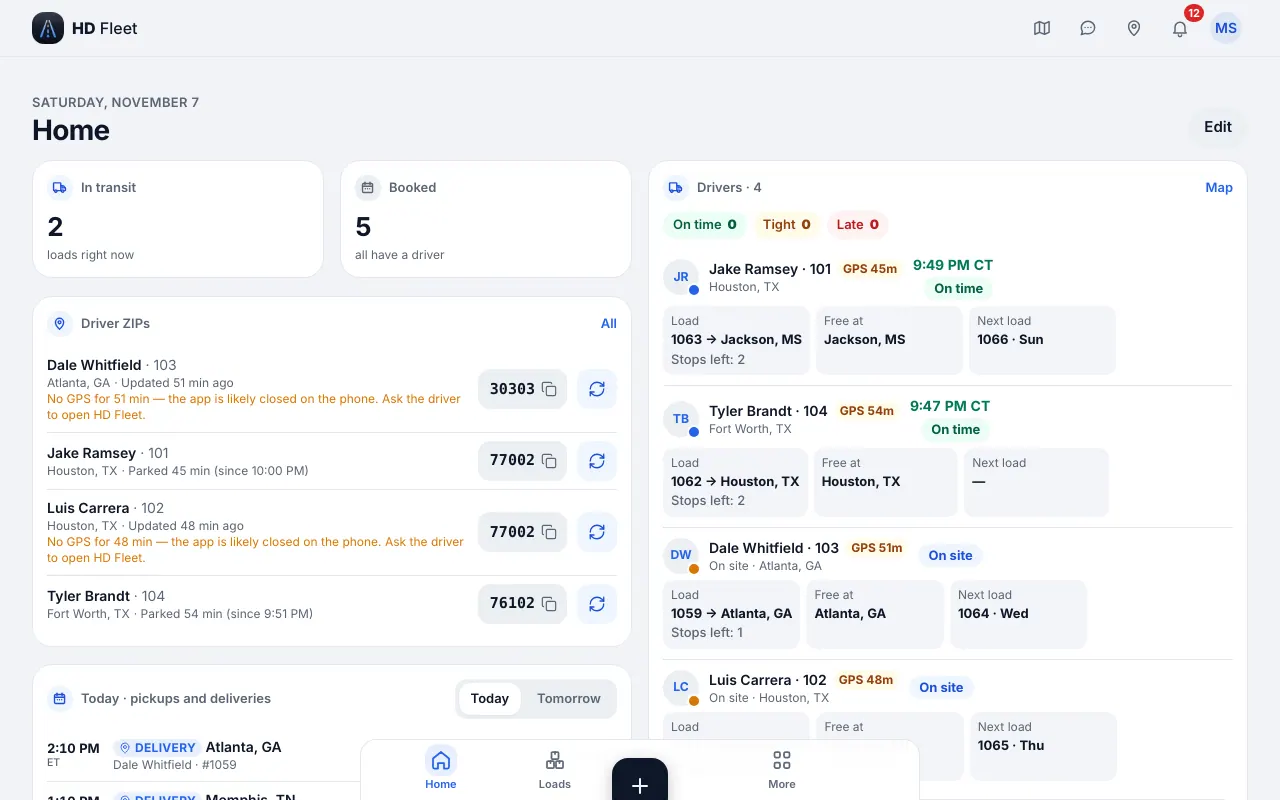
Website · Dispatcher home - 2
Find your sections
The sidebar (More on the phone) shows only what your role may open: Messages and Map on top; Dispatch (Loads, Tables, Loads from brokers, Calendar, Brokers & customers, Availability broadcast, Rate calculator); Fleet (Trucks & trailers, Maintenance, Mechanics, Parts); People & compliance (Team, view only); Workspace (Files, Notes, Useful contacts, Import data); Settings & help. Press ⌘K to find any page or record by name.
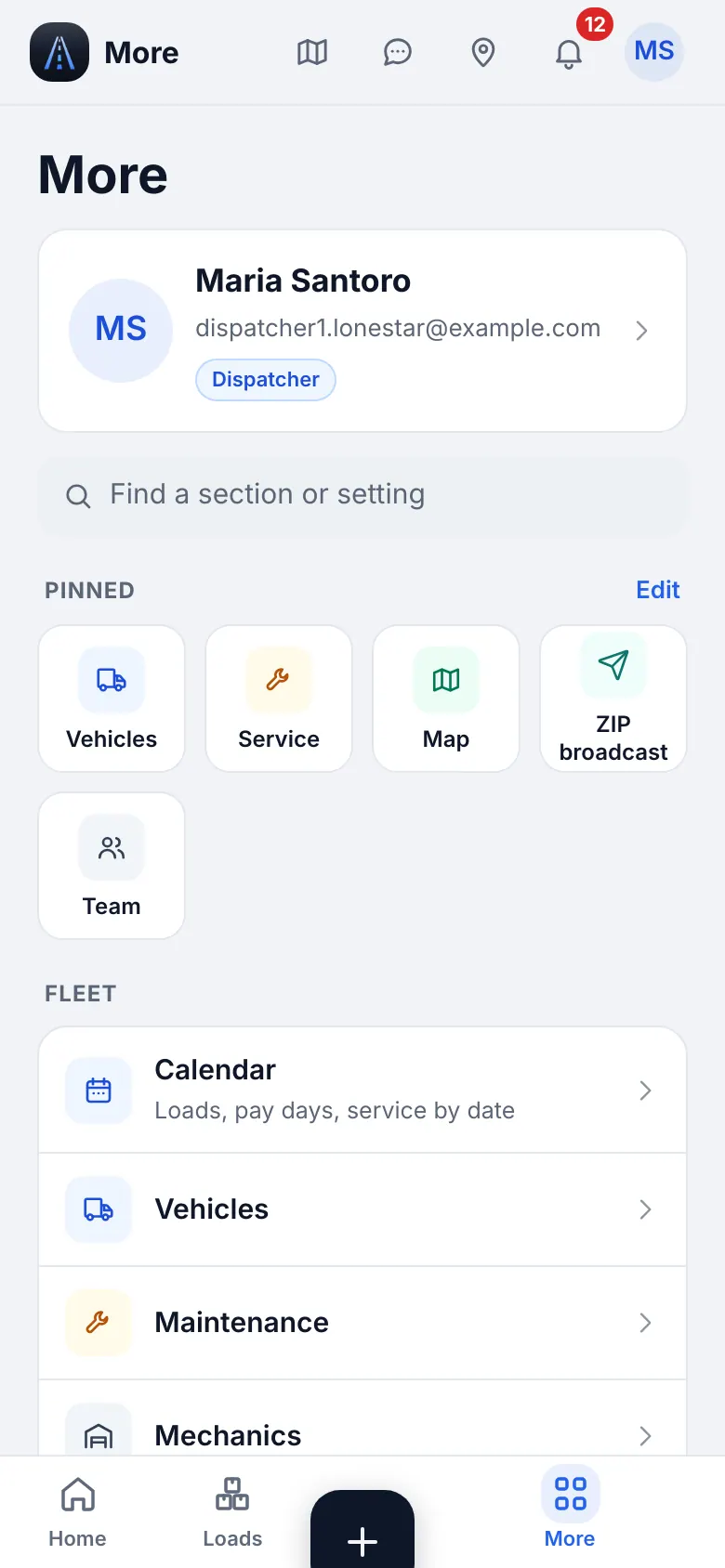
Website on a phone · The More menu of a dispatcher 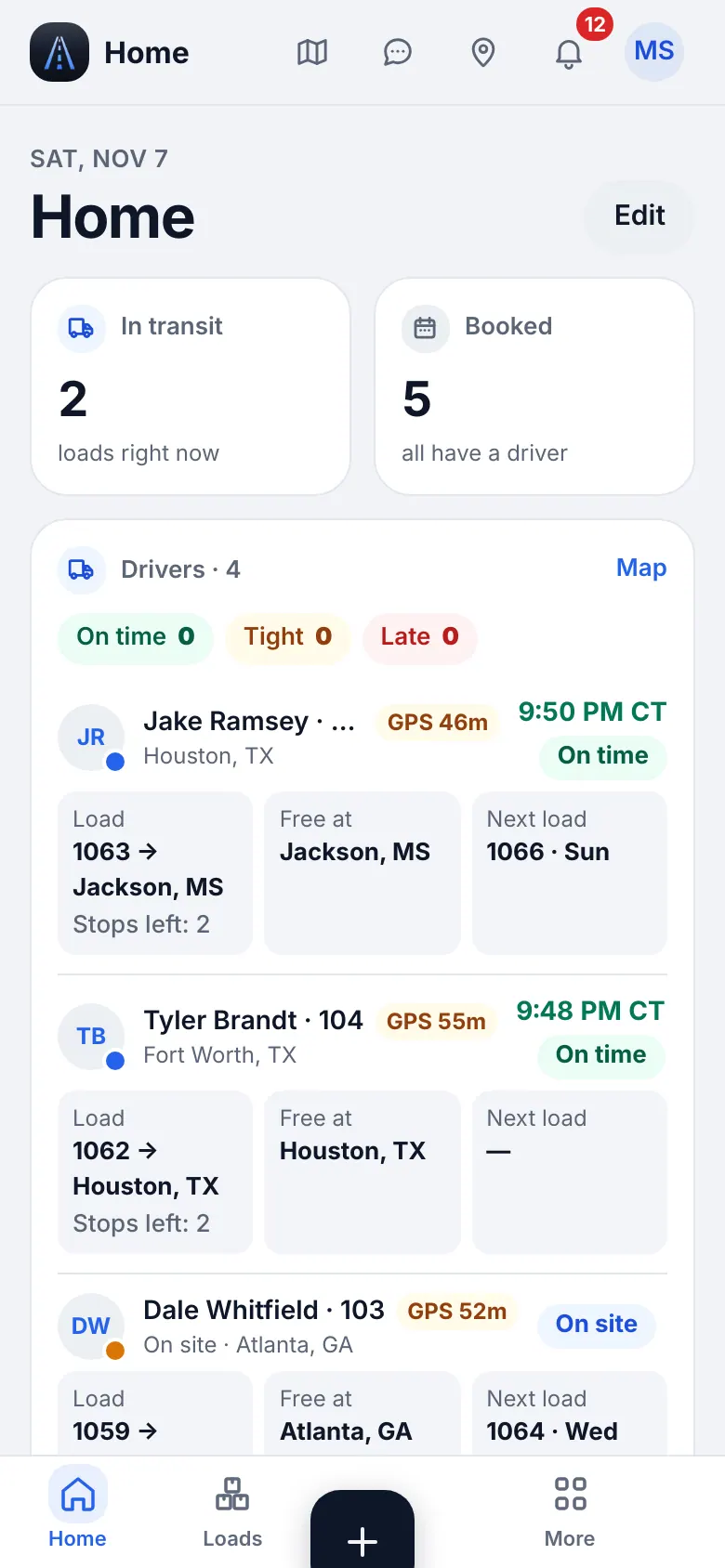
Website on a phone · Dispatcher home on a phone - 3
Language
Settings → Language switches English, Russian or Ukrainian for you only.
2
Booking a load
Create the load as soon as the broker confirms it, so the driver and the owner see it at once.
- Where to find it
- Website
- Loads → Add load
- iOS app
- “+” → Add load
- 1
Use the rate confirmation
Paste the broker e-mail or the rate con text into the autofill box (or upload a photo or PDF) and tap Fill in. AI fills pickup, delivery, dates, rate, weight and broker; check the list under Check these before saving.
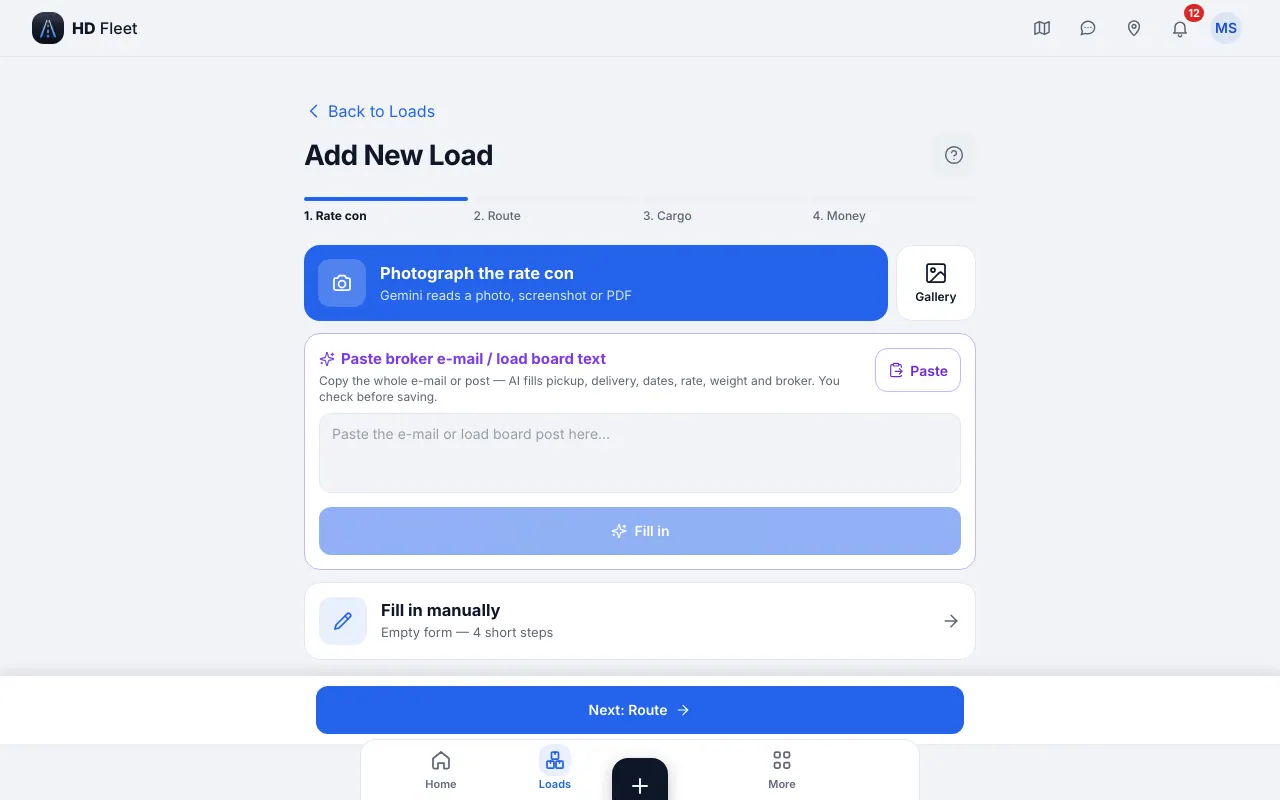
Website · New load form 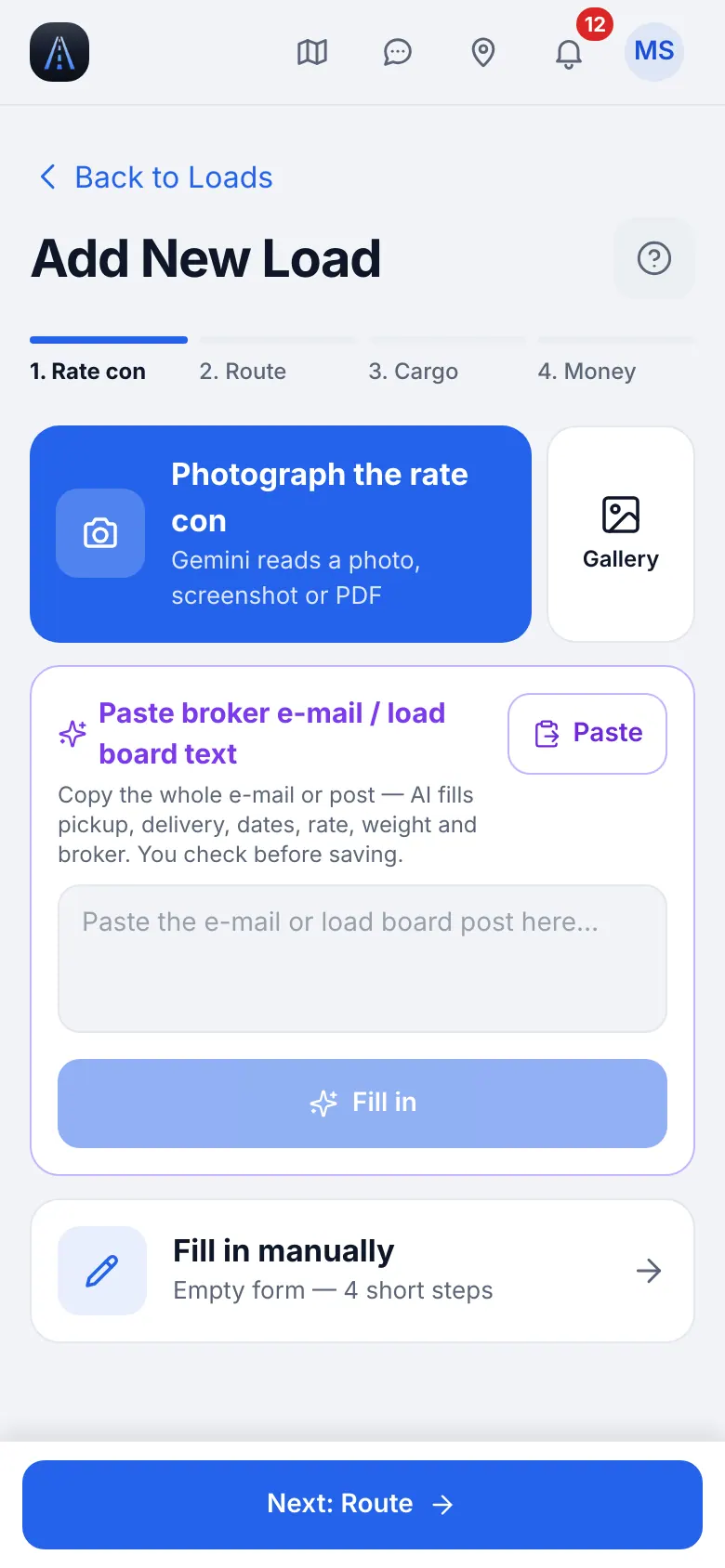
Website on a phone · New load form on a phone - 2
Vehicle, trailer, dispatcher
Choose the Vehicle, then the Trailer (or No trailer) and the Dispatcher (defaults to you; only the owner can assign another). The load goes to the driver who drives that truck on the pickup date.
- 3
Stops, dates, rate, weight
Type a ZIP for the city and state, add pickups and drops, set pickup times, enter the rate and Weight (lbs). The form warns when the cargo is over what the truck, trailer or combination can carry.
- 4
Extras and publish
Add Layover, Detention, Hand load / unload or a Cancellation fee (TONU) if agreed. Tap Publish. A draft stays a draft until published.
- 5
Phone version
On the phone the same form opens full screen; the app and the website at phone width are identical.
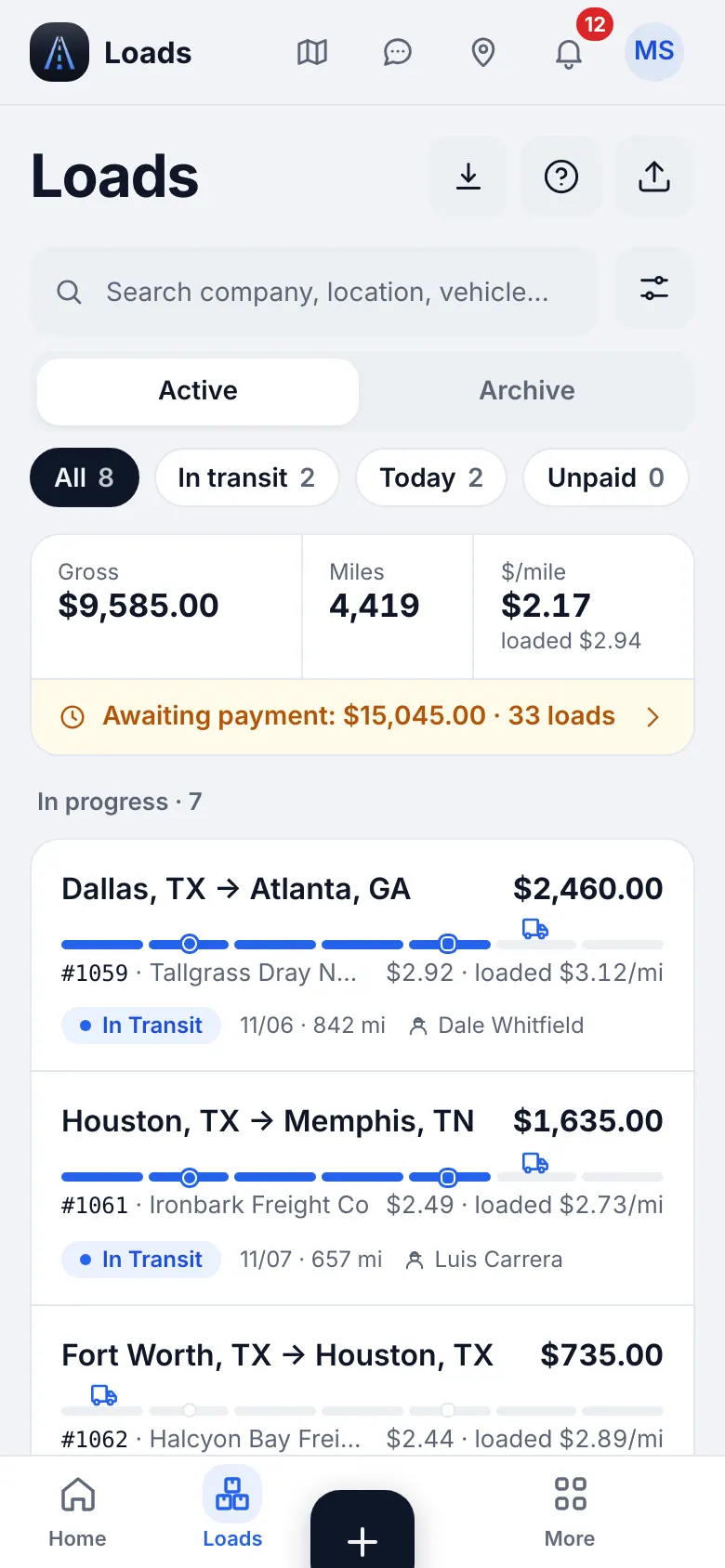
Website on a phone · Loads on a phone
3
Loads from brokers
A live board where brokers send you loads. It belongs to the Full plan and is in English only.
- Where to find it
- Website
- Dispatch → Loads from brokers
- iOS app
- More → Dispatch → Loads from brokers
- 1
Open the board
Dispatch → Loads from brokers lists the loads brokers sent you; the menu row shows how many are new. Pick a load to see stops, dates, commodity, rate and terms, requirements and the broker.
- 2
Accept, counter or decline
Accept a load to create it in your account (it shows “From a broker offer” on its card), counter with your rate, or decline with an optional reason. A chat with the broker sits next to the offer. Only the owner approves a broker and releases a held load.
4
Managing loads day to day
The Loads list is your board. Tabs: All, Active, Archived, Unpaid.
- 1
Open a load
The Loads list is your board. The card shows stops, driver steps, documents and the chat. You can change status, dates, rate and driver while the load is not in a paid settlement.
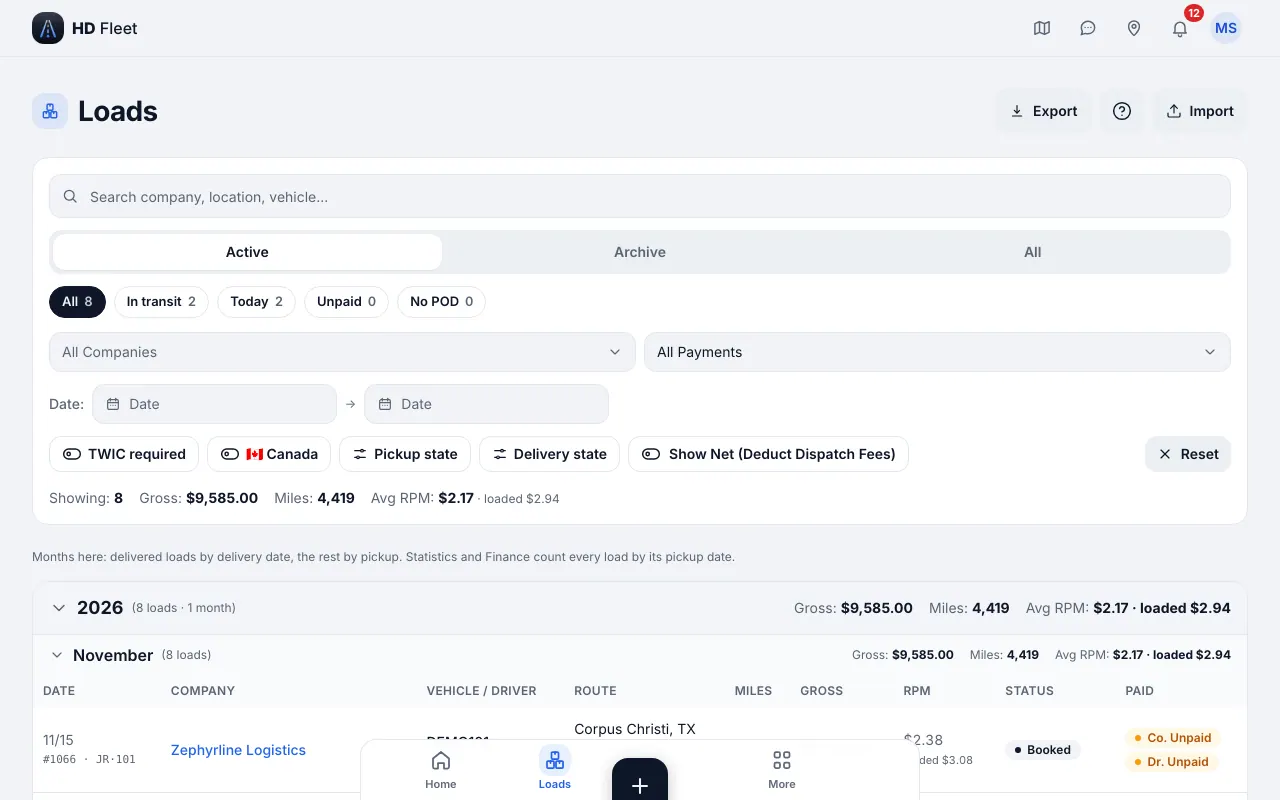
Website · Loads 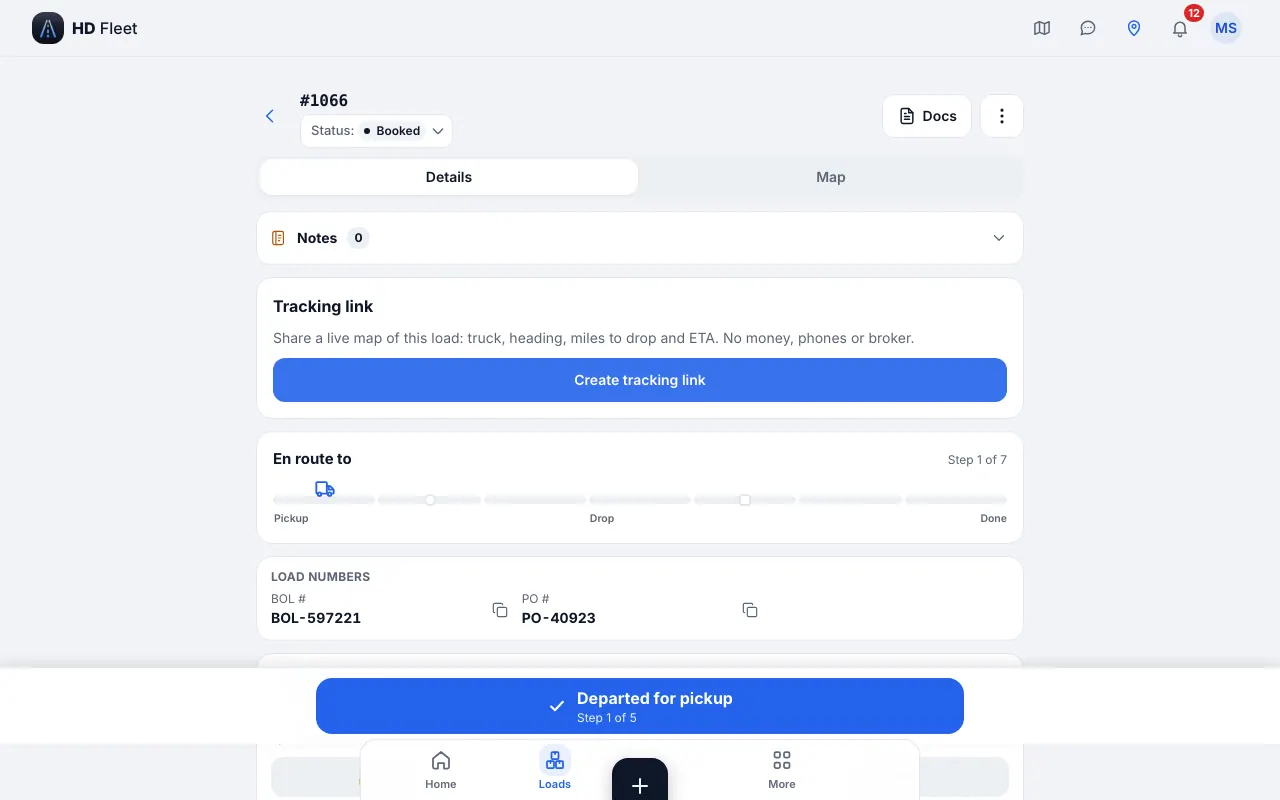
Website · Load card 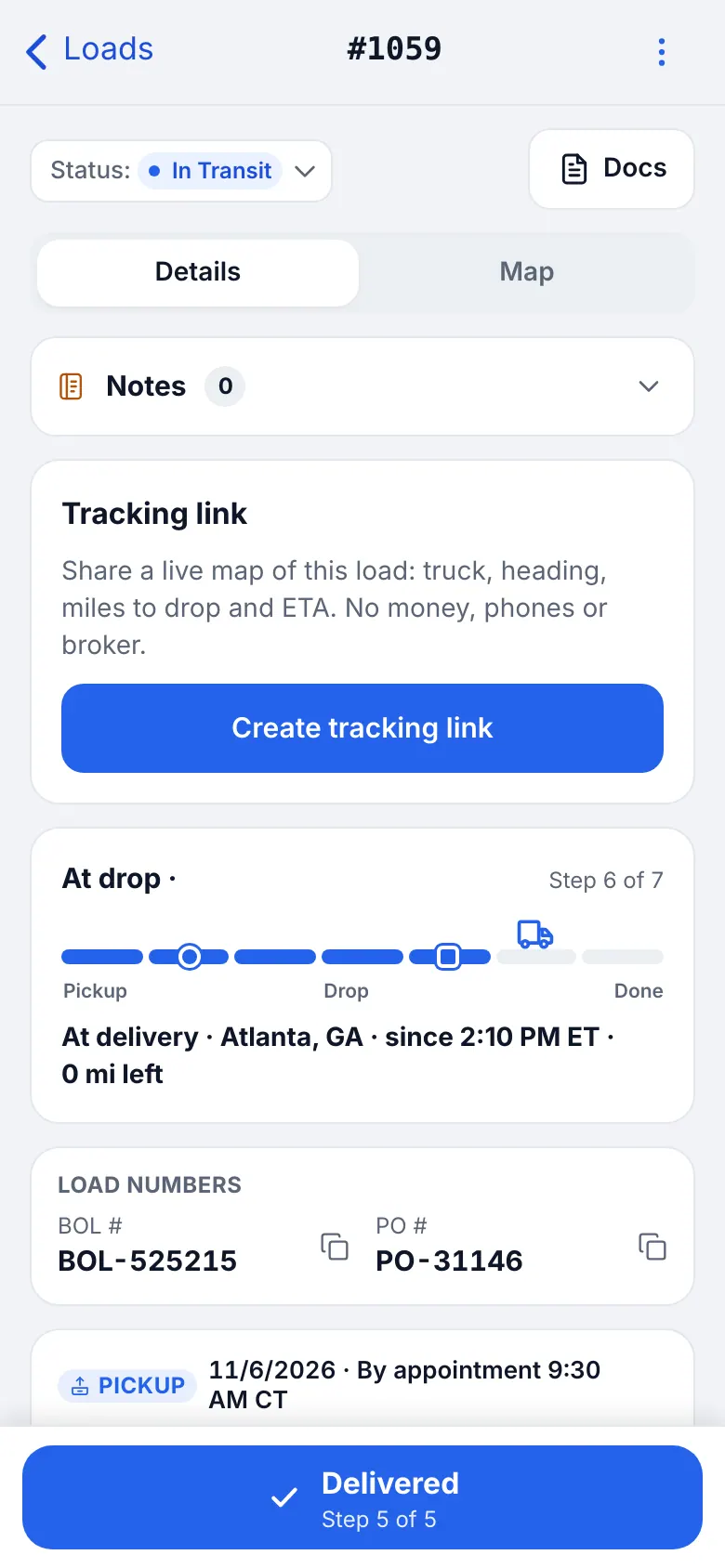
Website on a phone · Load card on a phone - 2
Statuses
Draft → Booked → In transit → Delivered. One truck can have up to 3 loads in transit. Cancelled counts only the TONU / cancellation fee.
- 3
Tables
Dispatch → Tables shows your loads like a spreadsheet: pick a period, filter, search, choose Columns, edit a highlighted cell with a double-click and use Download for Excel or CSV. Import loads (also under “+”) brings loads in from a file; Last import shows the latest one and the time left to undo it.
- 4
Reschedule
Change the pickup or delivery date on the card; the driver is notified and the change is kept in the history.
- 5
Calendar
Dispatch → Calendar shows pickups and deliveries by day for the fleet.
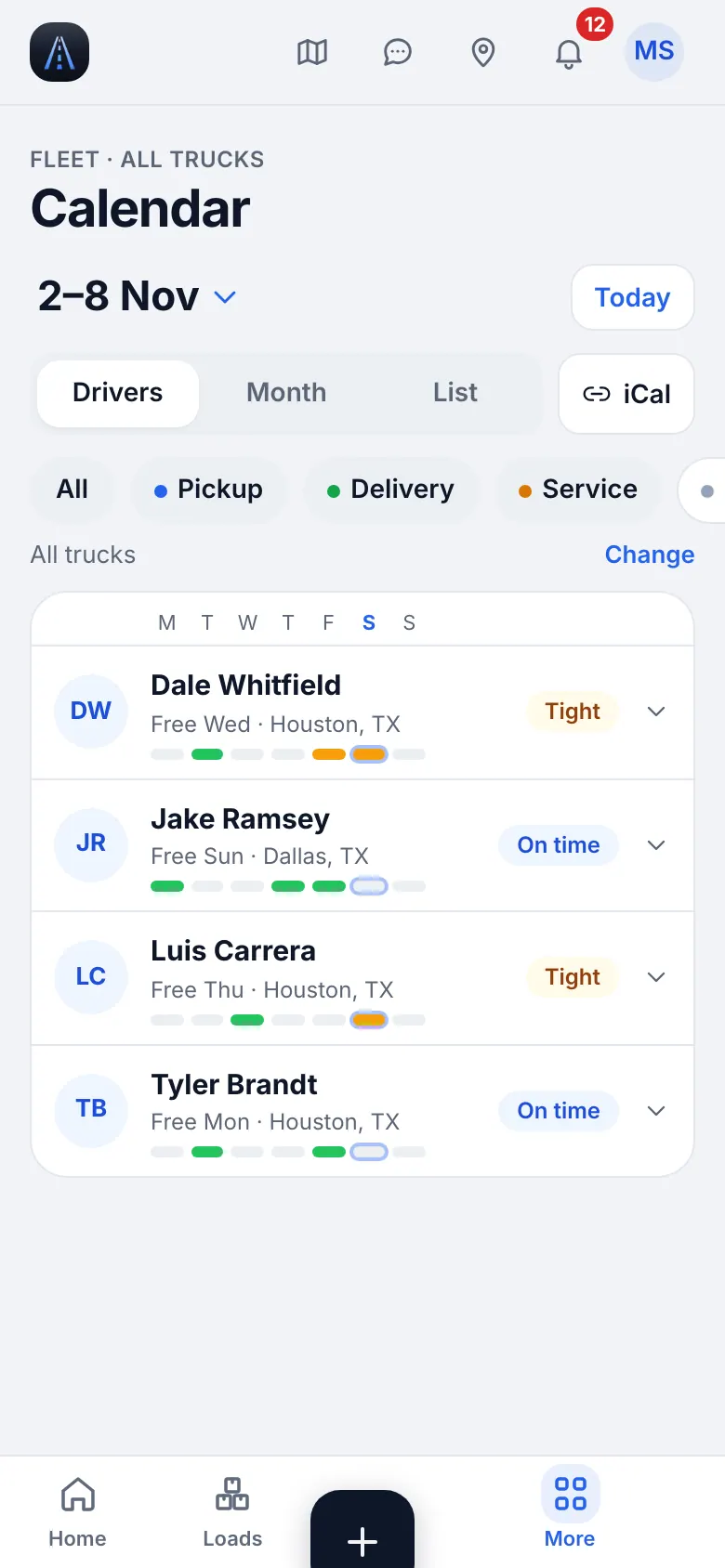
Website on a phone · Calendar - 6
Your commission
Your percent is set by the owner and every load you dispatch remembers it. The owner pays you from the Dispatcher pay tab of Finance, which is not available to the dispatcher role; ask the owner for your statement.
5
Fleet map and truck stops
See where each truck is, its speed and ETA, and the nearest truck stop.
- Where to find it
- Website
- Map
- iOS app
- Map (bottom bar)
- 1
Drivers, loads, truck stops
The one Map has layers: Drivers, Loads, Truck stops and Market rates. Tap a driver for the load and ETA.
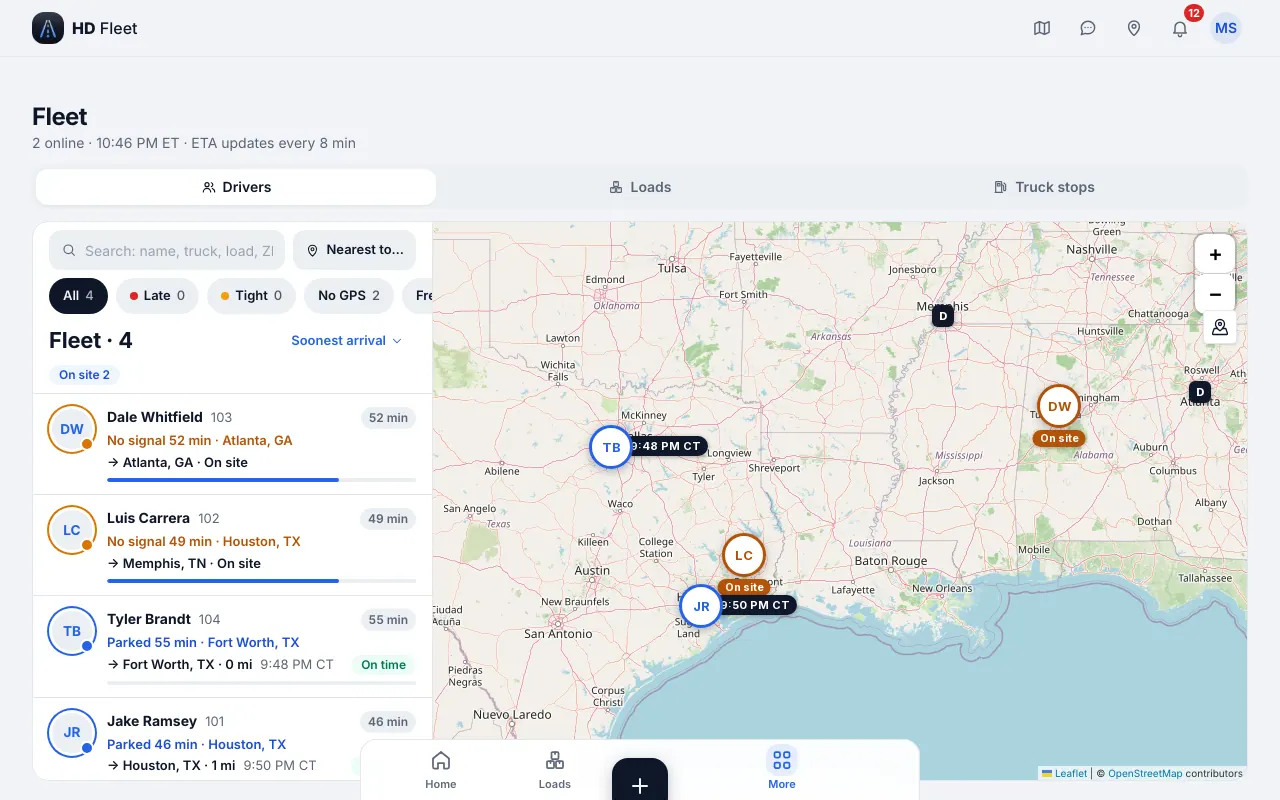
Website · Fleet map 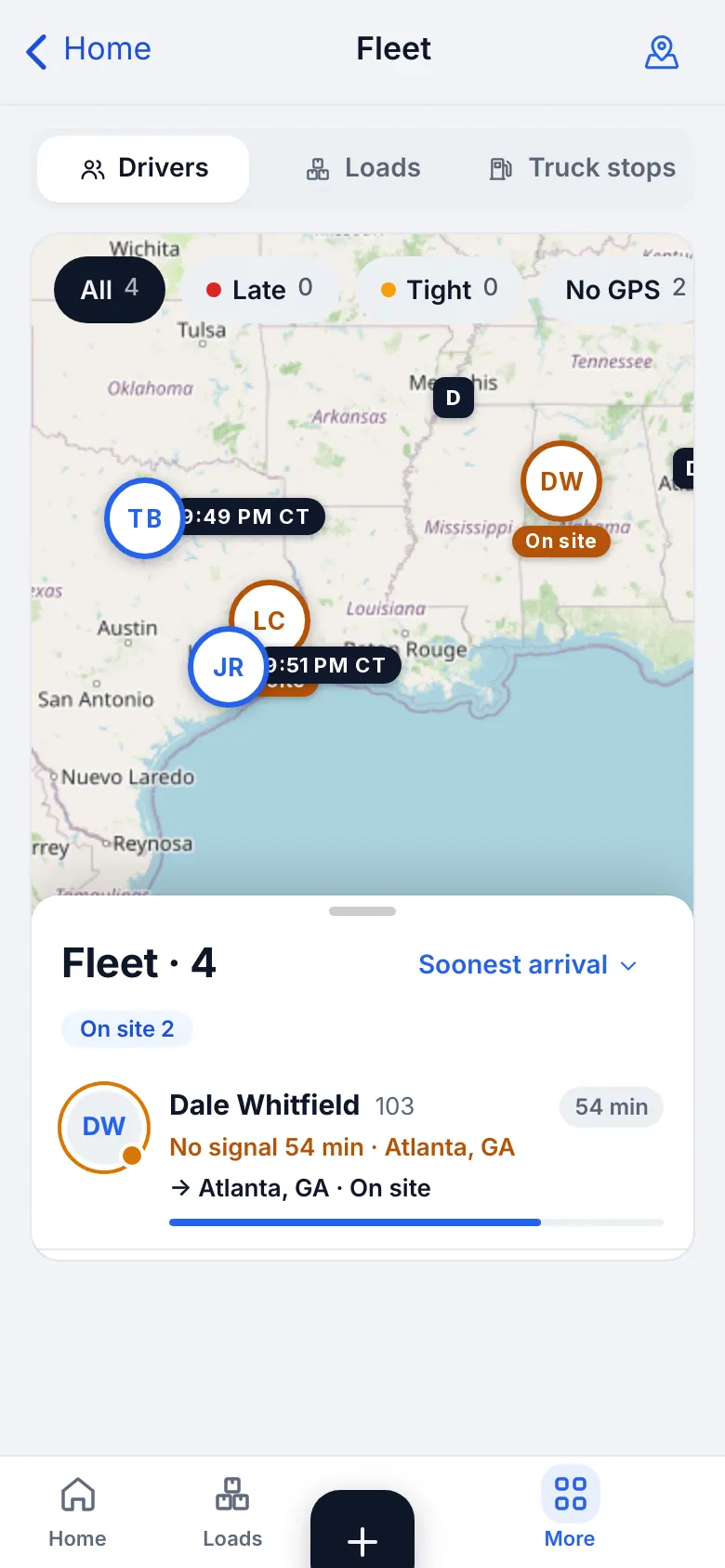
Website on a phone · Fleet map on a phone - 2
All loads on one map
The Loads layer plots every load of the day.
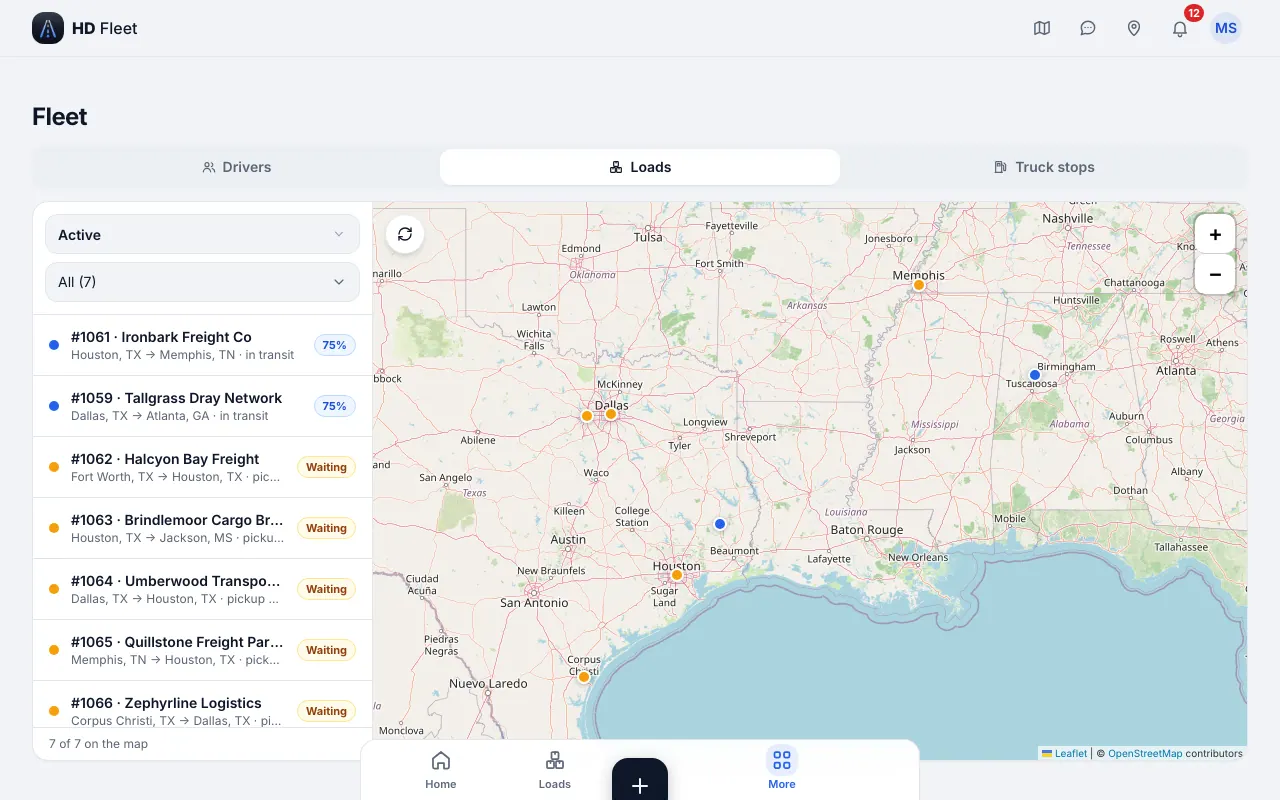
Website · Loads map - 3
GPS problems
If a driver is not on the map ask him to set location to Always (the map shows who has not). GPS records only on duty or with an active load.
- 4
A phone stopped sending
On a load in transit you see Not sending GPS with the last point and the likely reason. Tap Ask driver to fix (he gets a card that says what to change), Call him, or Snooze 30 min. The row clears when the phone is back.
6
ZIP broadcast: tell brokers where trucks are free
Send the ZIP of a free truck to your brokers in one tap.
- Where to find it
- Website
- Dispatch → Availability broadcast
- iOS app
- Dispatch → Availability broadcast
- 1
Choose trucks and brokers
Pick the free trucks and the brokers to notify; the screen checks the load requirements (TWIC, TSA, US citizen, Canada) against the driver profile, license and medical expiry and the last GPS point.
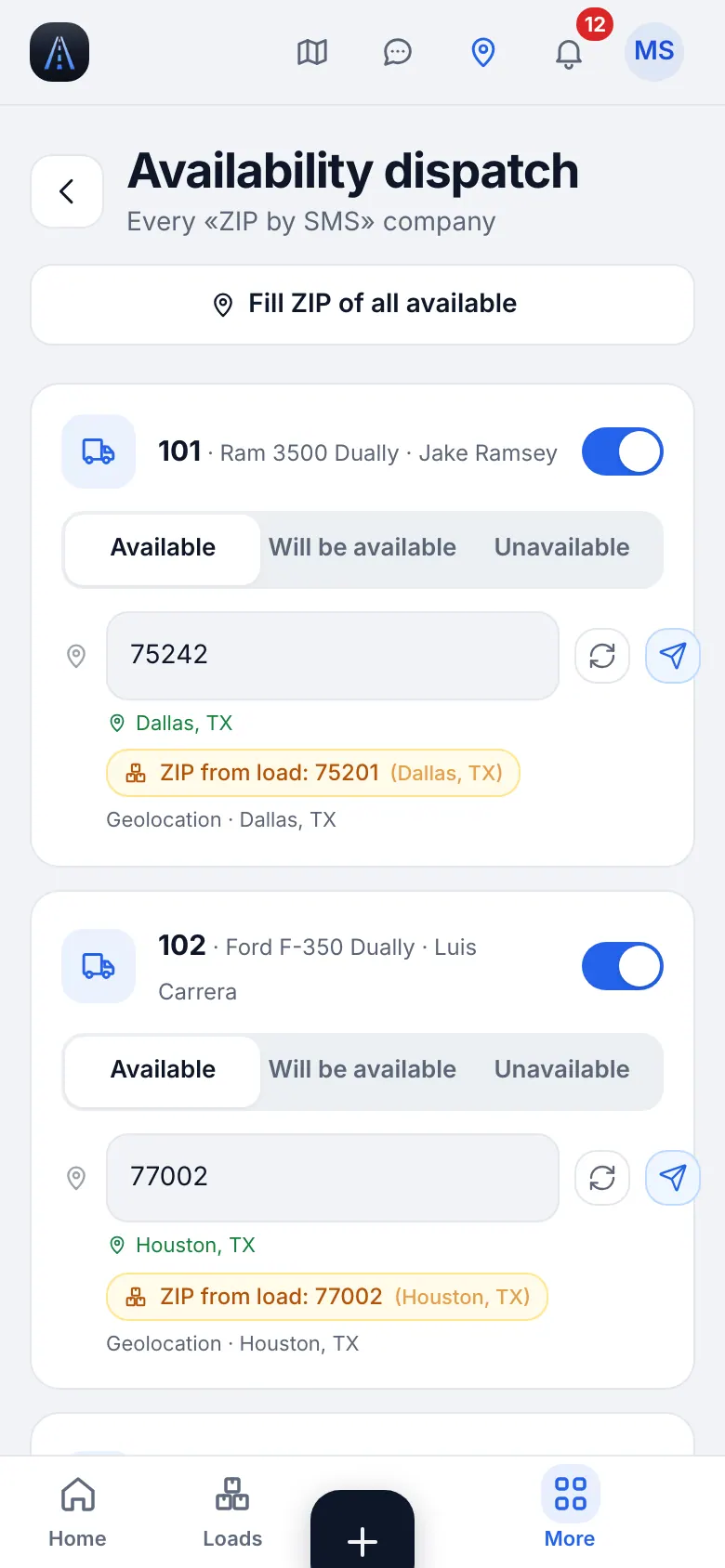
Website on a phone · ZIP broadcast - 2
Unit numbers
Brokers ask for a unit number per truck. Use Assign unit numbers if a company has none yet.
- 3
Whose phone gets the ZIP
A broker with a ZIP-updates number uses it; otherwise the main line is used.
- 4
Your ZIP
The ZIP chip on the Map and on this screen shows where you are. Press ⌘K and run Copy my ZIP to paste it anywhere.
7
Rate calculator and market rates
Know if a load pays before you accept it.
- 1
Rate calculator
Enter miles, empty miles, rate, weight, fuel and the dispatch fee to see the rate per mile and the profit.
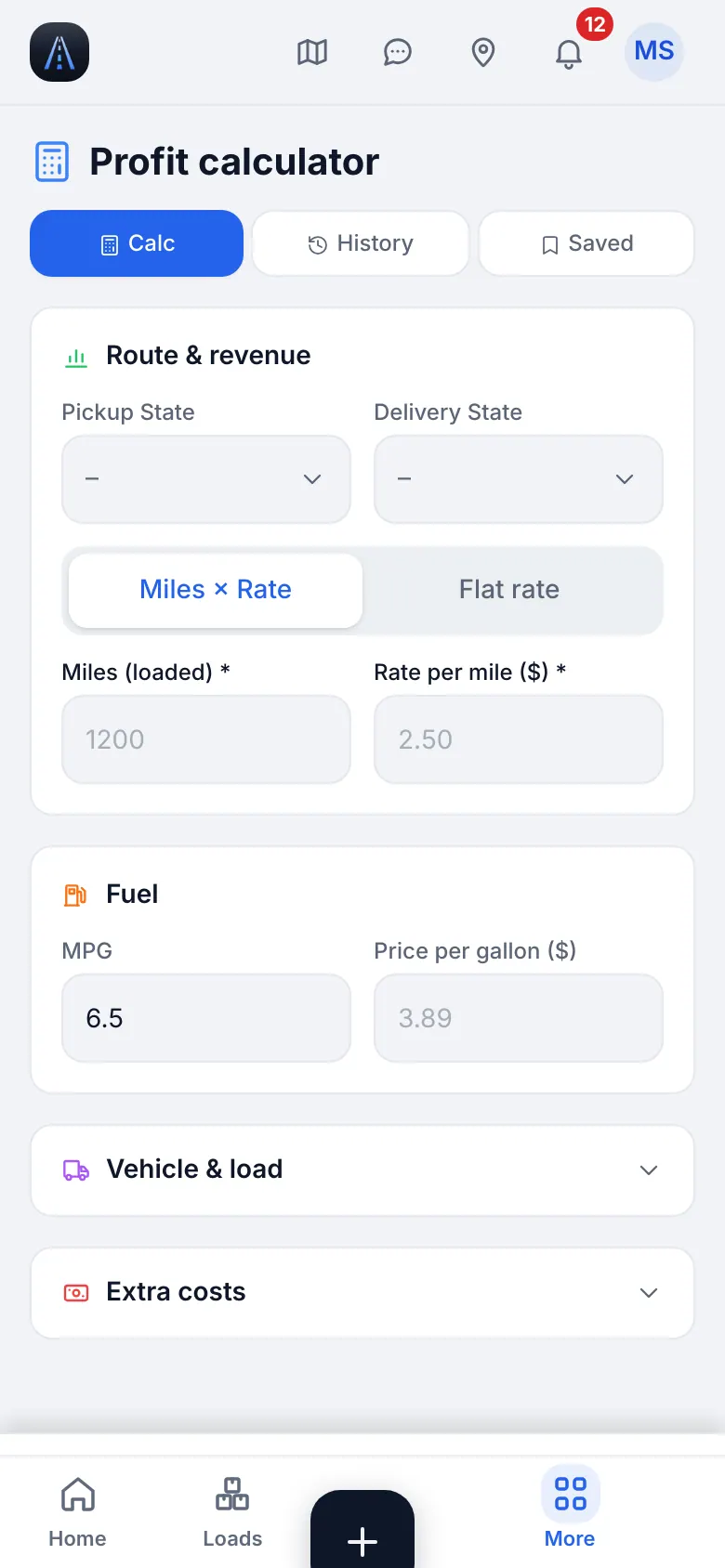
Website on a phone · Rate calculator - 2
Market rates
The Market rates layer of the Map shows dollars per mile by region and lane so you can negotiate.
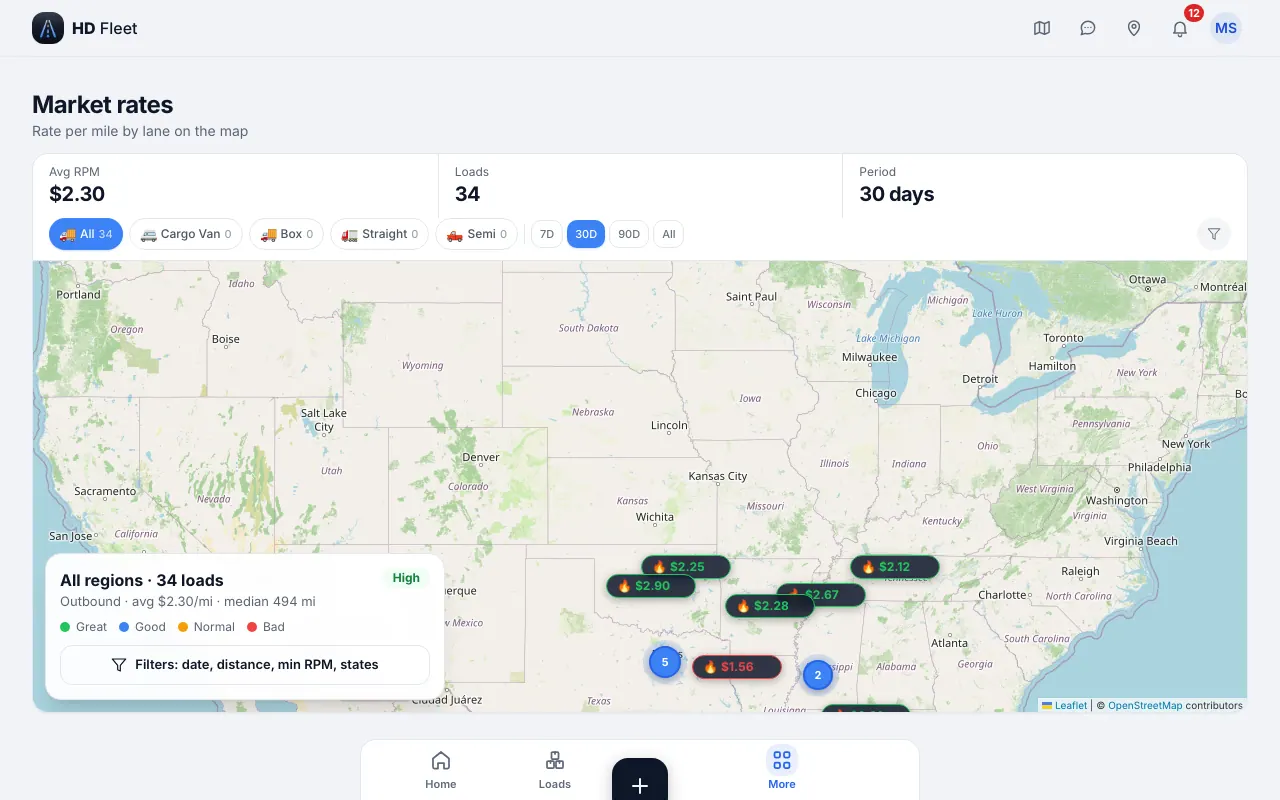
Website · Map › Market rates layer
8
Vehicles, maintenance and statistics (view)
You can look at trucks and statistics but not change them or see company money.
- 1
Vehicles
Open a truck to see its driver, trailer, weights, and unit numbers. Editing is for the owner and HR.
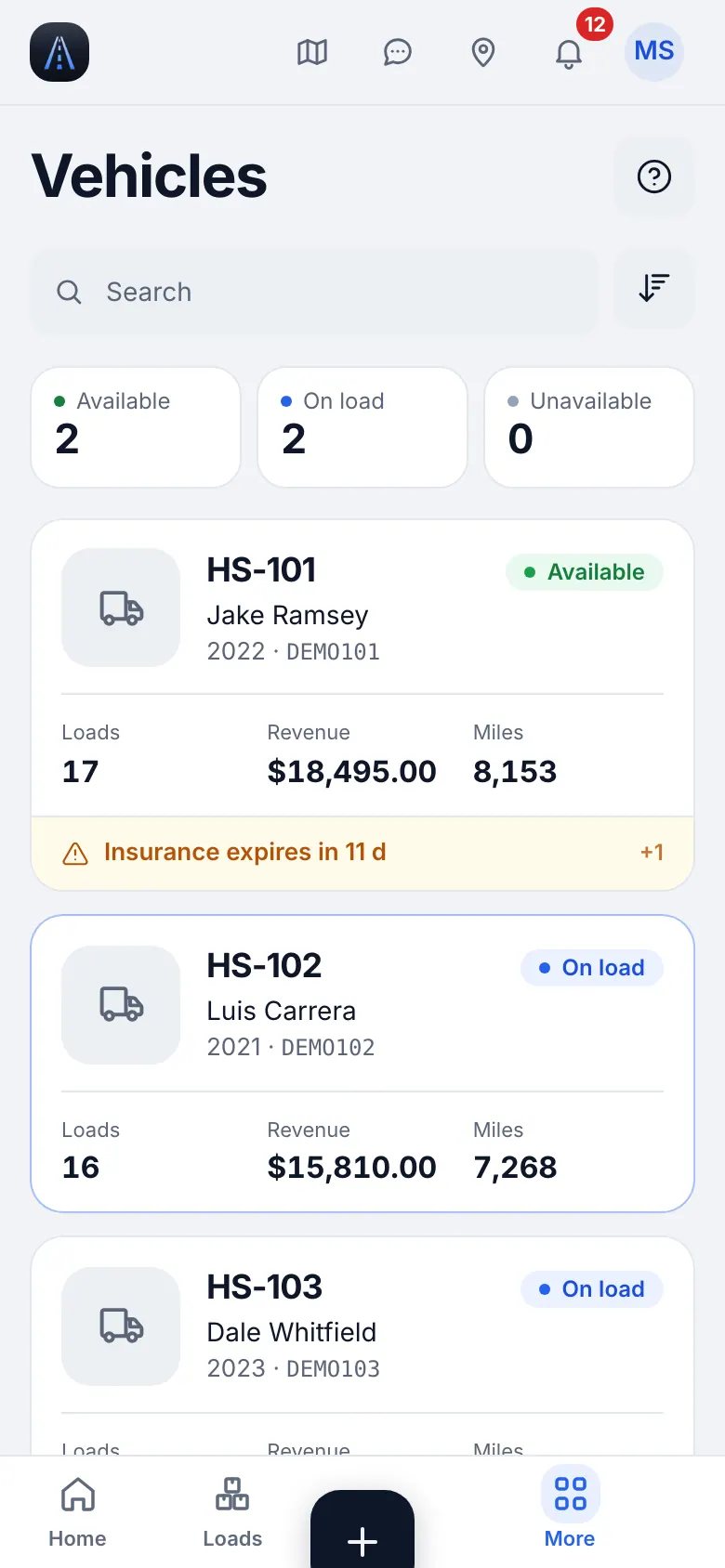
Website on a phone · Vehicles (view) - 2
Maintenance
You can add service records and see what is due, so a truck due for oil is not booked on a long run.
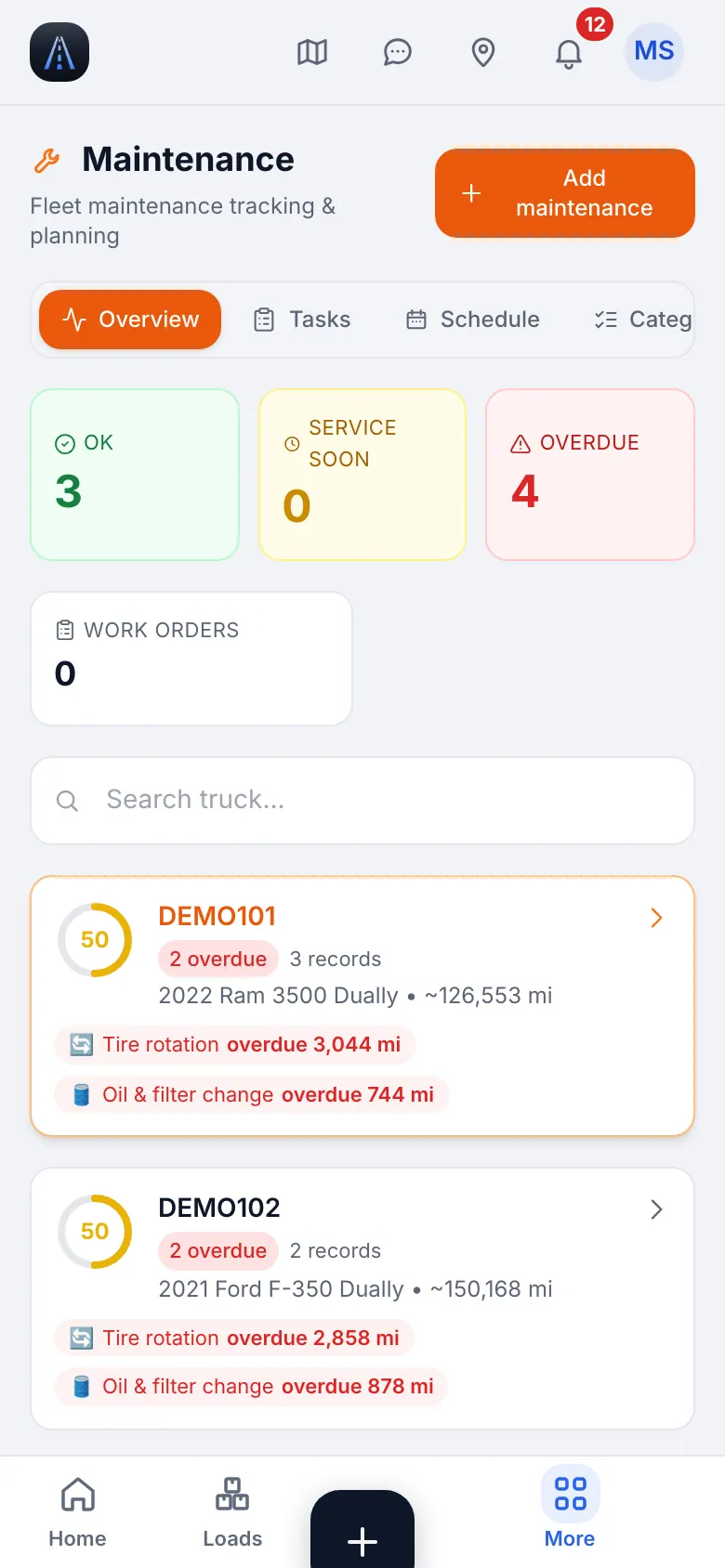
Website on a phone · Maintenance - 3
Statistics
Statistics are read-only for you; open them from the button on the Loads screen.
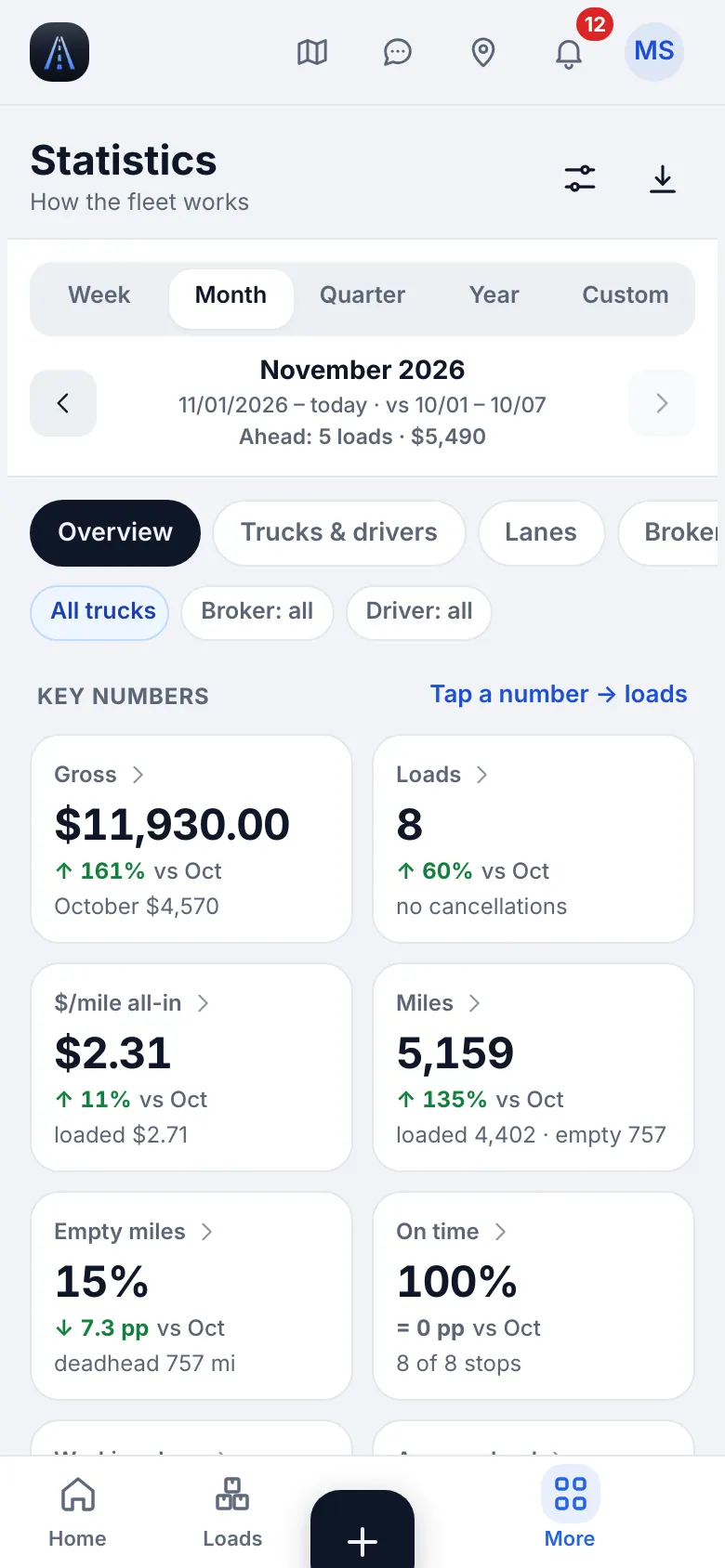
Website on a phone · Statistics (view)
9
Messages and notifications
Talk to drivers inside the load, not in private texts.
- 1
Messages
Messages holds direct chats, groups and one chat per load. Photos and files are allowed.
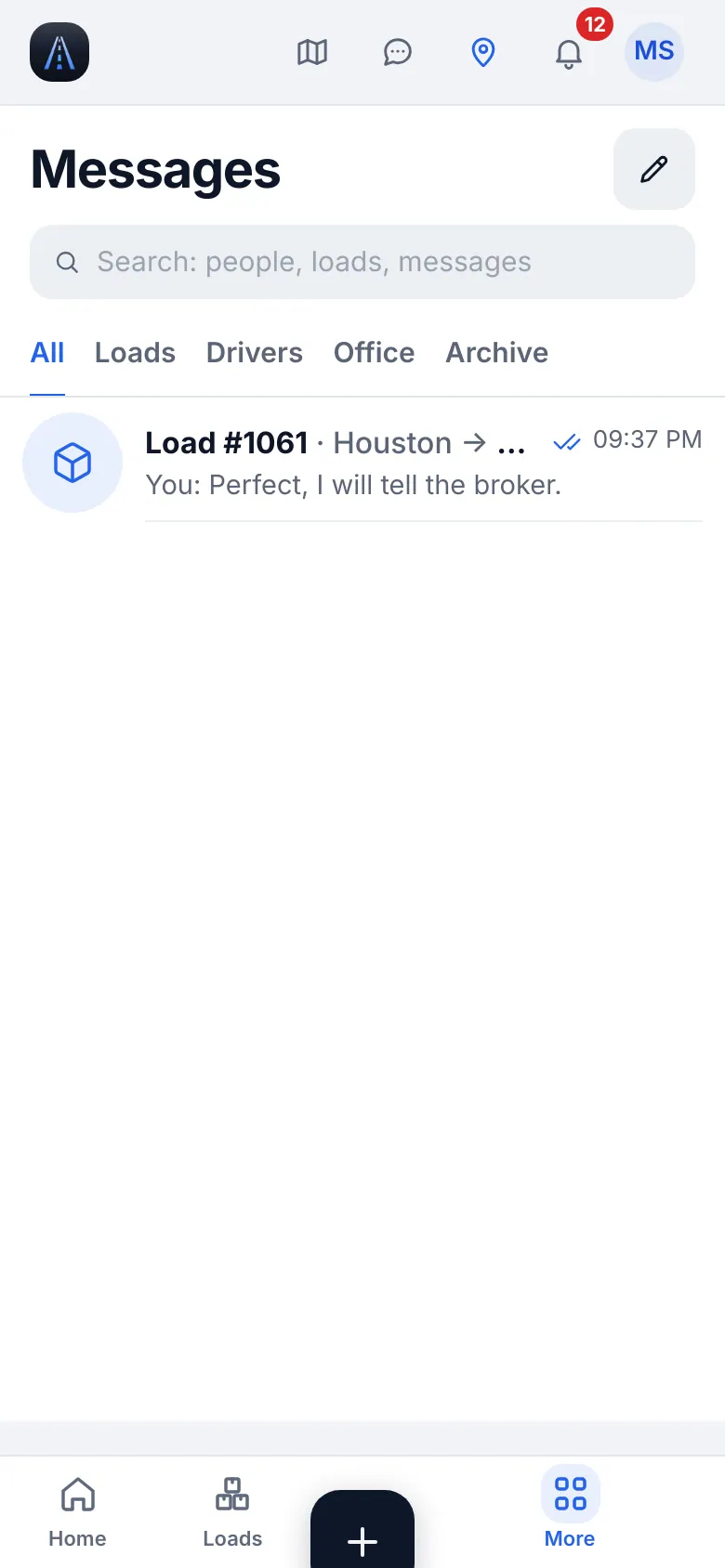
Website on a phone · Messages - 2
Notifications
Settings → Notifications chooses categories and quiet hours. Allow push in iPhone Settings → Notifications → HD Fleet.
10
Troubleshooting
Quick fixes.
- 1
A page redirects to Home
Your role cannot open that screen (the page shows "role_restricted"). Ask the owner if you need access.
- 2
«Update the app»
Update HD Fleet from the App Store.
- 3
Support
Settings & help → Help & support → Write to us or Support chat.