User guides
Tracker
You watch loads and trucks and keep statuses current. You see loads without any money, the fleet map and chat. You cannot edit load details, rates, payments or delete loads.
Your type of operation: Cargo / sprinter van
1
Getting started
Sign in on the website or in the iOS app with the e-mail the owner gave you.
- Where to find it
- Website
- hamadev.net — Sign In
- iOS app
- App Store → HD Fleet
- 1
Sign in
Use Log in with your e-mail and password (and the 6-digit code if the owner enabled it).
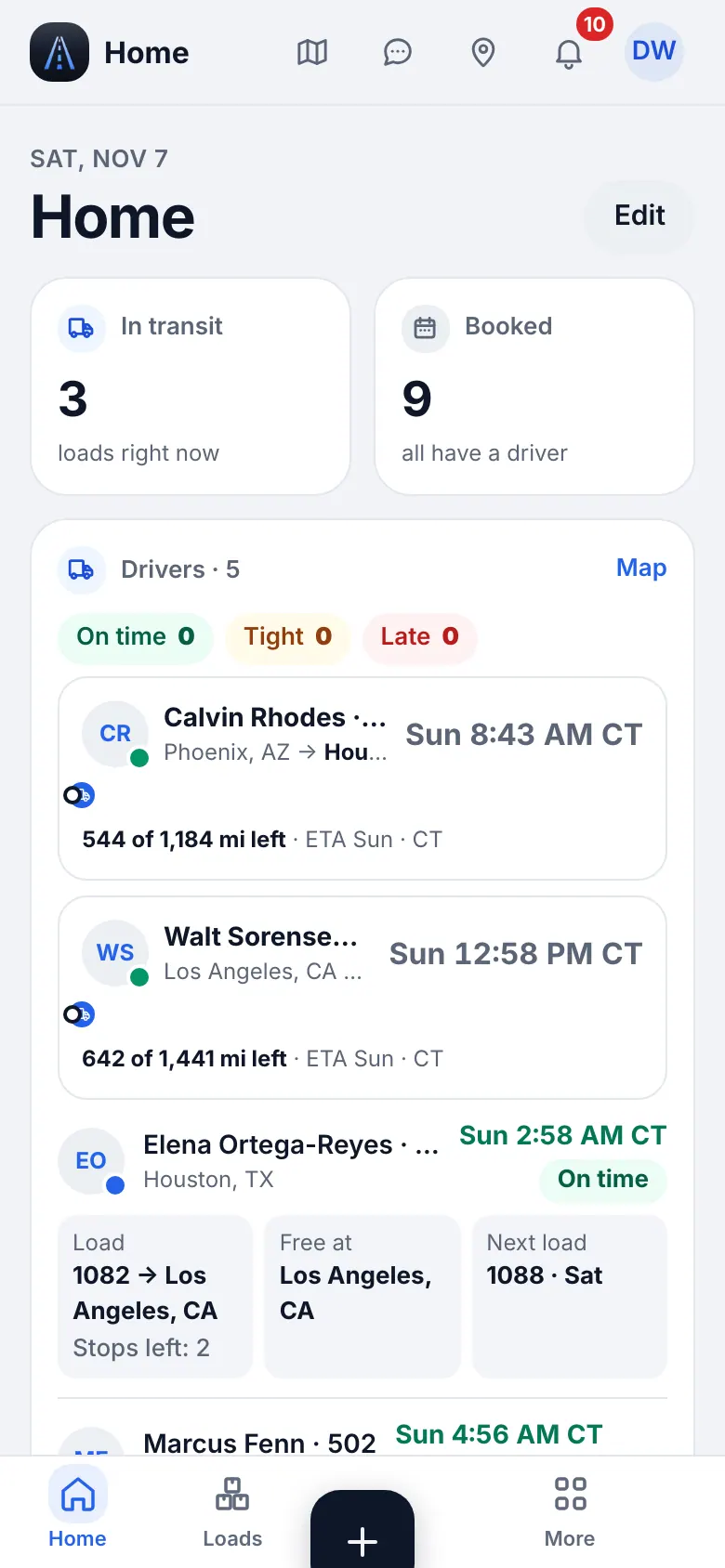
Website on a phone · Tracker home - 2
Your menu
The bottom bar is Home, Loads, Map, Messages and More. The sidebar (More on the phone) shows Map and Messages, Dispatch (Loads, Calendar, Brokers & customers), Fleet (Trucks & trailers, Maintenance, Parts; view only), People & compliance (Team, view only), Workspace (Files, Notes, Useful contacts) and Settings & help. Press ⌘K to find any page or record by name.
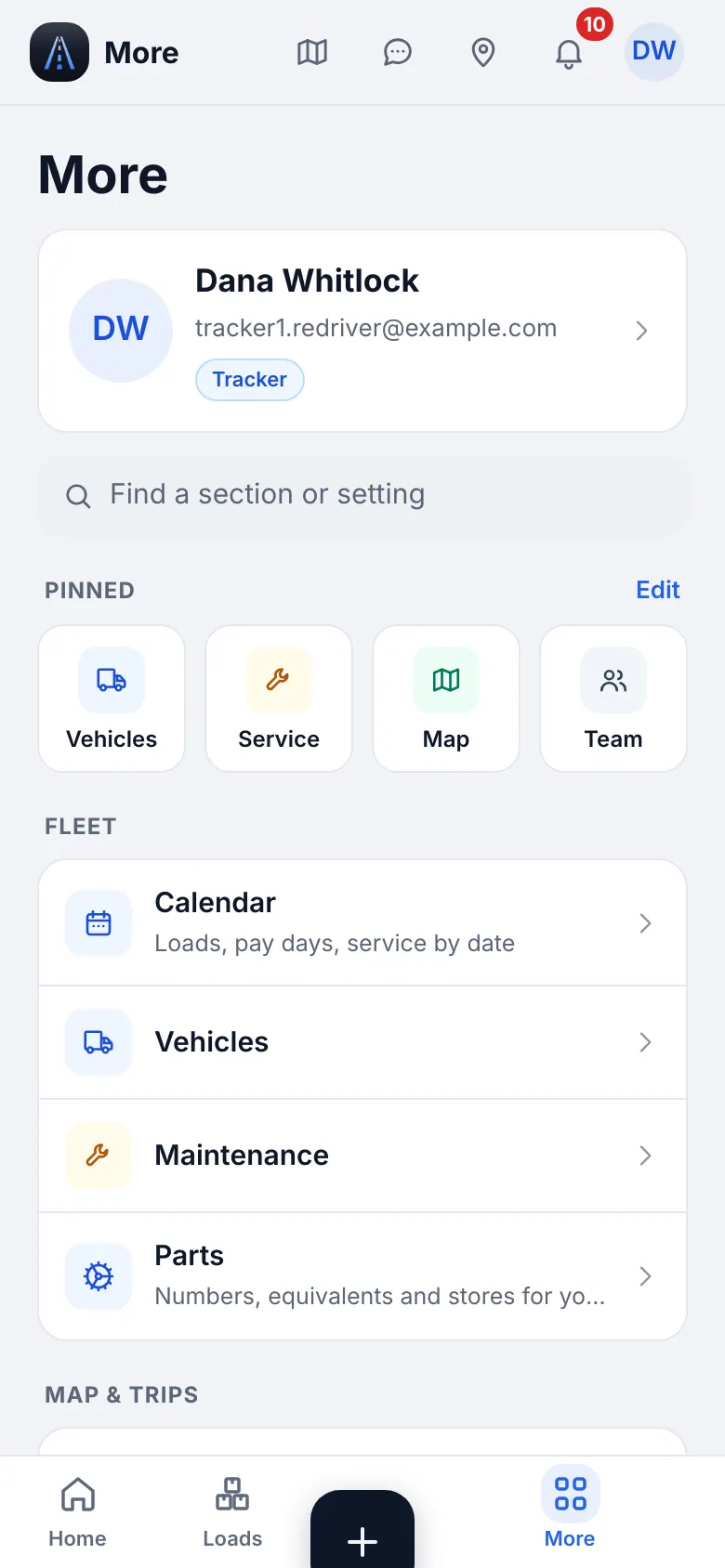
Website on a phone · The More menu of a tracker
2
Loads and statuses
The Loads list shows trips without money. You can move a load along its status and milestone chain.
- Where to find it
- Website
- Dispatch → Loads
- iOS app
- Loads (bottom bar)
- 1
Find a load
Tabs All, Active, Archived. Search by load number, broker, city or driver.
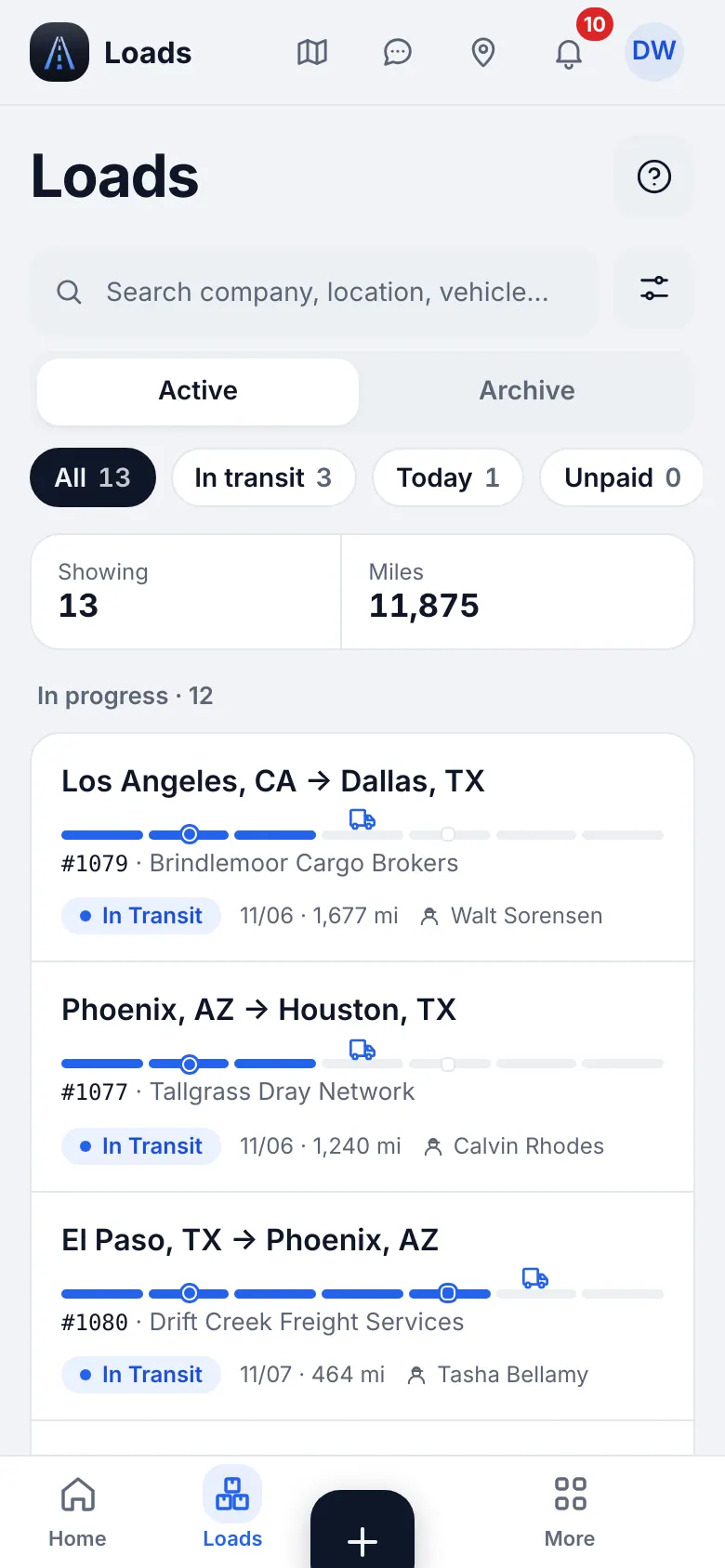
Website on a phone · Loads (no money) - 2
Change the status
Open the load and move it to the next status or step when the driver or a call confirms it: Booked → In transit → Delivered. This is the one change you may make to a load.
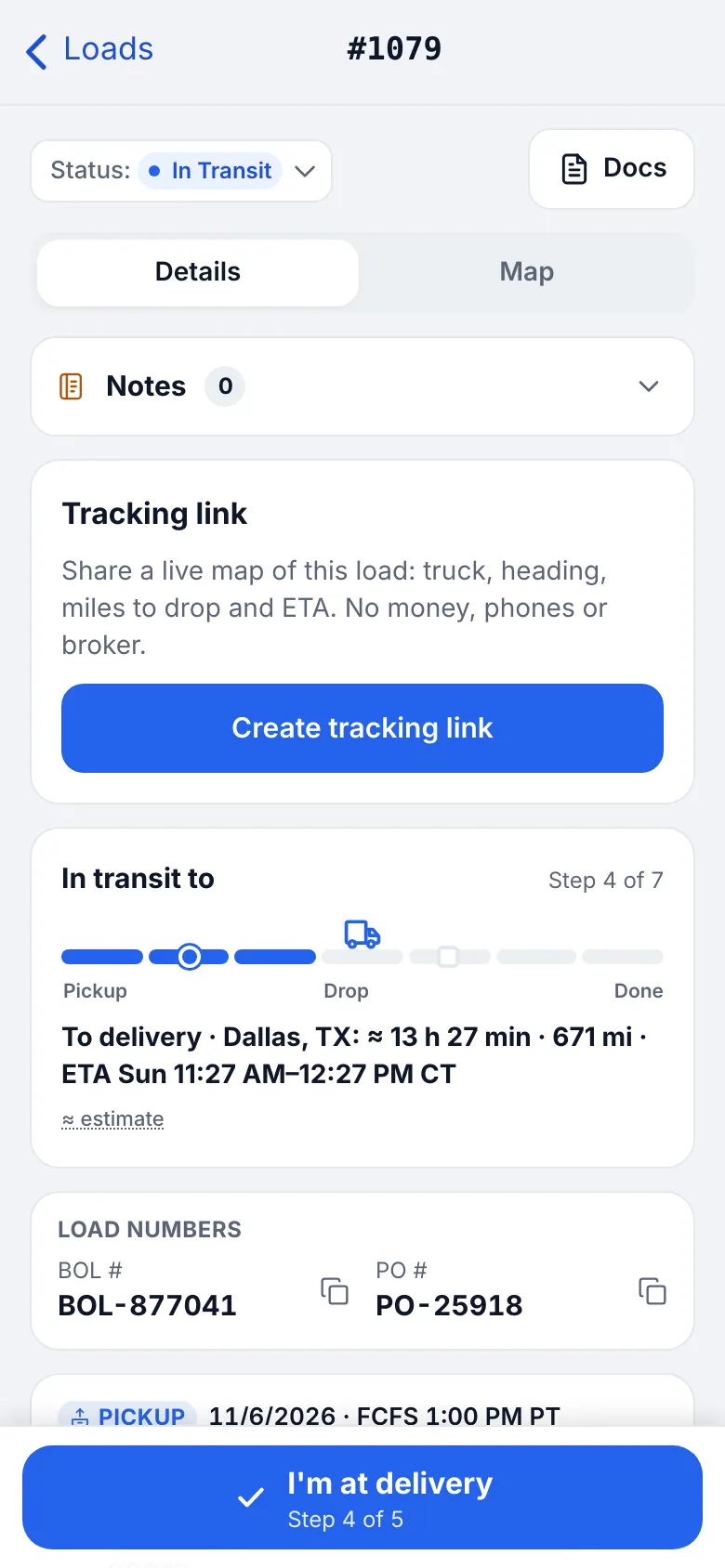
Website on a phone · Load card: status and steps - 3
What you do not see
Rates, payments and settlements are hidden for your role; they are not an error.
3
Fleet map and GPS tracking
Where every truck is, how long it has been stopped and where it is heading.
- Where to find it
- Website
- Map
- iOS app
- Map (bottom bar)
- 1
Open the map
The Map has layers: Drivers, Loads and Truck stops. Tap a driver for the load, speed and ETA.
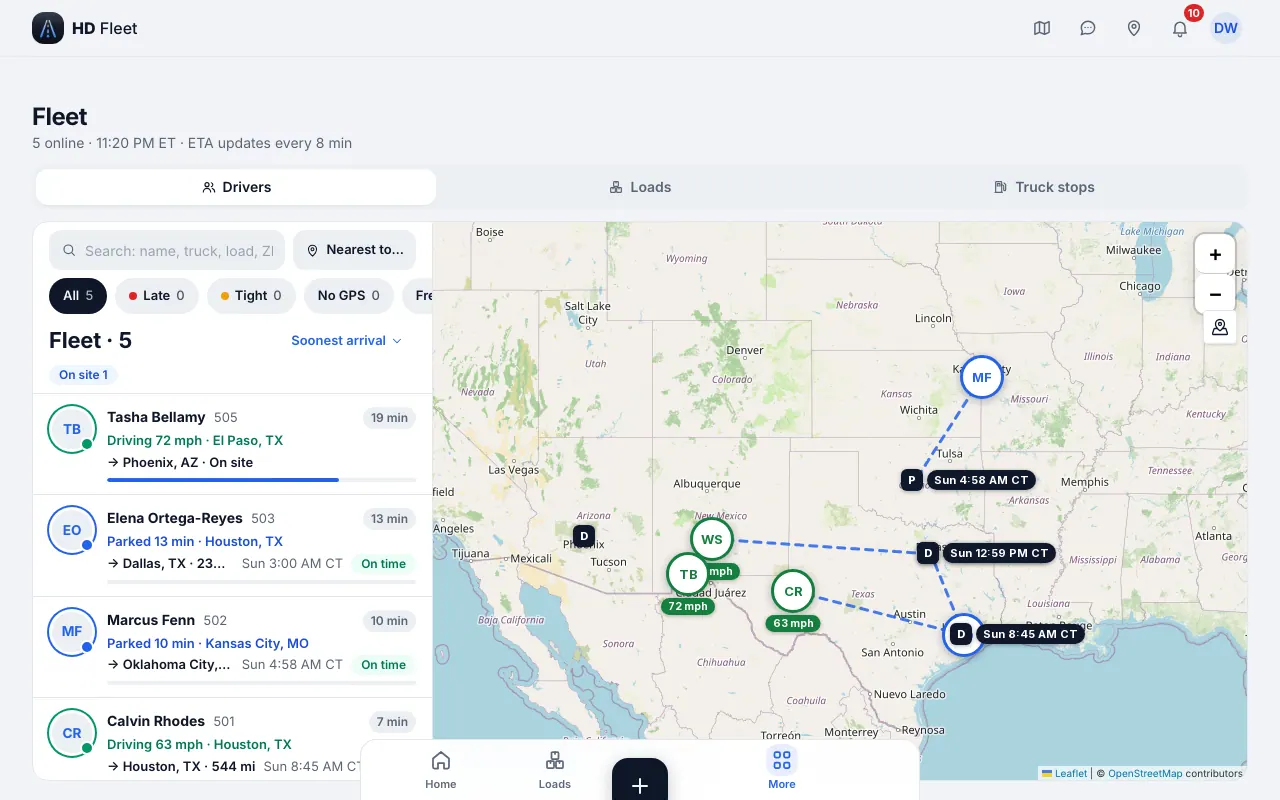
Website · Fleet map 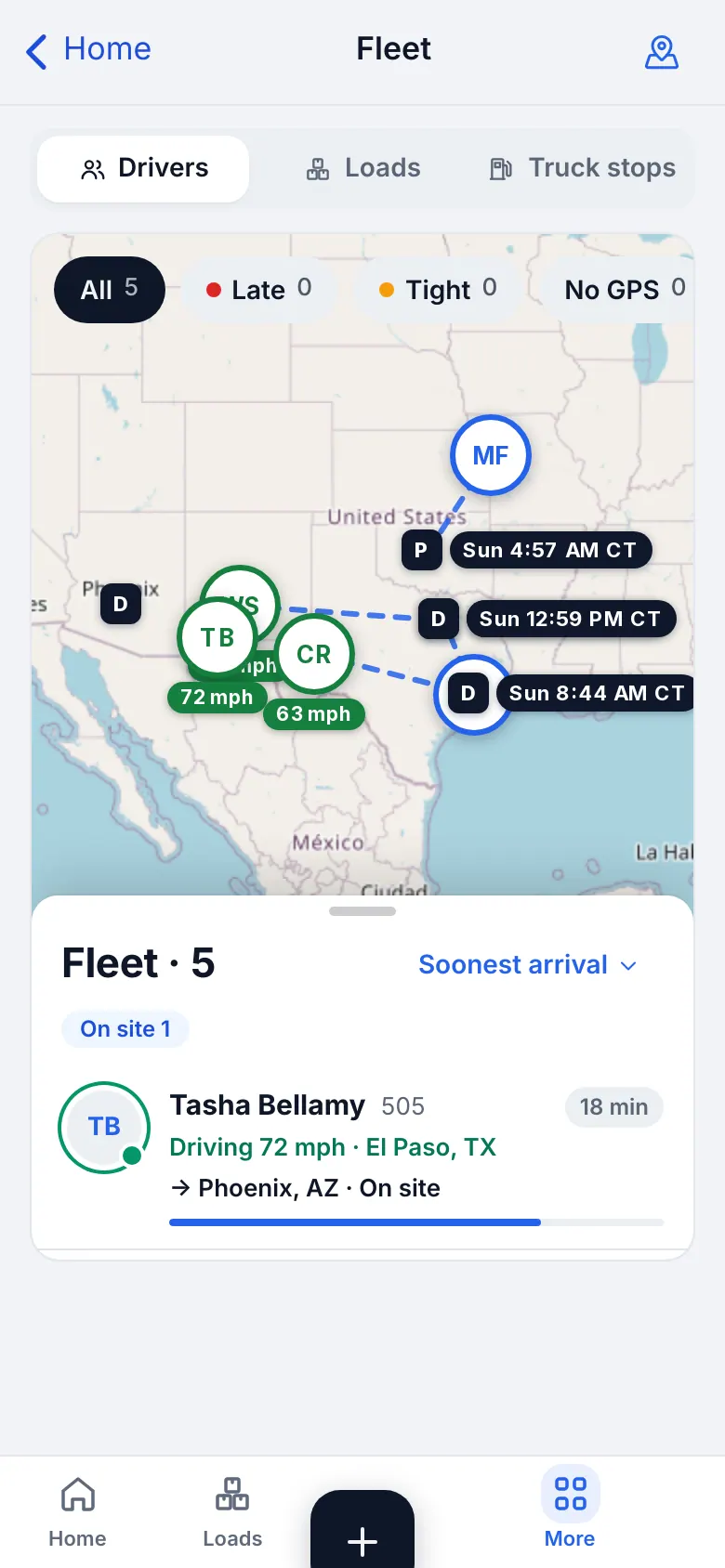
Website on a phone · Fleet map on a phone - 2
Tracking settings
Map → Drivers → GPS tracking shows how GPS is used for the company; you can view it.
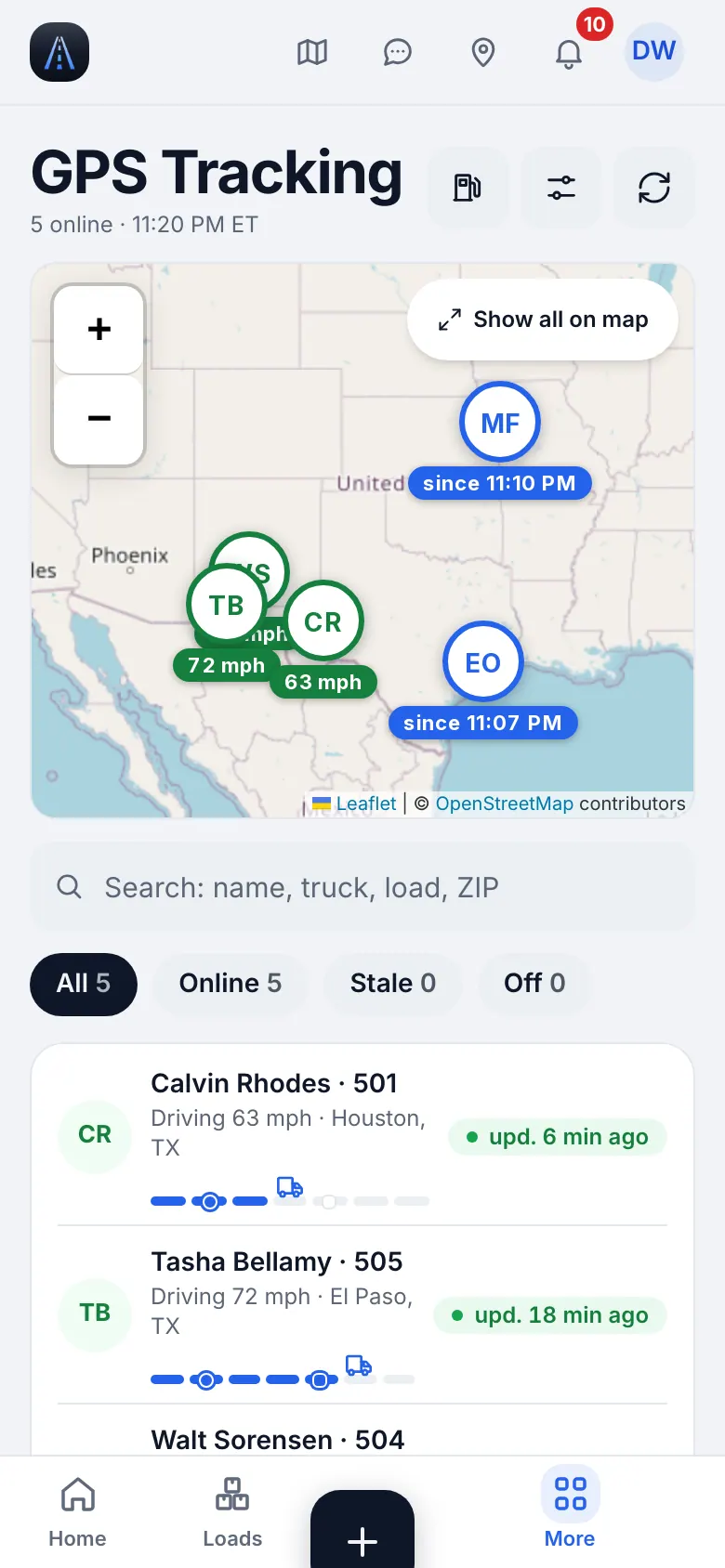
Website on a phone · GPS tracking settings - 3
Driver not on the map
Ask him to set location to Always. GPS records only on duty or with an active load.
- 4
A phone stopped sending
On a load in transit you see Not sending GPS with the last point and the likely reason. Use Ask driver to fix (he gets a card that says what to change), Call or Snooze 30 min. The alert rules are readable under Settings → Tracking alerts.
4
Messages and notifications
Keep drivers and the office in the loop.
- 1
Messages
Direct chats, groups and one chat per load; photos and files allowed.
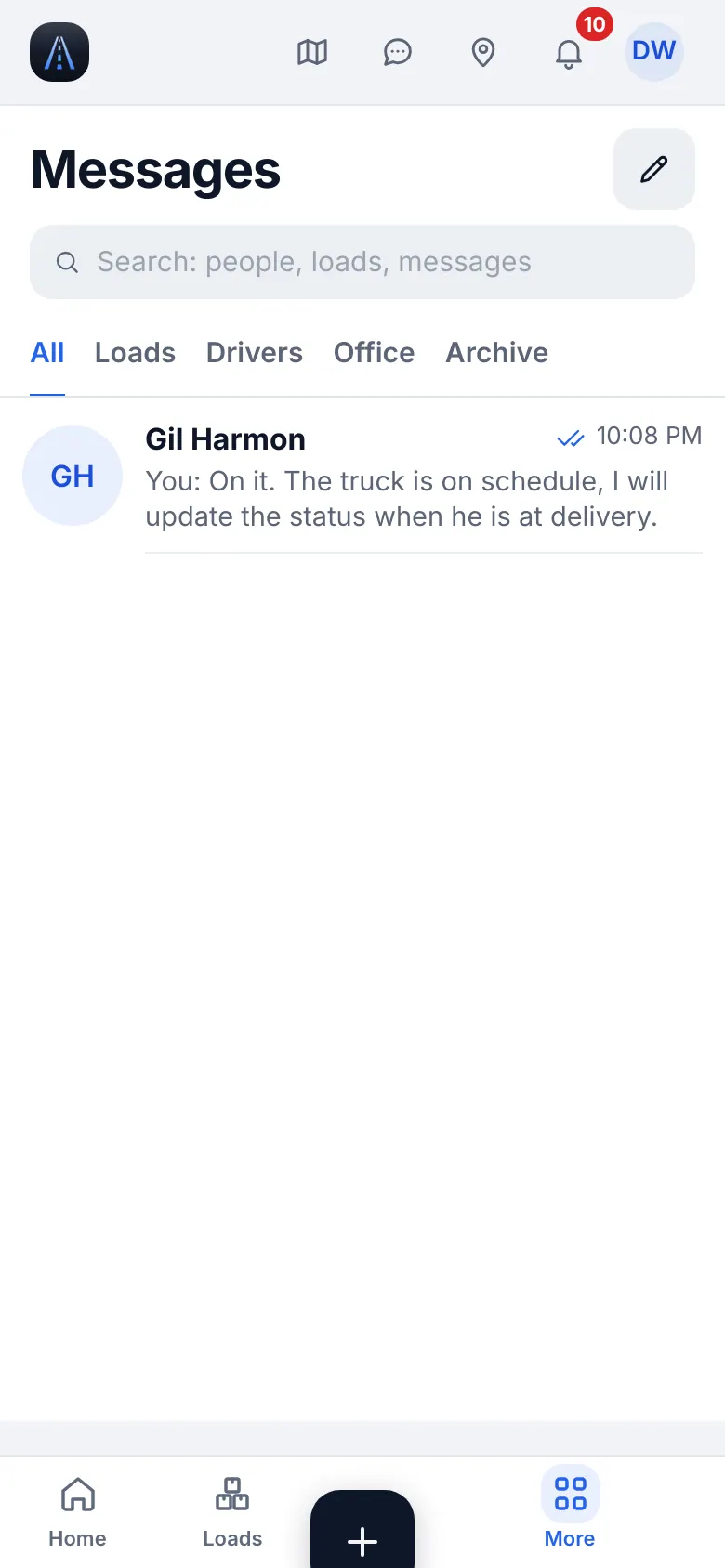
Website on a phone · Messages - 2
Notifications
Settings → Notifications chooses categories and quiet hours.
5
Troubleshooting
Quick fixes.
- 1
A screen sends me back to Home
Your role cannot open it. Ask the owner if you need access.
- 2
«Update the app»
Update HD Fleet from the App Store.
- 3
Support
Settings & help → Help & support → Write to us or Support chat.