User guides
Company owner
Everything an owner does in HD Fleet, in the order you meet it: set up the company, trucks, drivers and brokers, import your history, run loads, get paid, pay your people and stay compliant. Each chapter works for every kind of trucking; boxes marked Your operation add what is special for vans, hotshots, box trucks, semis and owner-operators.
1
Getting started: sign in, install the app, find your way around
HD Fleet runs on the website and in the iOS app with the same data and the same rules. Use the website at a desk and the app on the road; whatever you change in one shows in the other.
- Where to find it
- Website
- hamadev.net — Sign In
- iOS app
- App Store → HD Fleet
- 1
Create the account and sign in
Send the carrier application on the website, confirm your e-mail and wait for approval. Then sign in with your e-mail and password on the website, or install HD Fleet from the App Store and use Log in. If you turn on sign-in by code, a 6-digit code is e-mailed to you for every new device.
TipUse the same e-mail on the website and in the app: it is your login everywhere.TipForgot the password? Use Forgot password? on the sign-in screen.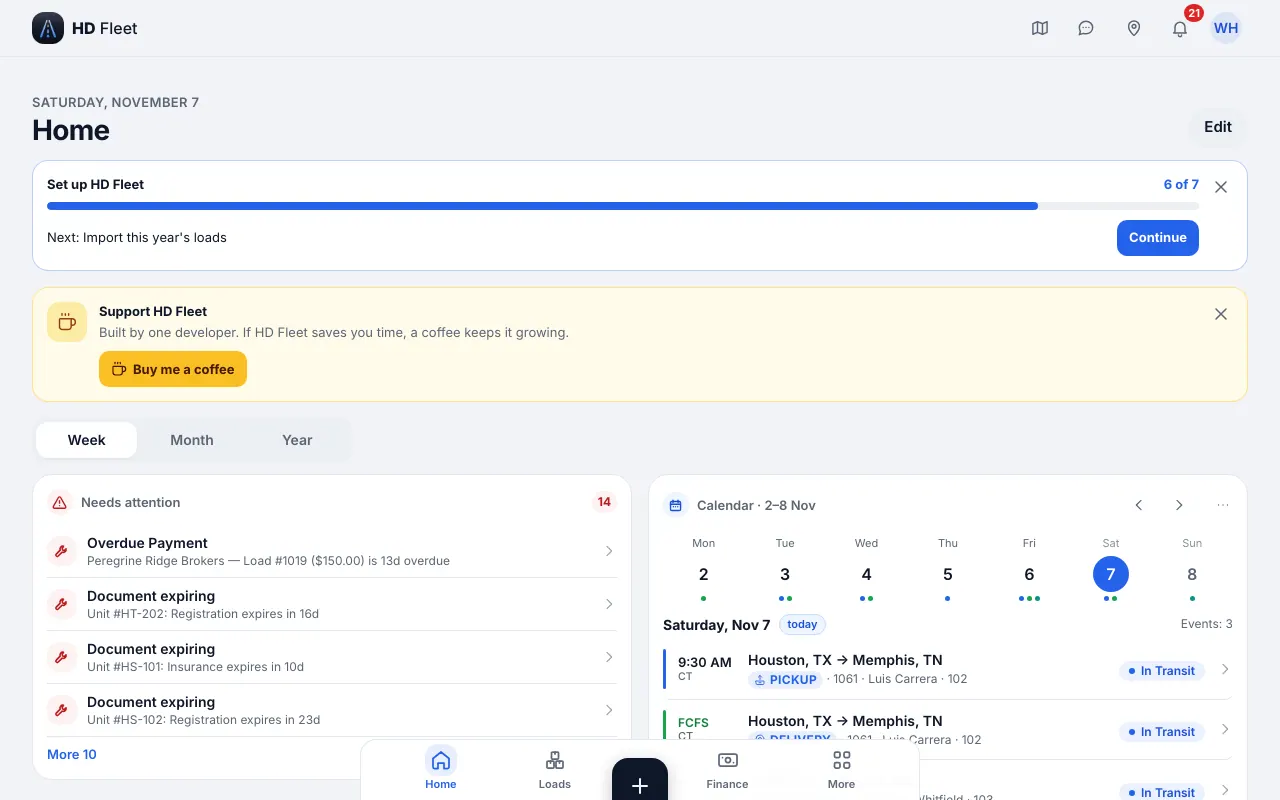
Website · Home on the website: today, money of the week and the checklist - 2
Learn the navigation
On a computer the sidebar on the left has three doors on top (Home, Messages, Map), then the groups Dispatch, Fleet, People & compliance, Money and Workspace, and Settings & help at the bottom. On the phone (the app and the website at phone width) the owner's bottom bar is Home, Loads, “+”, Finance and More. “+” adds a load, an expense, a vehicle and more; More holds everything else in the same groups as the sidebar. Paths in this guide read Group → Item, for example Fleet → Trucks & trailers: on a computer find the group in the sidebar, on the phone tap More.
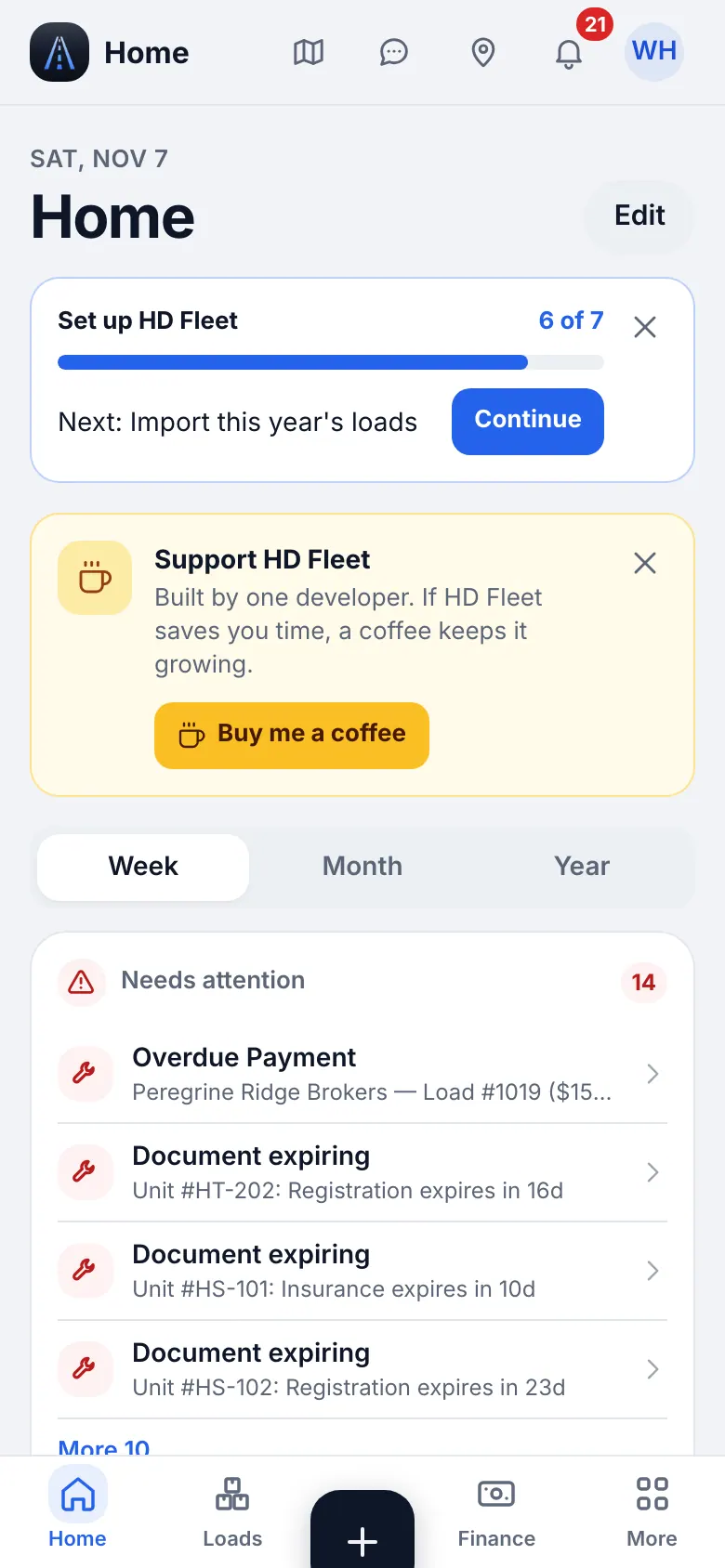
Website on a phone · Home on a phone 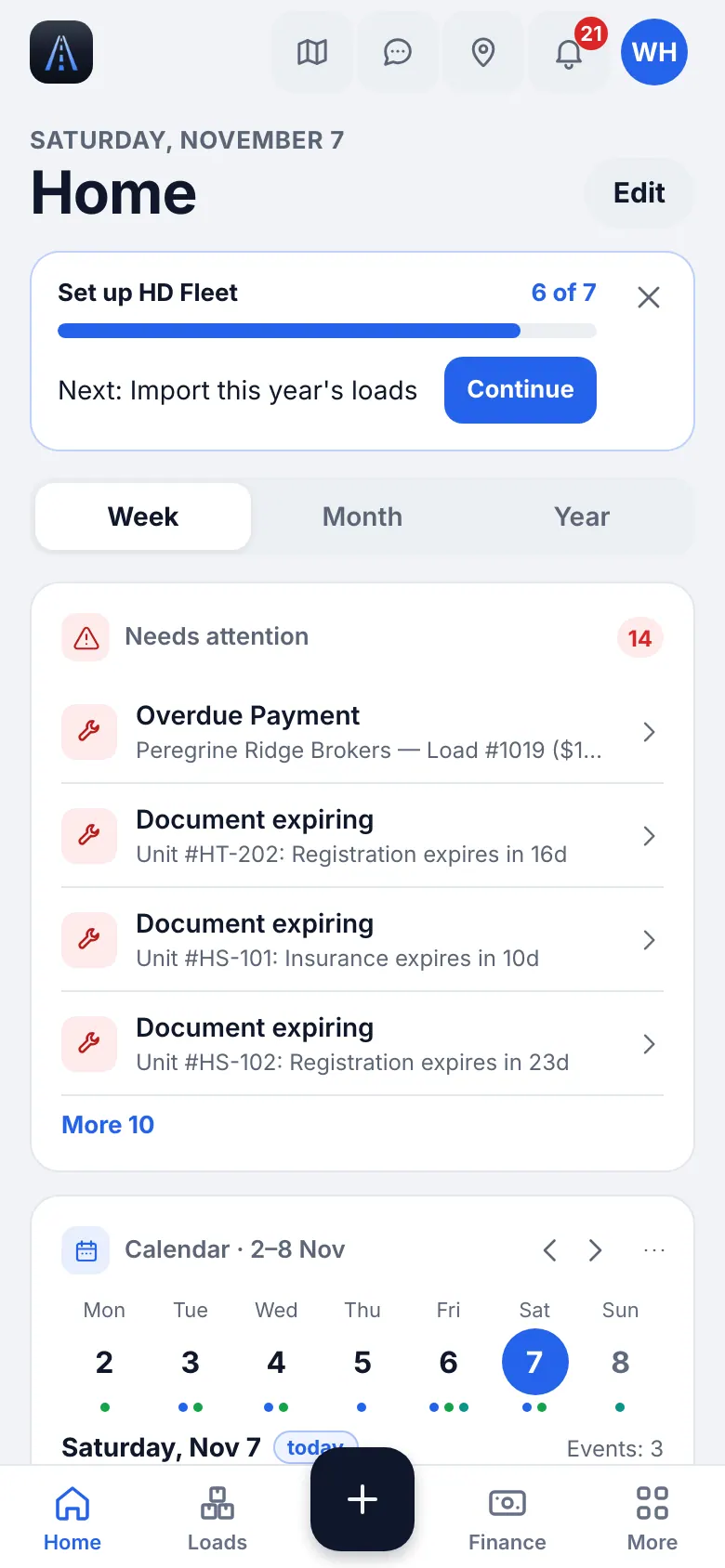
iOS app · Home in the iOS app - 3
Search everything with ⌘K
The search in the header (⌘K on a Mac, Ctrl K on Windows; the search button on the phone) finds loads, trucks, drivers, brokers, pages and settings by name in English, Russian or Ukrainian, and also runs actions such as Add load. Recent records are listed first.
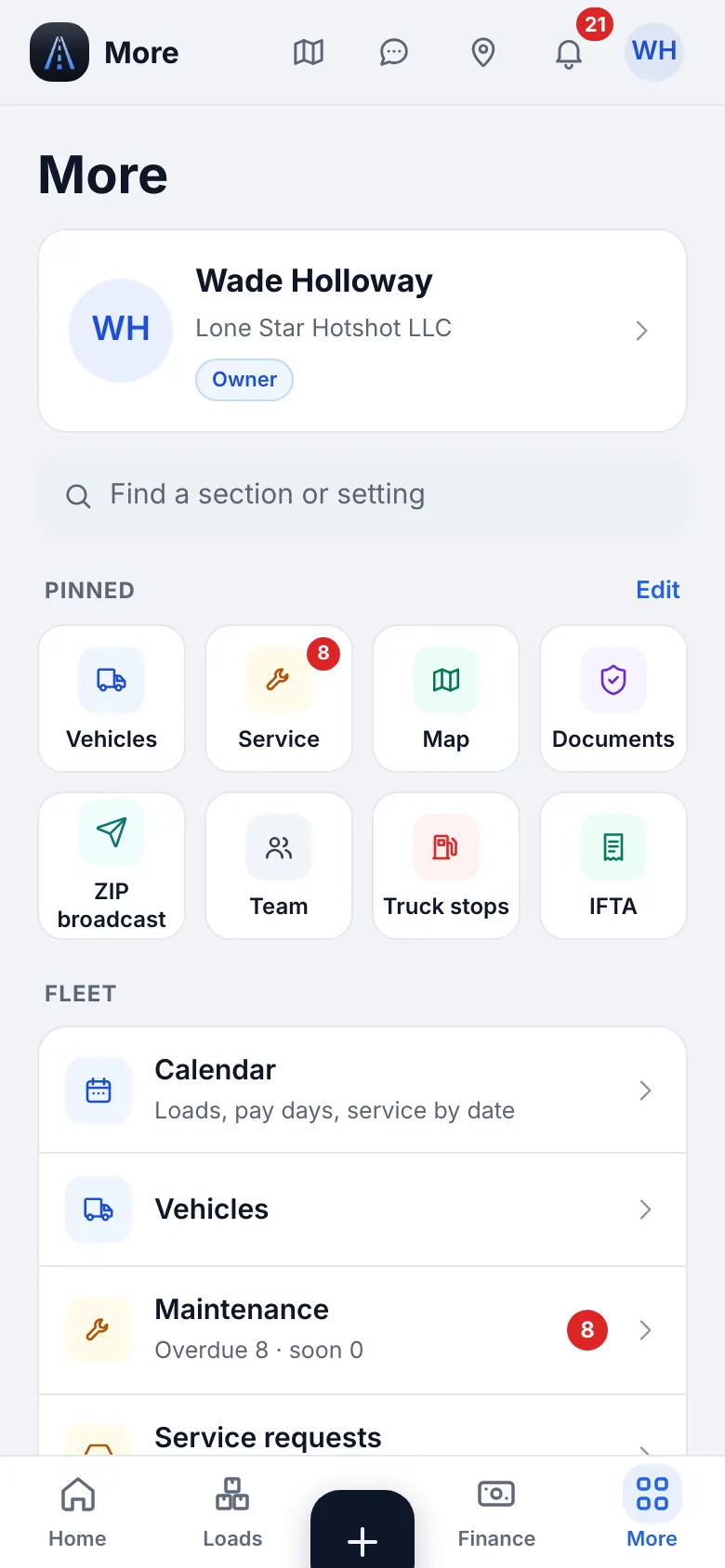
Website on a phone · The More menu: every section in groups, pinned tiles on top 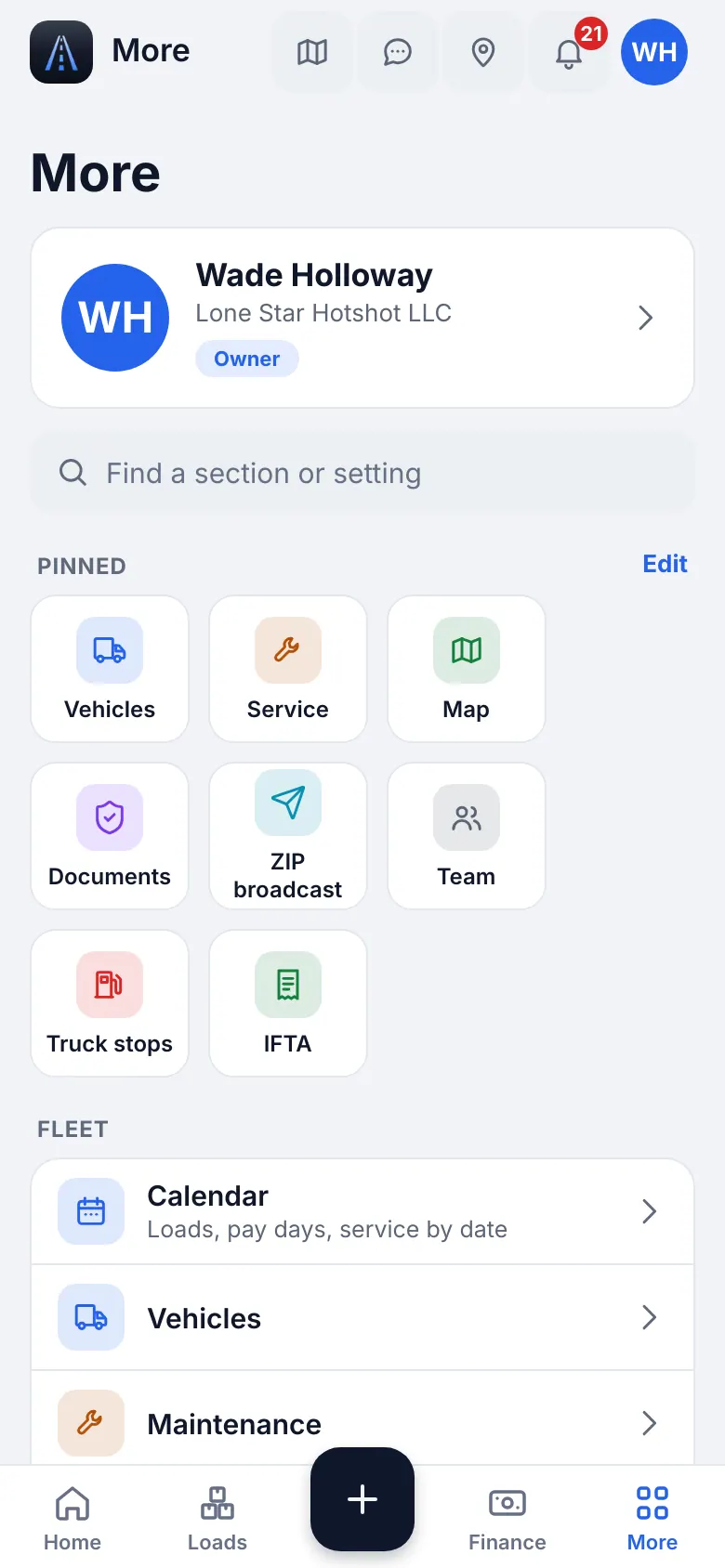
iOS app · The More menu in the app - 4
Pin your favorites
On the phone More starts with your Favorites. Tap Edit to pin up to 8 pages you open most often, then Done. Pages that a bottom tab already opens are not repeated in More.
- 5
Choose language and appearance
Open Settings, then Language and Theme. English, Russian and Ukrainian are available; push messages and e-mails follow the language of each person. Light and dark themes follow your phone unless you choose one.
2
First steps: tell us how you run your trucks
The checklist sets up only what you need. It takes about ten minutes and you can leave and come back from Home or Settings → Company → First steps.
- Where to find it
- Website
- Home → checklist, or Settings → Company → First steps
- iOS app
- Home → checklist, or Settings → Company → First steps
- 1
Pick your situation
The first question is How do you run your trucks?. Choose I drive my own truck if you are an owner-operator (no driver invitations and no driver pay: every load and the truck are yours automatically), or I have drivers if you run a fleet.
Your operation · Owner-operator · Cargo / sprinter van · Hotshot
Owner-driver
Pick I drive my own truck. The Team, W-9 and driver-pay screens stay out of your way, and your Home becomes a driver home with the current load, money of the week and truck stops on the way.
Your operation · Small fleet with dispatchers · Semi (dry van, reefer, flatbed) · Box truck
Fleet with drivers
Pick I have drivers. You will invite drivers, set their pay and optionally invite dispatchers.
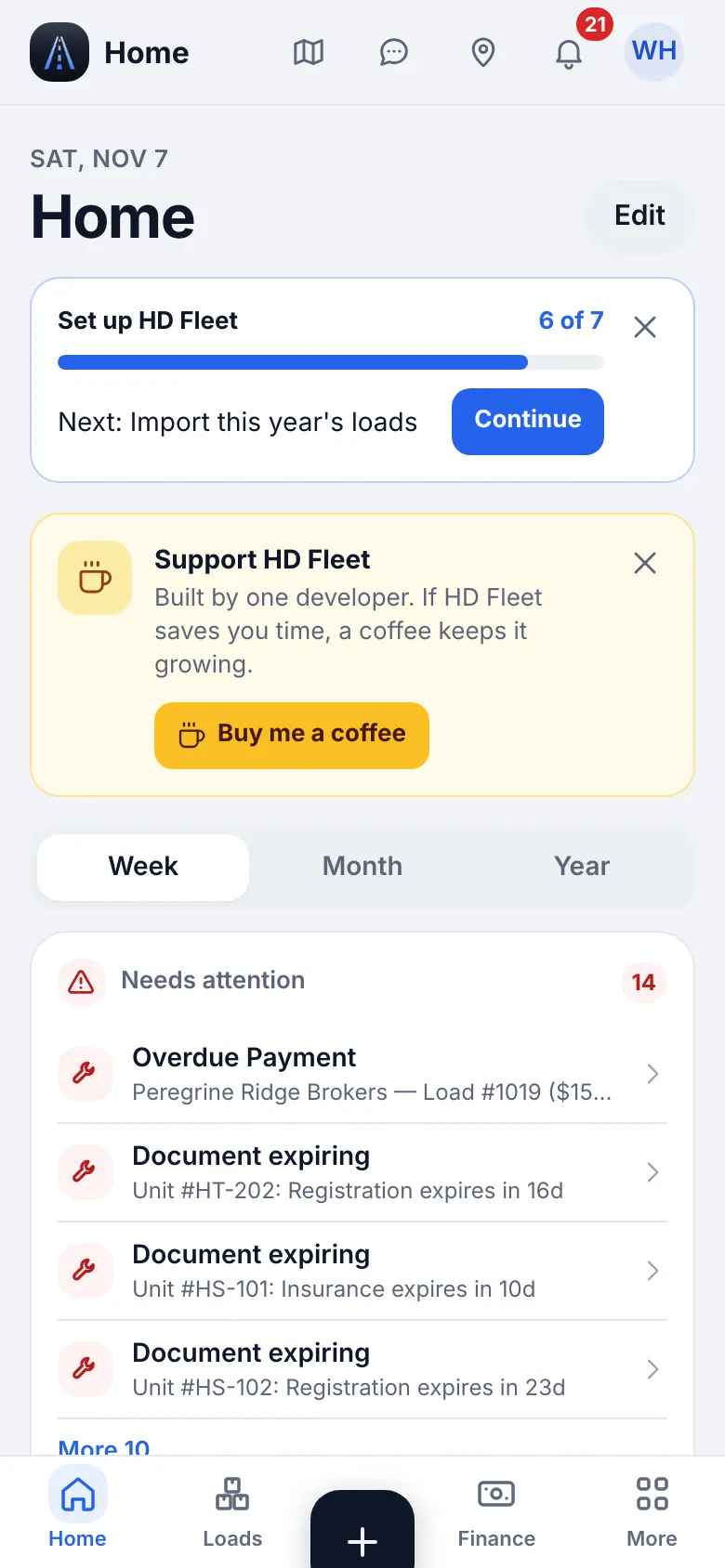
Website on a phone · Home with the «Set up HD Fleet» checklist card: progress and the next step - 2
Walk the checklist
Steps are: Add a truck, Invite a driver, Create your first load, Set up driver pay. The optional ones are Add trailers, Invite dispatchers, Import brokers, Import this year's loads and Set up factoring. Each row has a button that opens the right screen; Skip moves on.
TipRather than typing, use Import from Excel: trucks, drivers and loads from one file.TipThe two short tips on Home explain the “+” button and the Finance tabs. Close them with Got it.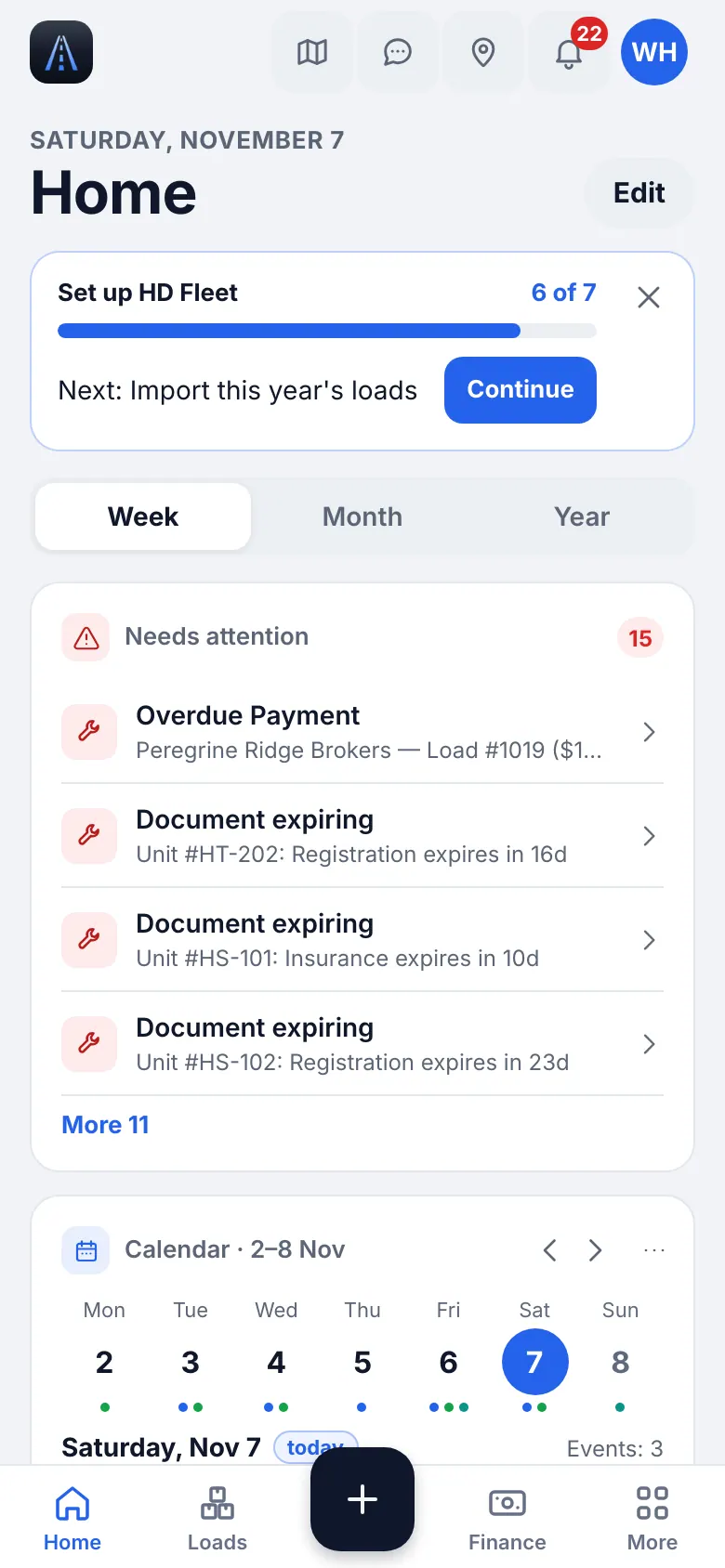
iOS app · Home in the app with the «Set up HD Fleet» checklist card - 3
Hide the checklist when you are done
When every step is done Home says All steps are done. You can hide the checklist at any time with Hide checklist; it comes back under Settings → Company → First steps.
3
Company card and factoring
The company card feeds your invoices and rate confirmations. Factoring is optional: set it up only if a factor buys your invoices.
- Where to find it
- Website
- Settings → Company card
- iOS app
- Settings → Company card
- 1
Fill in the company card
Open your profile, then Company. Enter the company name, address, phone, USDOT and MC. If you work under your own name, choose Under my own name in the first steps; invoices then show your name. You can add a company, USDOT or MC at any time later.
Your operation · Cargo / sprinter van
Working under other carriers' authority
If you haul under a carrier's MC (expedite vans, dispatch companies), keep your own company card for your records and enter each carrier as a broker/company so its unit number and payment terms are tracked separately.
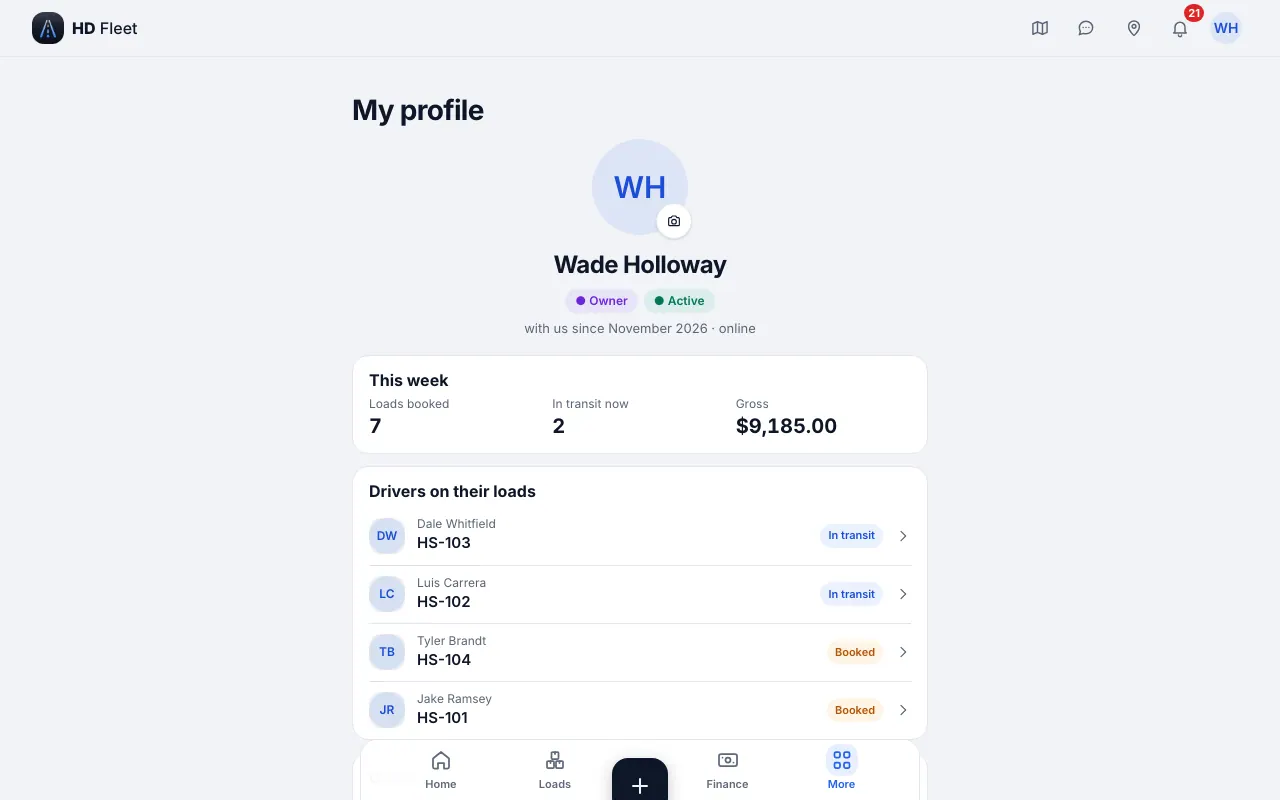
Website · Profile and company card 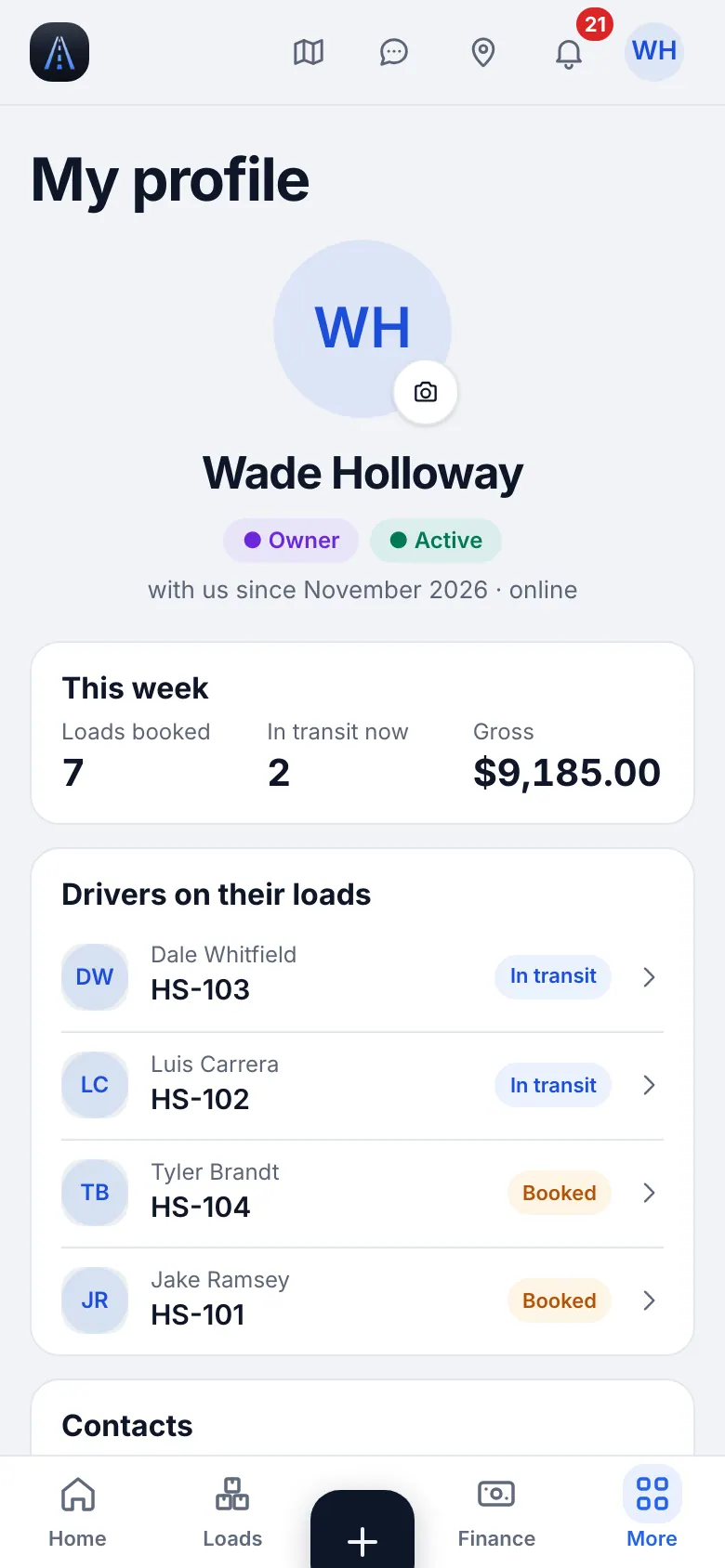
Website on a phone · Profile and company card on a phone - 2
Direct broker pay or factoring
Hotshot · Box truck · Semi (dry van, reefer, flatbed) · Owner-operator · Small fleet with dispatchers · Cargo / sprinter van
Without factoring you invoice the broker and collect yourself: you never need this step. With factoring, a factor buys your invoice, pays an advance at once and releases the rest (minus a fee) when the broker pays.
- 3
Set up your factor
In Settings → Company card → Factoring enter the Factor name, Fee, %, Advance, %, Reserve, % and Recourse, days. The form shows an example (an invoice amount turned into advance, fee and reserve release). Fee and advance together cannot exceed 100%. To stop using a factor choose Switch off factoring.
TipThe terms are set once for the company; every invoice computes advance, fee and reserve from them.TipMark brokers your factor has approved: see Approved by factor in the broker chapter.CarefulChanging the terms affects invoices you send to the factor afterwards, not the ones already sent.
4
Trucks and trailers
A truck is the center of the books: loads, fuel, expenses, driver pay and profit are all counted per truck. A trailer is a separate unit you pick on a load.
- Where to find it
- Website
- Fleet → Trucks & trailers
- iOS app
- Fleet → Trucks & trailers
- 1
Add a truck
Open Vehicles and tap Add vehicle. Choose the vehicle type first, then fill in the basics: truck number (leave it blank for an automatic name such as TRK-001), make, year, plate and VIN. Scan registration fills the fields from a photo of the registration. Tap Create vehicle.
Your operation · Cargo / sprinter van
Cargo or sprinter van
Choose the van type. Payload and body dimensions (length, width, height) matter for brokers and for the weight check on loads, so enter them.
Your operation · Box truck
Box truck
Choose the box truck type and enter body dimensions and payload; a box truck usually has no separate trailer.
Your operation · Semi (dry van, reefer, flatbed)
Semi tractor
Add the tractor as a truck and each trailer (dry van, reefer, flatbed) as its own unit with its Trailer type. Pick the trailer on every load.
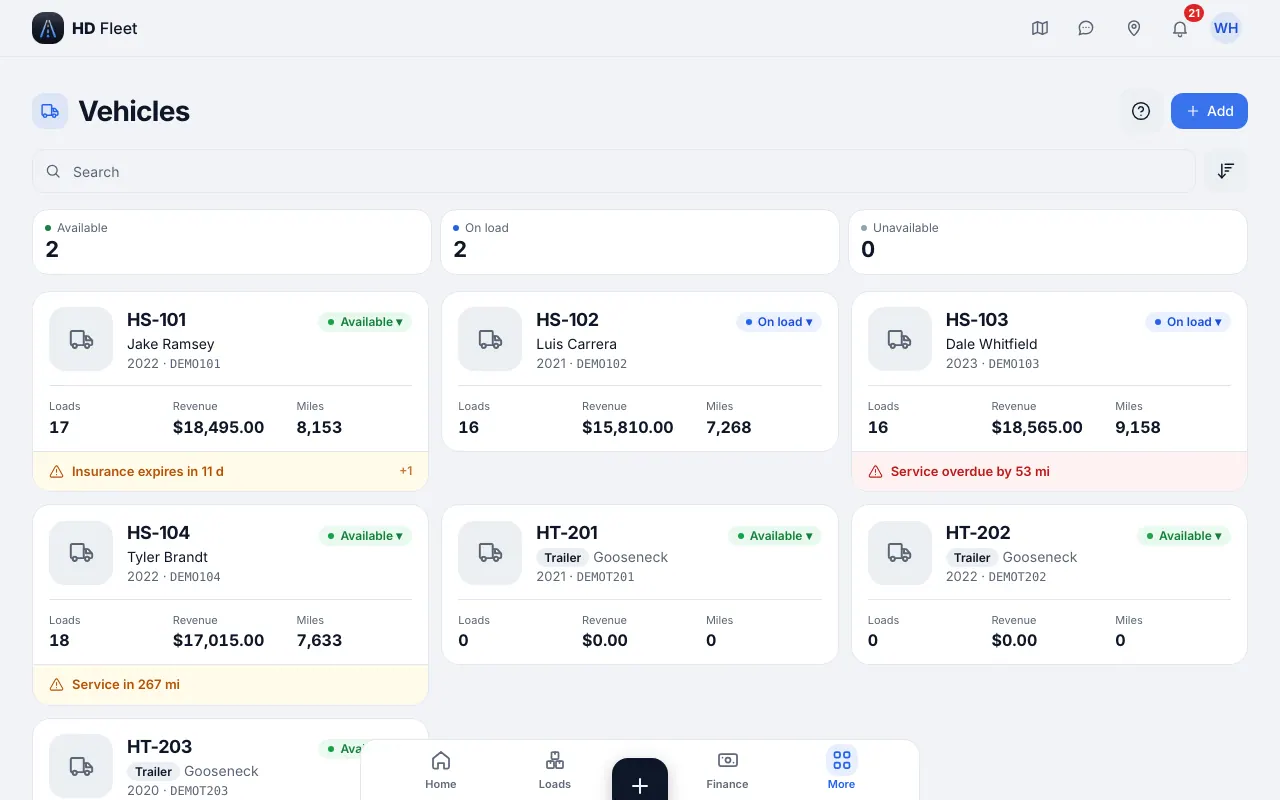
Website · Vehicles list (hotshot demo company) 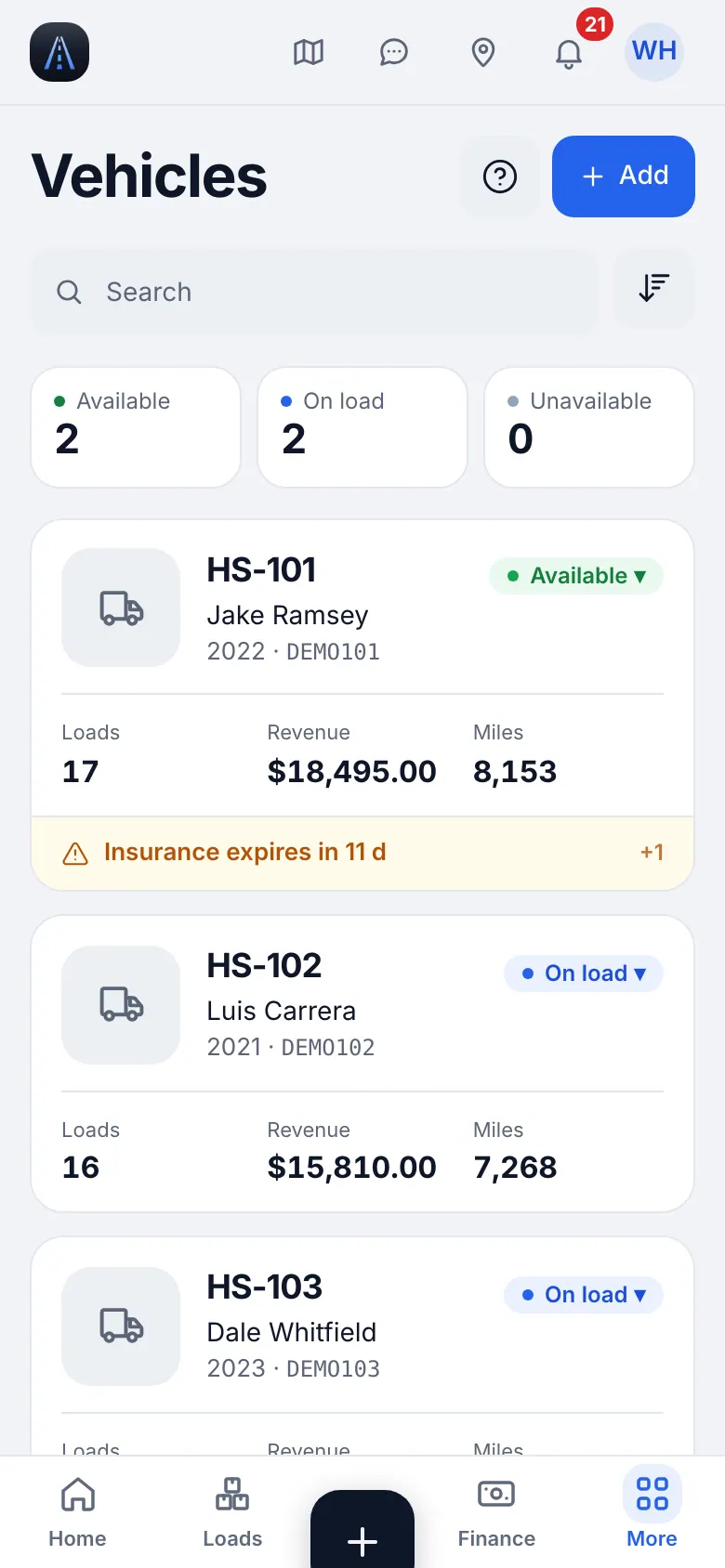
Website on a phone · Vehicles on a phone (hotshot demo company) - 2
Who drives and how you pay
In Who drives and how we pay choose Owner-driver if you drive this truck, or Hired driver and pick or quick-add the driver. For a hired driver choose the pay type: % of gross, Rate ($/mile) or Rate ($/load). The hint under the field explains each.
CarefulA driver's own pay scheme (set in Team) overrides the truck's rate. See the Drivers chapter. - 3
Weights: payload, GVWR and GCWR
In the dimensions and weight section enter Payload (lbs), GVWR (lbs) and, for a truck that pulls a trailer, GCWR (lbs). These limits drive the weight warning when you create a load: it tells you when the cargo is over the truck payload, over the trailer capacity or over the combined GCWR.
Your operation · Hotshot
Hotshot: pickup plus gooseneck
Enter the pickup's GVWR and the combined GCWR, then add the gooseneck or bumper-pull as a trailer with its capacity. The load form then shows the maximum load for that truck and trailer pair.
Your operation · Semi (dry van, reefer, flatbed)
Semi
Typical combined weight is 80,000 lbs; enter your real GCWR and the trailer capacity so overweight loads are flagged before dispatch.
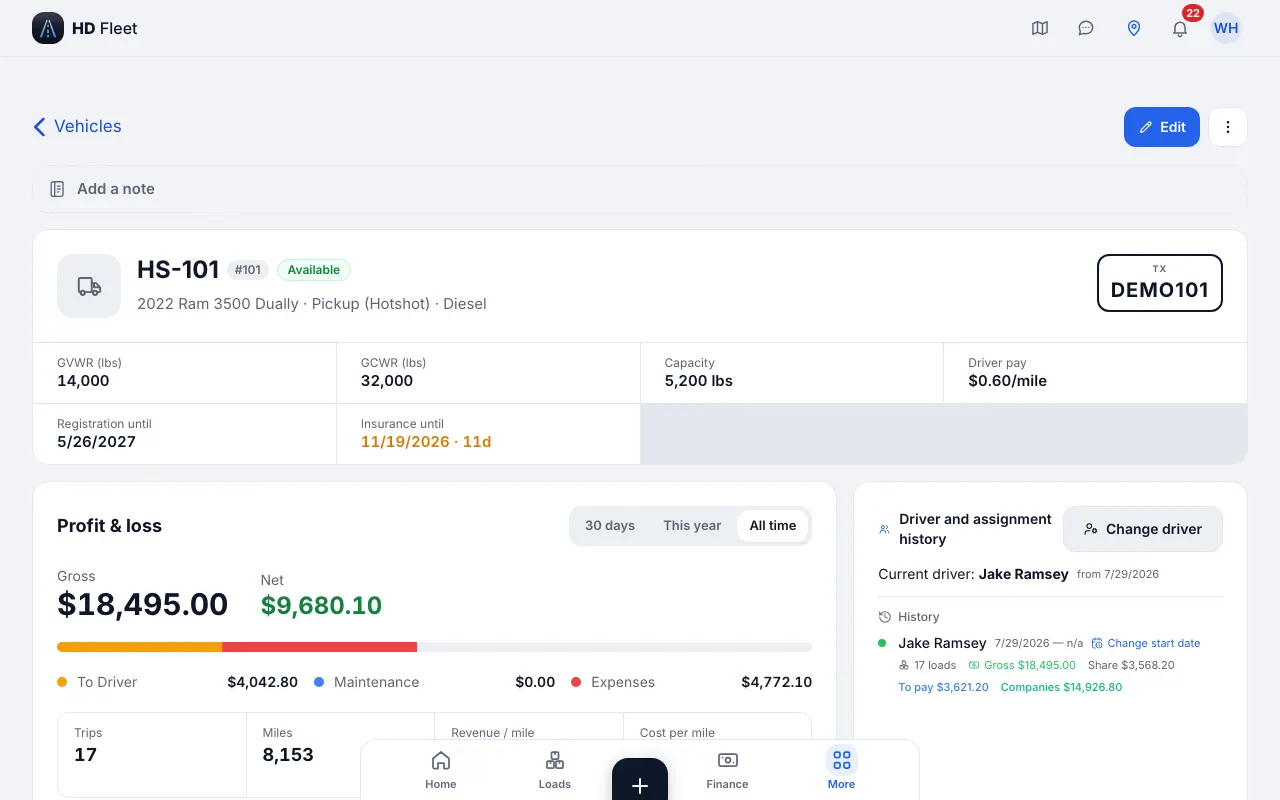
Website · Truck card: pay, dimensions, weights, units - 4
Add trailers
Hotshot · Semi (dry van, reefer, flatbed) · Small fleet with dispatchers
Add a trailer from the same Vehicles screen with the Trailer unit kind and choose the Trailer type (a type is required). Gooseneck, bumper pull, flatbed, dry van and reefer are all handled as trailers. A trailer is optional for a van or box truck.
- 5
Equipment, deck and trailer space
Hotshot · Semi (dry van, reefer, flatbed) · Small fleet with dispatchers
Open a truck or trailer and fill in Equipment: deck length and width, dovetail, ramps and the securement gear on board (tarps, chains, straps, binders). A load with Equipment required is checked against it, so you see at once what a unit is missing. On a trailer, Trailer space draws the load boxes on the deck in feet and pounds and shows how full it is; when there is room, Find a partial lists open loads and broker offers that fit and lie near the route.
TipOver capacity is only a warning: it never blocks a load.TipThe space meter needs the deck length and the payload of the trailer, so enter them first. - 6
Unit numbers per company
Cargo / sprinter van · Owner-operator
On the truck card the unit-number list holds the number each company assigned to this truck; brokers ask for it when booking. Only the owner edits unit numbers.
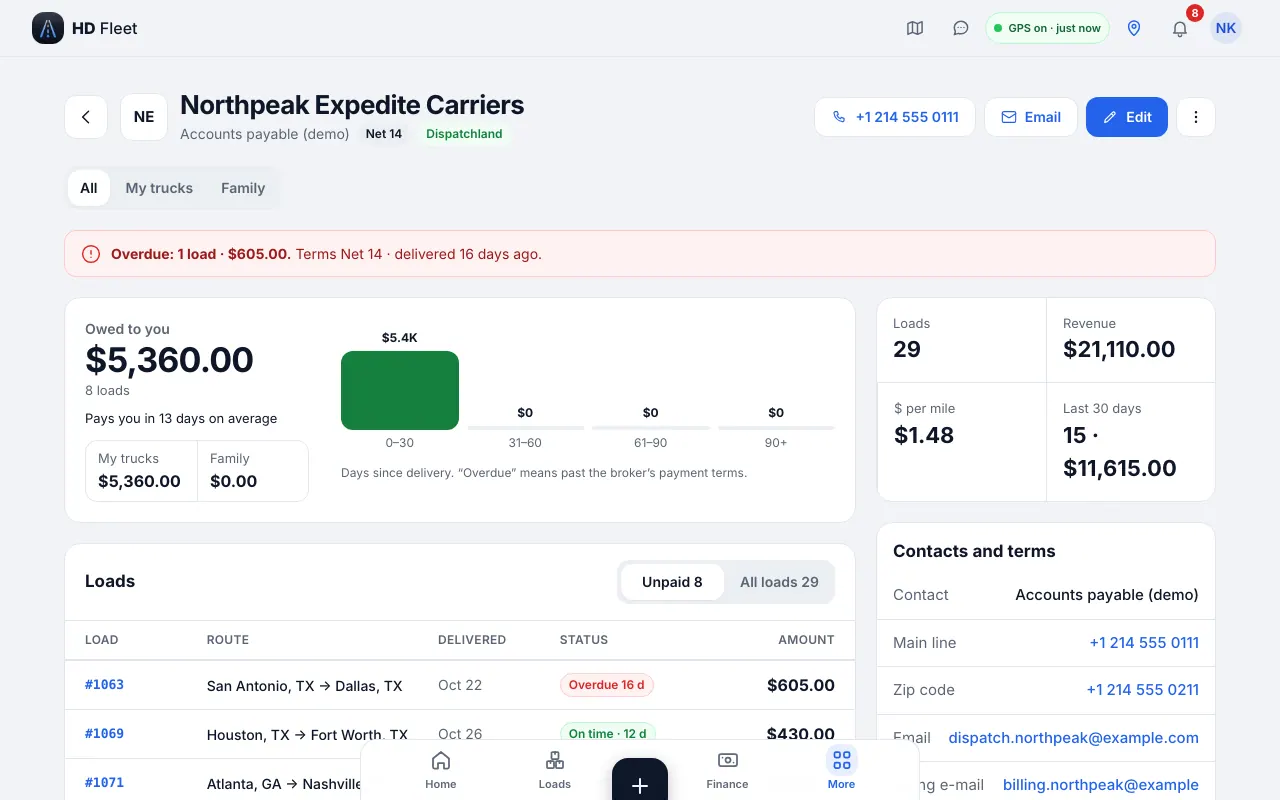
Website · Brokers and carriers: your unit number per company - 7
Fixed costs
Insurance and a truck payment can be set on the truck; they appear under Money → Expenses → Recurring so every week carries its share.
5
Drivers and how they are paid
A driver signs in with his own account. You create it, assign a truck and decide how he is paid.
- Where to find it
- Website
- People & compliance → Team
- iOS app
- People & compliance → Team
- 1
Add the driver
Open Team and add a driver: name, e-mail (his login) and a password. Choose the truck in the form or later in the truck card. To invite many drivers at once, import them: Workspace → Import data → Trucks and drivers sends each driver an e-mail to set his own password.
TipDriver license numbers, SSN and bank details are never imported: the driver enters them himself.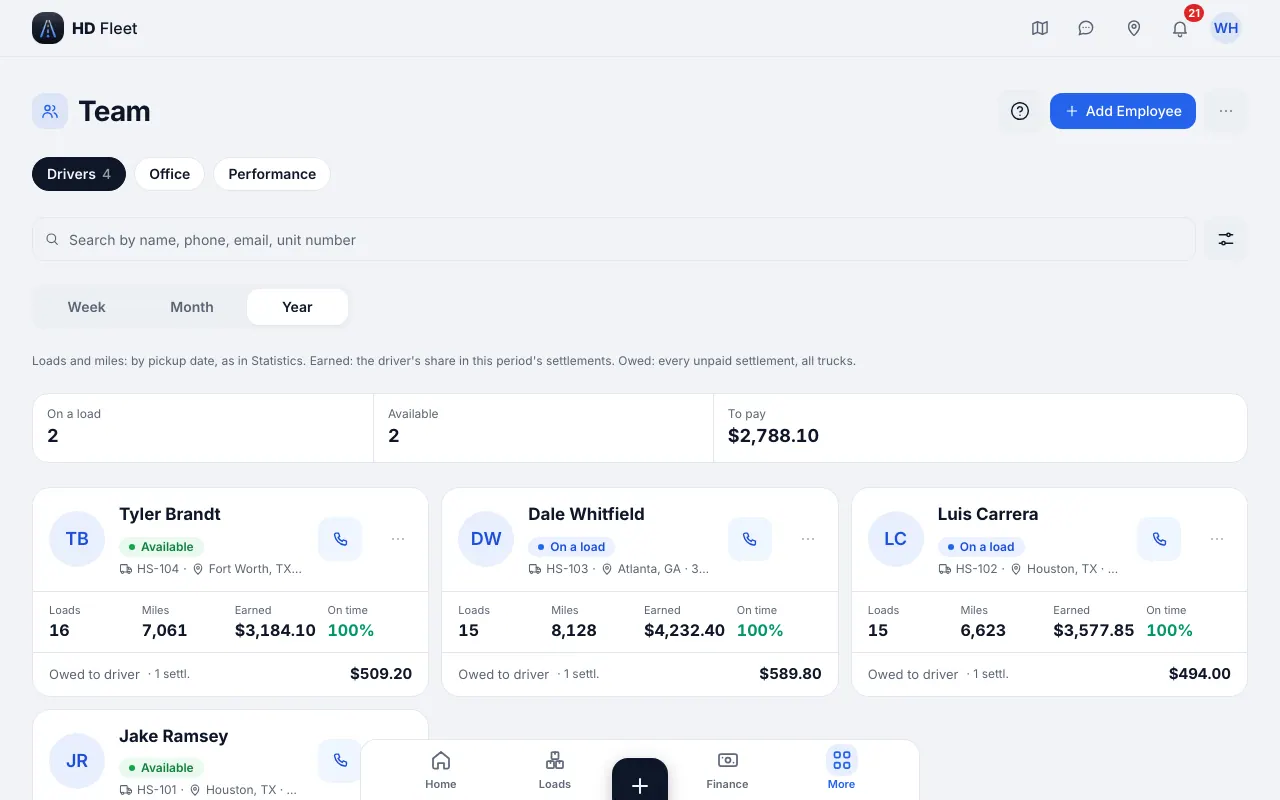
Website · Team: drivers and office people 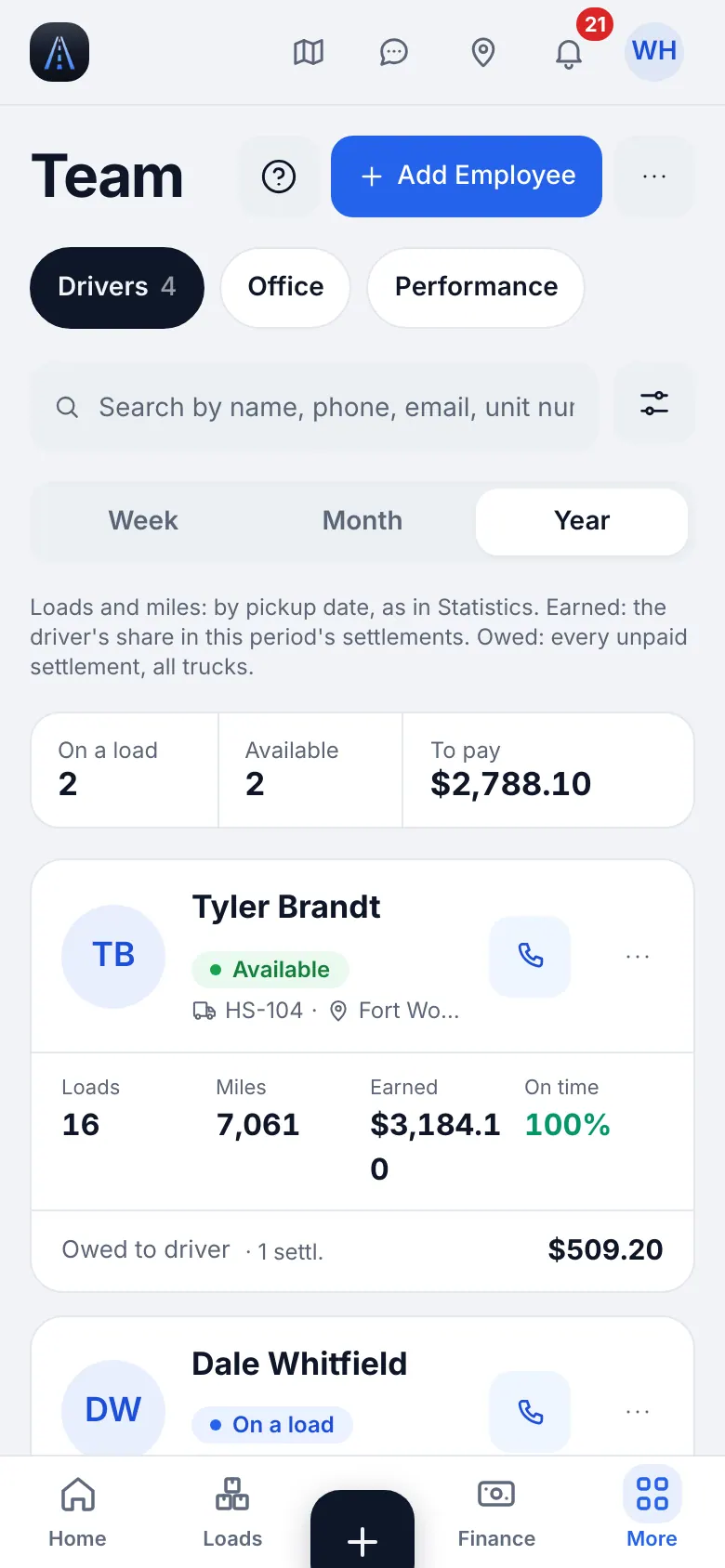
Website on a phone · Team on a phone - 2
Give him a way in
The driver installs the app and signs in with the e-mail and password. Or open his card and show a one-time QR code, or send a sign-in link; both are valid for 10 minutes.
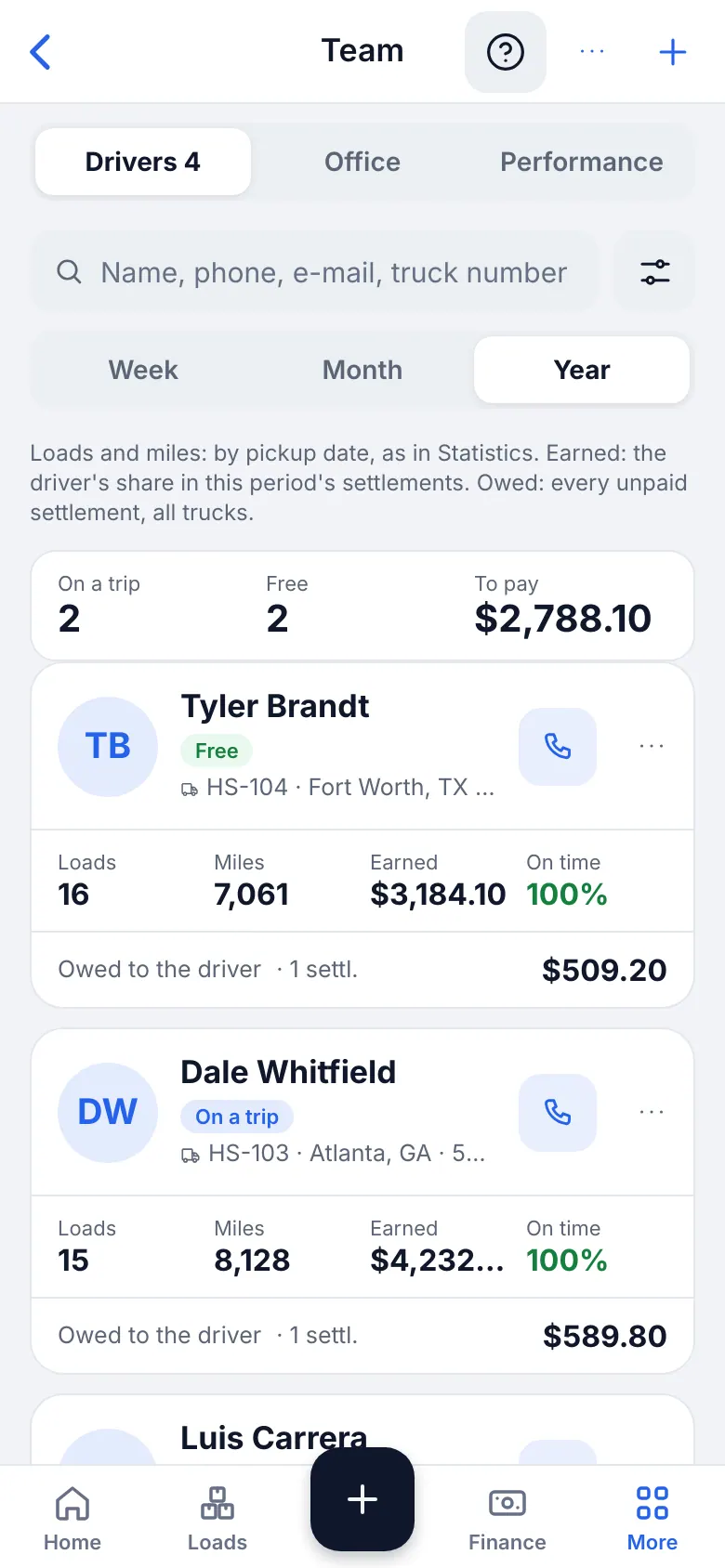
iOS app · Team in the app - 3
Choose the pay model
Open the driver and find Base pay scheme. Set own scheme lets you pick % of gross, $ per loaded mile (cents per mile) or $ per load (flat per load) and enter the rate. Use the truck's rate removes his own scheme. The driver's own scheme is used on any truck he drives; without it the truck's rate applies.
Your operation · Owner-operator · Cargo / sprinter van
Owner-operator
There is no driver pay: Owner-operator truck — no driver pay. Your profit is the load revenue minus fuel, costs and fees.
Your operation · Hotshot · Box truck · Semi (dry van, reefer, flatbed) · Small fleet with dispatchers
Hired drivers
Percent of gross is common for hotshot and small fleets, cents per mile for semi and box, flat per load for short runs. Pick what you agreed with the driver.
- 4
Pay empty (deadhead) miles
Semi (dry van, reefer, flatbed) · Box truck · Small fleet with dispatchers · Hotshot
For per-mile drivers, Empty (deadhead) miles decides whether empty miles are paid: Not paid (default), Same rate or Separate rate with Rate, ¢ per mile (for example 25). Empty miles are the ones entered on each load. The form shows an example week. A driver's own setting overrides the truck's.
- 5
Credentials and gear
Hotshot · Box truck · Semi (dry van, reefer, flatbed) · Small fleet with dispatchers
On a driver's profile open Credentials & gear: CDL endorsements, medical card, TWIC, passport or FAST card, hazmat and PPE. The owner, HR and safety see it, a load with Equipment required is checked against it, and expiring credentials are reminded 30 and 7 days before.
- 6
Assign and change drivers on a truck
Pick a driver in Assign driver on the truck. Picking another driver closes the previous period and opens a new one: old loads stay with the driver who drove that day, and a backdated load goes to whoever drove on its pickup date.
6
Dispatchers and other office people
A dispatcher books and manages loads for you. You decide how he is paid, and every load remembers who dispatched it.
- Where to find it
- Website
- People & compliance → Team
- iOS app
- People & compliance → Team
- 1
Invite a dispatcher
Small fleet with dispatchers · Hotshot · Semi (dry van, reefer, flatbed) · Box truck · Cargo / sprinter van
In Team add an office person and choose the role Dispatcher. The same screen invites Tracker, HR, Safety and Accountant roles: see the Team and roles chapter for what each one sees.
- 2
Set the dispatcher's percent
On his profile set Pay: % of load gross (for example 3). It applies to loads he is assigned to, and each load keeps the percent it was saved with.
CarefulChanging the percent later does not rewrite old loads. - 3
Assign a dispatcher to a load
The Dispatcher field on a load defaults to whoever creates it; the owner can change it. If a dispatcher has no percent yet the list shows no % set.
- 4
Pay the dispatcher
Finance → Dispatcher pay tab lists loads, gross and commission for a period. Use Mark as paid when you pay; Reopen undoes a payout (its loads become unpaid and editable again). A dispatcher sees only his own loads and commission.
Your operation · Cargo / sprinter van
Dispatch fee instead of a salary
When you work through a dispatch company, enter its percent as the Dispatch Fee on each load. The fee is deducted from revenue so profit is net.
7
Brokers and companies
A broker record keeps the contact data, payment terms, billing e-mail and what the broker owes you. The shared directory of brokers is read-only: make your own copy to edit.
- Where to find it
- Website
- Dispatch → Brokers & customers
- iOS app
- Dispatch → Brokers & customers
- 1
Add a broker
Open Brokers and add a company: name, MC #, DOT #, address, contact, phone, e-mail and payment terms. If a broker with the same MC already exists you are told, so you never create a duplicate.
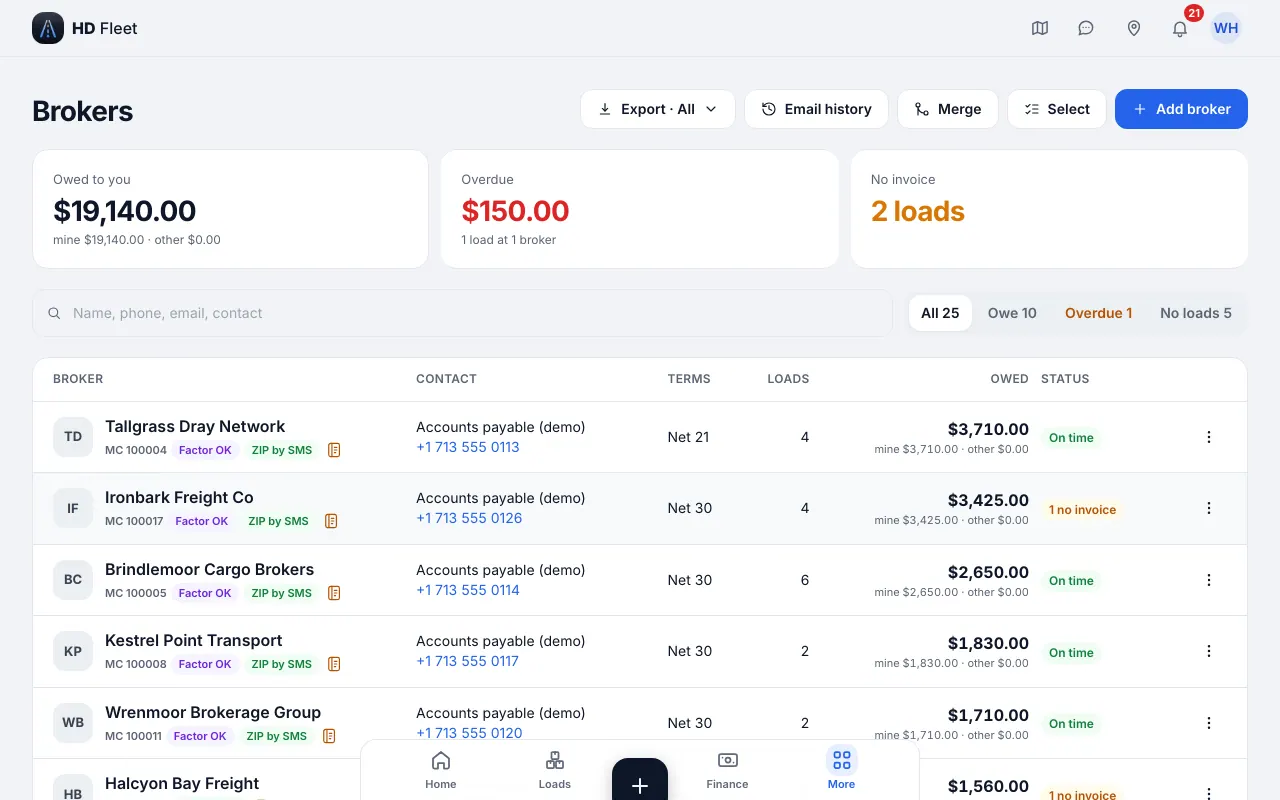
Website · Brokers list with what each owes you 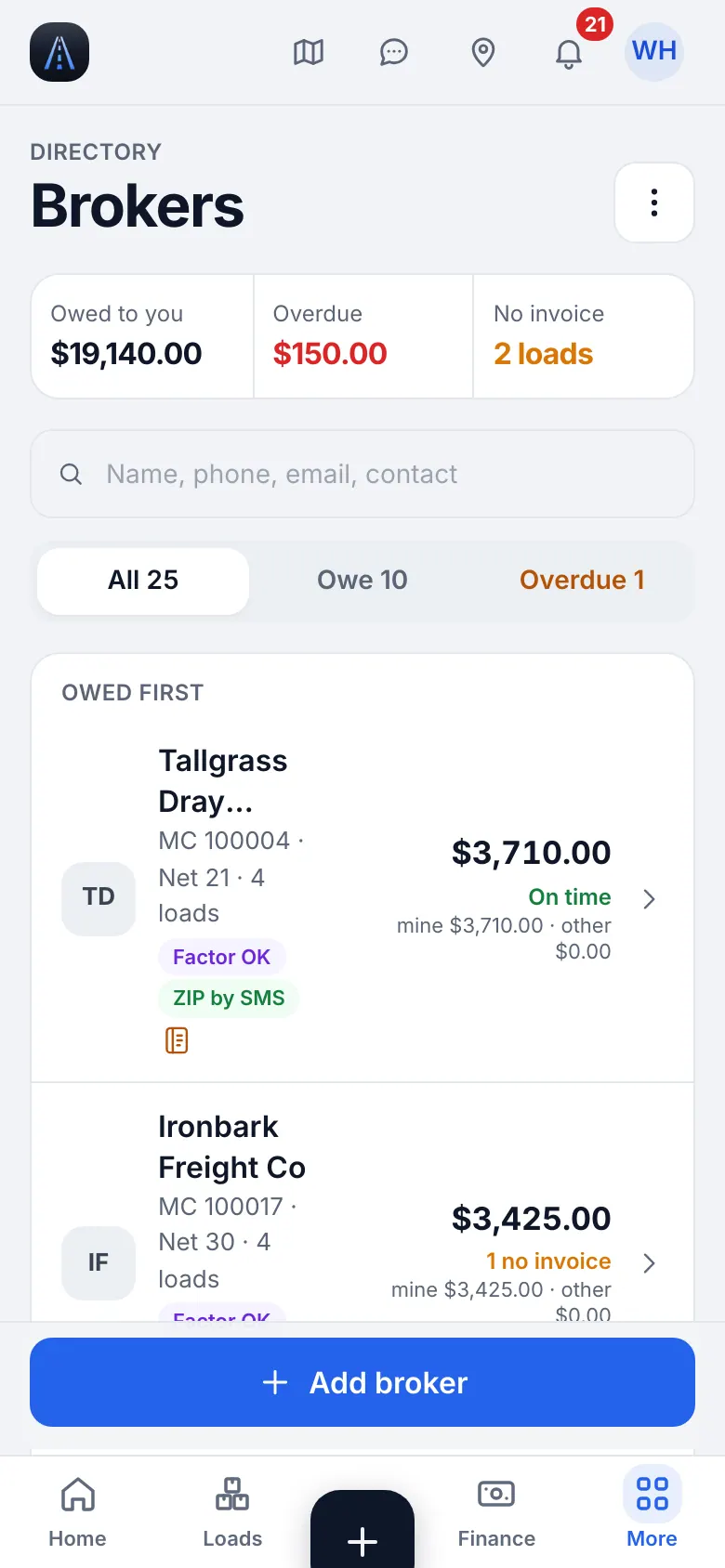
Website on a phone · Brokers on a phone - 2
Check the broker on SAFER
Use Look up on FMCSA SAFER next to the MC or DOT to open the federal record and check the status and name before you haul.
- 3
Billing e-mail
Set the Billing e-mail to the address that receives invoices. If it is empty the invoice goes to the general e-mail. Reminders and invoices for this broker use it.
- 4
Make my own copy
Brokers from the shared directory are read-only for everyone. Tap Make my own copy to get a record you can edit (payment terms, billing e-mail, unit numbers), without changing the shared one.
- 5
Factor approval and duplicates
Hotshot · Box truck · Semi (dry van, reefer, flatbed) · Small fleet with dispatchers · Owner-operator · Cargo / sprinter van
With factoring on, mark whether the factor approved the broker (Approved by factor); invoices to unapproved brokers show a warning. Duplicates can be merged: select two or more companies and choose merge, then keep one; loads and unit numbers move to it.
8
Import brokers, trucks, drivers and a year of loads
Bring your existing data from Excel or CSV instead of typing. You check everything before it is saved, and an import can be undone for 7 days.
- Where to find it
- Website
- Workspace → Import data
- iOS app
- Workspace → Import data
- 1
Choose what to import
Import data offers Trucks and drivers, Loads, Expenses and fuel and Brokers. Brokers you already have are matched by MC, then by name. Tap Download template to get the exact columns. The same loads import opens from Import loads on the Tables page.
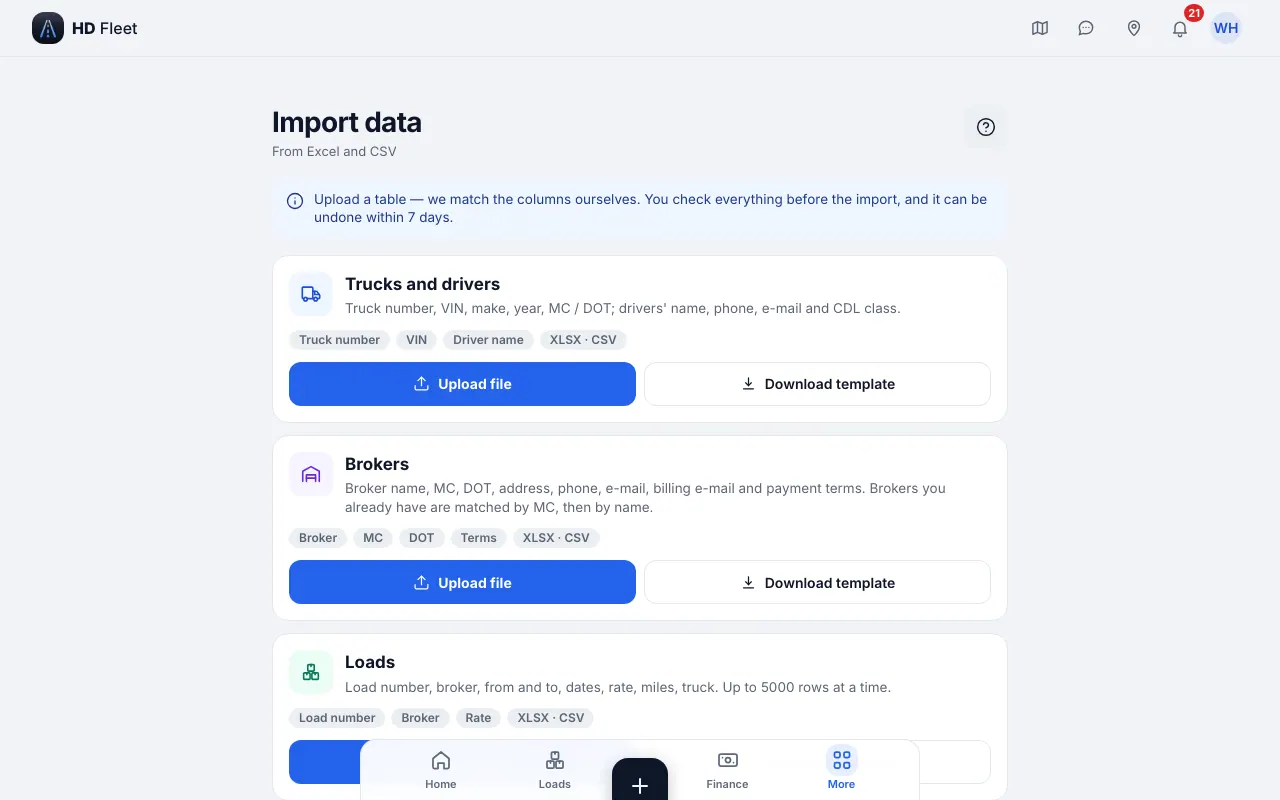
Website · Import data hub 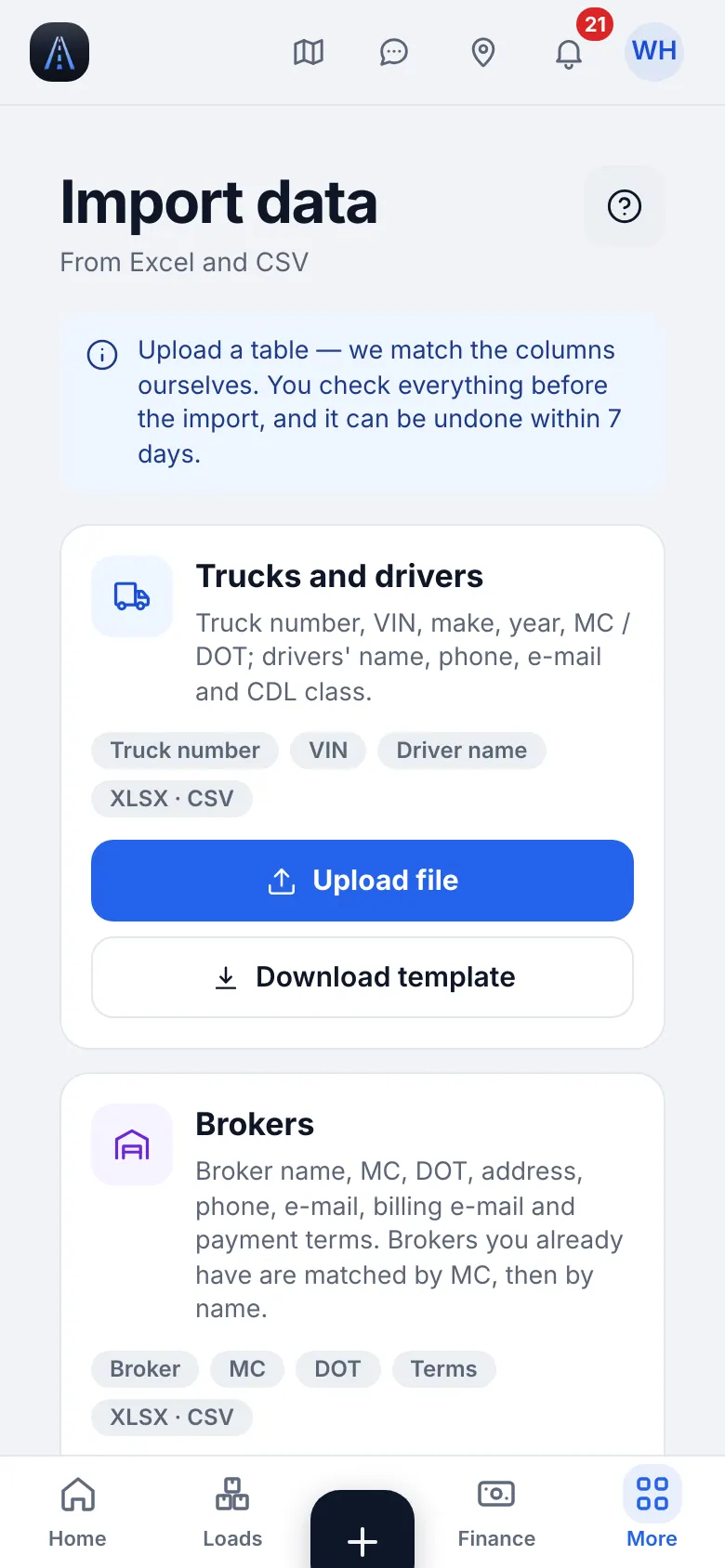
Website on a phone · Import data on a phone - 2
File and columns
Tap Choose file (CSV or XLSX, up to 500 loads at a time). The system matches the columns itself; fix those marked check. Required fields are marked: a row without them is not imported. The matching is remembered, so the next file in the same format skips this step. For loads, Suggest columns with AI proposes a match for columns it did not recognise (amber rows); only the column names and the first 5 rows are sent, never personal numbers.
TipRates are read strictly: $2,840.00 is fine, a cell with text is an error and is never turned into $0. - 3
The dry run: check before saving
The Check step is a dry run: nothing is written yet. It counts rows as Ready, Errors and Duplicates. Download the error rows, fix them in Excel and upload again. A load number that already exists can be updated or skipped.
CarefulLoads inside an approved or paid settlement are never created or changed by an import. - 4
Import a year of loads
Hotshot · Cargo / sprinter van · Owner-operator · Box truck · Semi (dry van, reefer, flatbed) · Small fleet with dispatchers
For history, import the year in a few files of up to 500 rows. Match the truck by number, VIN or driver. Everything lands in the right week for settlements and IFTA, with calendar dates kept as they are.
- 5
Undo an import
Import history lists every import with Undo import for 7 days. For trucks, drivers and expenses only records created by that import and not edited since are removed. A loads import is undone as a whole file: all its loads (and the brokers and trucks it created) go, but only if none of them is invoiced, in a settlement or paid yet.
TipExpenses and a fuel-card statement import the same way; every fuel line needs a state for IFTA, and only the last 4 digits of a card are kept.
9
Loads from brokers
A live board where brokers send you loads and you answer in one place. It belongs to the Full plan, works for the owner and dispatchers, and is in English only.
- Where to find it
- Website
- Dispatch → Loads from brokers
- iOS app
- More → Dispatch → Loads from brokers
- 1
Open the board
Dispatch → Loads from brokers lists the loads brokers sent you; the menu row shows how many are new. Pick a load to see its stops and dates, commodity, weight and dimensions, rate and terms, requirements and the broker. Missing terms are listed so you can ask before you book.
- 2
Accept, counter or decline
Accept a load to create it in your account: it shows “From a broker offer” on its card and flows into dispatching like any other load. Counter with your own rate, or decline with an optional reason for the broker. A chat with the broker sits next to the offer.
CarefulA load can be held: the broker is not approved yet, or the sender is not verified for that broker. Only the owner approves or blocks a broker and releases a held load. - 3
How brokers reach you
Brokers send loads through your own link, shown on the board while it is empty, and by e-mail. The owner and admins change the portal settings; the other roles never see broker data.
10
Creating a load
A load is the base of your books: driver pay, the invoice, the settlement and profit are all counted from it. A broker, a route, dates and a rate are enough to start.
- Where to find it
- Website
- Loads → Add load
- iOS app
- “+” → Add load
- 1
Start with the rate confirmation (optional)
On the new-load form paste the text of the broker e-mail or the rate con into the autofill box, or upload a photo or PDF, then tap Fill in. AI fills pickup, delivery, dates, rate, weight and broker; fields it is unsure about are listed under Check these. You always check before saving.
TipA broker not in your list is offered for adding. A photo or PDF must be under 10 MB.TipNo AI connected? Just type: what you typed is kept.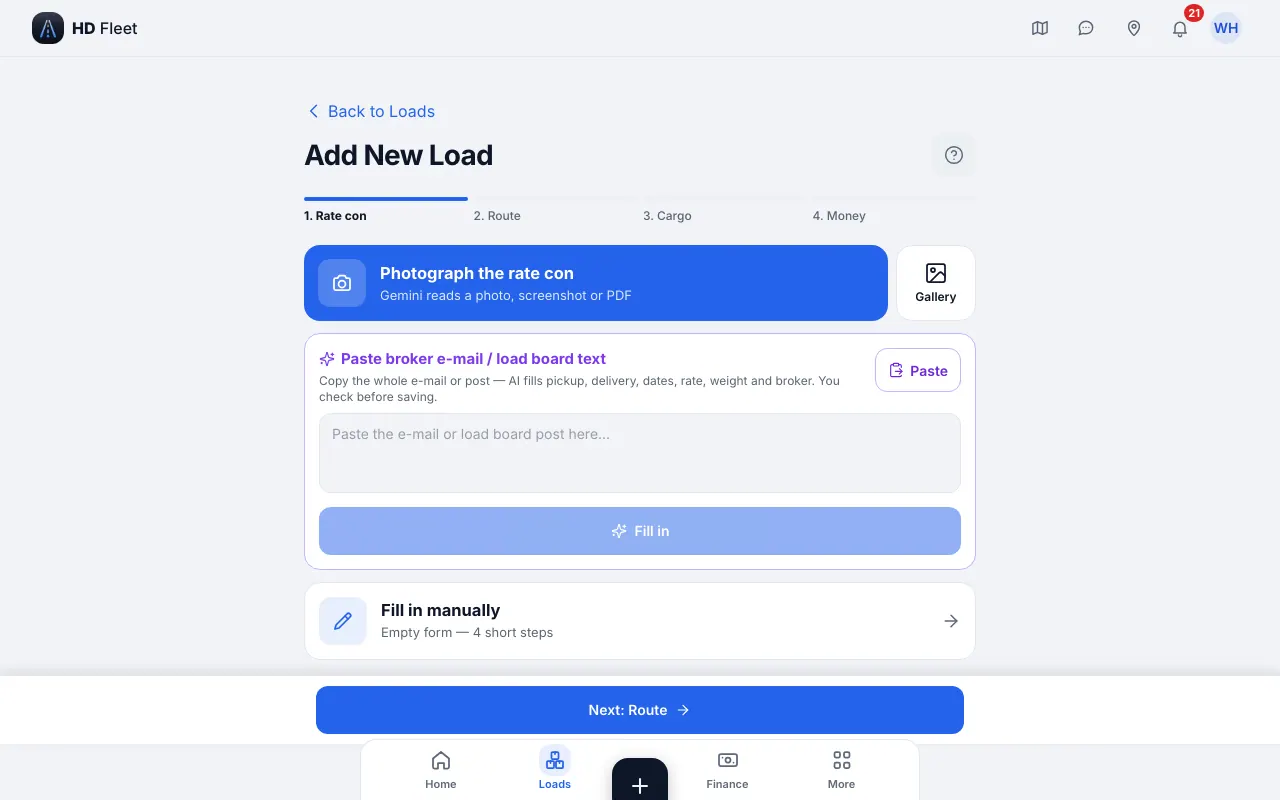
Website · New load form 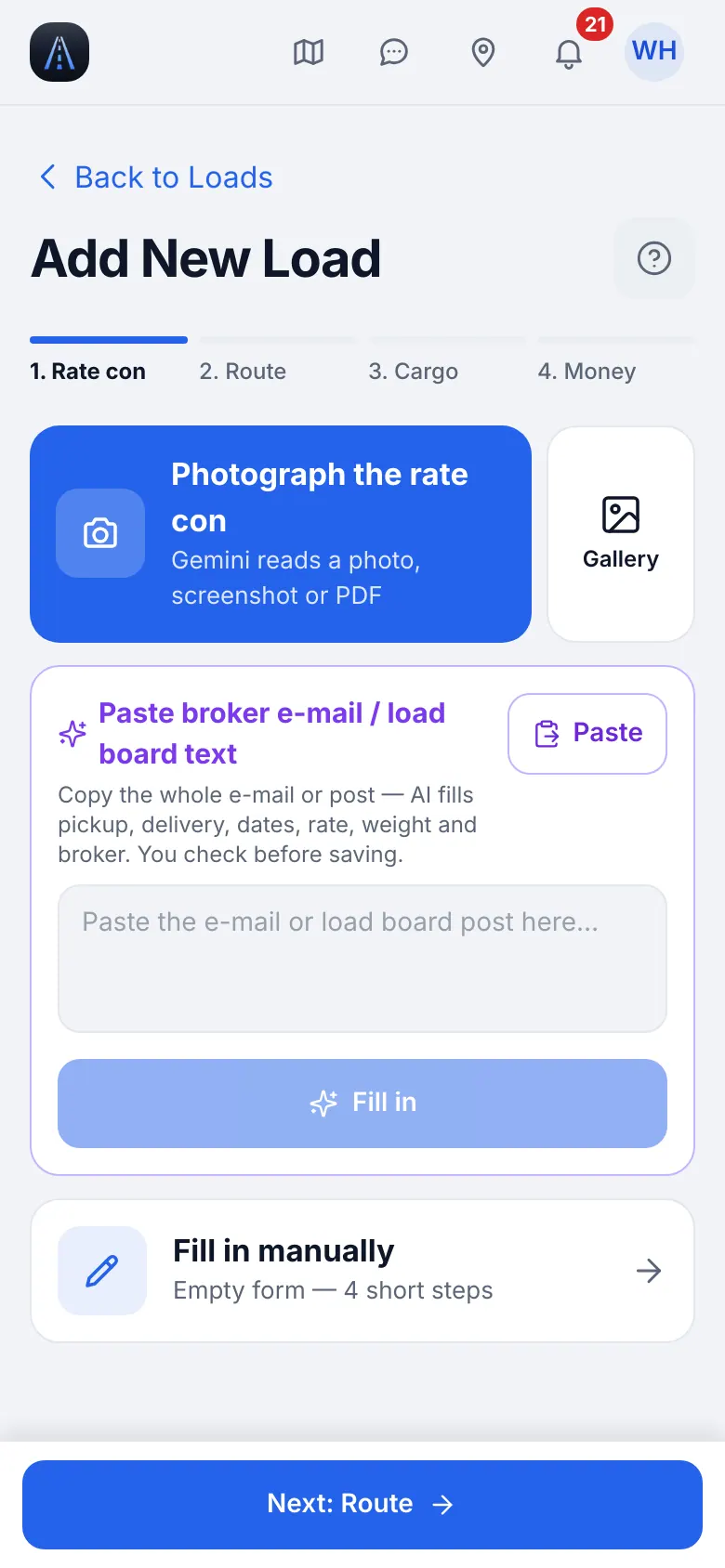
Website on a phone · New load form on a phone - 2
Vehicle, trailer and dispatcher
Pick the Vehicle; the load goes to the driver who drives that truck on the pickup date. Then pick the Trailer (or No trailer) and, if you have dispatchers, the Dispatcher. A load that is not a draft needs a driver on the truck; a draft can be saved without one.
Your operation · Hotshot · Semi (dry van, reefer, flatbed)
Pickup plus trailer, or tractor plus trailer
Always choose the trailer: weight limits are checked against the truck and trailer pair.
Your operation · Owner-operator · Cargo / sprinter van
Owner-driver or van
Your truck is the only vehicle and you are the driver, so the load is yours automatically.
- 3
Stops, dates and rate
Type a ZIP and the city and state fill in, or start typing a city. Add more stops with the pickup and drop-off buttons; the full street address goes in the card of each stop. Delivery cannot be earlier than pickup. Enter the rate in dollars; Rate per mile is shown for checking. Set a pickup time as exact or as a window.
CarefulIf the route changes, the form says Route changed — check the miles. - 4
Weight and the overweight warning
Enter Weight (lbs). If the cargo is over what the truck, the trailer or the combination can carry, the form warns you (for example “Over the truck payload by …” or “Over GCWR …”) and shows the maximum load for the pair.
Your operation · Hotshot
Hotshot
The limits come from the pickup's GVWR/GCWR and the trailer capacity you entered on the truck cards. Keep them correct and the warning protects your license.
- 5
Hotshot details: freight, equipment, to-do and broker terms
Hotshot · Box truck · Semi (dry van, reefer, flatbed) · Small fleet with dispatchers
For hotshot and flatbed freight fill in the extra sections of the form: Freight & dimensions (commodity, pieces, weight, length × width × height, oversize or permit), Equipment required (tap once for required, twice for preferred), a To do list the driver sees (tarp, securement photos, call the receiver) and Broker terms (detention, layover, TONU, payment terms, quick pay, tracking, check calls). Office notes stay hidden from the driver. On the load card the same sections show what is checked against the truck, the trailer and the driver.
- 6
Extras and publish
Hotshot · Cargo / sprinter van · Box truck · Semi (dry van, reefer, flatbed) · Small fleet with dispatchers · Owner-operator
Add extras the broker agreed to: Layover, Detention, Hand load / unload, and for a cancelled load the Cancellation fee (TONU). Optional fields: pallets, US citizen, airport, Canada, empty miles. Tap Publish to save. The driver gets a notification in his language. A draft stays a draft until published. If you switch off Send to driver now, the driver sees the load only after you press Send to driver; Recall takes it back until he starts it.
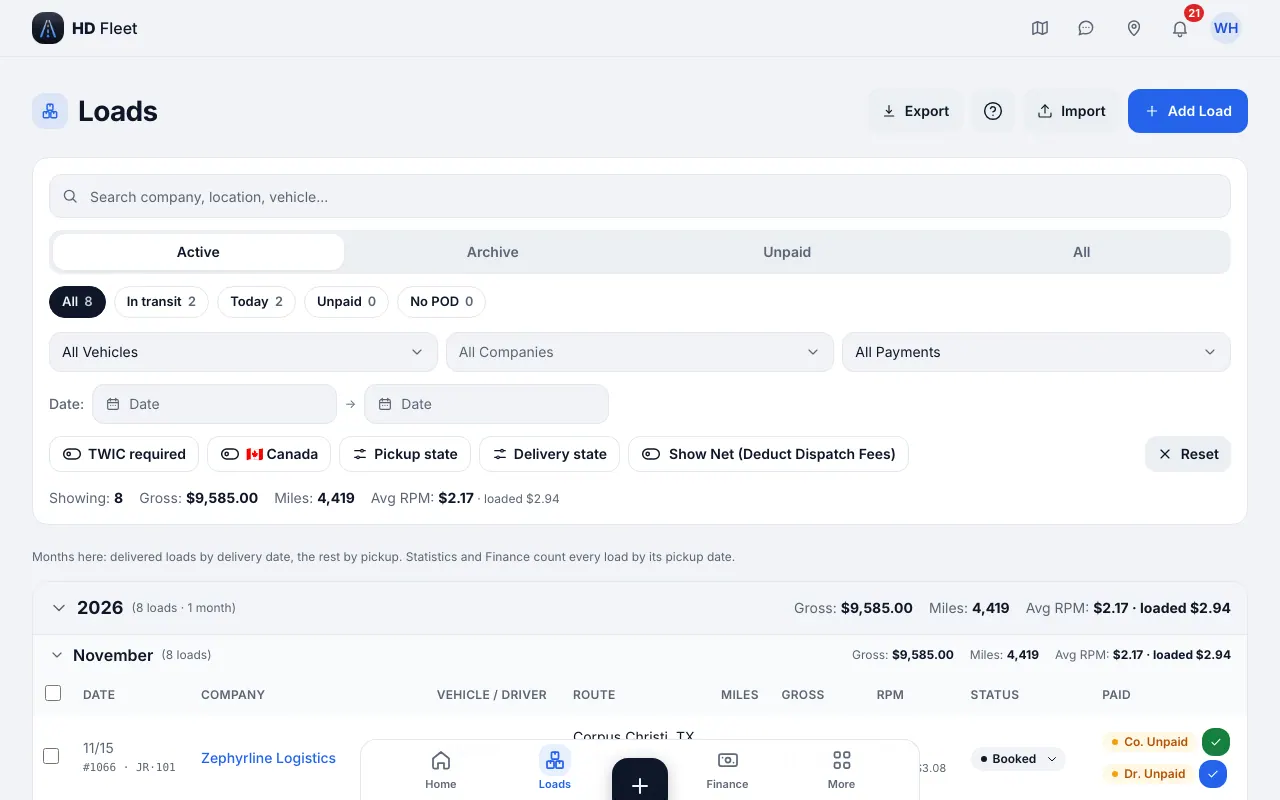
Website · Loads list with tabs All, Active, Archived, Unpaid
11
Dispatching and following a load
A load moves Draft → Booked → In transit → Delivered, and the driver's steps tell you where it is.
- Where to find it
- Website
- Dispatch → Loads, Tables, Calendar
- iOS app
- Loads (bottom bar); More → Dispatch → Tables, Calendar
- 1
Find your loads
The Loads screen has tabs All, Active, Archived and Unpaid. Search by load number, broker, city or driver and filter by period.
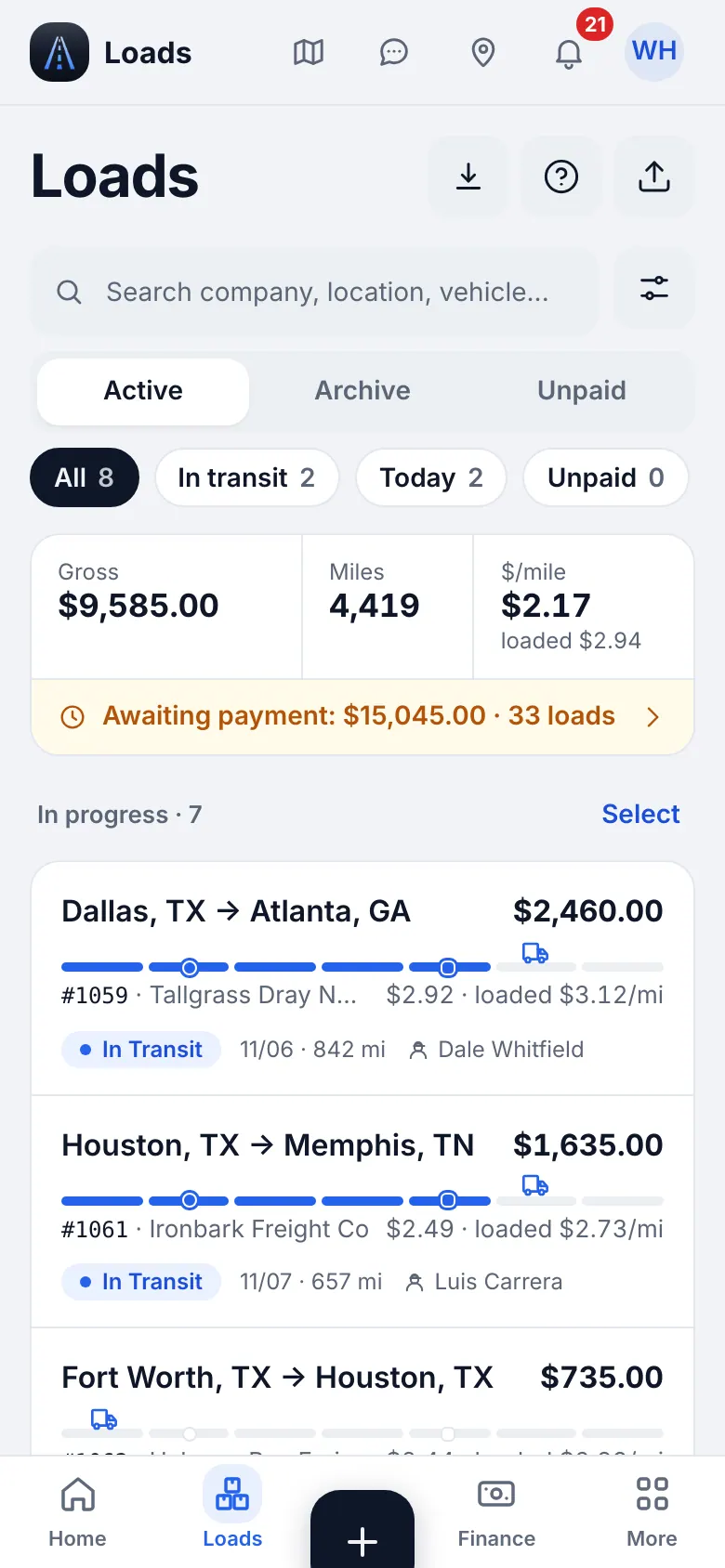
Website on a phone · Loads on a phone 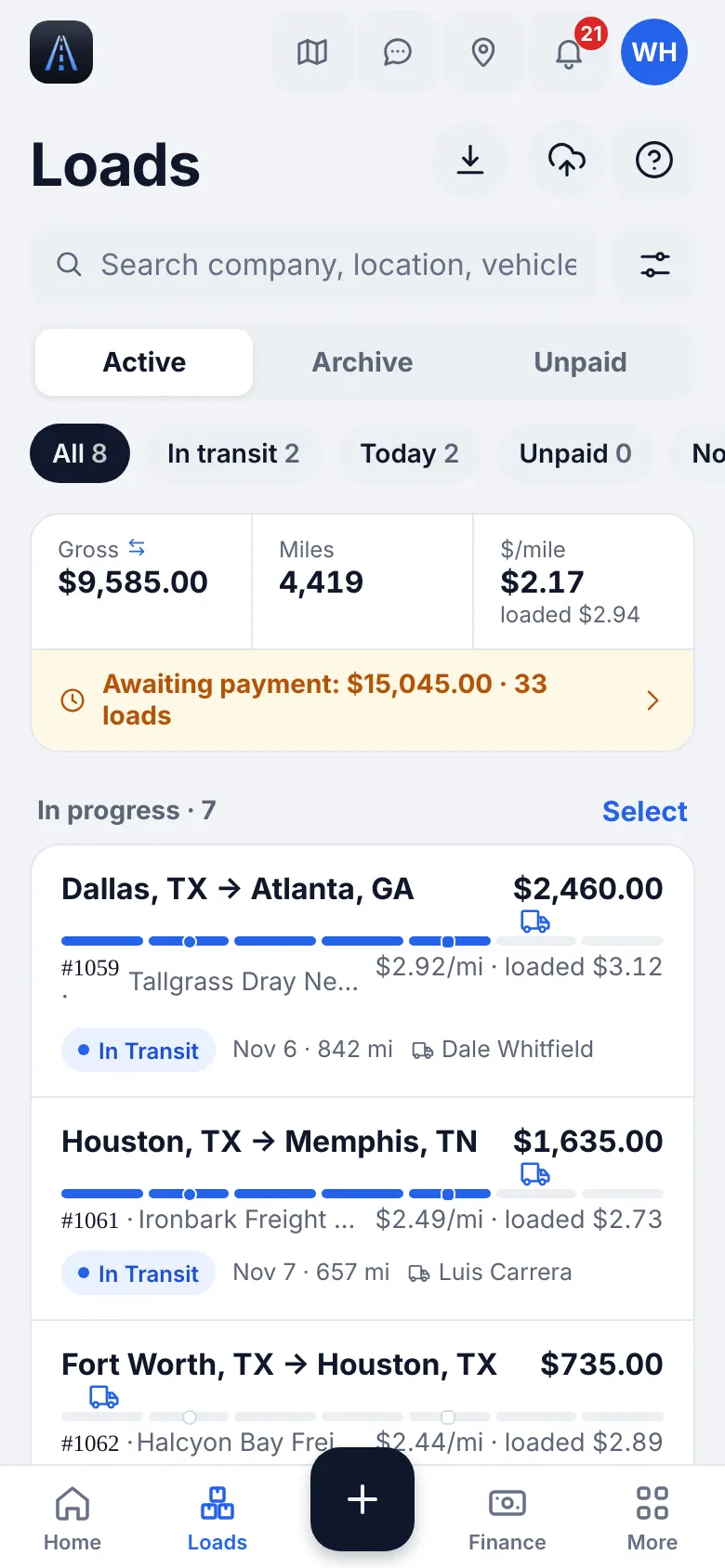
iOS app · Loads in the app - 2
Tables: your loads like a spreadsheet
Dispatch → Tables (owner and dispatcher) lists loads in rows and columns. Pick a period (This month, Last month, Last 90 days, This year, All time), filter by status, broker, truck and paid or unpaid, and search. Choose Columns to show what you need, double-click a highlighted cell to edit it, and use Download for Excel or CSV. On the phone tap a row to see every column. Import loads opens the loads import, and Last import shows the latest file with the time left to undo it.
- 3
Statuses
Draft is saved but not sent to work. Booked is confirmed. In transit starts when the driver marks he is loaded; one truck can have up to 3 loads in transit. Delivered is done: mark Company paid and Driver paid when money moves. Cancelled counts only the TONU / cancellation fee as revenue.
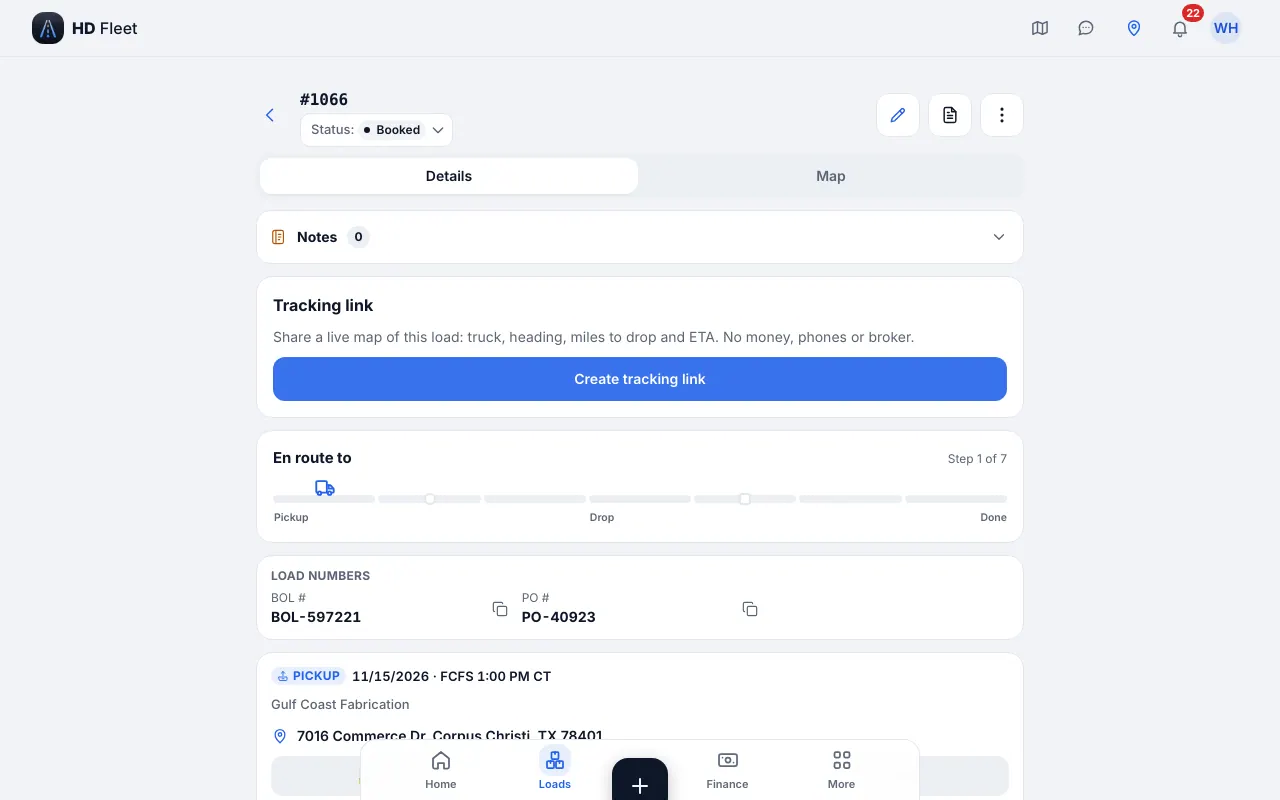
Website · Load card: stops, steps, documents, money 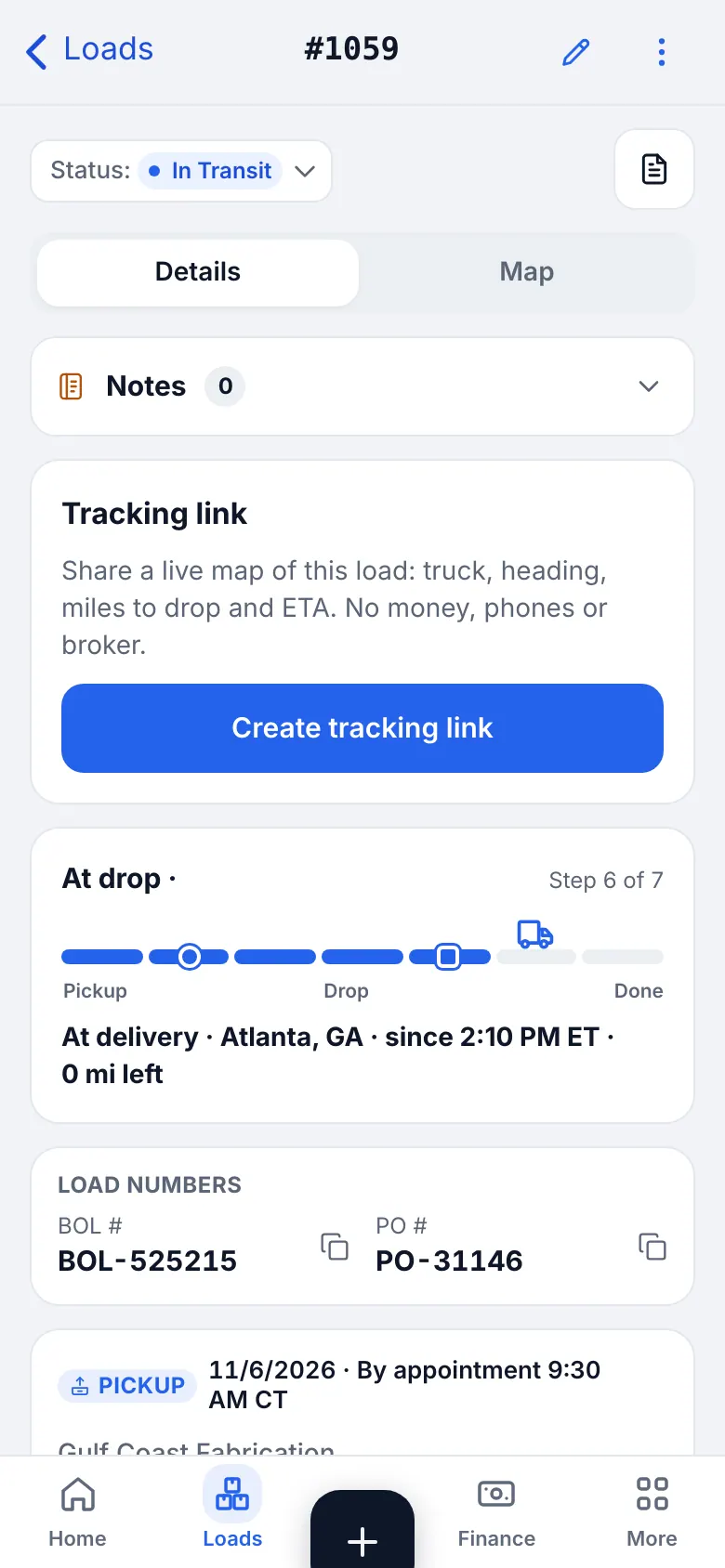
Website on a phone · Load card on a phone - 4
Driver steps
The driver taps one big button: En route to pickup → At pickup → Loaded → At delivery → Delivered. Each pickup and drop has its own steps. Marking a later step fills the earlier ones that were never marked.
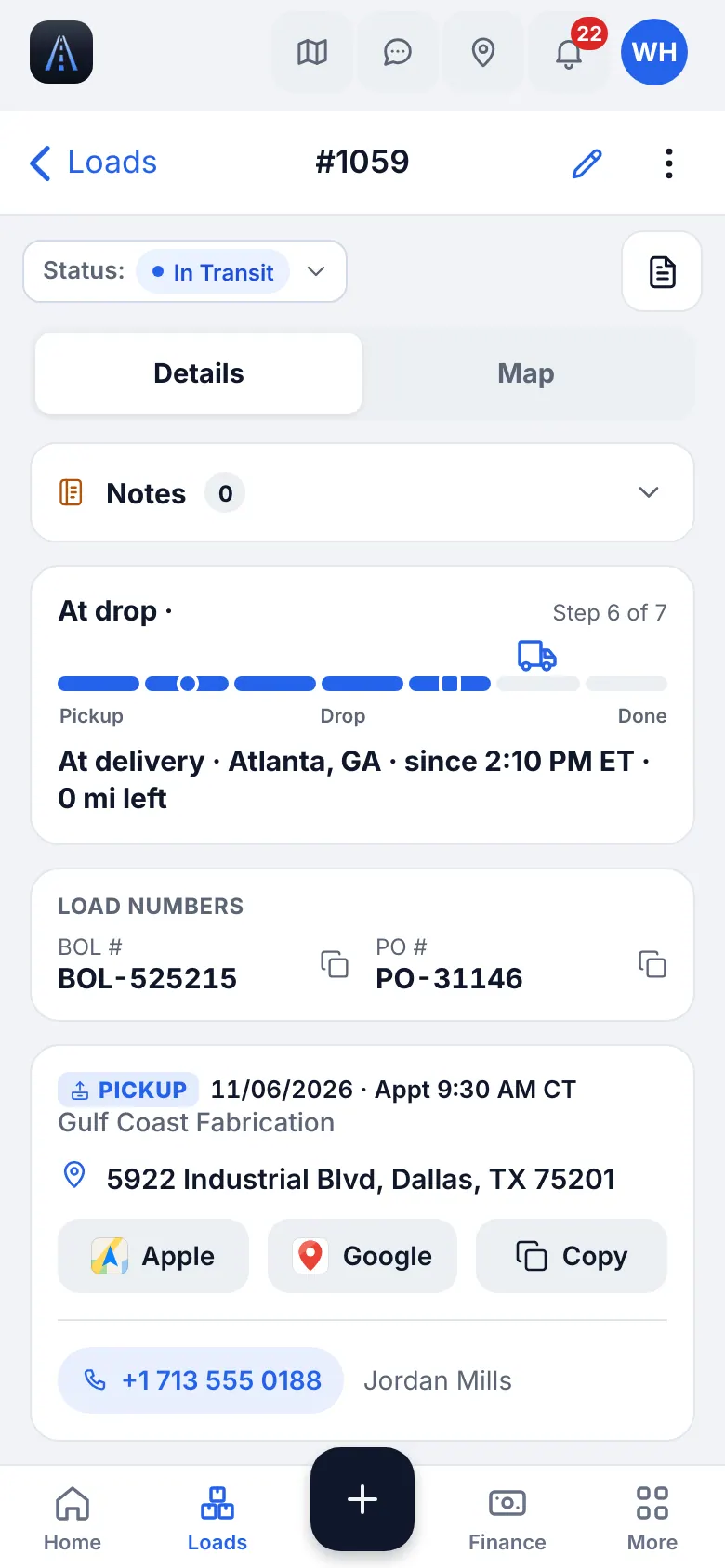
iOS app · Load card in the app - 5
Reschedule, reopen and cancel
Open the load and change dates or status. A finished load can be reopened; the old times stay in the change history. For a cancelled load enter the TONU / cancellation fee if the broker pays it, otherwise it counts as $0.
- 6
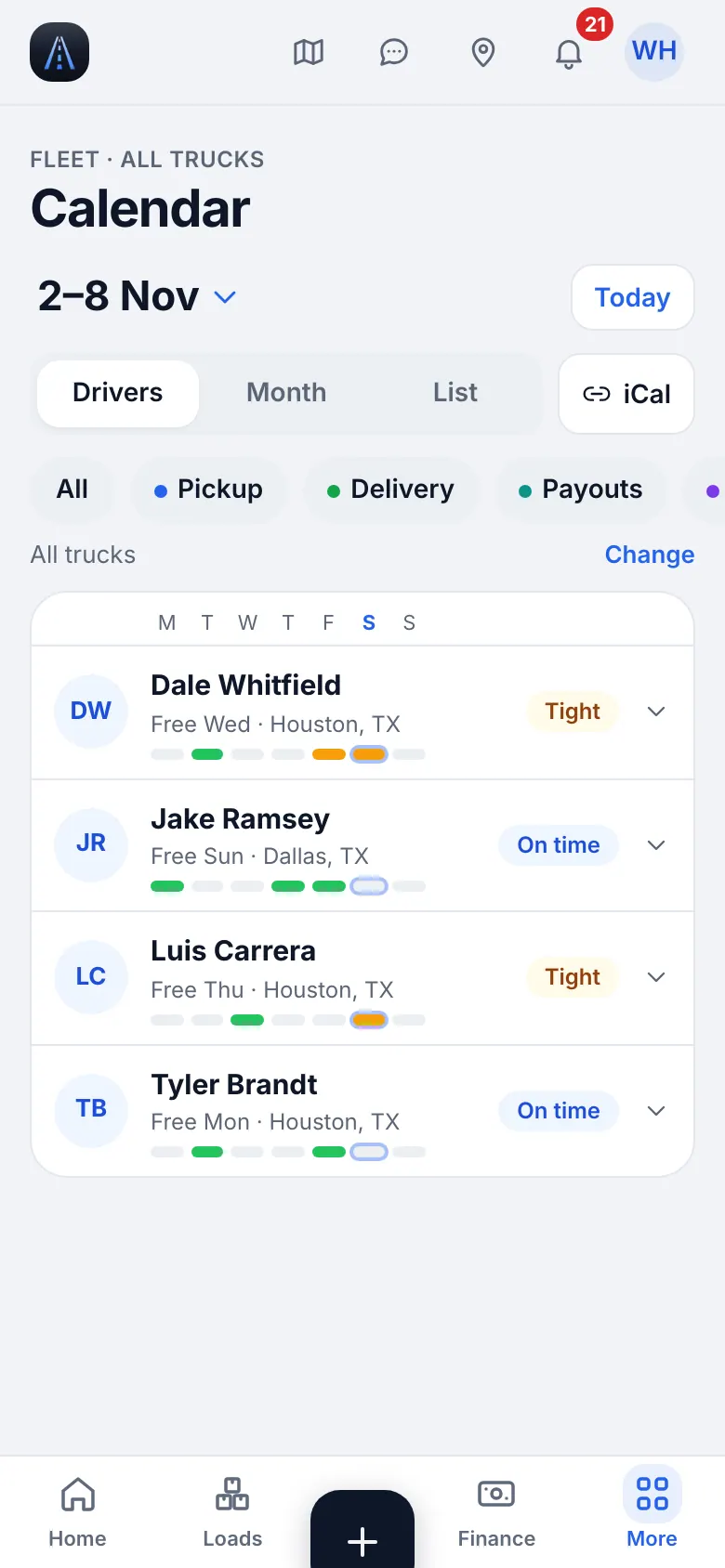
Calendar
The calendar (Dispatch → Calendar) shows pickups and deliveries by day for the whole fleet.
Website on a phone · Calendar
12
Map, GPS and the tracking link
See where every truck is, how long it has been stopped and where it is heading. Share a live link with a broker or a customer without exposing money or phones.
- Where to find it
- Website
- Map
- iOS app
- More → Map
- 1
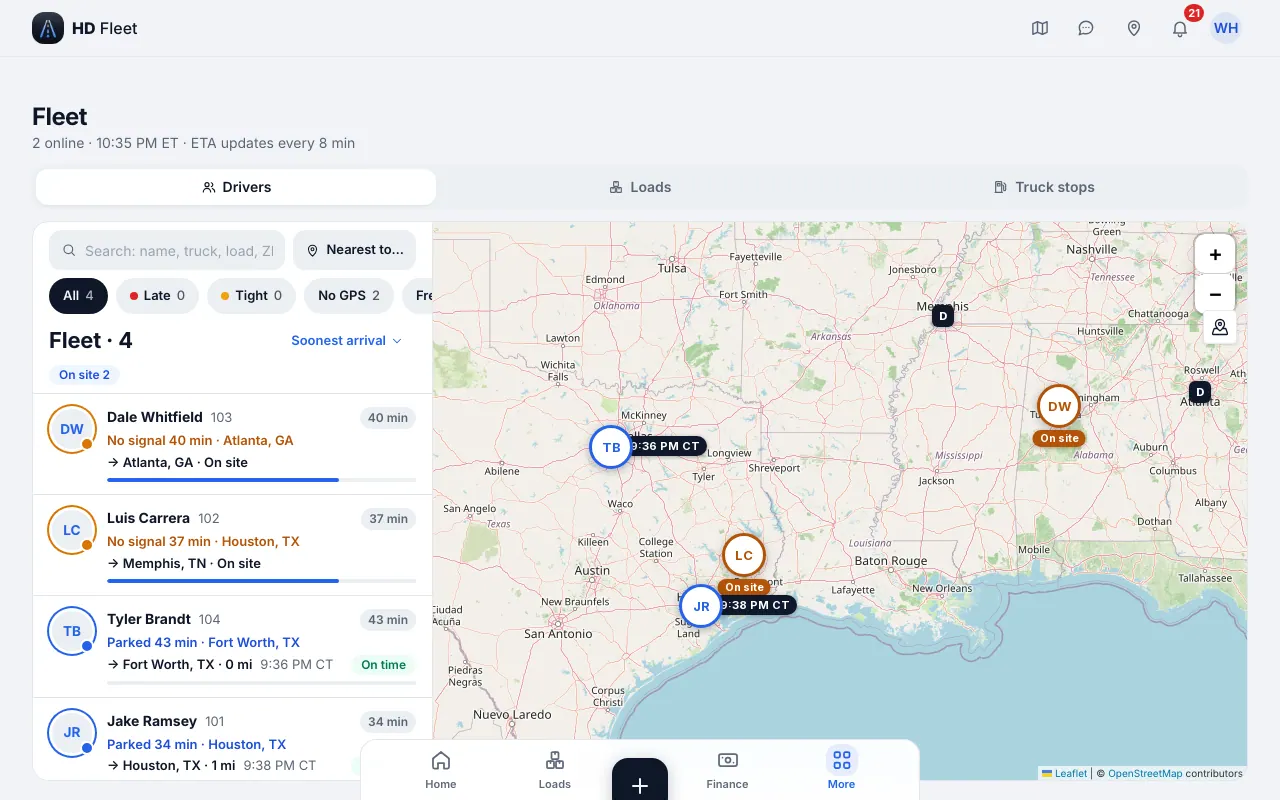
The fleet map
The one Map has layers: Drivers, Loads, Truck stops and Market rates. Tap a driver to see the load, speed, ETA and nearest truck stop. The Loads layer shows all loads of the day; Market rates shows dollars per mile by region.
Website · Fleet map: drivers, loads, truck stops 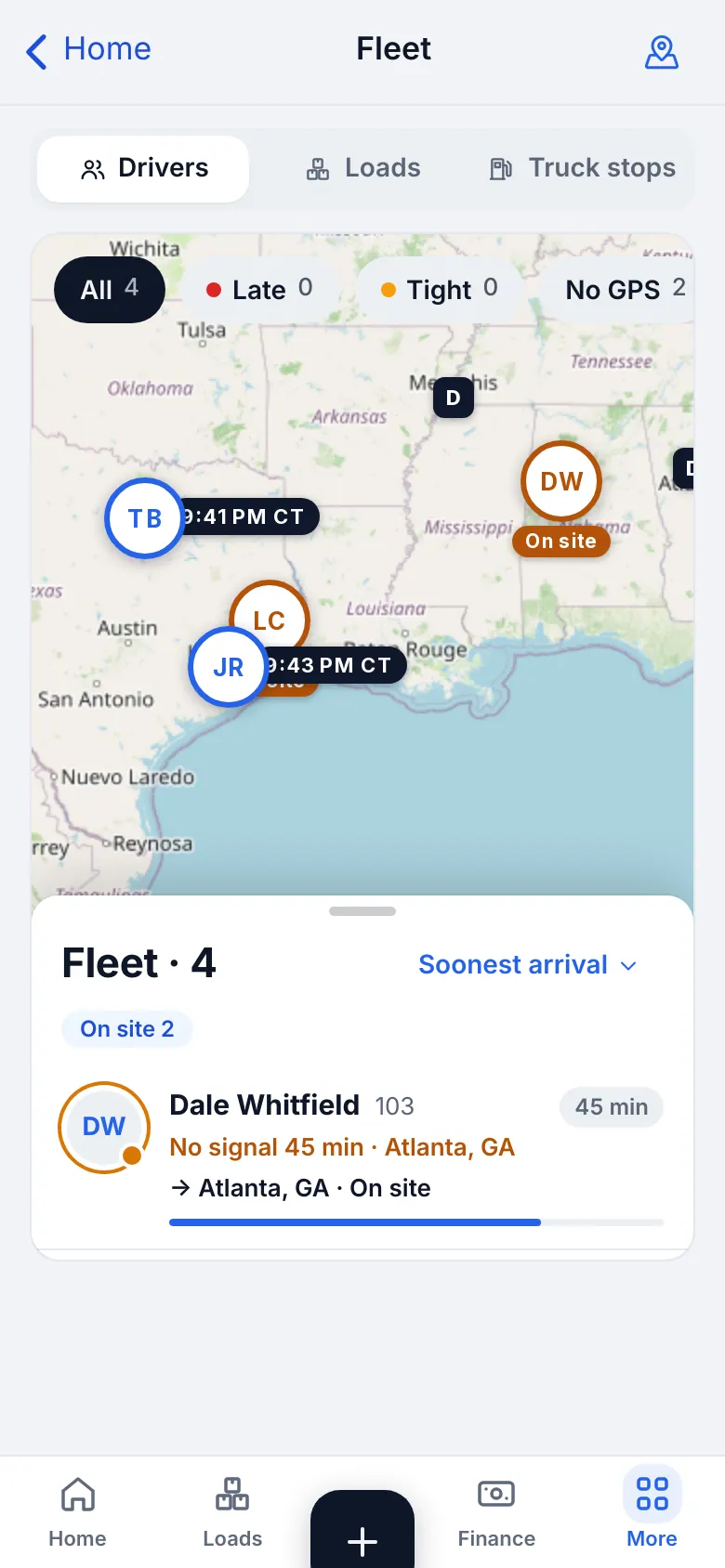
Website on a phone · Fleet map on a phone - 2
GPS depends on the driver
A driver's phone reports location only while he is on duty or has an active load, and only if location is set to Always. The map shows who has not allowed it. If a driver shows no position, see Troubleshooting.
- 3
GPS health: when a phone stops sending
If a driver on a load in transit stops sending GPS, the load shows Not sending GPS with the time of the last point and the likely reason (location off, not Always, Low Power Mode, phone off, no signal, app closed). The driver is told at once what to fix; you are notified if it stays silent, and can use Ask driver to fix, Call or Snooze 30 min. When the phone is back the row clears. Every load keeps a Tracking quality card: tracked live, gaps, and what the broker saw.
TipSet the waiting time, who is told and quiet hours in Settings → Tracking alerts. - 4
Create a tracking link
Open a load, find Tracking link and tap Create tracking link. Use Copy and paste it to the broker. The page shows the truck, heading, miles to drop and ETA — no money, phones or broker. It ends when the load is delivered (7 days maximum). Revoke stops it at once; the full link is shown only once, right after it is created, so create a new link if you lose it.
CarefulAnyone with the link sees the truck until the load is delivered or you revoke it. - 5
Follow a load on your lock screen
In the app open a load and switch on Follow on lock screen: the truck, miles left and ETA stay on your lock screen until delivery (up to 2 loads at a time).
- 6
Truck stops and tracking settings
Truck stops, a layer of the Map, lists verified stops and fuel. The tracking settings (Map → Drivers → GPS tracking) let the office choose how GPS is used for the company; the alert rules are in Settings → Tracking alerts.
13
Documents: rate con, BOL and POD
Every document of a load lives on its card and in Files, with signed short-lived links. A POD is what lets you invoice.
- Where to find it
- Website
- Load → Documents; Workspace → Files → Scan
- iOS app
- Load → Documents; Workspace → Files → Scan, or “+” → Scan document
- 1
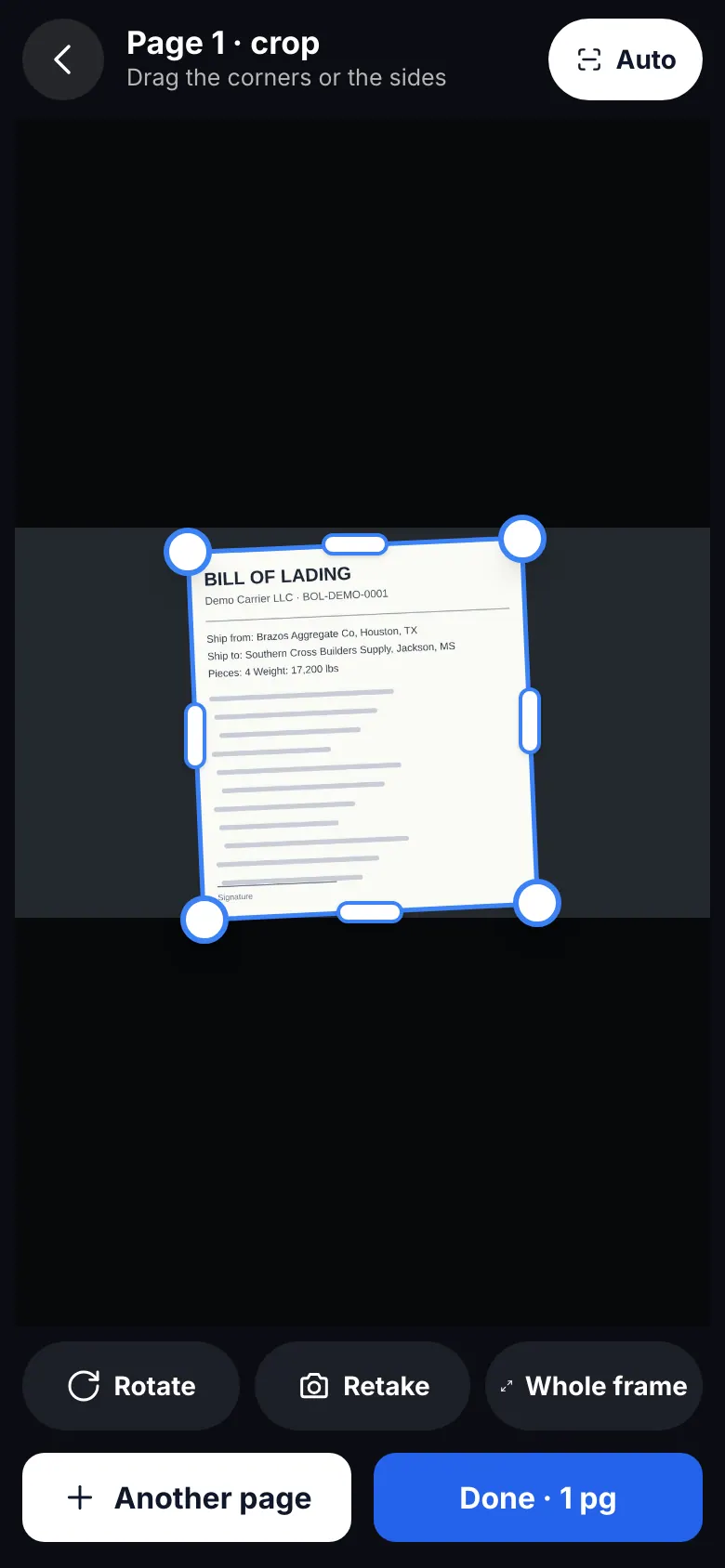
Scan a document
Open Workspace → Files → Scan (or the load documents and Scan Document), photograph the paper flat and in good light, and save a clean PDF to the load. Pick the document type: BOL, POD, weighing, rate con and others.
Website on a phone · Document scanner - 2
Find files later
Workspace → Files keeps documents of loads, drivers and brokers in folders. A red or amber badge marks documents whose date is close.
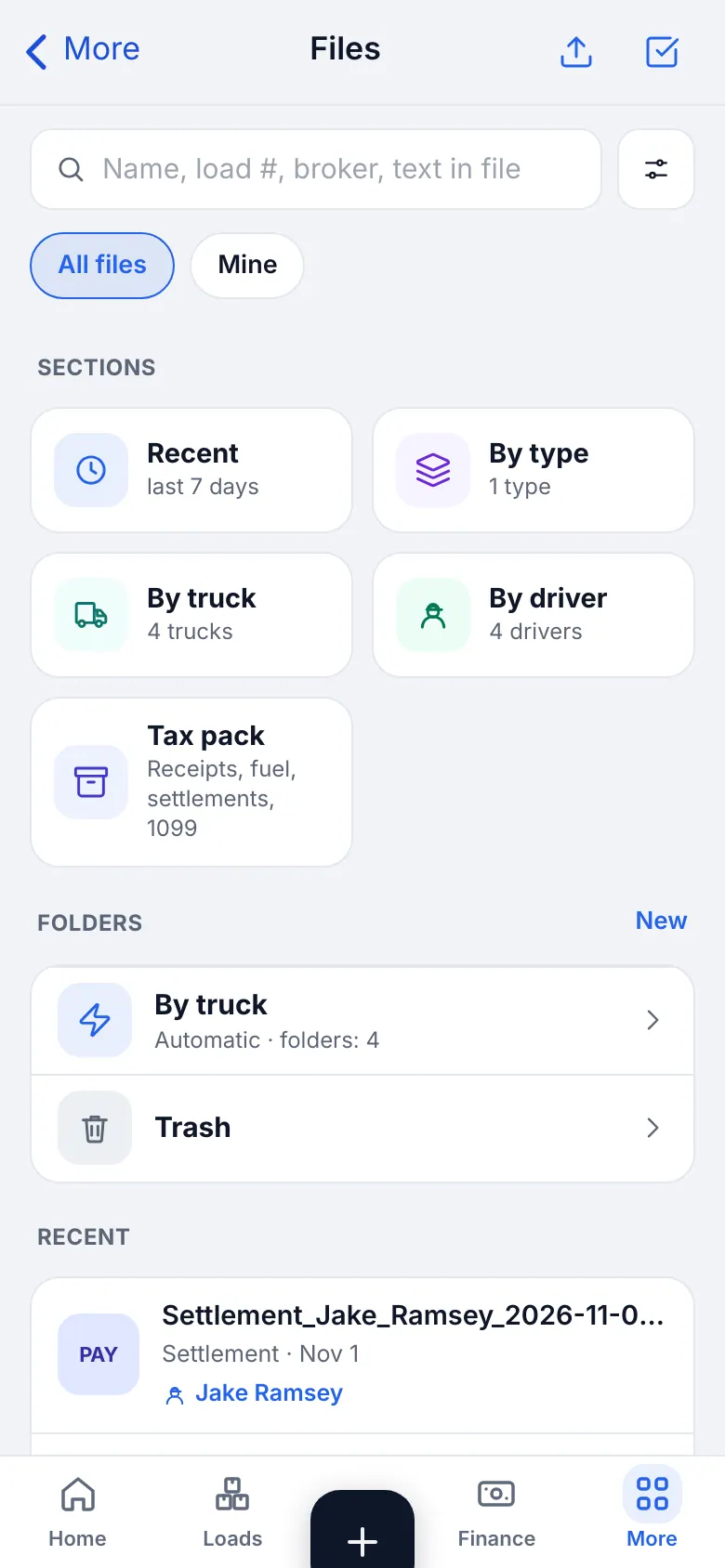
Website on a phone · Files: documents of loads, drivers and brokers - 3
Send a file to the chat
Use Send to chat on a file, pick a person or the load chat and check the summary before Send. Money documents (rate con, receipt, settlement) and personal documents (W-9, license, medical card) show a warning first.
14
Your operation: quick playbooks
The same screens serve every kind of trucking. These short notes say what to switch on, what to ignore and which numbers to watch for your type of operation.
- 1
Cargo or sprinter van (expedite)
Cargo / sprinter van
Typical for vans hauling for several carriers or a dispatch company. Keep a unit number per carrier on the truck, use the ZIP broadcast to tell brokers where you are free, and enter the per-load dispatch fee so profit is net.
Your operation · Cargo / sprinter van
ZIP broadcast
Dispatch → Availability broadcast sends the ZIP of a free truck to your brokers. Assign unit numbers first (the screen offers Assign unit numbers).
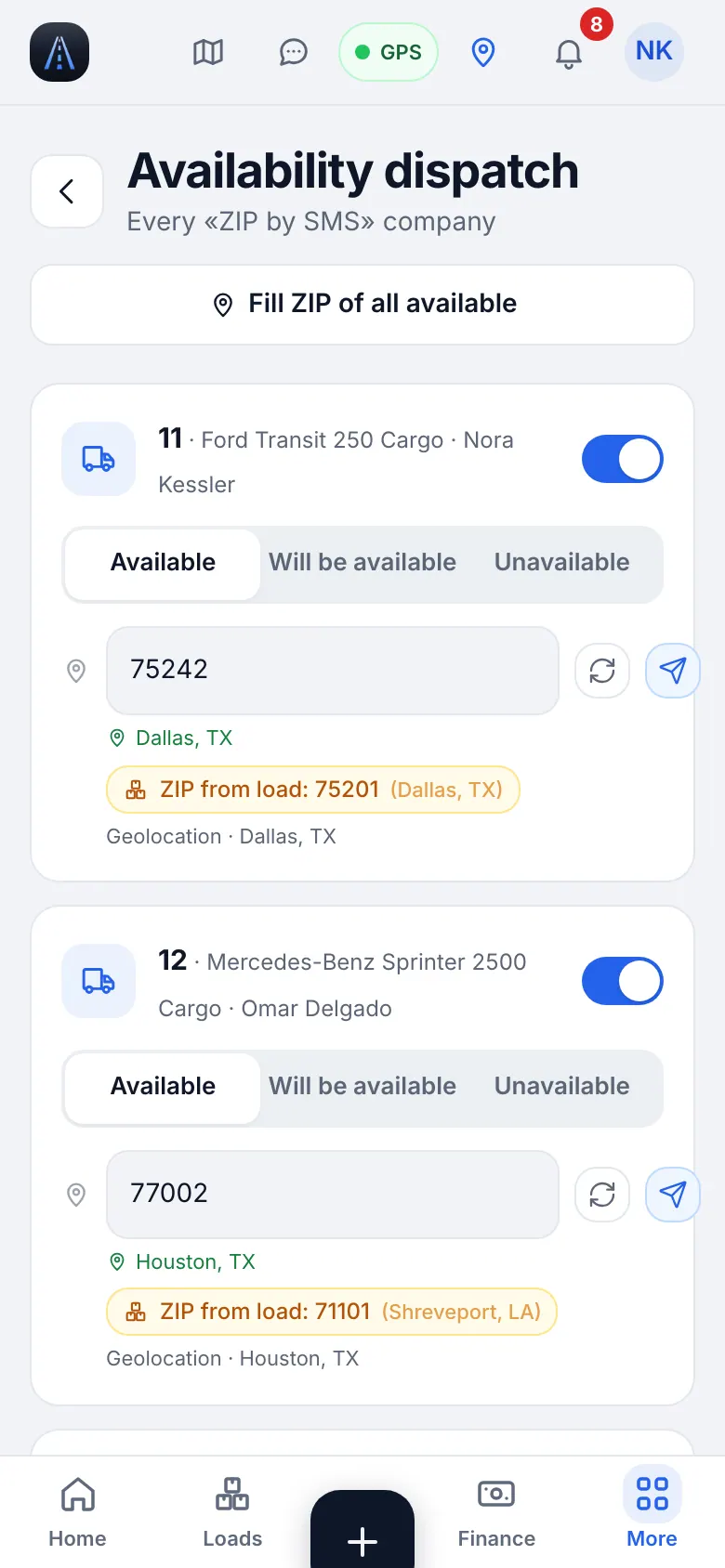
Website on a phone · ZIP broadcast for a van on dispatch Website · Brokers and carriers: your unit number per company - 2
Owner-operator or owner-driver
Owner-operator
Pick I drive my own truck in the first steps. There is no driver pay, no invitations and no W-9 chasing. Use the Mileage tracker for your own tax miles and keep receipts with Add expense.
- 3
Hotshot (pickup plus gooseneck)
Hotshot
Fill GVWR and GCWR on the pickup and the capacity on the trailer, always choose the trailer on a load, and watch the overweight warning. Many hotshots pay the driver a percent of gross.
- 4
Box truck
Box truck
One unit, usually no trailer. Enter body dimensions and payload; pay is often per mile or flat per load.
- 5
Semi: dry van, reefer, flatbed
Semi (dry van, reefer, flatbed)
Add each trailer with its type, choose it on every load, track per-mile pay including empty miles, and turn on IFTA reporting (see the IFTA chapter).
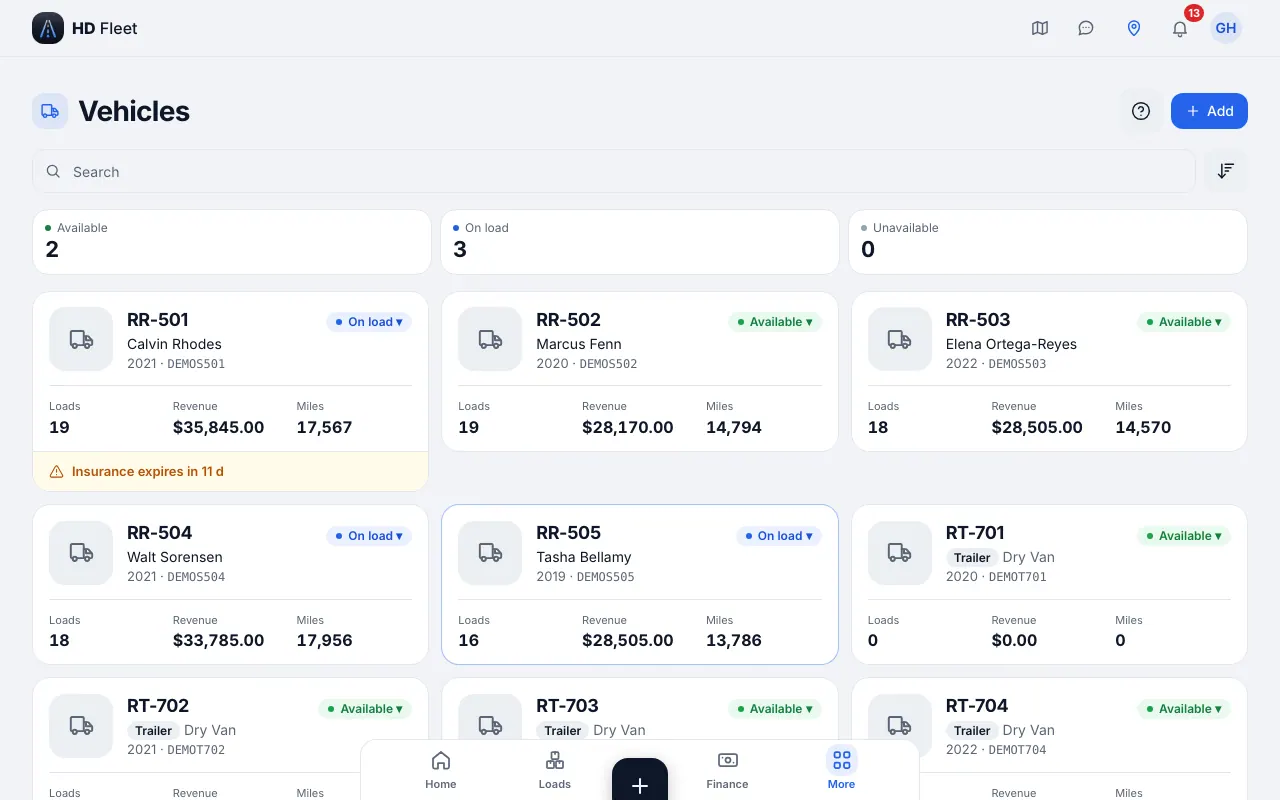
Website · Semi fleet: trucks and 53-foot dry van trailers - 6
Small fleet with dispatchers
Small fleet with dispatchers
Invite dispatchers with a percent of gross, assign a dispatcher on every load, review the Dispatcher pay screen weekly and use roles so each person sees only what he needs.
- 7
Tools every operation can use
The Rate calculator (Dispatch → Rate calculator) estimates profit per mile before you accept a load, and the Market rates layer of the Map shows the dollars per mile by region.
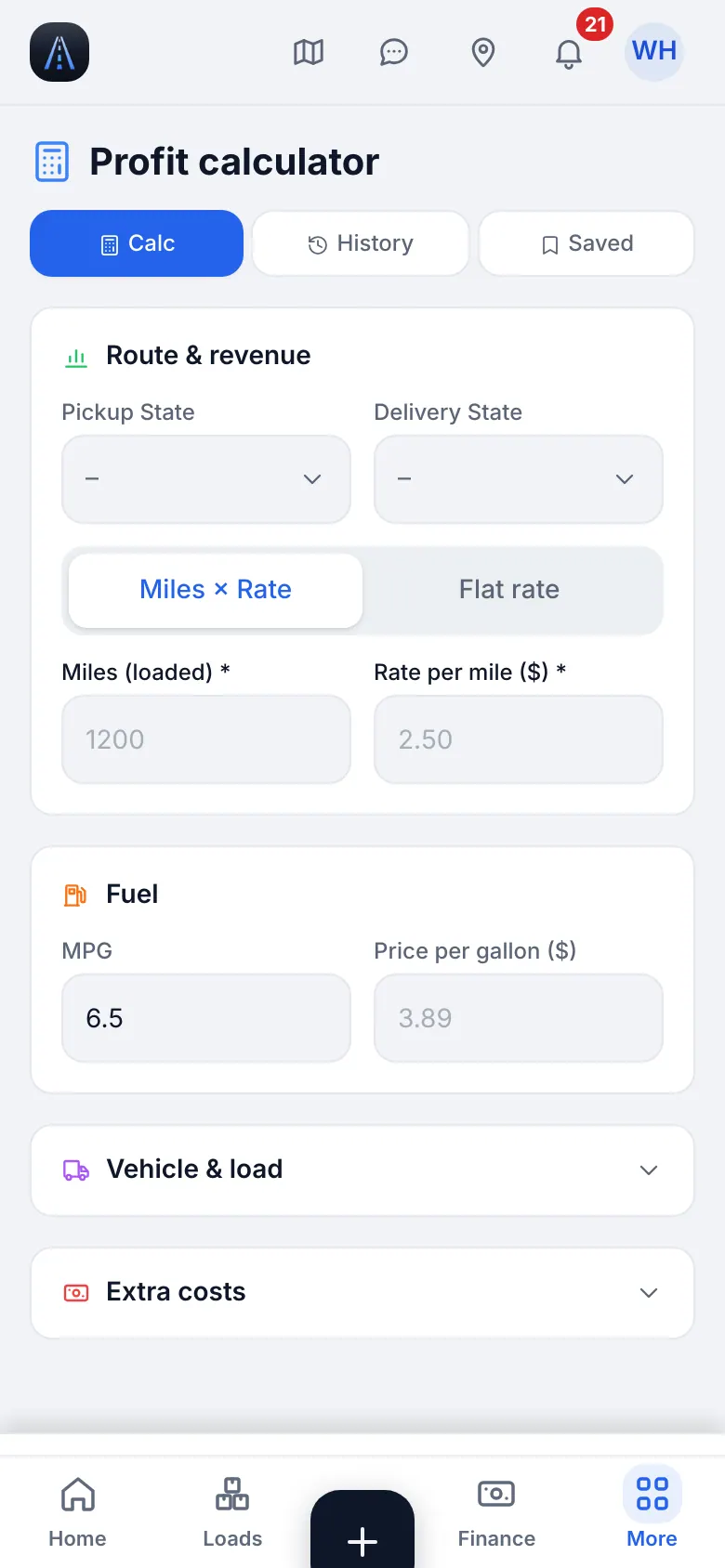
Website on a phone · Rate calculator 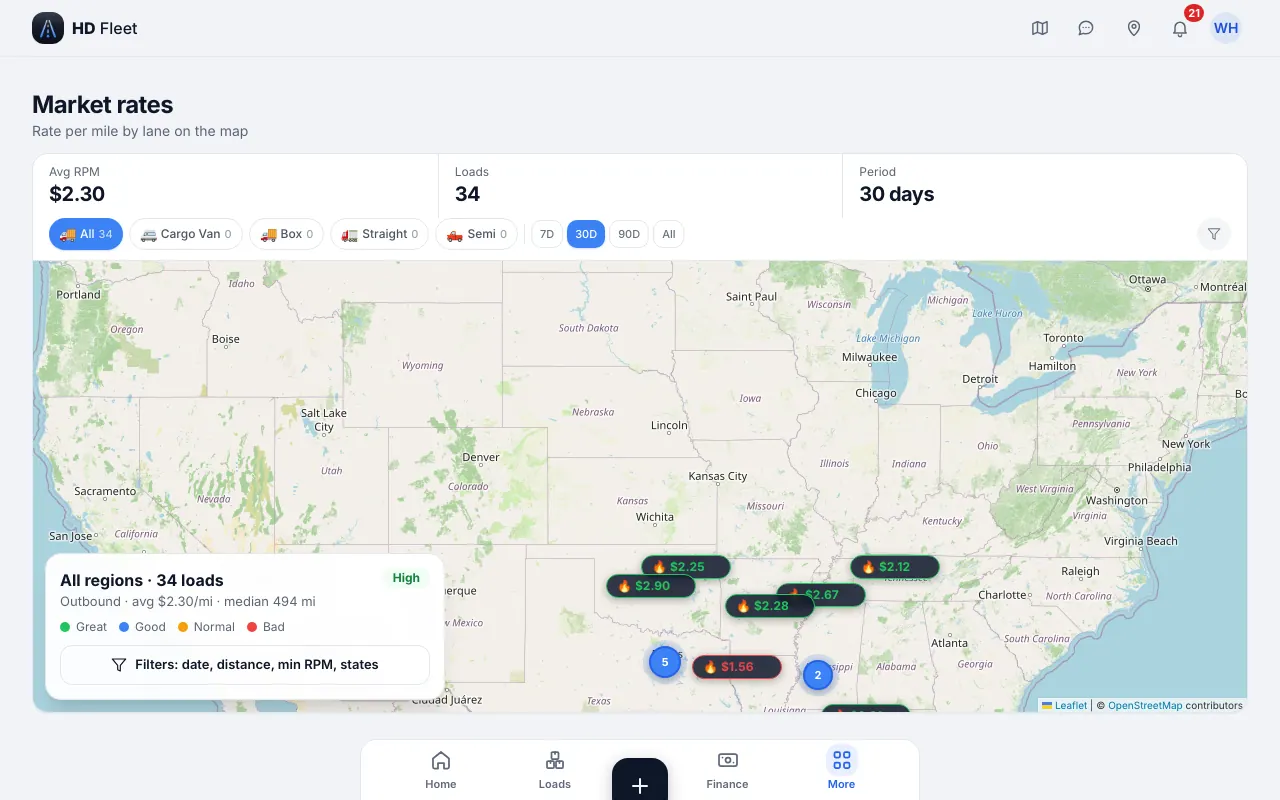
Website · Map › Market rates layer
15
Finance: where the money is
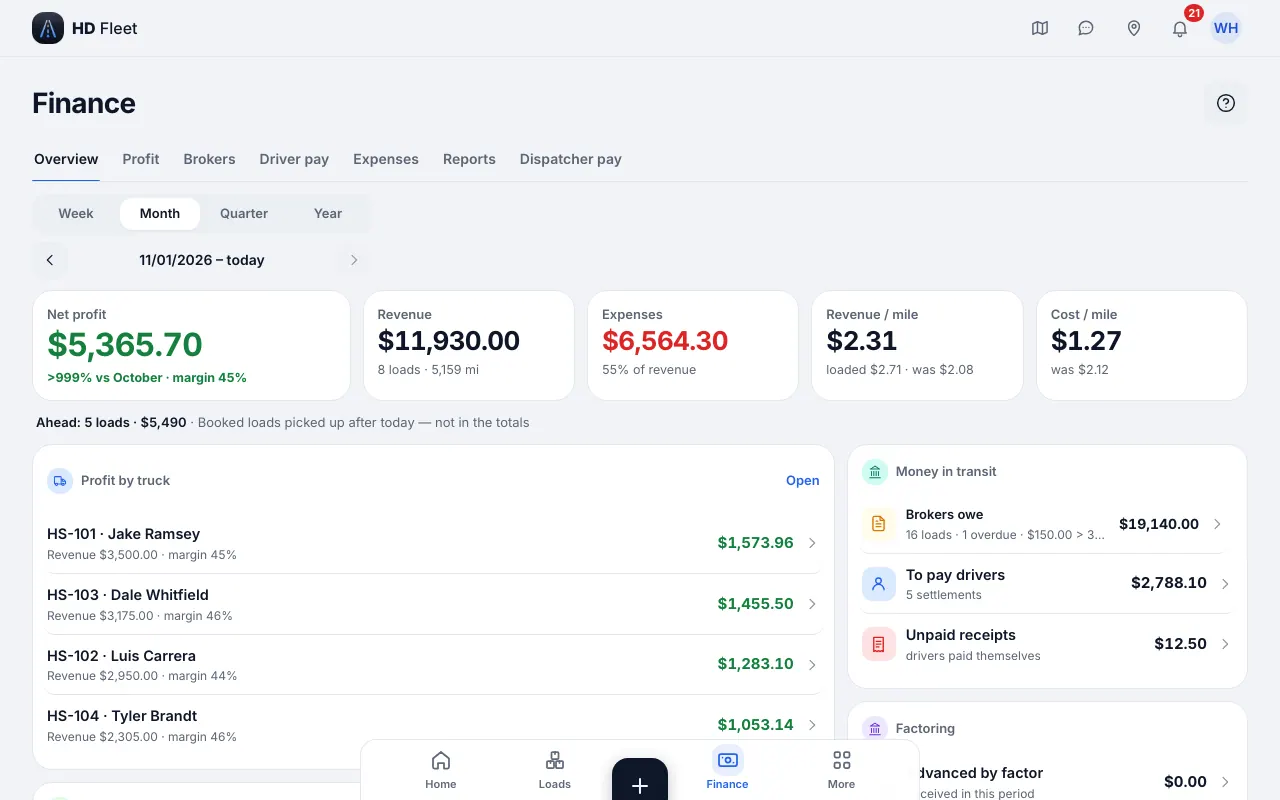
Finance has the tabs Overview, Statistics, Profit, Driver pay and Expenses (the owner also has Dispatcher pay). Profit is what you earned, Driver pay is what drivers are owed, Expenses is fuel, service and receipts.
- Where to find it
- Website
- Money → Finance overview, Profit, Driver pay, Expenses
- iOS app
- Finance (bottom bar)
- 1
Read the Profit tab
Pick a period at the top. You see revenue, costs and profit, with the breakdown by truck. The Overview and Statistics tabs sit next to it. Broker balances moved to Invoices & receivables and the reports to Reports & taxes.
Website · Finance: Profit, Driver pay, Expenses 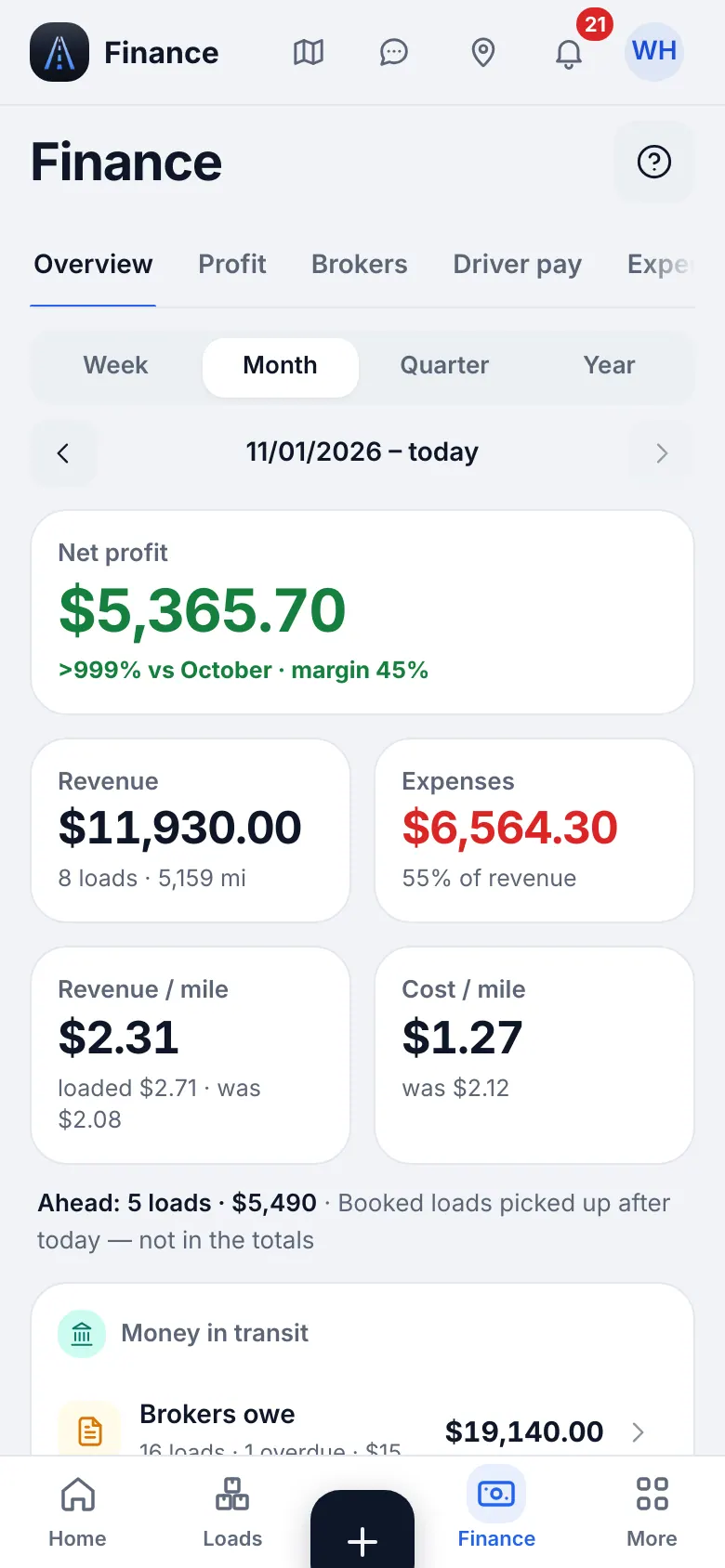
Website on a phone · Finance on a phone 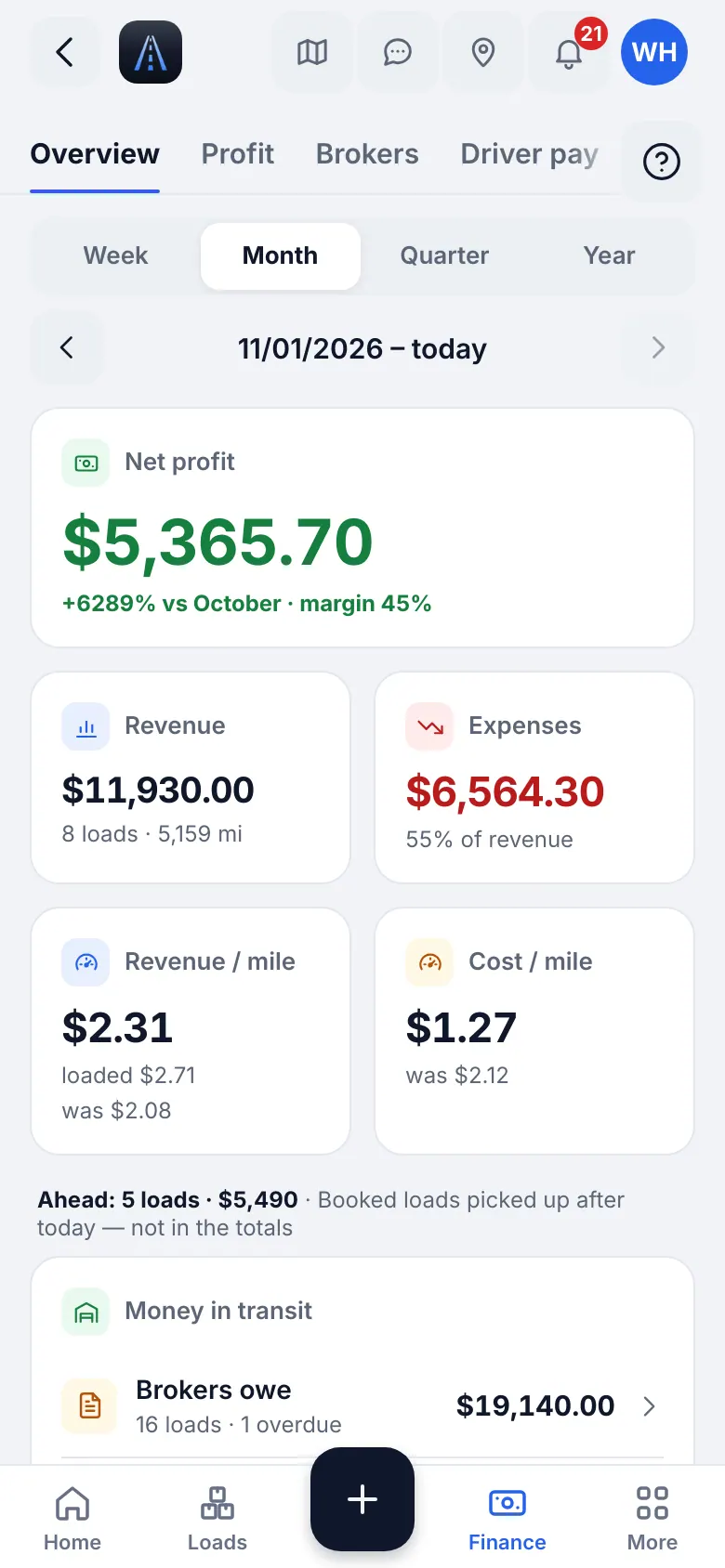
iOS app · Finance in the app - 2
Ledgers: your books and a family member's
Small fleet with dispatchers · Owner-operator · Hotshot · Semi (dry van, reefer, flatbed) · Box truck · Cargo / sprinter van
If you keep more than one set of books (for example your own and a relative's trucks), choose the ledger at the top. Every list, total and export then shows only the selected ledger.
- 3
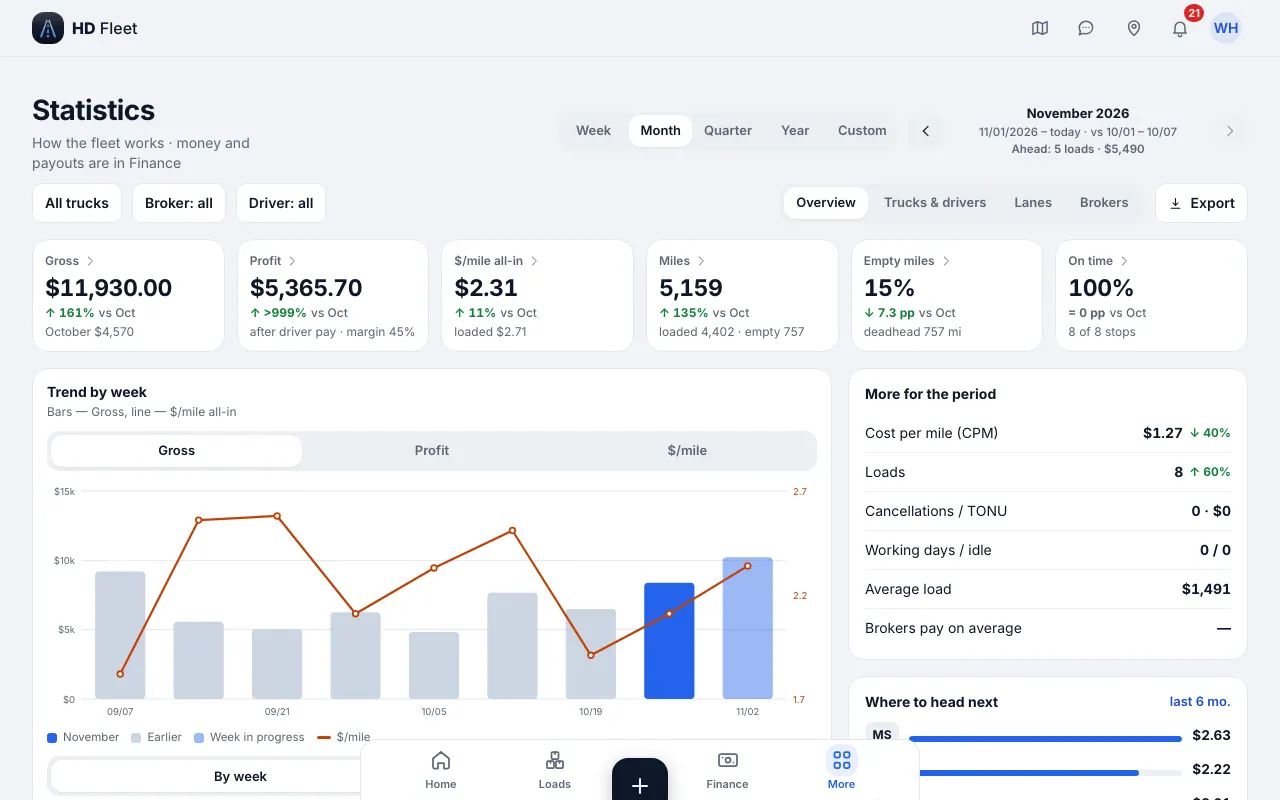
Statistics and the morning digest
Money → Finance overview → Statistics gives charts by month and by truck; the digest (Money → Morning digest) is a short morning summary of yesterday.
Website · Statistics 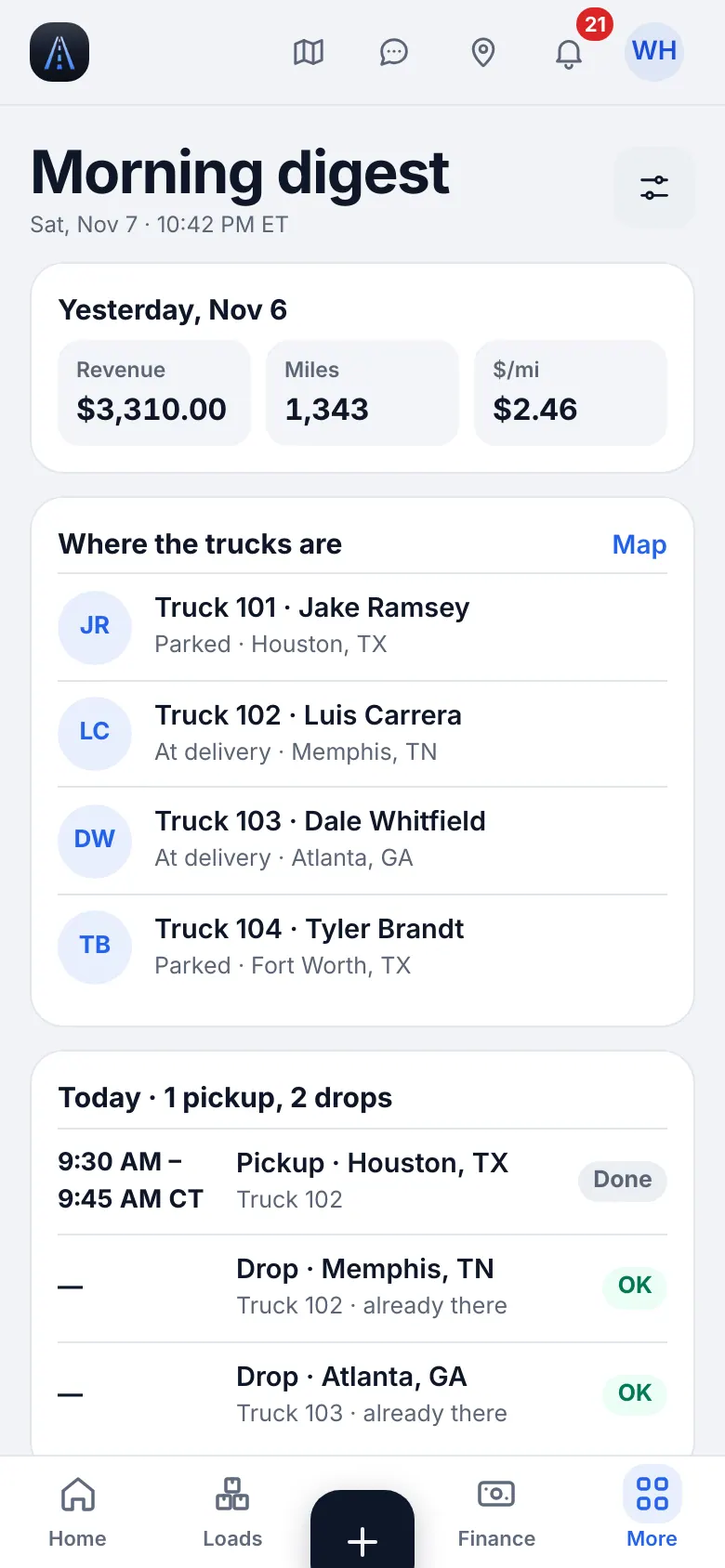
Website on a phone · Morning digest
16
Invoices, receivables and getting paid
Deliver the load, attach the POD and send the invoice. Record what the broker pays and what is left stays visible until it is collected.
- Where to find it
- Website
- Money → Invoices & receivables
- iOS app
- Money → Invoices & receivables
- 1
Receivables and Aging
Invoices & receivables has two tabs: Receivables (what each broker owes you, with the open invoices) and Aging (how late each one is). On the phone the accountant has them as the Invoices tab of the bottom bar.
- 2
Issue and send the invoice
Open the delivered load or the invoices list and issue the invoice (a number such as INV-… is assigned). Tap Send: choose the recipient (the broker's billing e-mail) and what to Attach — the invoice PDF, rate confirmation and BOL/POD. Use PDF to download it instead. Send again re-sends.
CarefulIf there are no load documents yet only the invoice PDF goes: scan the POD first.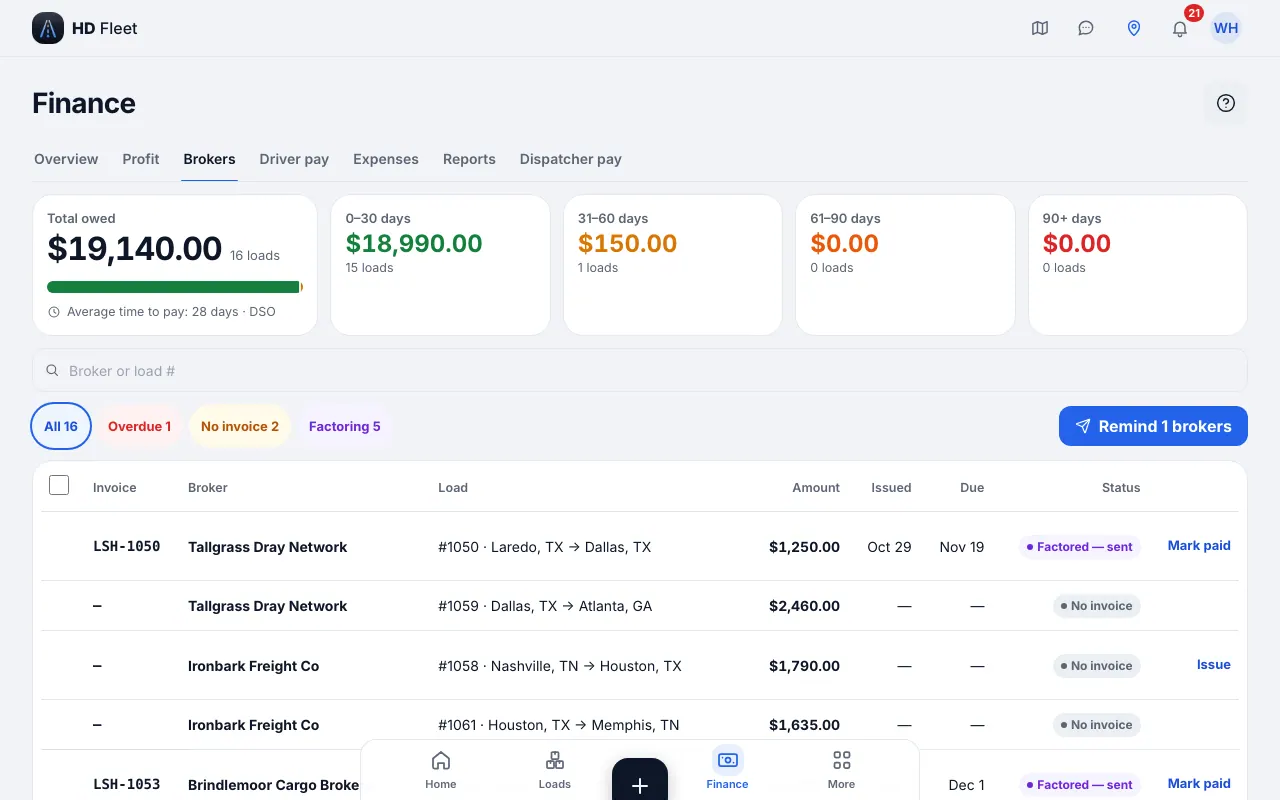
Website · Invoices & receivables: what brokers owe, open and factored invoices (Money → Invoices & receivables) 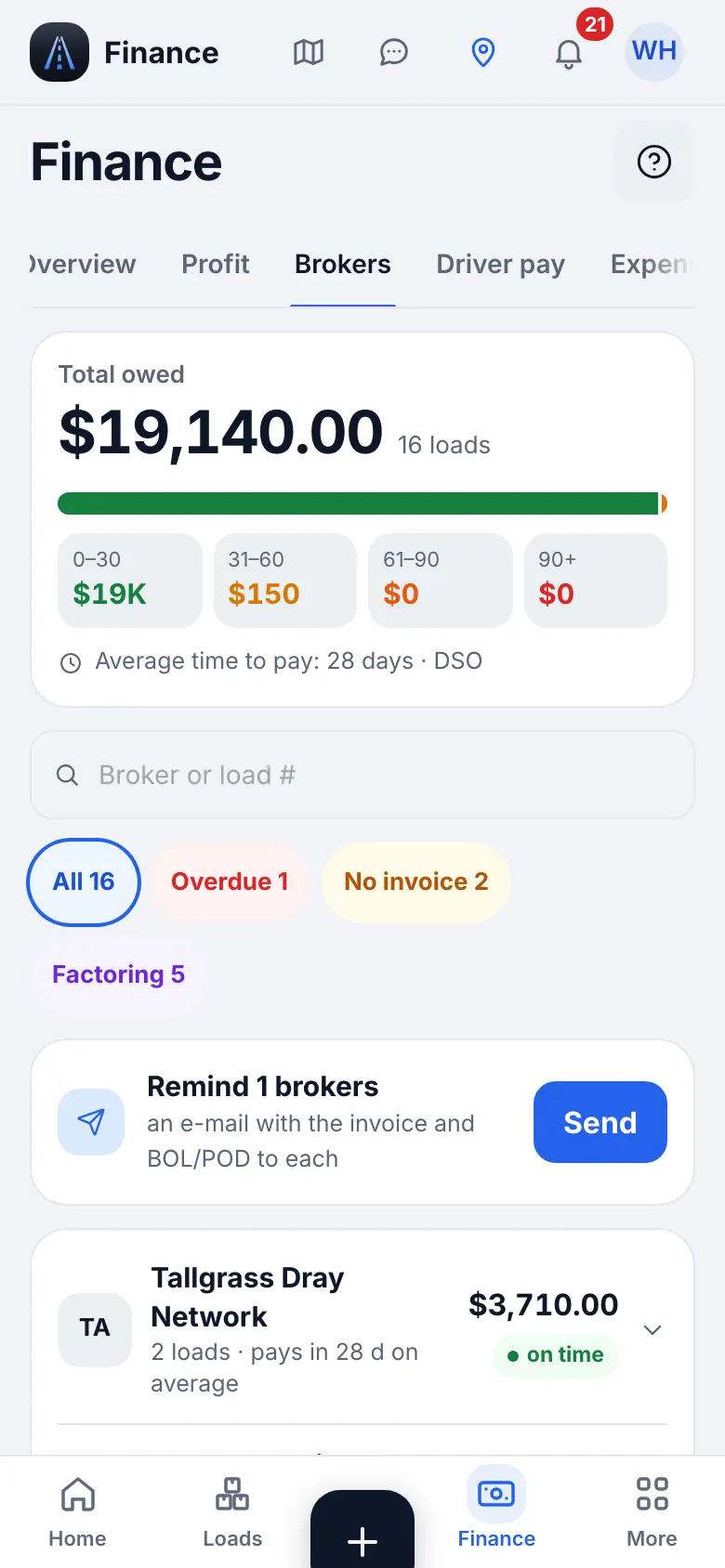
Website on a phone · Invoices & receivables on a phone - 3
Record a payment
When the broker pays, open the invoice and use Paid in full, Partial or Short pay. Enter Amount received, $ and the payment date, then Save payment. Partial and short payments stay in the history; what is left stays in what brokers owe you.
- 4
Direct broker pay (no factoring)
Without a factor the invoice stays open until the broker pays; watch it in the aging report and send reminders.
17
Factoring: sending invoices, advance and reserve
Only if you set up a factor (see Company card and factoring). The invoice shows what the factor advances, what it charges and what is held back.
- 1
Send one invoice to the factor
On the invoice tap Send to factor. The preview shows advance, fee and reserve release. Warnings tell you if the broker is not approved by the factor or there is no POD attached.
- 2
Send a batch
In the invoices list use Select all or tick invoices, then Create packet and mark as Factored. Open the PDF with Open packet (PDF) and send it to your factor. Paid, void and already sent invoices are skipped.
- 3
Advance and reserve
When the factor pays the advance tap Mark received on Advance received with the date; when the reserve comes, mark Reserve released. Until the advance is received you can take the invoice back with Take back from factor.
TipFactoring overview on Finance shows the advanced amount, the reserve held and how many invoices are not yet sent.TipRecourse until a date is shown on the invoice.
18
Receivables aging and reminders
See who owes you, how long, and send reminders in one tap.
- Where to find it
- Website
- Money → Invoices & receivables → Aging
- iOS app
- Money → Invoices & receivables → Aging
- 1
Read the report
Invoices are grouped by how overdue they are. Each line shows the invoice, broker, load, amount, issue date and due date. Factored invoices show their stage. The average time to pay (DSO) appears after the first recorded payment.
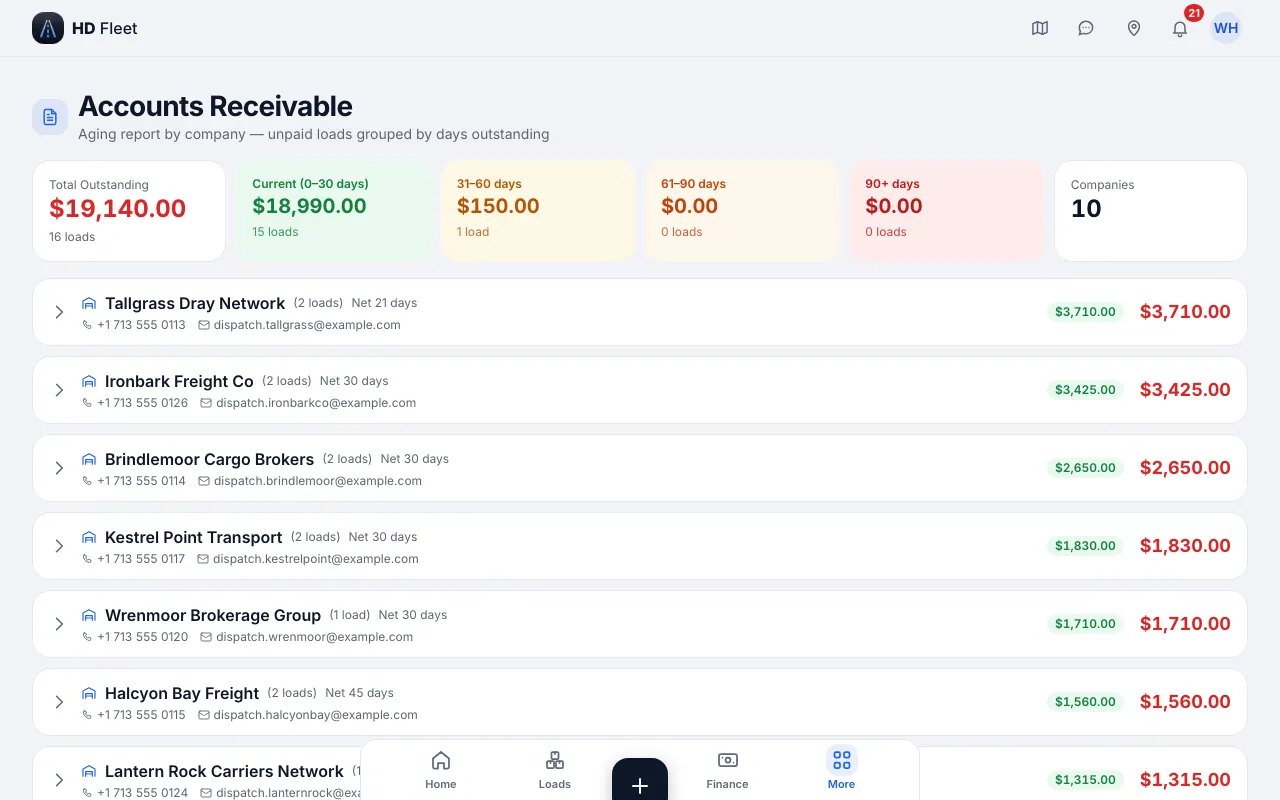
Website · Invoices & receivables › Aging 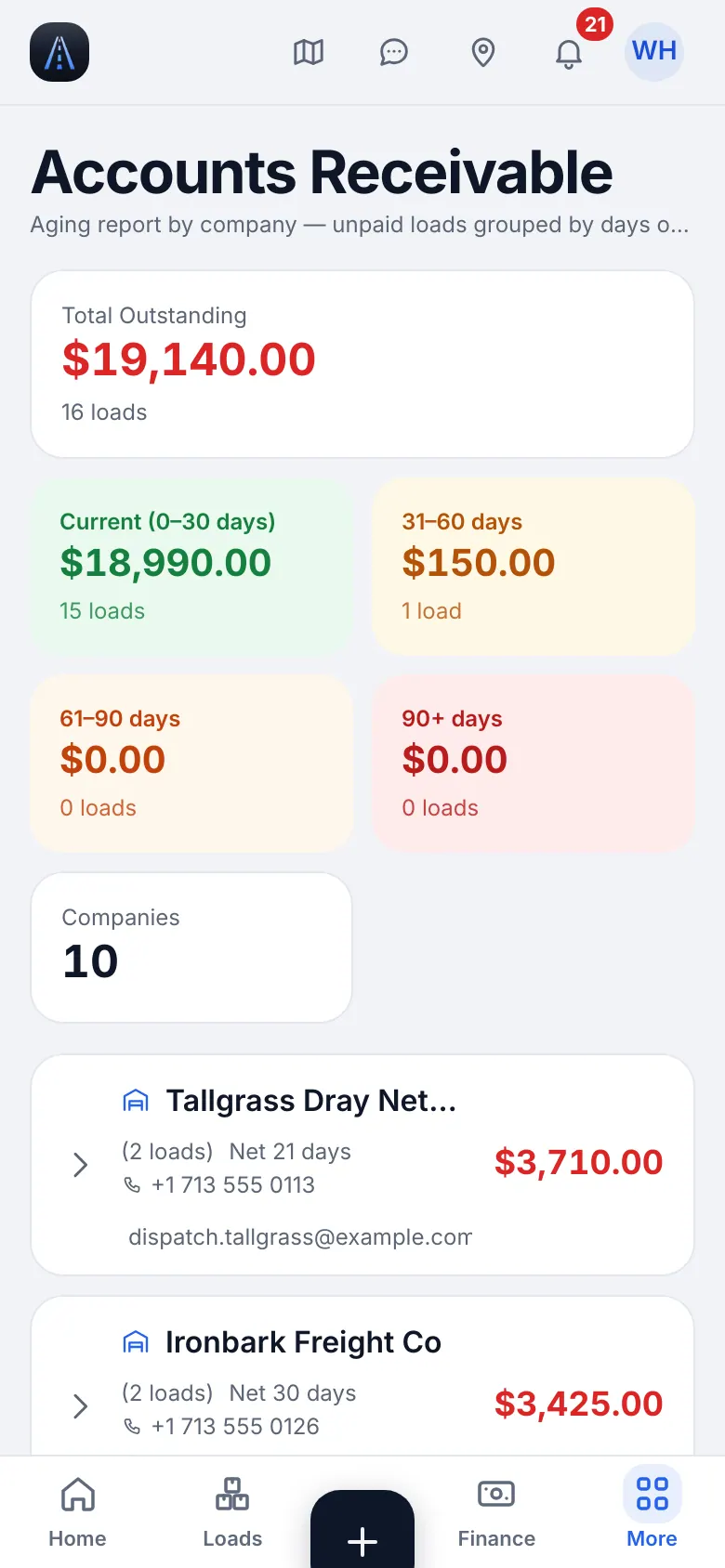
Website on a phone · Invoices & receivables › Aging on a phone - 2
Send reminders
Use the remind button to e-mail every broker with overdue invoices, with the invoice and BOL/POD attached. You confirm the number of brokers before it is sent.
19
Driver settlements and advances
A settlement is one driver on one truck for one week: loads, fuel and expenses of that week, and what the driver is paid.
- Where to find it
- Website
- Money → Driver pay
- iOS app
- Money → Driver pay
- 1
Generate the week
Open Driver pay, pick the week and generate. The driver share follows the pay model: a percent of the load, an amount per mile (with or without empty miles) or a flat amount per load. Extras such as TONU, detention and layover follow the pay rules. Weeks start on the day set in the company settings, the same on the website and in the app.
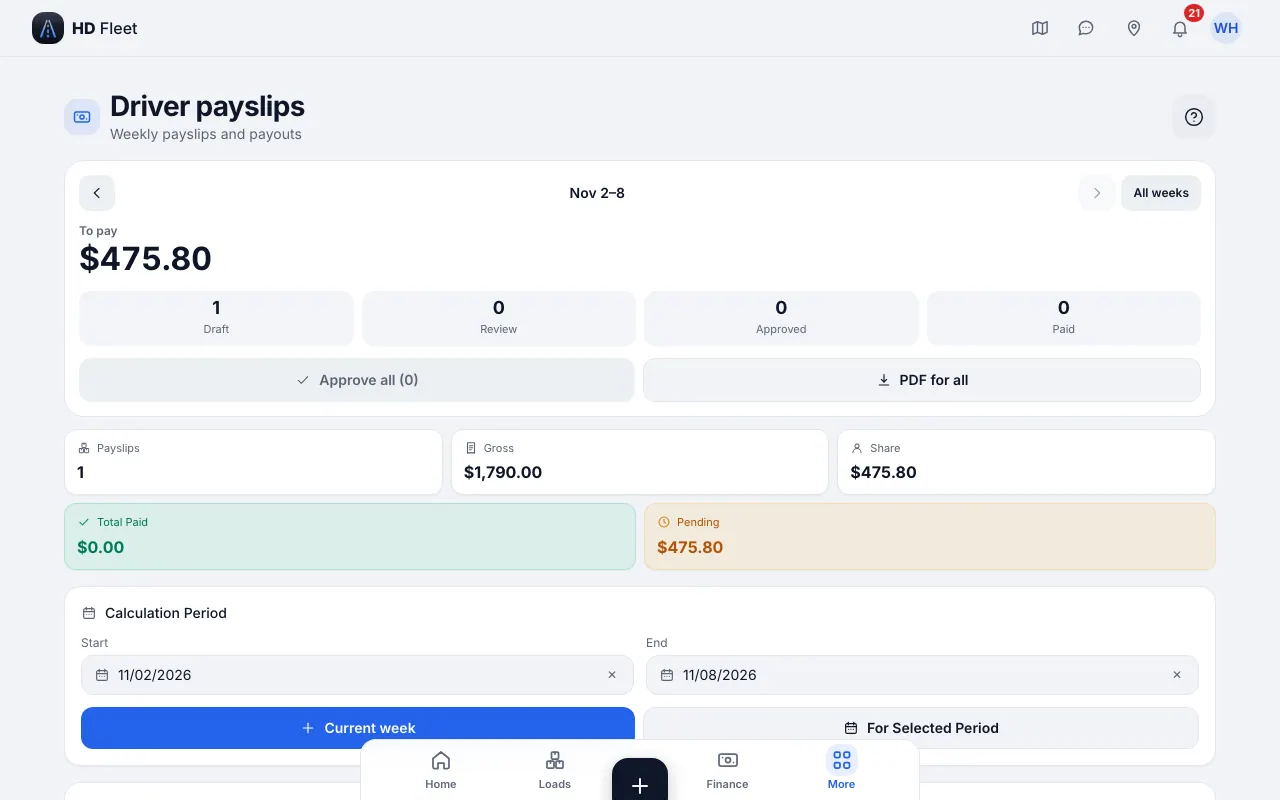
Website · Driver settlements 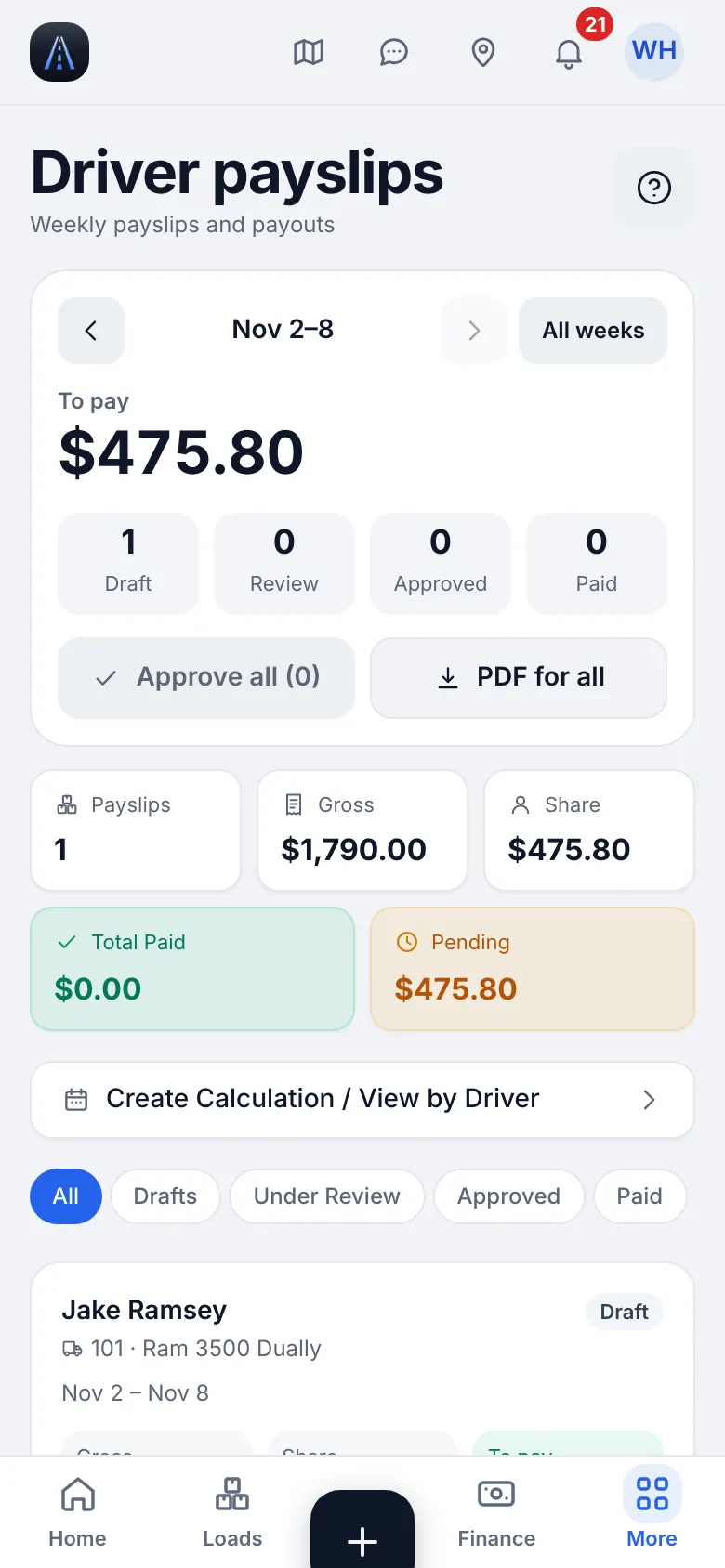
Website on a phone · Driver settlements on a phone - 2
Review the lines
A line without a driver share or a driver is marked needs review and blocks approval. Fix it and recalculate. Costs the company paid are shared by the rule of each record; costs the driver paid are reimbursed.
- 3
Draft, review, approve, pay
Status goes Draft → On review → Approved → Paid. Records in an approved or paid settlement are frozen. Reopen to correct; history shows who did what. If the net is negative use Close with balance carried: it closes with $0 paid and the debt is deducted next week.
- 4
Advances
Drivers can ask for an advance from the app with Request an advance. You see it under Advance requests: Give or Decline. An approved advance is deducted in the settlement.
- 5
What the driver sees
The driver sees a settlement only when it is issued to him, with the fields you allow.
20
Expenses, receipts and fuel
Everything you spend, by truck and by category. Drivers add receipts from the phone; you add the rest.
- Where to find it
- Website
- Money → Expenses
- iOS app
- Money → Expenses
- 1
Add an expense
On Expenses tap Add, choose the type (fuel, maintenance, insurance, tolls ...), truck, date and amount. Photograph the receipt if you have it. A repeated tap never saves twice.
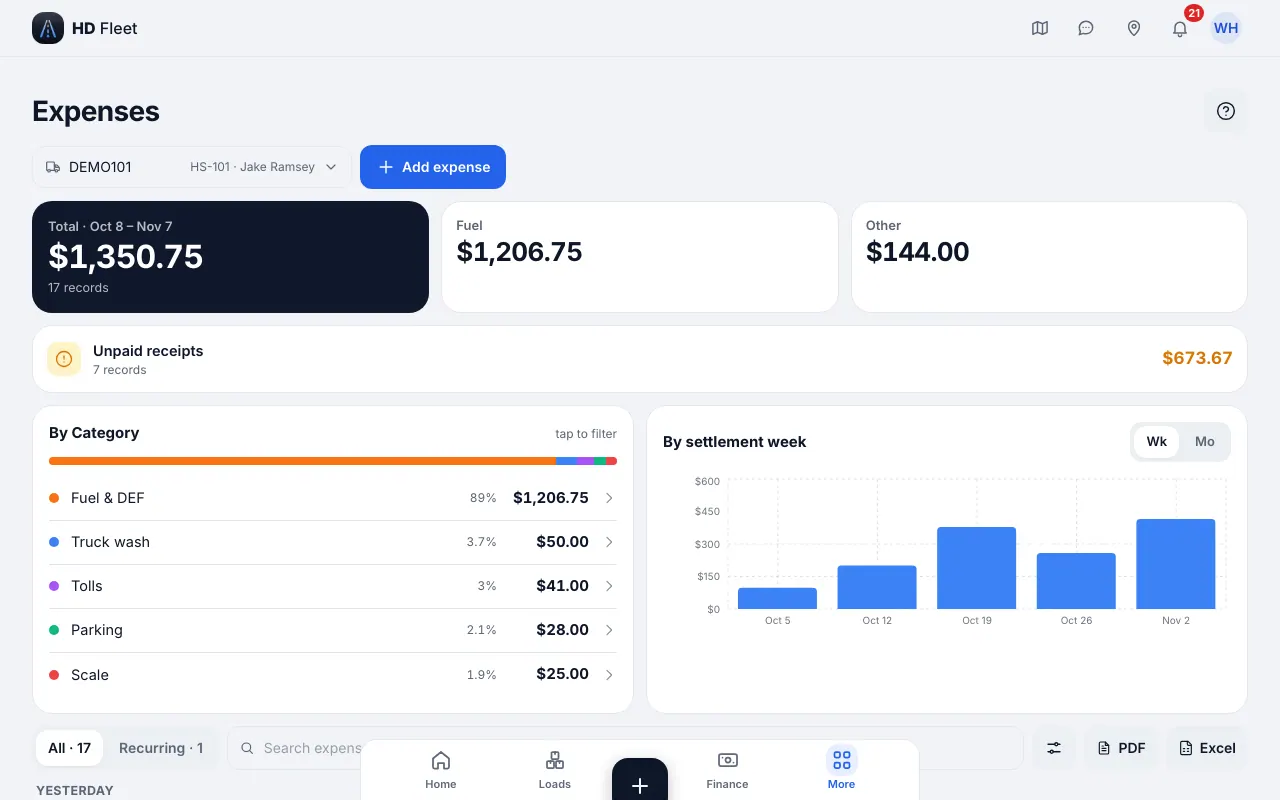
Website · Expenses 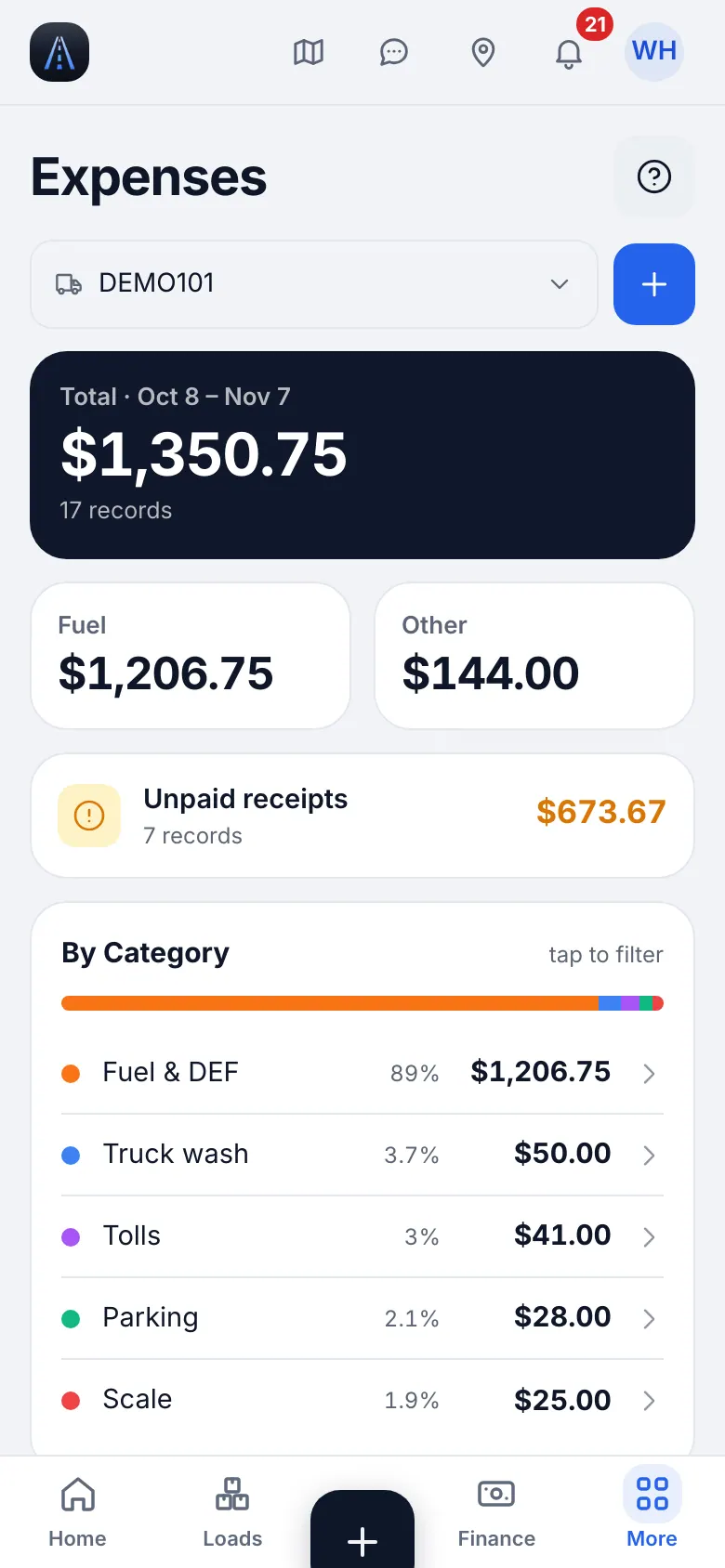
Website on a phone · Expenses on a phone - 2
Fuel with gallons, price and state
On a truck open Fuel logs and add the fill-up: date, gallons, price per gallon, fuel type and the state where you bought it. A fuel-card discount is handled: the price you actually paid is used in all calculations. Always enter the state: IFTA groups fuel by it.
- 3
Recurring costs
Insurance and truck payments live under Expenses → Recurring and are spread over the weeks.
- 4
Import a year of expenses or a card statement
Use Workspace → Import data → Expenses and fuel. DEF and other non-fuel purchases go to DEF / Other. Lines without a state go to the error list.
21
IFTA and mileage: only when they apply
IFTA applies to trucks over 26,000 lbs or with three or more axles that cross state lines. A small van or pickup under that weight usually does not file it — ask your accountant.
- Where to find it
- Website
- People & compliance → IFTA
- iOS app
- People & compliance → IFTA
- 1
Open the quarter
Semi (dry van, reefer, flatbed) · Box truck · Small fleet with dispatchers · Hotshot
Pick the year and the quarter. You see miles, gallons, fuel cost and MPG in total and by state, and fuel without a state is shown as missing instead of being dropped. Export the CSV for your accountant.
CarefulAt the moment the report is an estimate for checking fuel and miles, not for filing: the miles of a load are split between the pickup and delivery state.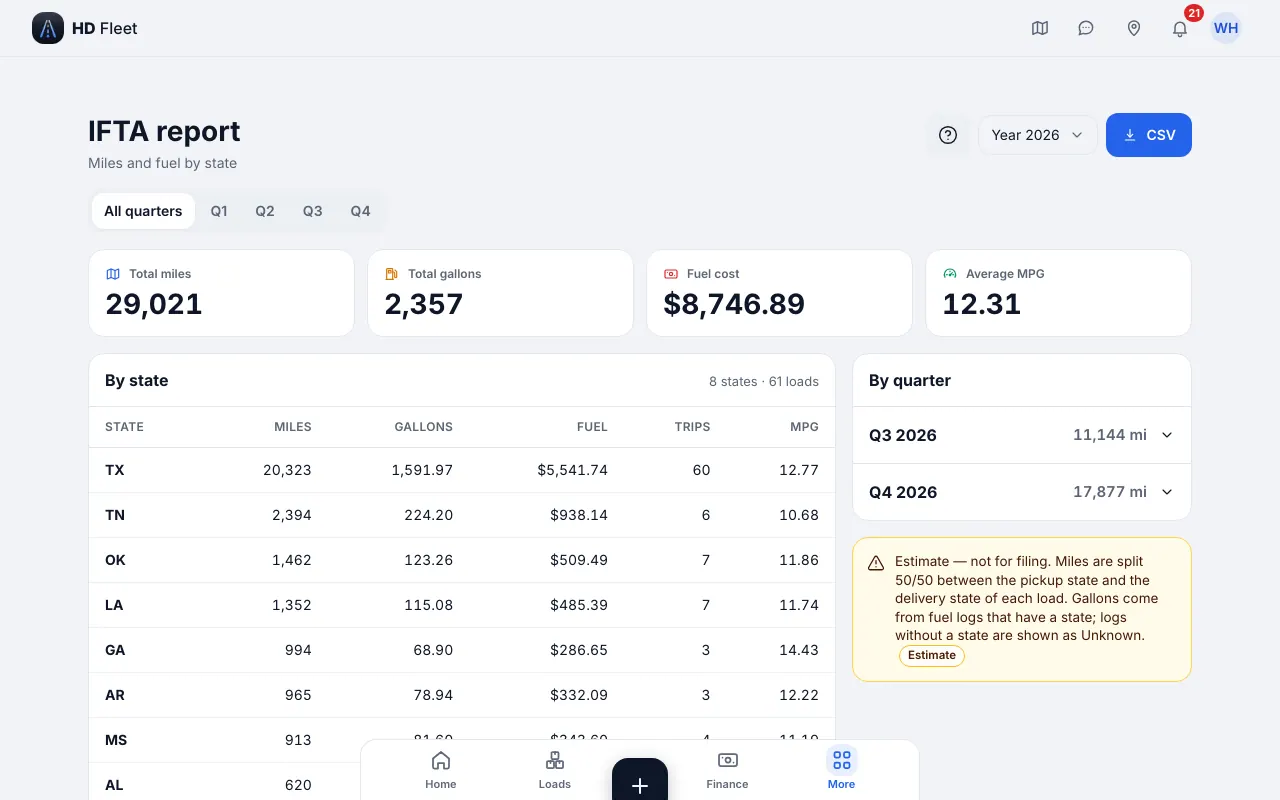
Website · IFTA report: miles and fuel by state 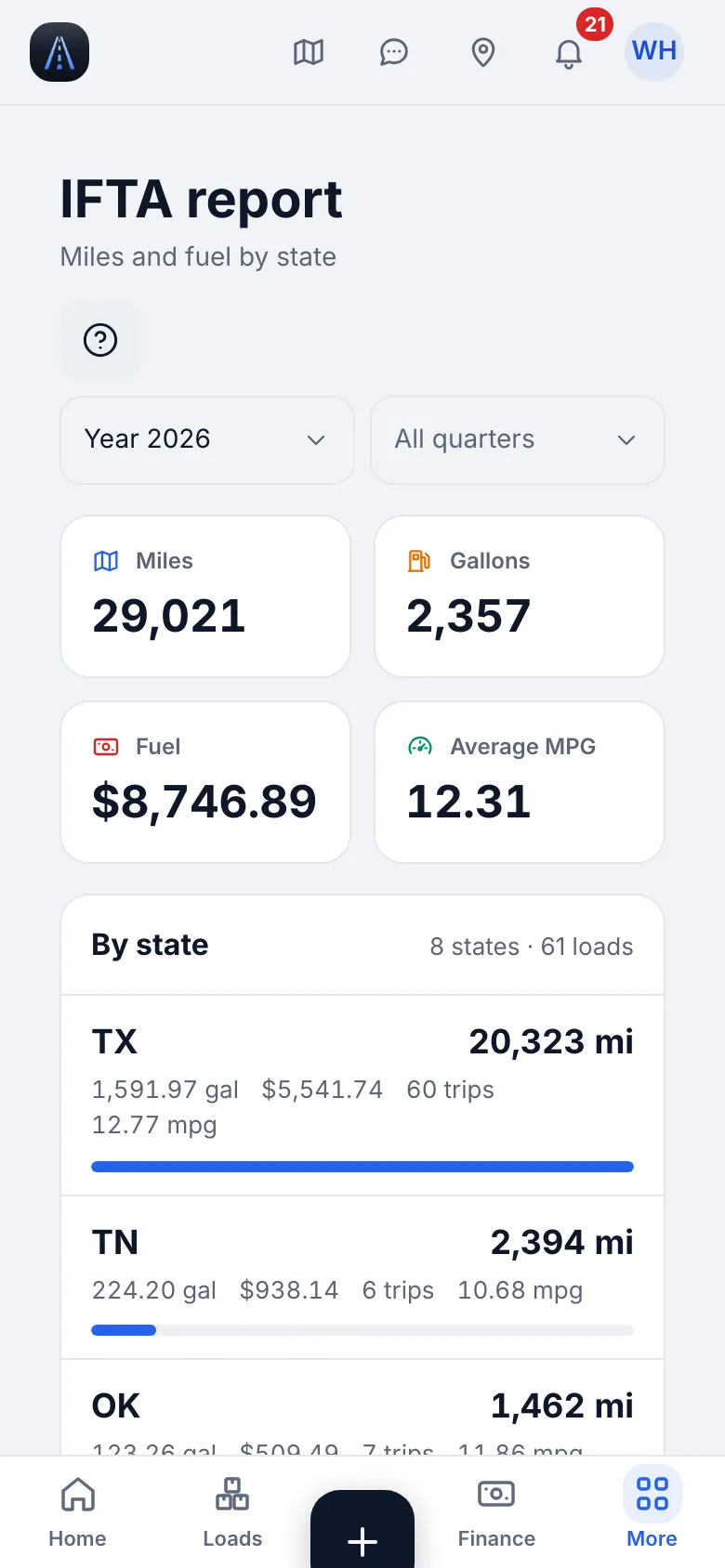
Website on a phone · IFTA report on a phone - 2
Small vehicles: mileage for taxes
Cargo / sprinter van · Owner-operator
If IFTA does not apply to you, the Mileage tracker (Money → Reports & taxes → Mileage) keeps your trip miles for tax deductions.
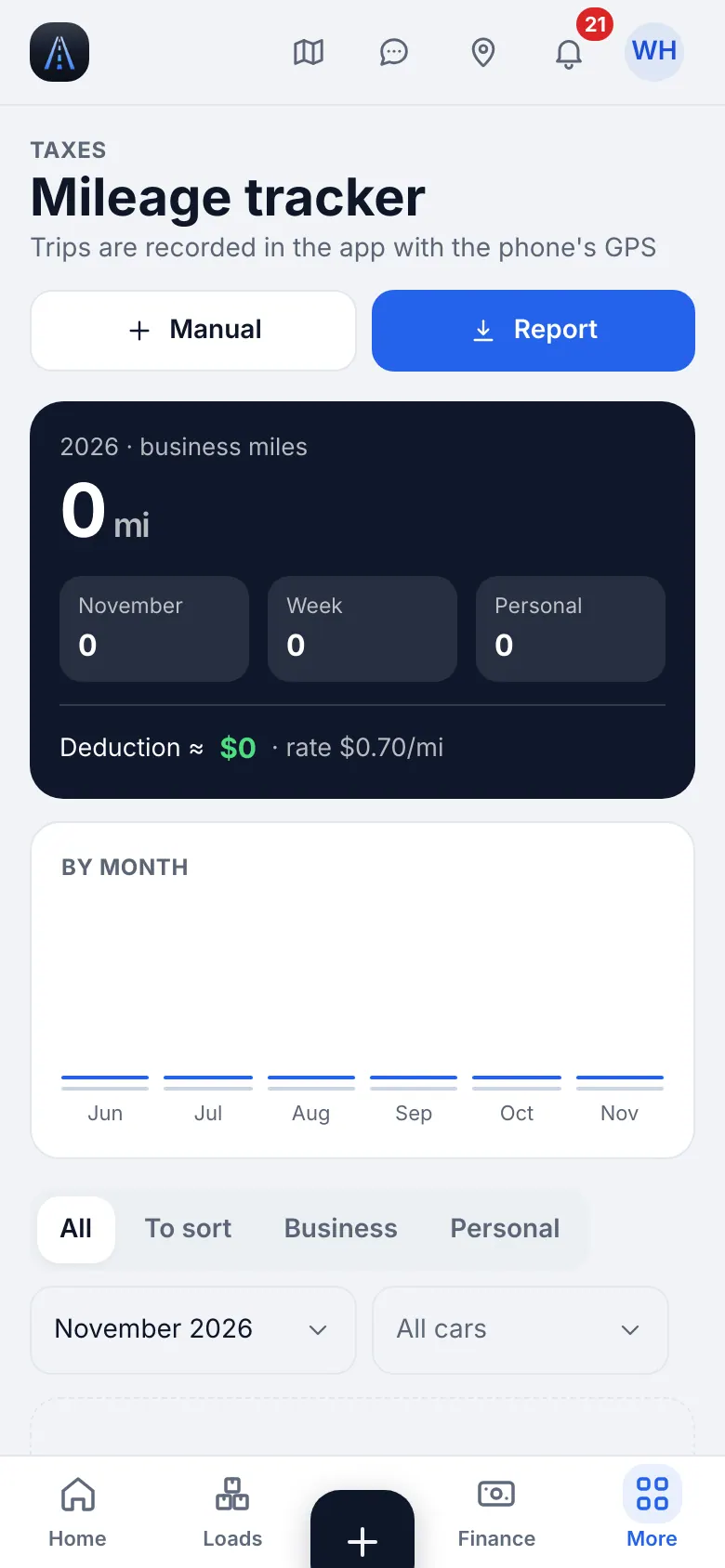
Website on a phone · Reports & taxes › Mileage tracker for the owner - 3
Log empty miles
Driving without a load still counts in IFTA and truck profit: add Empty Miles from the driver's quick actions or on the load.
22
Maintenance and service requests
Keep every truck on schedule: oil, brakes, tires, inspections, with reminders by miles or by date.
- Where to find it
- Website
- Fleet → Maintenance, Fleet → Service requests
- iOS app
- Fleet → Maintenance, Fleet → Service requests
- 1
Fleet health
Maintenance shows each truck with how many jobs are overdue or soon due. Add a visit with New visit, choose what was done, the date and the odometer; intervals and the next service are worked out for you.
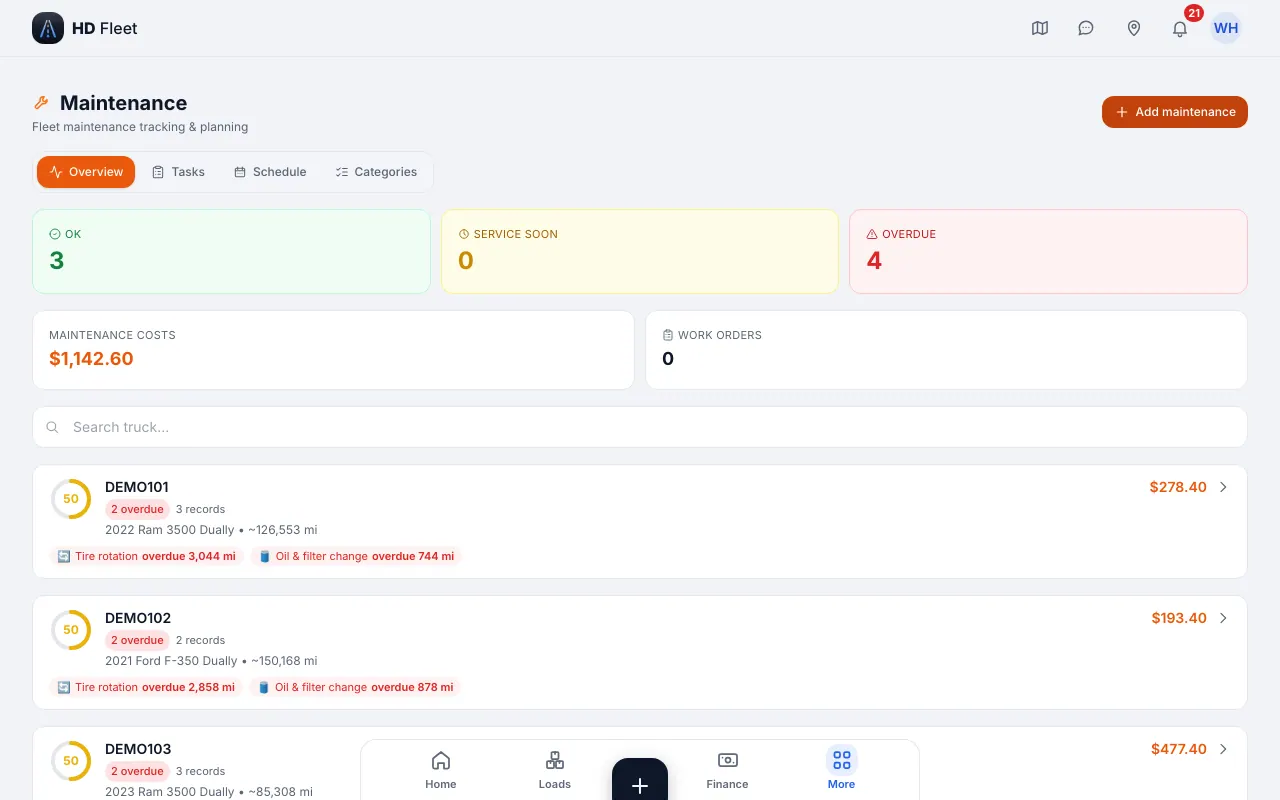
Website · Maintenance: fleet health and service book 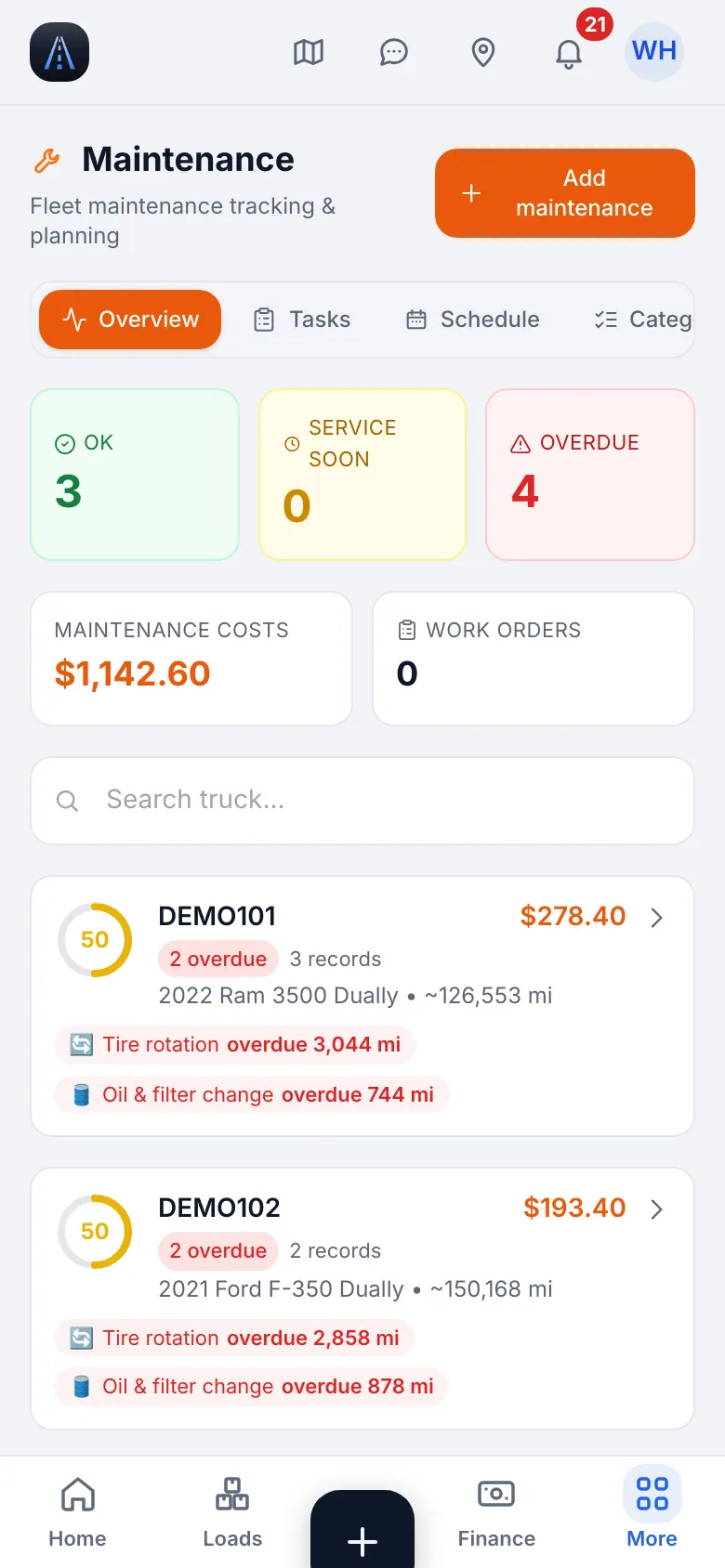
Website on a phone · Maintenance on a phone - 2
Requests from drivers
A driver can send a repair or oil receipt from the app. It waits in Service requests ("From drivers, awaiting review") until you approve or reject it.
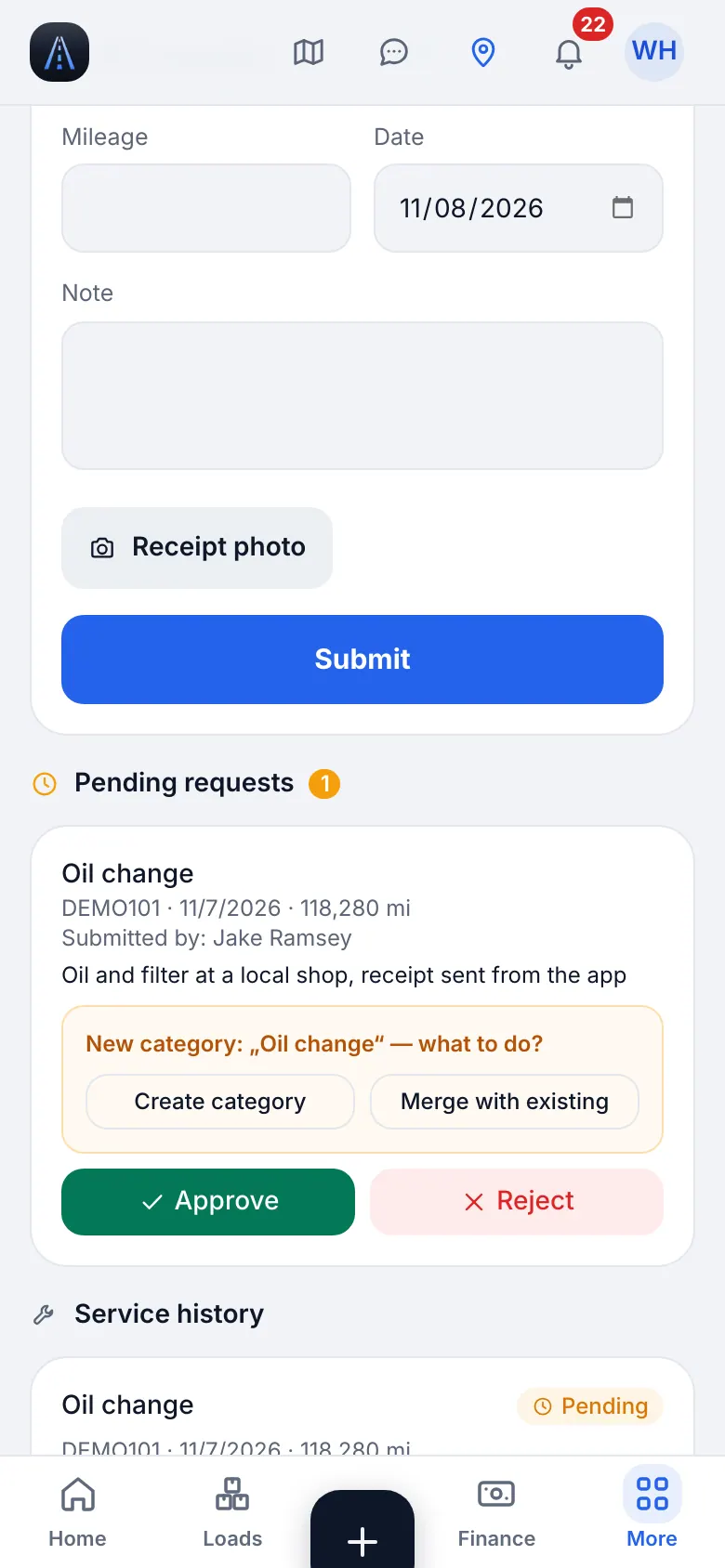
Website on a phone · Service requests from drivers: the queue of pending receipts - 3
Mechanics
Mechanics keeps the shops you use with their contacts.
23
Documents and deadlines, W-9
CDL, medical card, insurance and registration expire. HD Fleet reminds the driver 30 and 7 days before and when overdue.
- Where to find it
- Website
- People & compliance → Documents & deadlines
- iOS app
- People & compliance → Documents & deadlines
- 1
See what needs attention
Small fleet with dispatchers · Hotshot · Semi (dry van, reefer, flatbed) · Box truck
The list shows every driver and truck document with the status Overdue, Soon, OK or No document. Use Remind to send one extra message (once a day) or Request to ask for an upload.
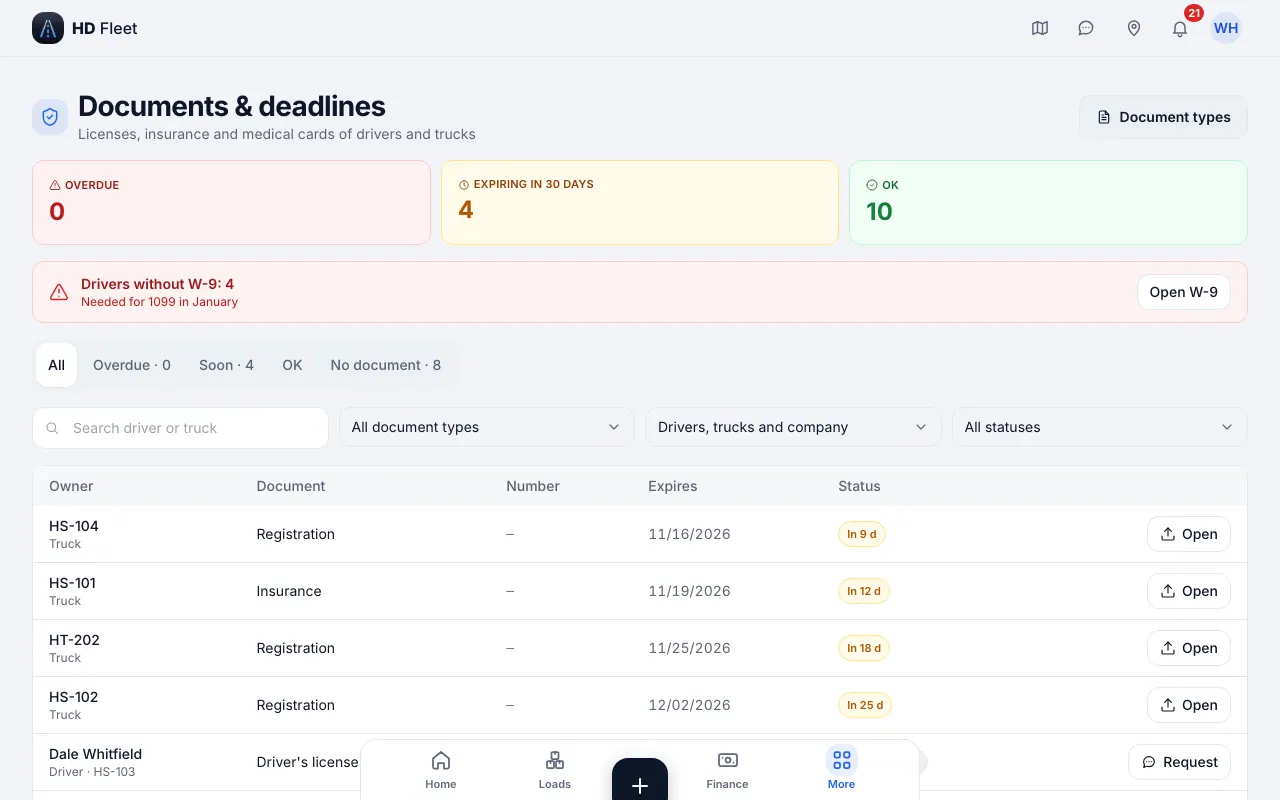
Website · Documents and deadlines 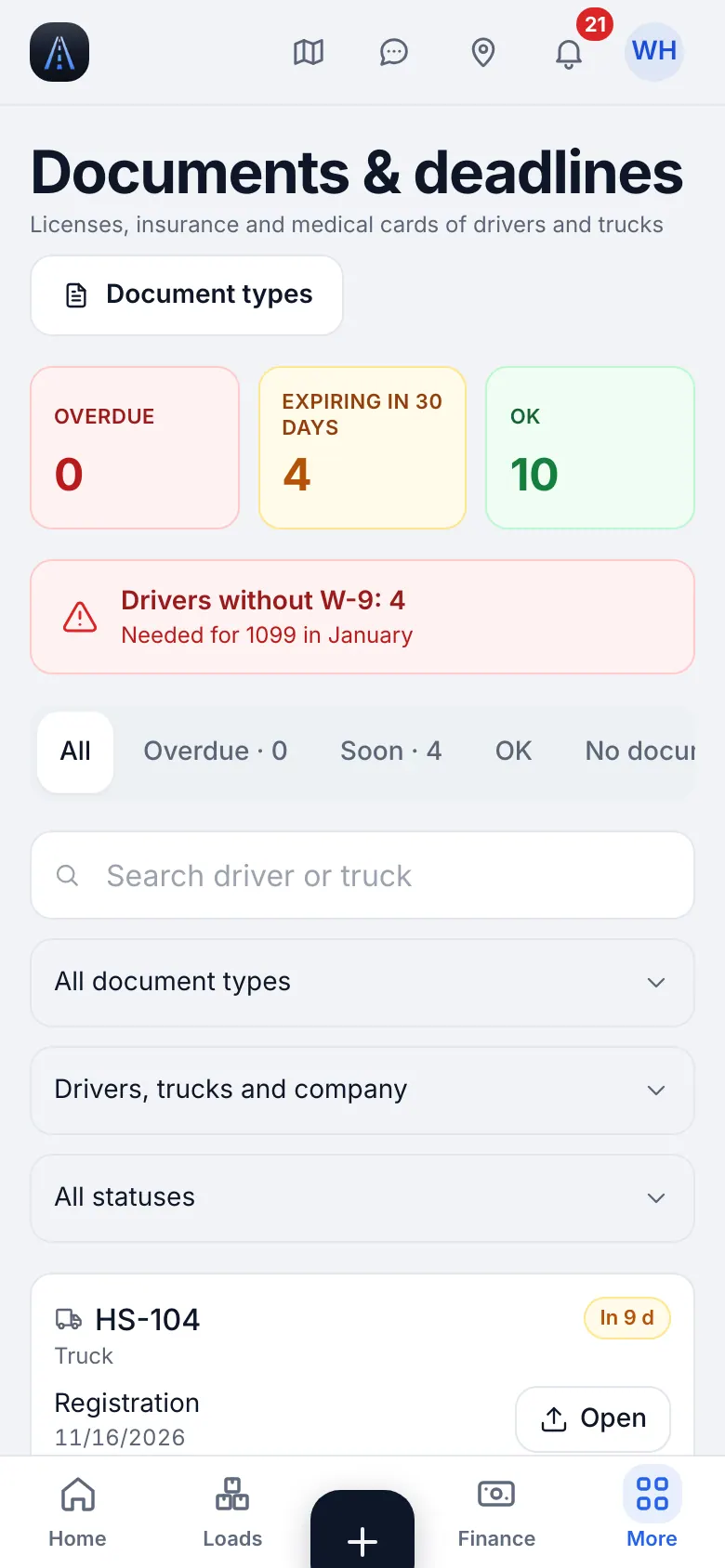
Website on a phone · Documents and deadlines on a phone - 2
W-9 for 1099
Small fleet with dispatchers · Hotshot · Semi (dry van, reefer, flatbed) · Box truck
Drivers without a W-9 are listed at the top. Send a one-time link; the driver types the TIN himself and you never see it in a message. The W-9 list is also under People & compliance → W-9 forms.
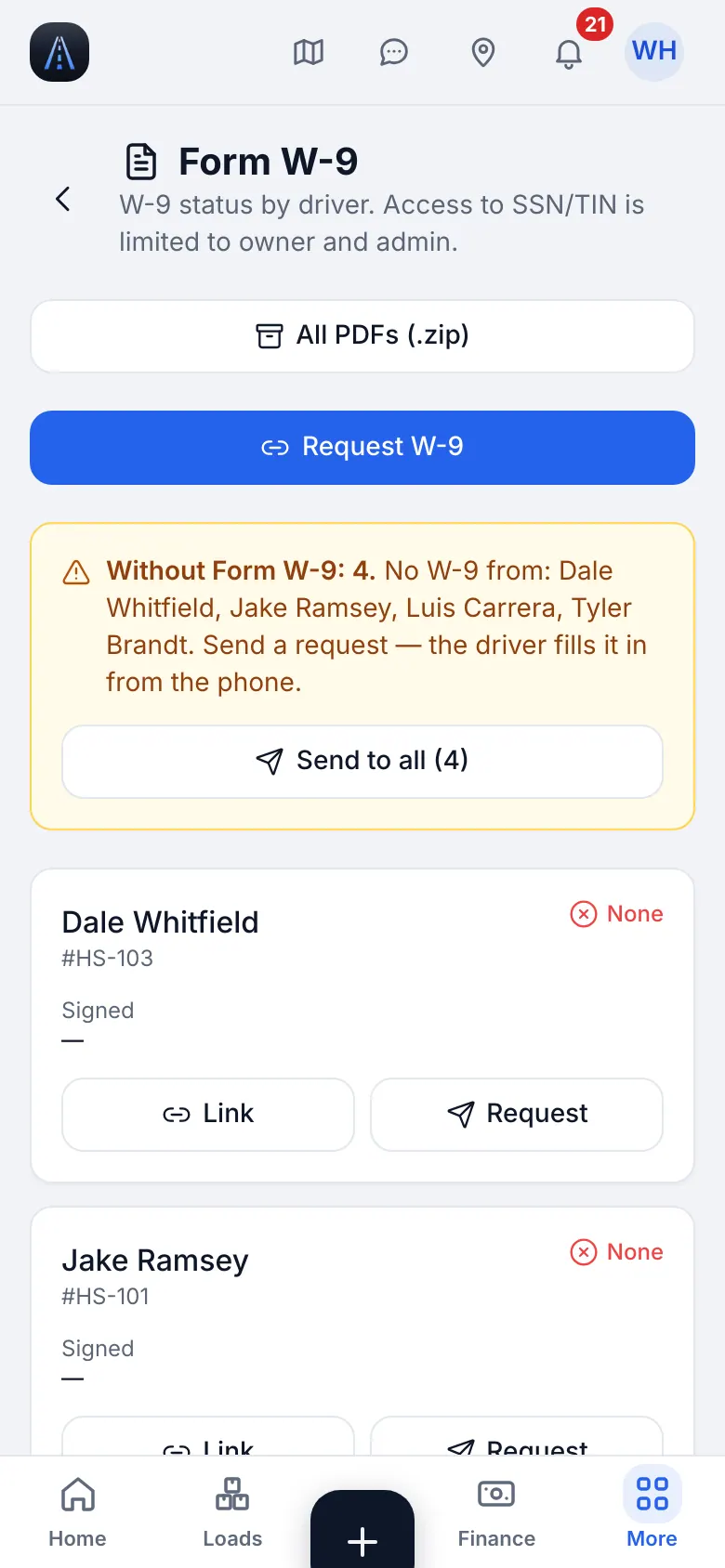
Website on a phone · W-9 forms of drivers - 3
Document types
Documents & deadlines has two tabs, Deadlines and Setup. Setup chooses which document types the company tracks; use Add standard for the usual set.
24
Team and roles: who sees what
Give each person only the screens the job needs. Roles are fixed in code, so the rules are the same everywhere.
- Where to find it
- Website
- People & compliance → Team
- iOS app
- People & compliance → Team
- 1
The roles
Owner: everything. Dispatcher: loads, map, ZIP broadcast, calculator and market rates; sees statistics but no company finance. Tracker: loads and map without any money, can move the status. HR: team, documents, W-9, no money. Safety: maintenance, service, mechanics, vehicles (view) and the scanner. Accountant: read-only finance, no GPS, no chat, no personal documents. Driver: the app for his own loads, receipts and pay.
- 2
Invite and change a role
In Team add a person with e-mail and role, or change the role on the profile. A person can be blocked without deleting history.
- 3
Employee profiles
Office employee profiles hold their own data; the API shows each role only the fields it may see.
25
Notifications and Messages
Decide what reaches you, and talk to drivers and the office in one place.
- Where to find it
- Website
- Bell in the header; Settings → Notifications; Messages
- iOS app
- Bell; Settings → Notifications; Messages
- 1
Choose notifications
Settings → Notifications lists the categories; switch off what you do not need and set quiet hours. Important ones are always delivered, even in quiet hours. If no push arrives, check iPhone Settings → Notifications → HD Fleet.
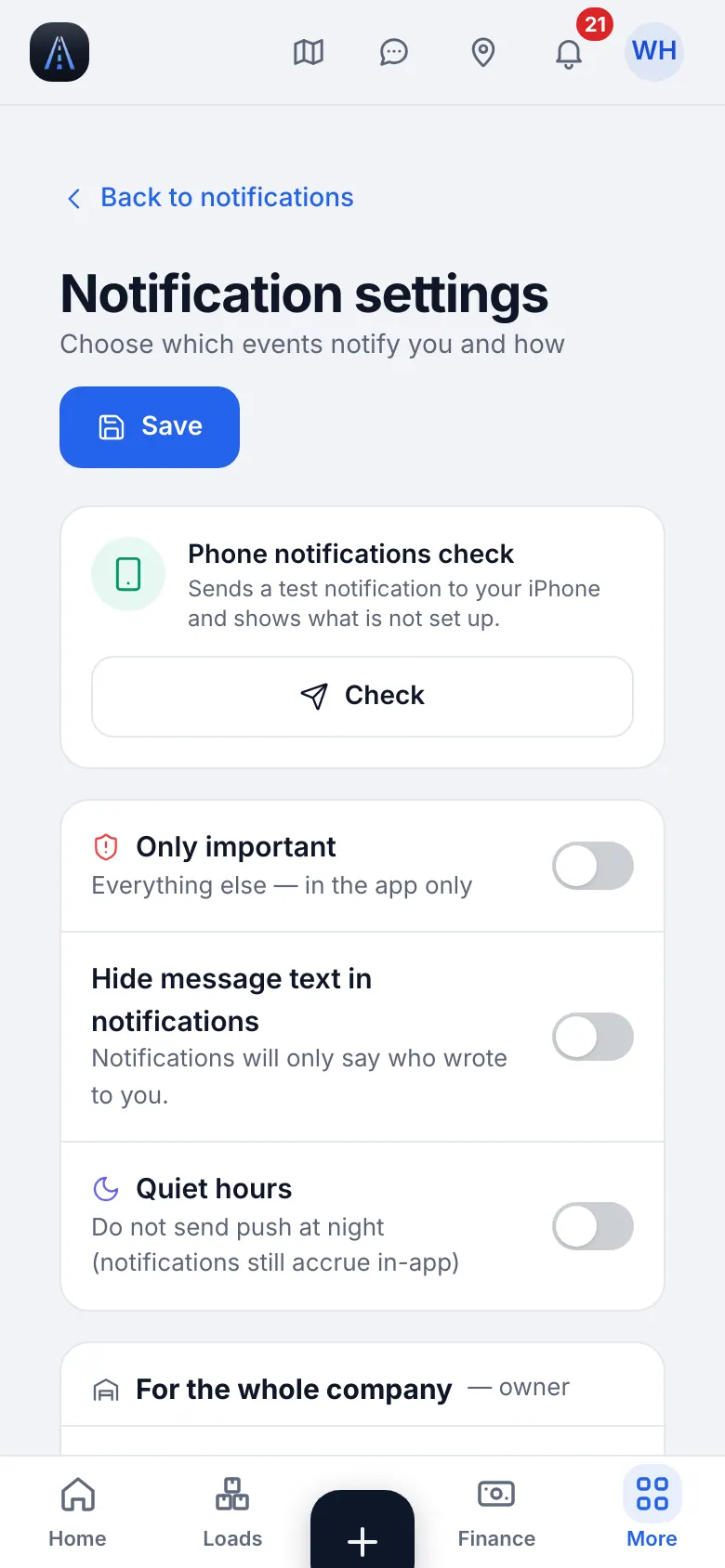
Website on a phone · Notification settings 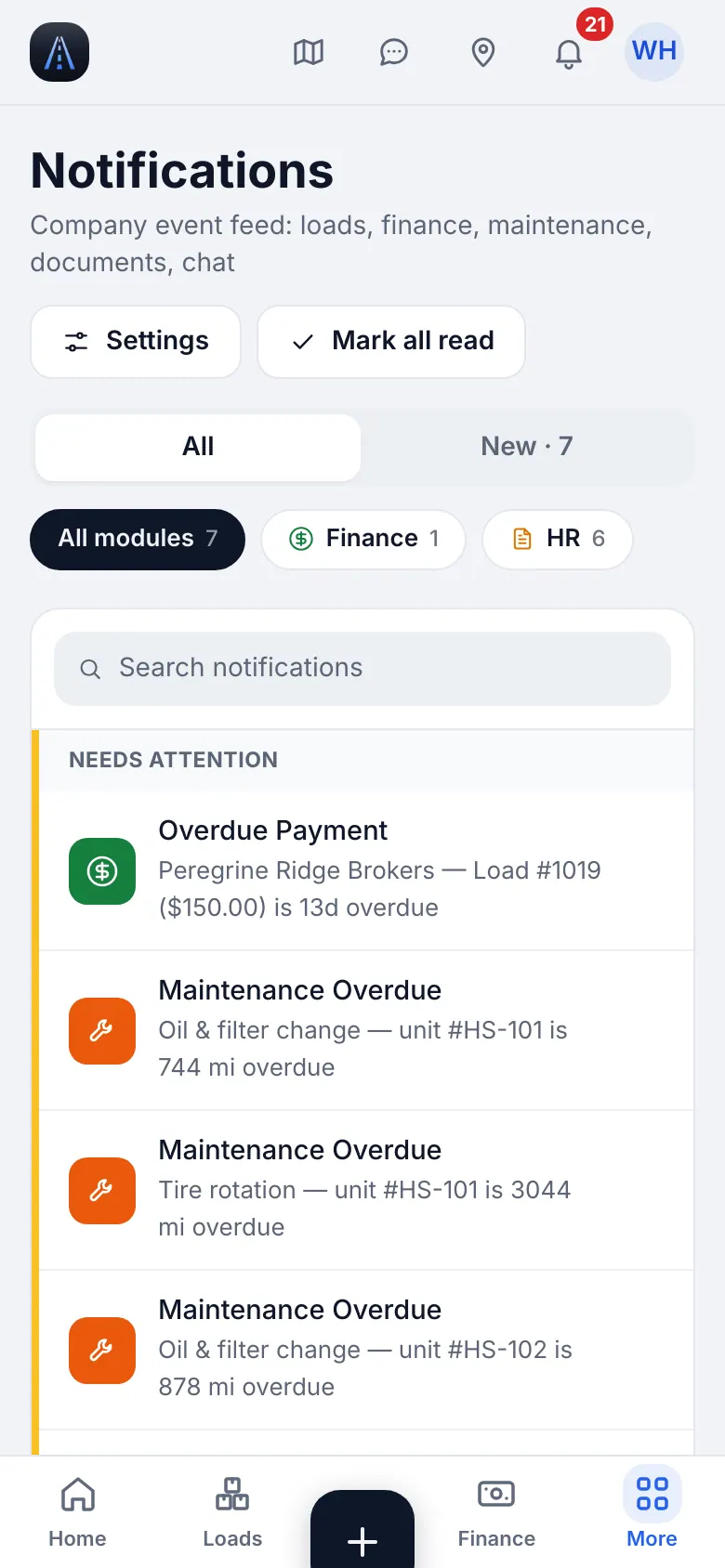
Website on a phone · Notification center - 2
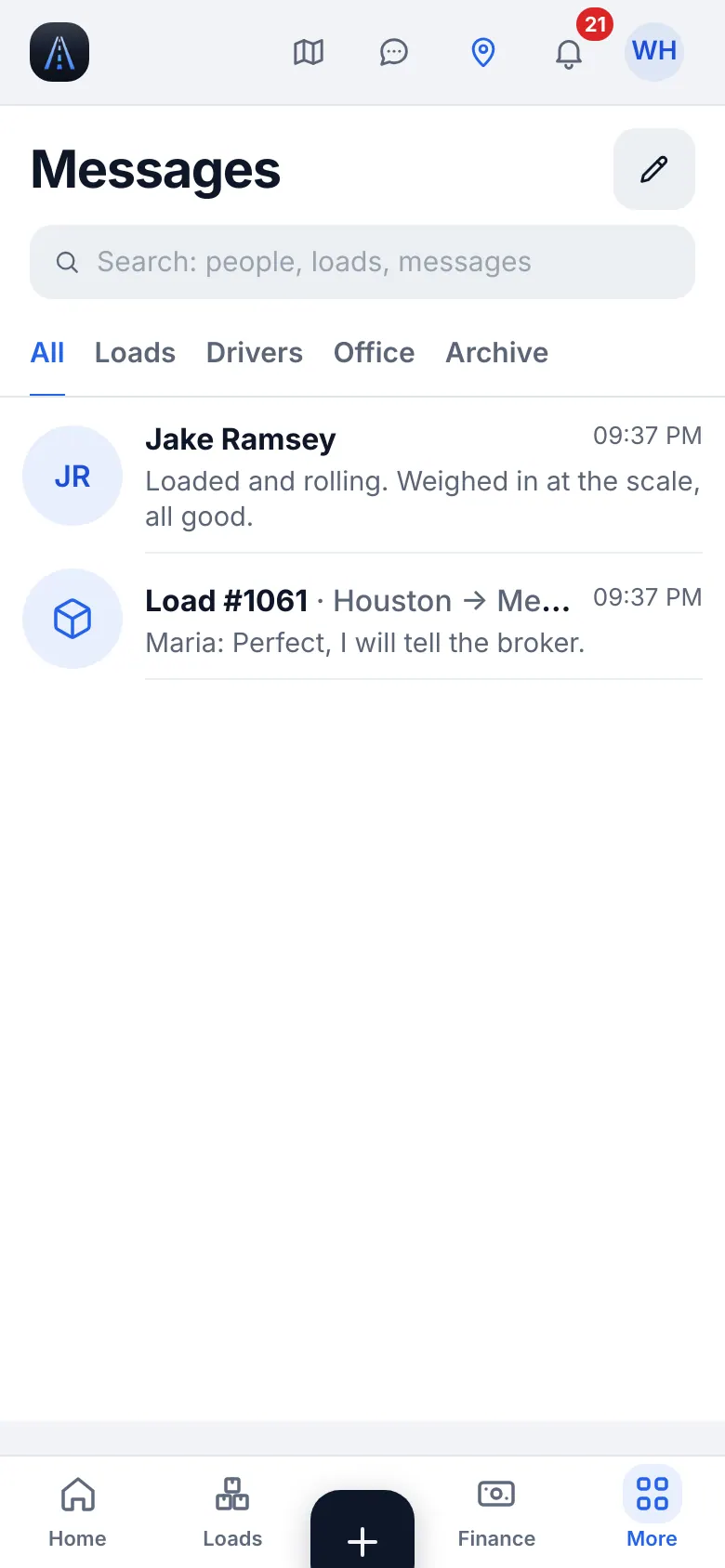
Messages
Messages holds direct chats, group chats and a chat for each load. Attach photos and files. Files you send follow the same permissions as everywhere else.
Website on a phone · Messages - 3
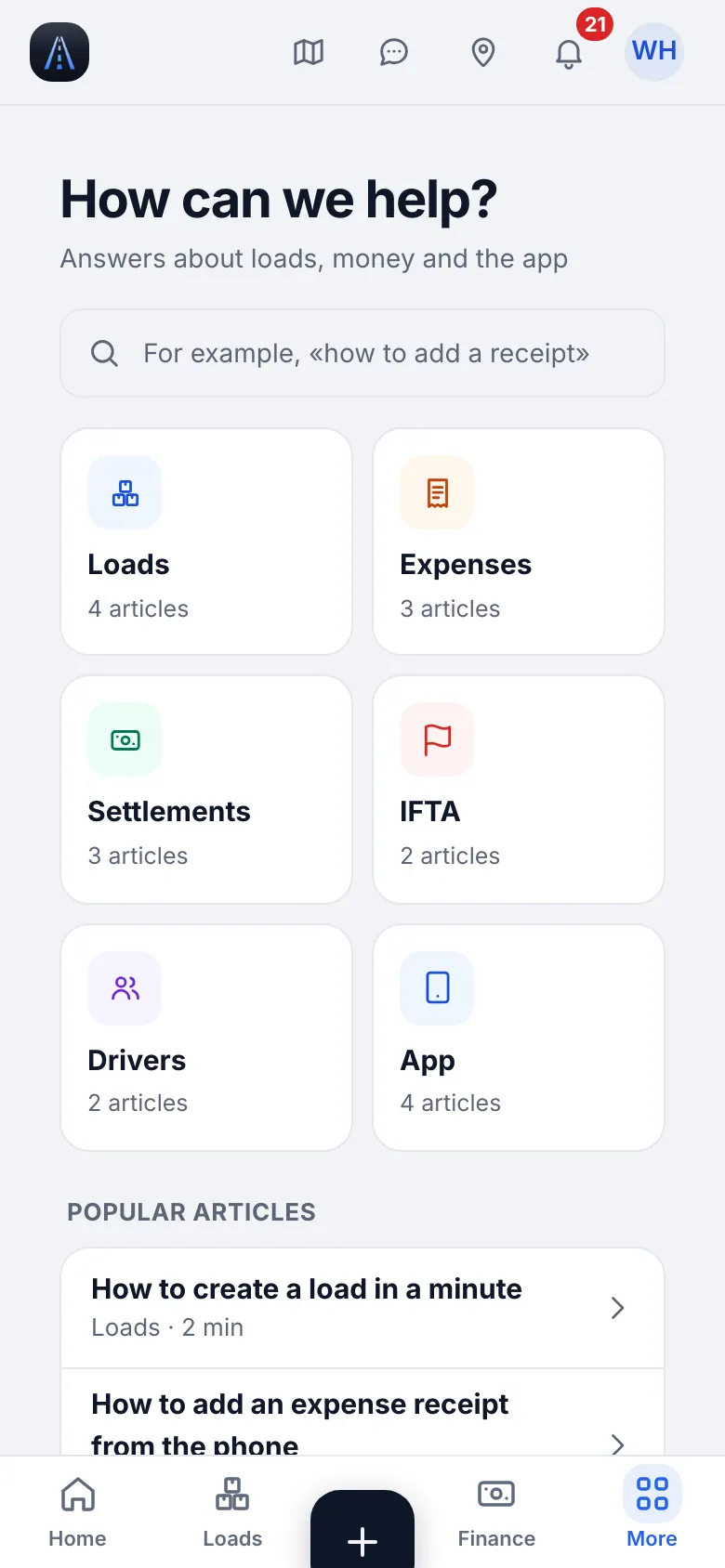
Support chat
Settings & help → Help & support has Write to us and Support chat for questions to the HD Fleet team.
Website on a phone · Help center
26
Settings: account, security and company defaults
Profile, password, sign-in code and the defaults that apply to every load.
- Where to find it
- Website
- Settings & help → Settings
- iOS app
- More → Settings & help → Settings
- 1
Everything in one place
Settings holds your profile, notifications, language and theme, security and the company section: the company card, First steps, Data check, Accessorial terms and Documents & deadlines → Setup. Help & support is next to it.
- 2
Profile and security
Add a photo and your company name, change the password and turn on sign-in by code. Open Settings → Security for password and code.
- 3
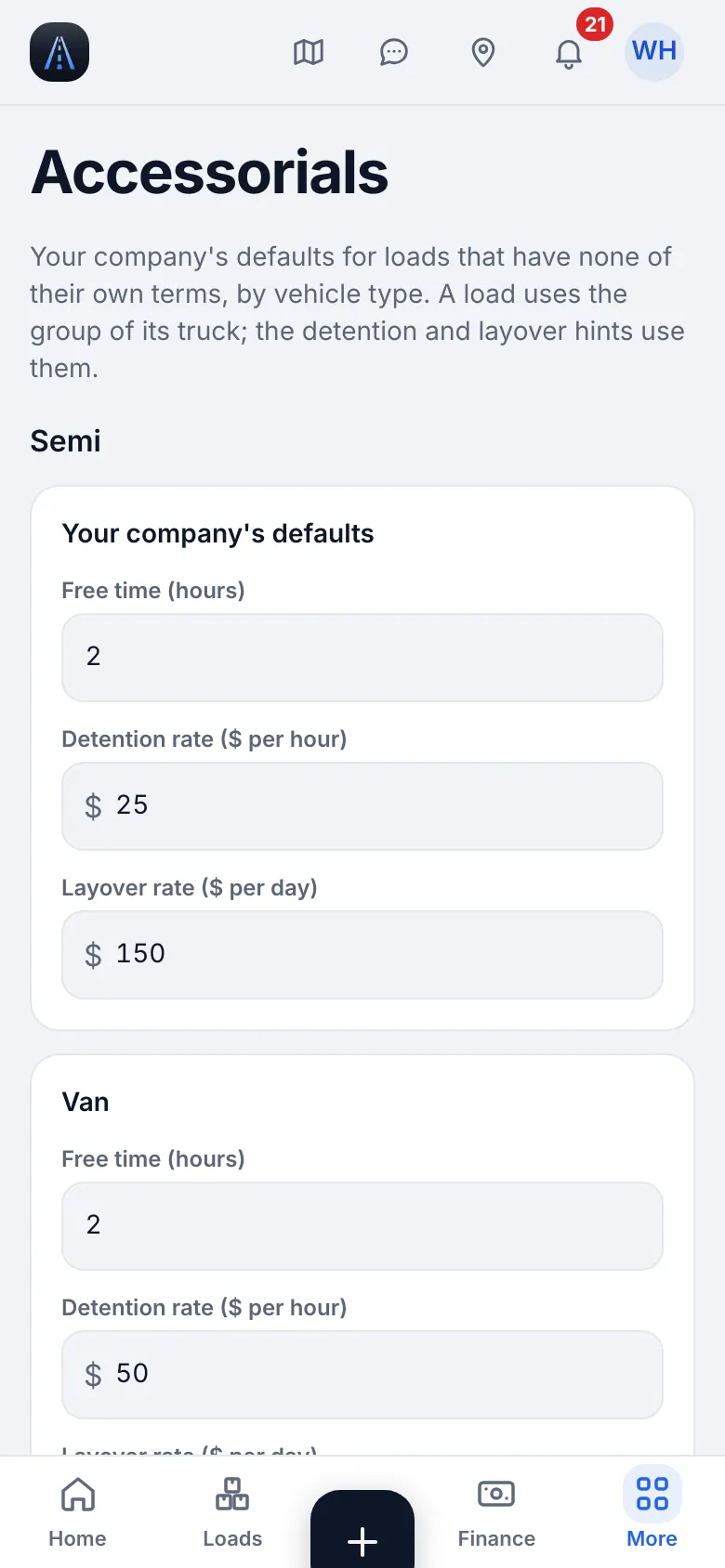
Detention, layover and TONU defaults
Settings → Company → Accessorial terms holds the company defaults (free hours, rate per hour, layover per day, TONU). A load can override them from its rate confirmation.
Website on a phone · Detention, layover and TONU defaults - 4
Tracking alerts
Settings → Tracking alerts decides when the office is told that a driver on a load stopped sending GPS: the waiting time, who is told (owner, dispatcher of the load, all dispatchers, safety or HR), quiet hours and whether the driver gets a fix-it notification. The owner edits; the other office roles can read it.
- 5
Data check
Settings → Company → Data check is a read-only diagnostic that finds where a truck's or a driver's loads and settlements went, across all ledgers and statuses.
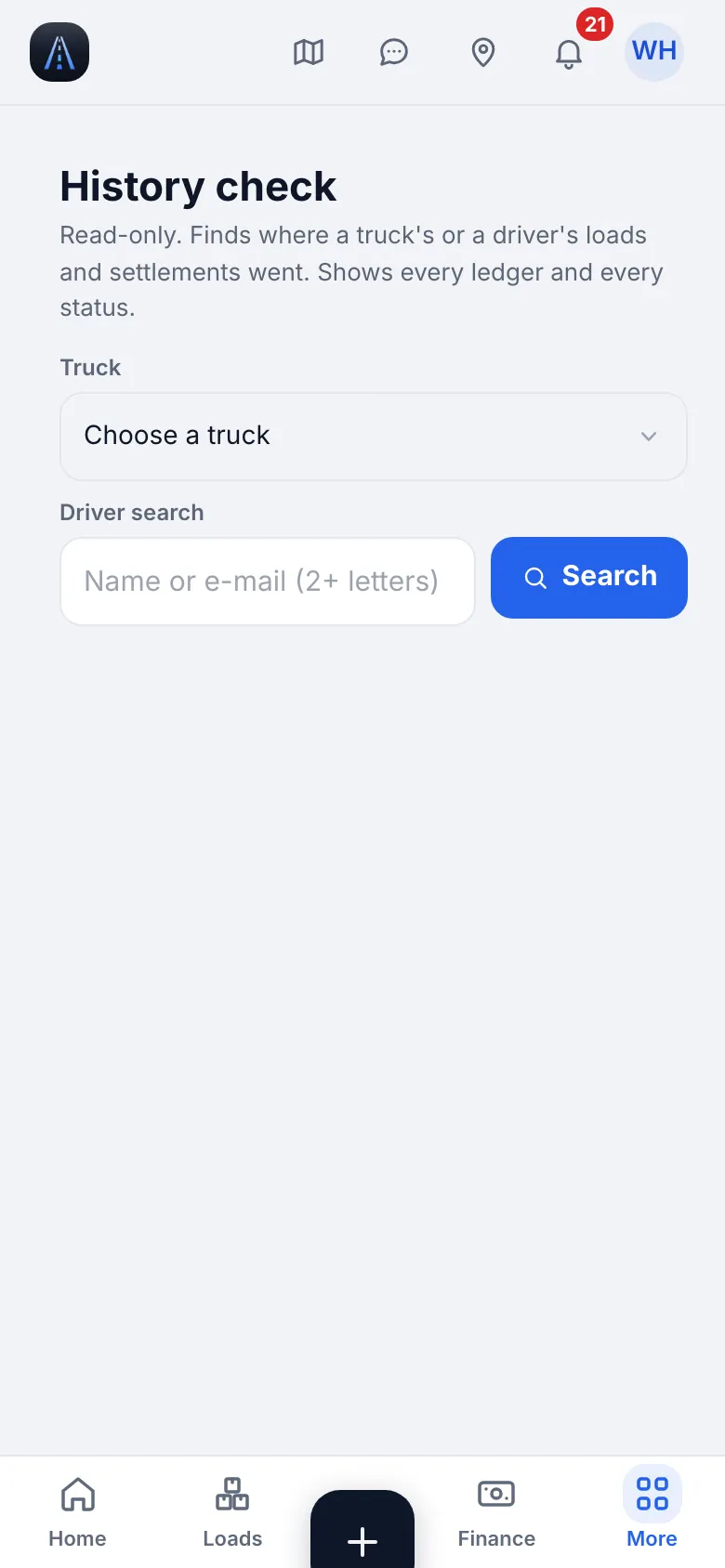
Website on a phone · History check
27
Troubleshooting
The ten-second fixes for the most common problems.
- 1
Where did a page go?
Some pages moved into one place: Receivables aging is Invoices & receivables → Aging, Taxes and Mileage are in Reports & taxes, Market rates is a layer of the Map and Notifications, Language and Security are in Settings. Press ⌘K and type the old name: the search opens the new place. Old bookmarks still work.
- 2
A load says «Not sending GPS»
The driver's phone stopped sending on a load in transit. Tap Ask driver to fix (or Call): he gets a card that says what to change. See GPS health in the Map chapter.
- 3
A driver does not show on the map
On his phone: iPhone Settings → HD Fleet → Location → Always, with Precise Location on. In the app Map → My track tells him what to change. GPS records only on duty or with an active load. The map marks who has not allowed Always.
- 4
«Update the app»
The app is older than the server accepts. Open the App Store, update HD Fleet and open it again.
- 5
The page looks stale or wrong
Refresh the page. On the website a new version loads by itself; on iPhone close and reopen the app. If a phone shows old data, clear the browser cache for the site or sign out and in.
- 6
No signal on the road
Driver actions (steps, receipts, messages) are saved on the phone and sent when the network returns; you see Waiting to send. Nothing is lost and nothing is posted twice.
- 7
Still stuck
Help and support → Write to us attaches your app version, device, role and screen (never passwords) so we can reproduce it.